Review a vendor
Open a discovered app, see who uses it and what it can reach, then approve it, block it, ask the person who introduced it, or revoke its access.
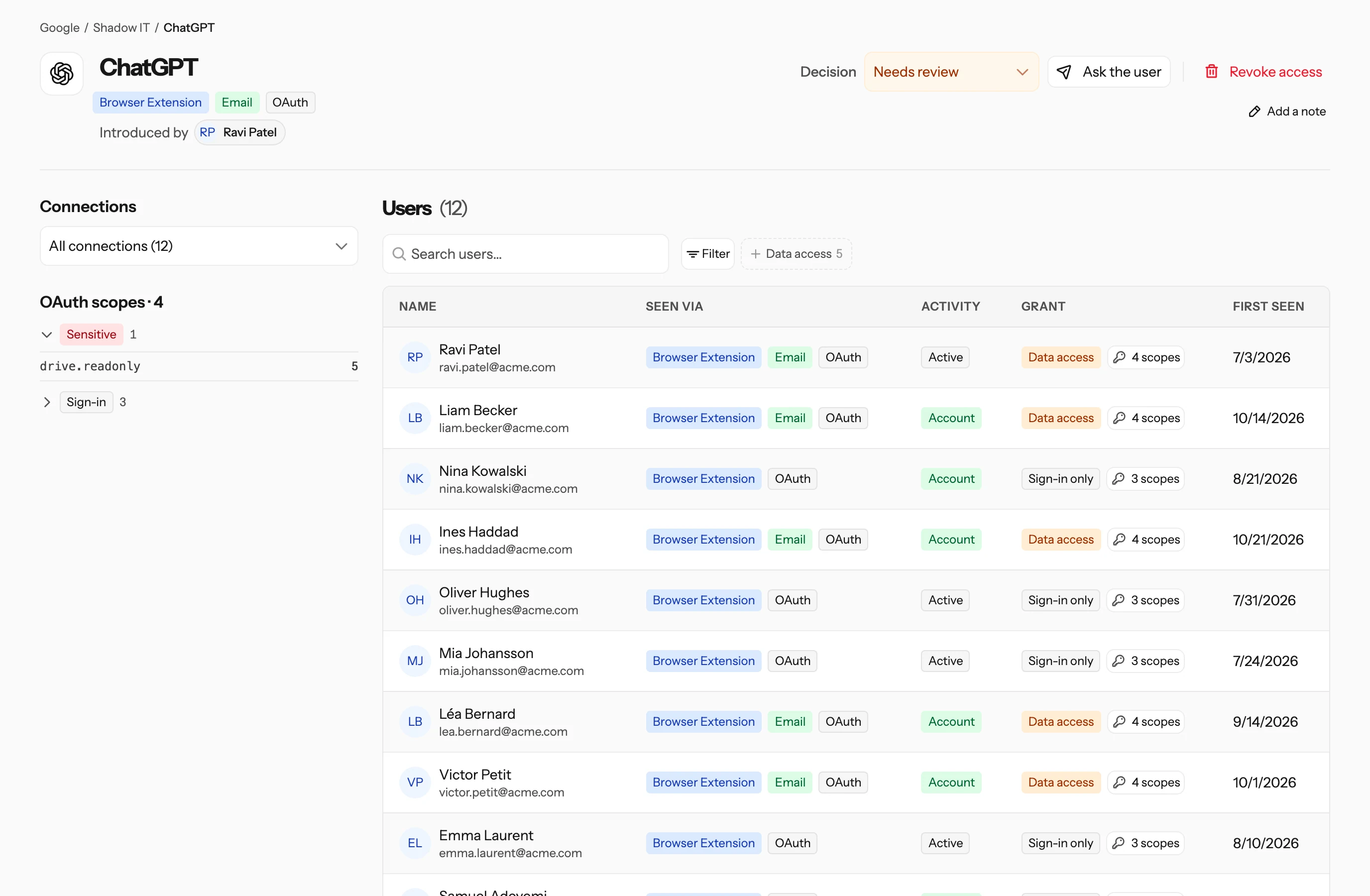
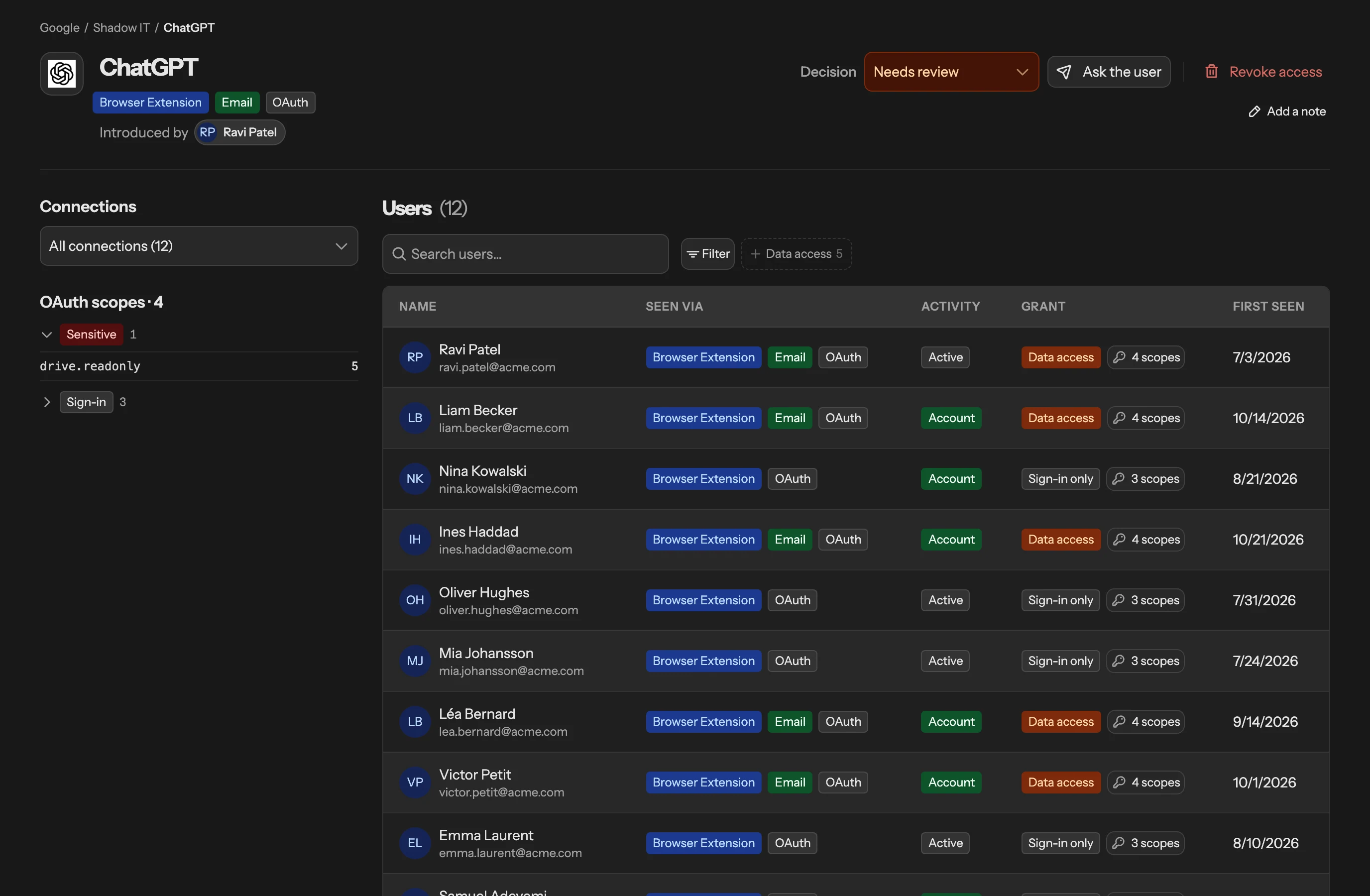
Click an app in Shadow IT to open its page. Everything you need to decide is on one screen: how the app was found, who introduced it, the scopes it holds, and every person using it.
Read the page
- Header: the sources that found the app and Introduced by, the first person who authorized it.
- Connections: when the same vendor was found through several OAuth clients or sources, pick one to narrow the page to it.
- OAuth scopes: grouped worst first (Sensitive, Write, Read, Sign-in), with how many listed people hold each scope.
- Users: who uses the app, Seen via which source, their Activity from the browser extension (Account when they are signed in to the app, Active, or Visited once), their Grant (Data access or Sign-in only, with the scopes behind it), and when they were First seen.
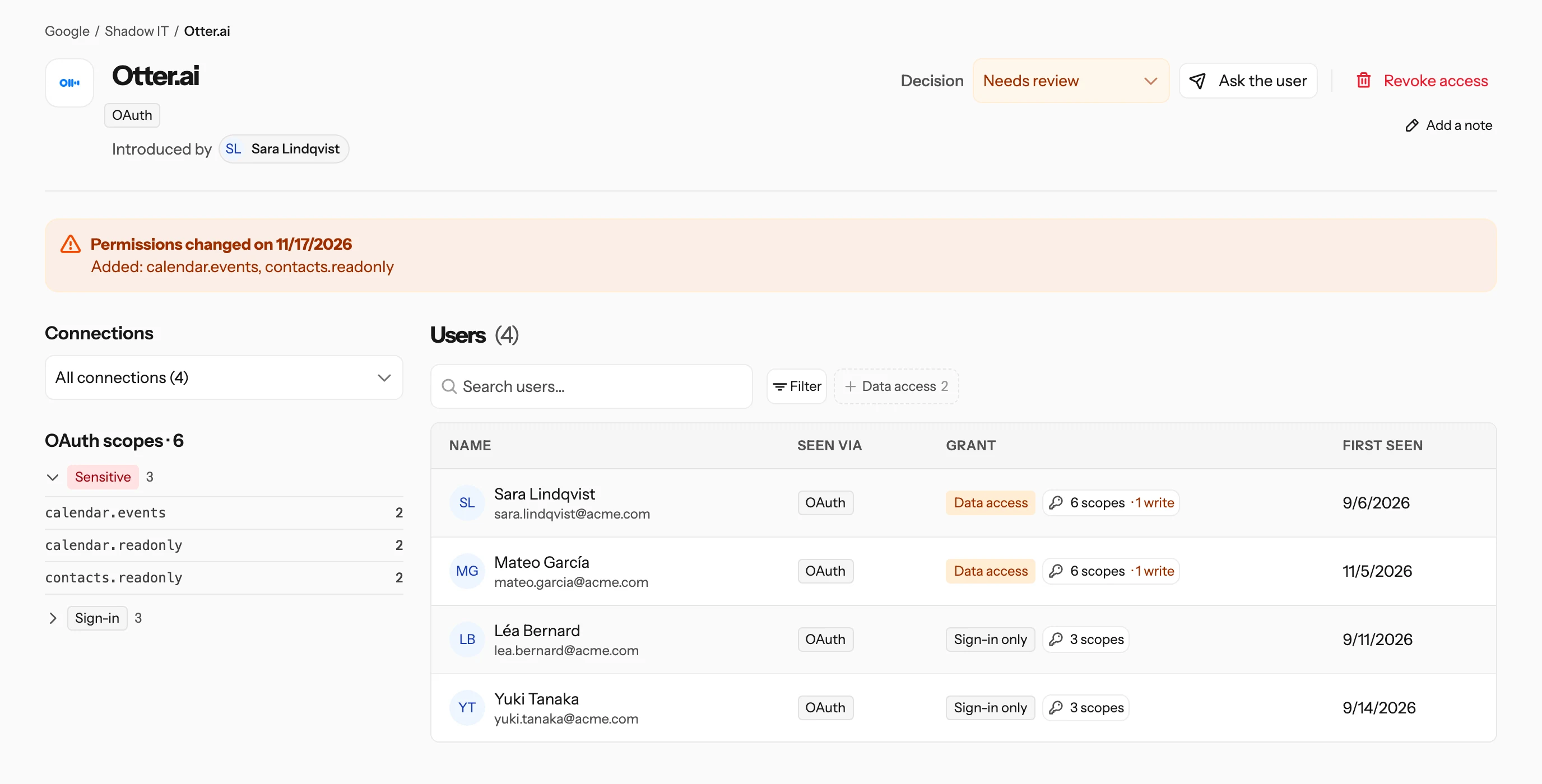
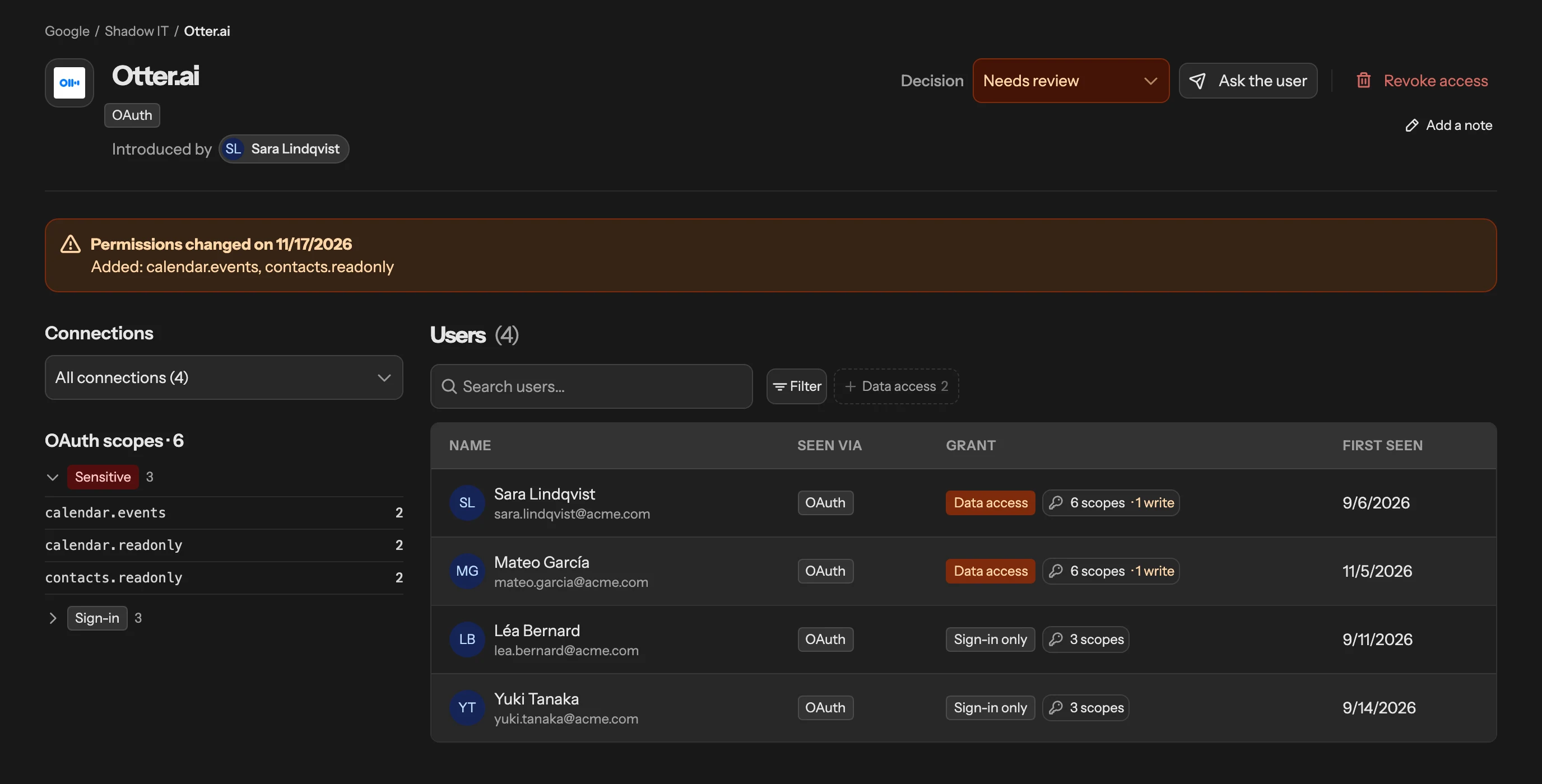
When an app's permissions grew since the last sync, a banner at the top says when and which scopes were added.
Set a decision
The Decision menu holds the three states an app can be in:
| Decision | Meaning |
|---|---|
| Needs review | Not ruled on yet. The app stays in the queue. |
| Approved | Allowed, and sent to your provider allowlist. |
| Blocked | Denied, with the steps to enforce it. |
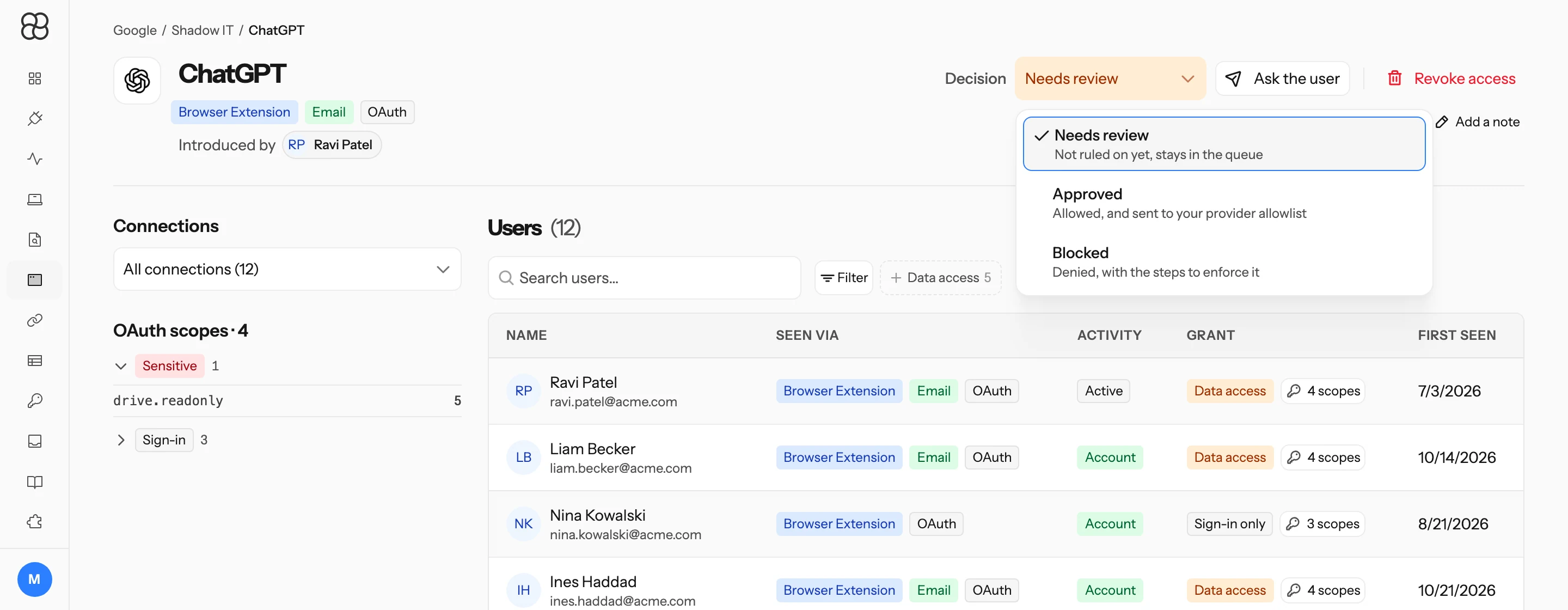
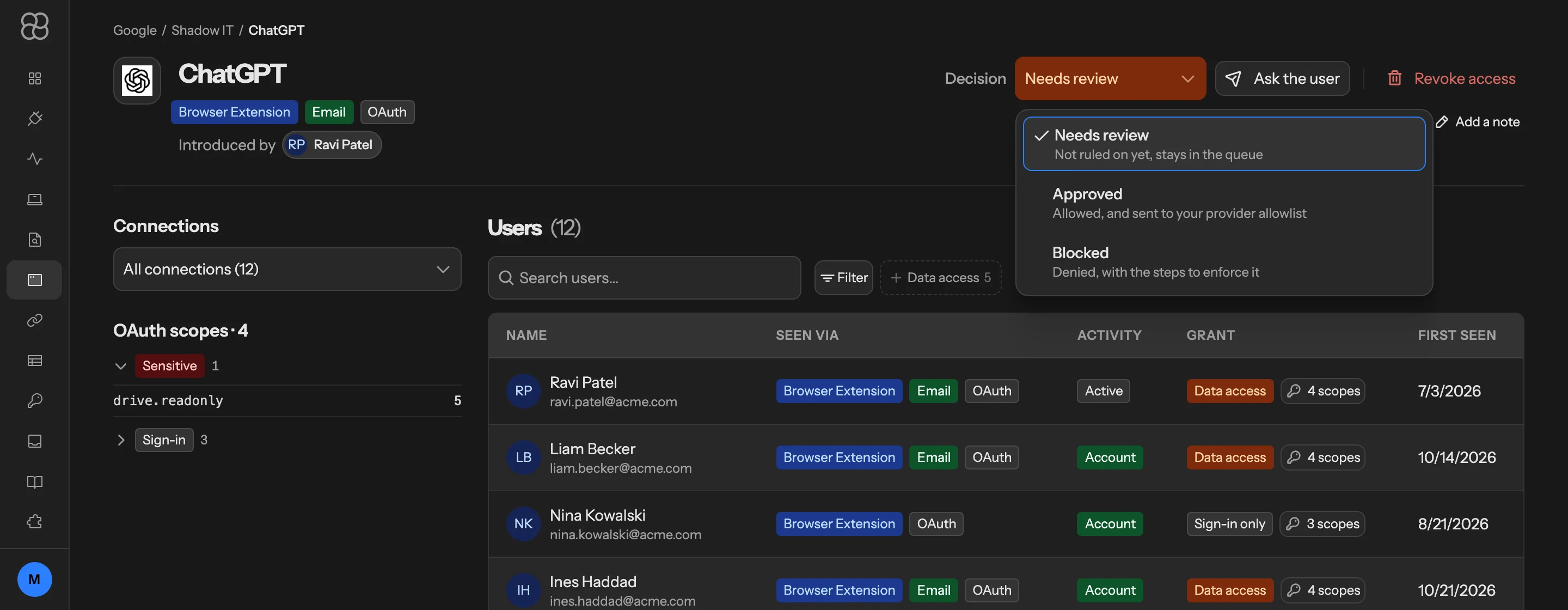
Choosing Blocked asks for confirmation, then opens the steps that enforce the block in Google Workspace or Microsoft Entra ID, because neither provider offers an API to block a third-party app. For Google, Lutril prepares the CSV to upload in the Admin console. Blocking steps reopens them later.
Under the decision, the page shows who decided and when. Add a note records why, so the next person does not have to ask again.
Ask the person who introduced it
Ask the user sends the first authorizer a direct message asking whether they still use the app. Lutril sends it on the chat platform your company uses, Slack or Microsoft Teams. Their answer is added to the app's note with their email and the date, and you see it on this page.
Click Ask the user in the app's header. A confirmation names the person and the platform the message went to.
Revoke access
Revoke access removes the OAuth grants, so people lose access until they authorize the app again. The dialog opens on the narrowest useful option:
- The people listed, when your search or filters narrow the table.
- Who granted access to data, leaving everyone who only signed in.
- All, everyone who ever authorized the app. When that is more than ten people, you type the app's name to confirm.
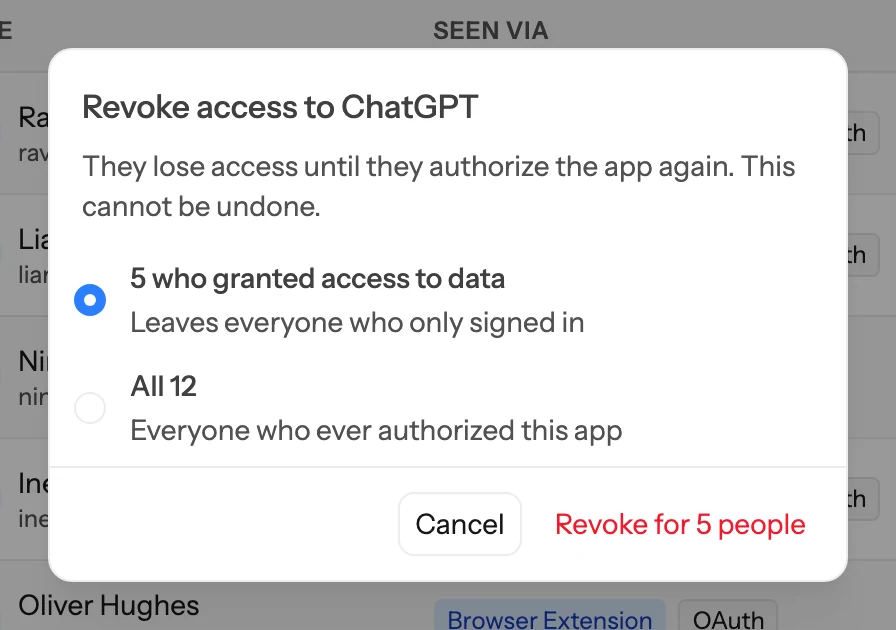
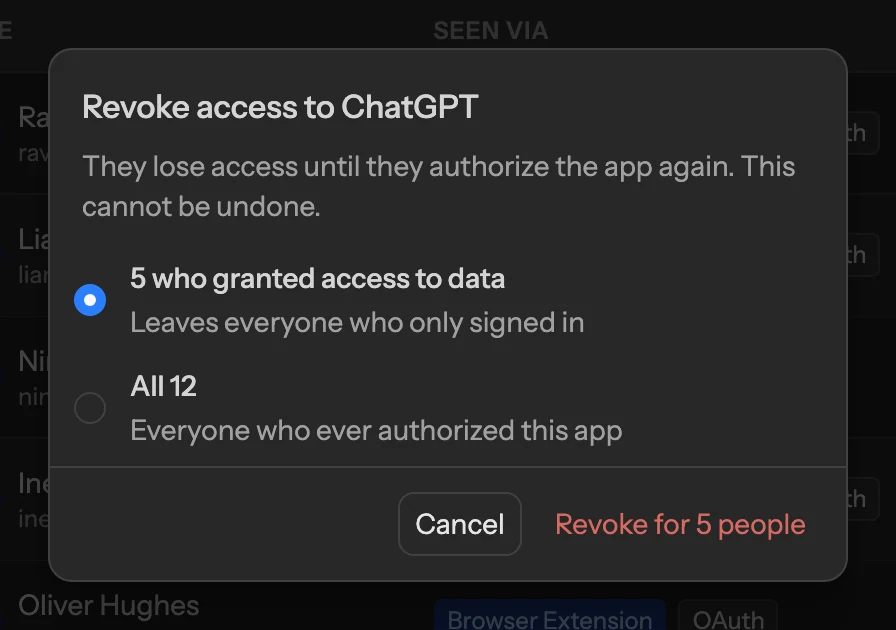
Lutril reports exactly what happened. If some grants could not be revoked individually, for example an app an administrator consented to for the whole organization, the message says how many still have access and you stay on the page.
An app found only by the browser extension or email discovery has no token to revoke. Its page says so instead of offering the button.