MCP gateway
Serve MCP servers to AI agents through Lutril, decide which tools they may run, refuse risky argument values, and cut off access in one click.
The Lutril MCP gateway sits between AI clients (Claude, ChatGPT, Claude Code, Cursor, VS Code) and the SaaS tools they call. Each MCP server you create gets its own URL. Every call through it is authenticated as a person in your directory, checked against the tools you enabled and the argument rules you wrote, and logged in MCP Activity.
Before you start
- You need the Owner or Admin role to create and configure servers.
- To serve one of Lutril's integrations (HubSpot, Notion, Slack, Mixpanel, Redmine), connect it first in Settings > Integrations.
The server list
Open AI Governance > MCP Servers. Each row is one server, its Upstream identity, how its tools are exposed, its Calls (30d), its Last tool call and its State.
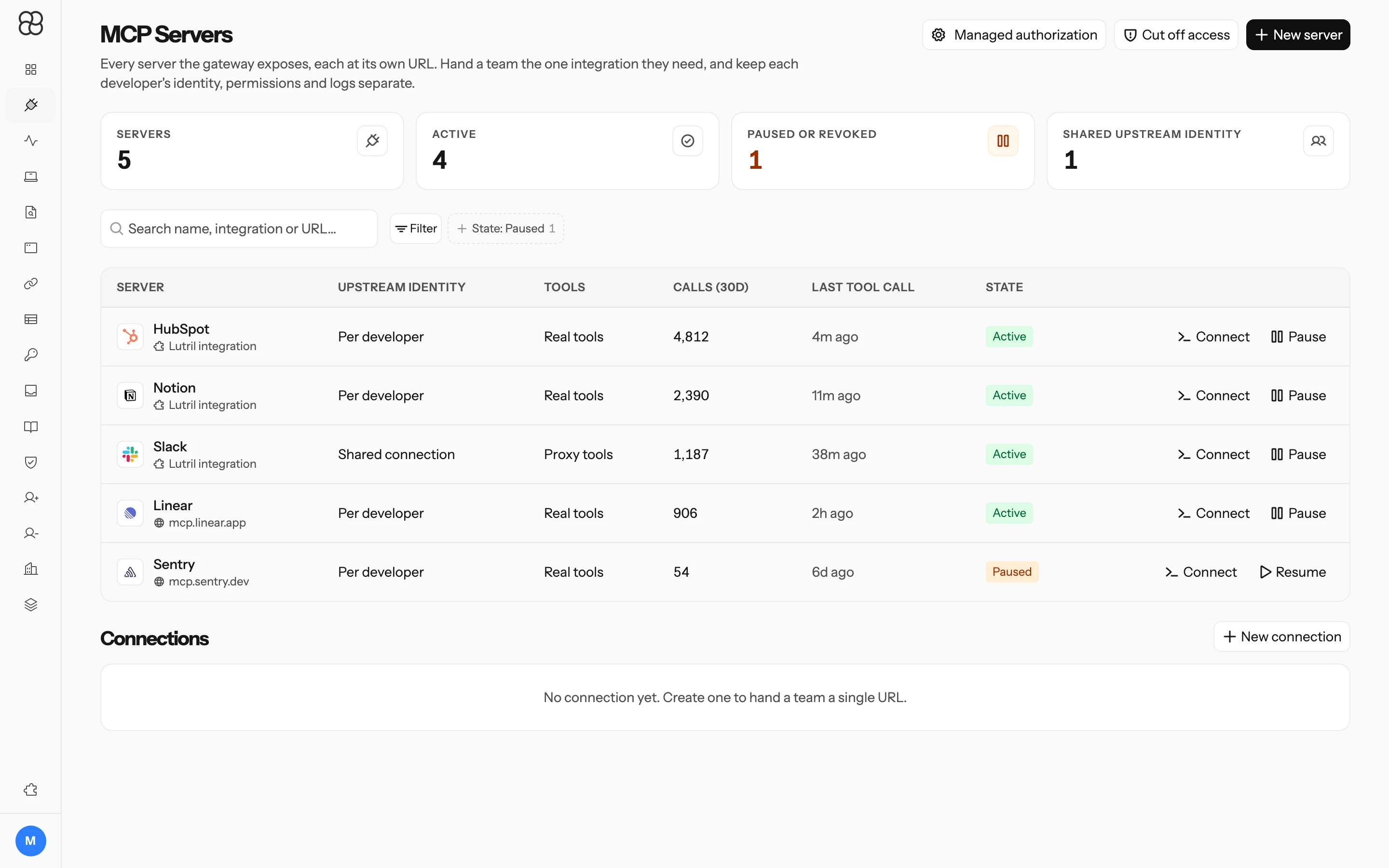
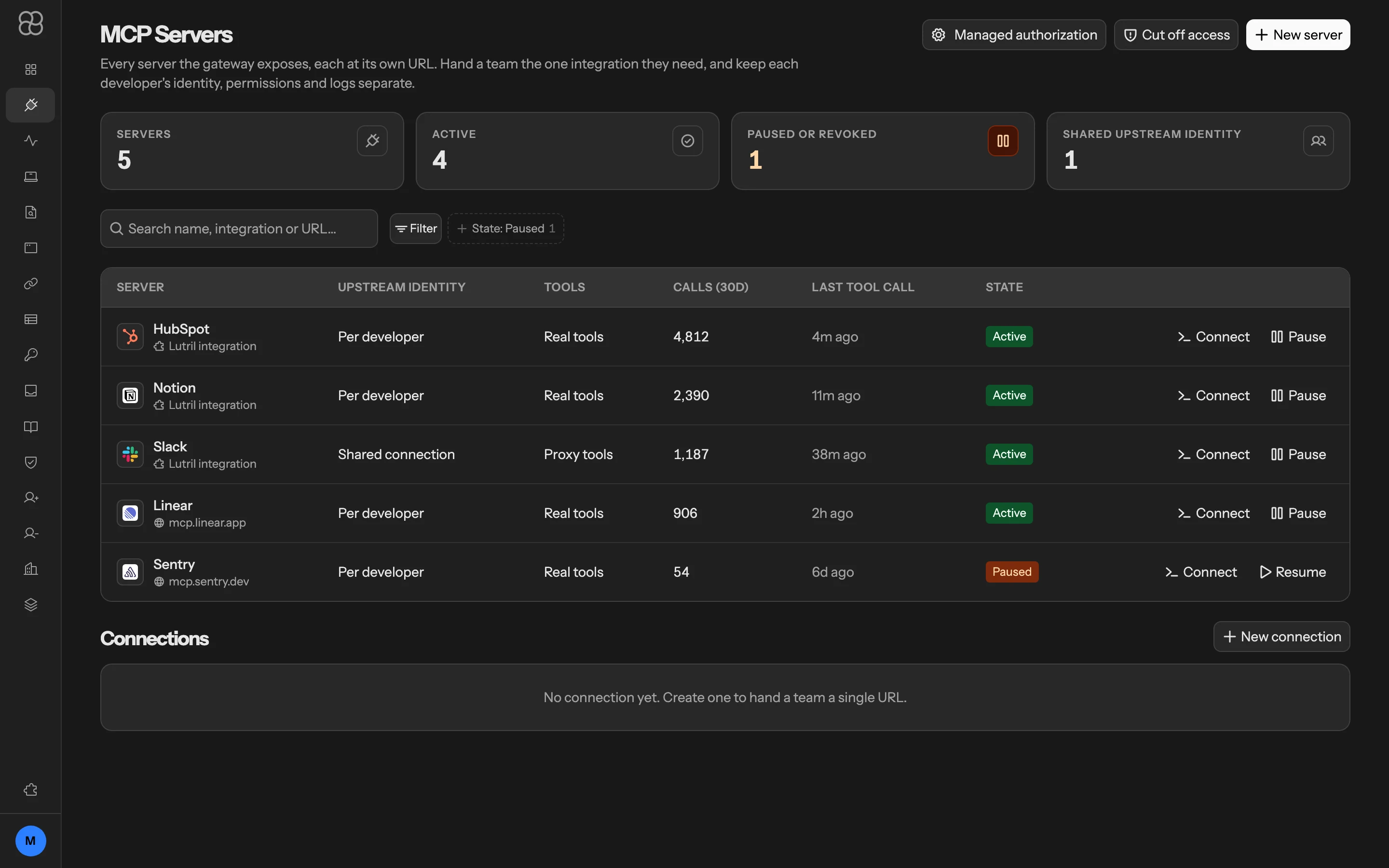
From a row, Connect shows the snippet to paste into a client, and Pause refuses every call to that server until you Resume it. Its configuration is kept.
Add a server
Open the form
Click New server.
Choose what it serves
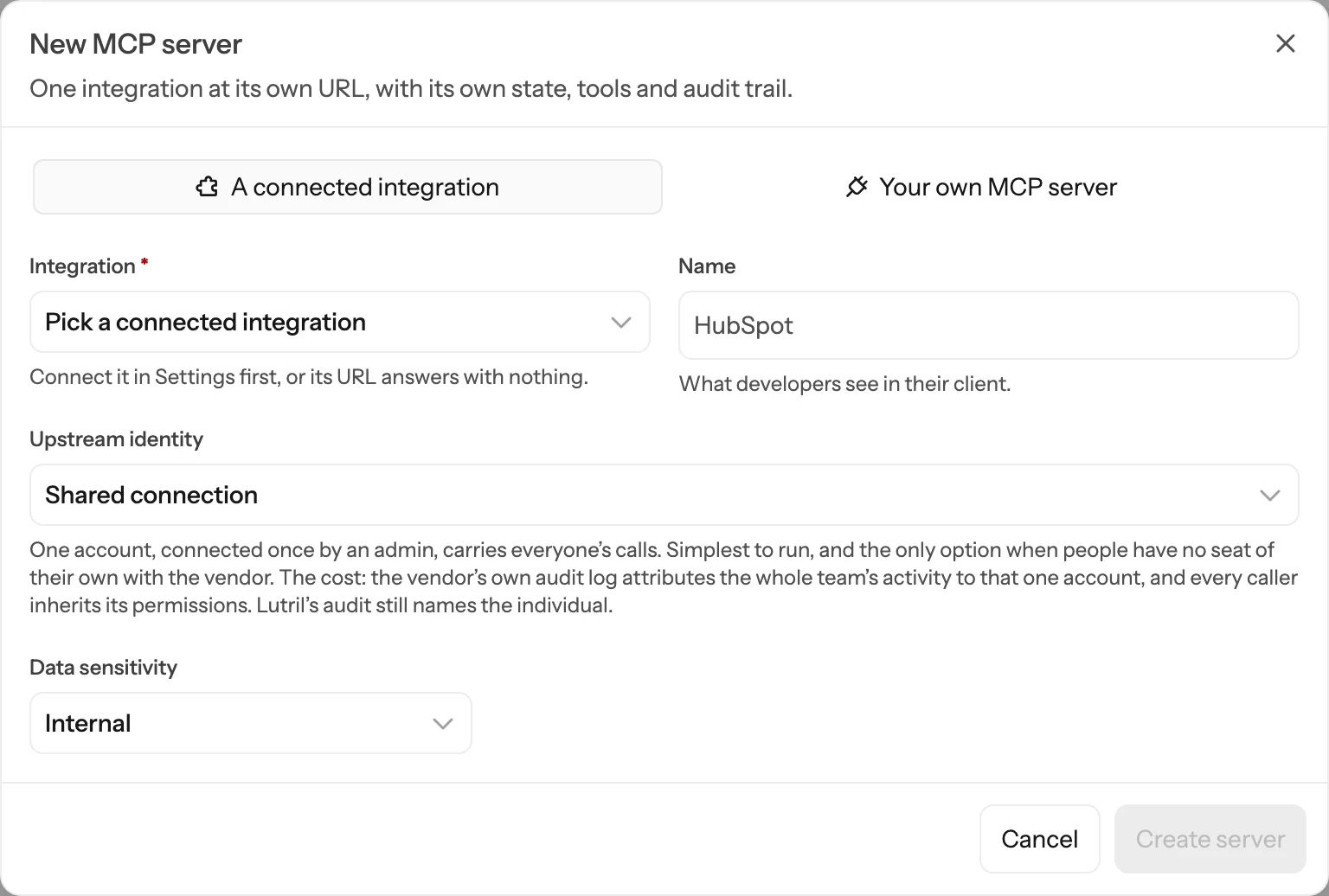
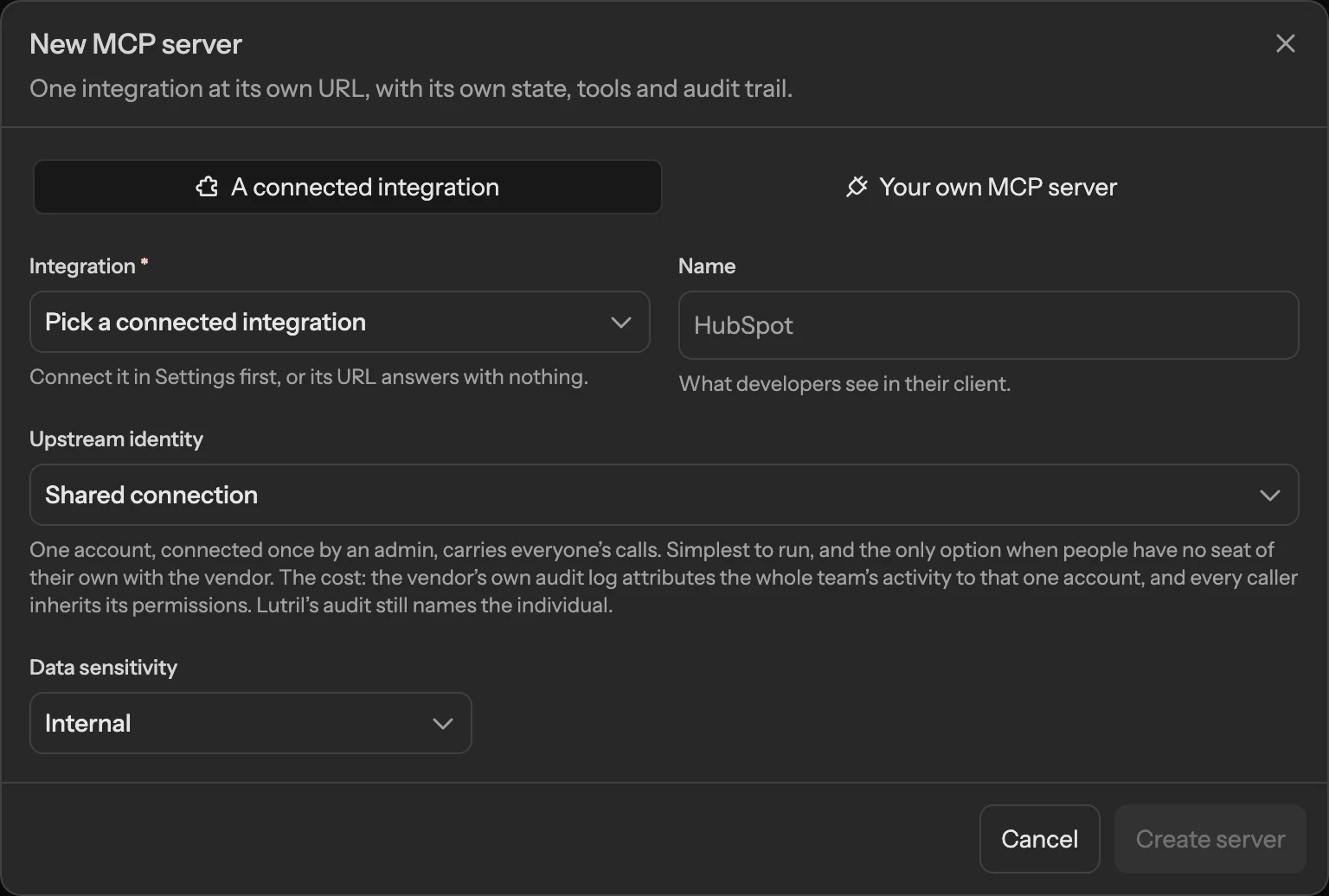
- A connected integration: pick the Integration and give it a Name.
- Your own MCP server: any remote MCP server that speaks Streamable HTTP over https. Give it a Name, a Tool prefix (it namespaces the tools and names the server in access requests), the Endpoint URL and its Authentication (OAuth, None, Bearer token or Custom header). A credential is encrypted at rest and never shown again. The URL is rechecked on every call, so a host that later resolves to a private address stops working.
Choose the upstream identity
- Per developer: each person connects their own account, and their calls leave with their own token. The vendor's audit log names who acted, and the vendor's own permissions bound what each person can do. People without a seat at the vendor cannot use the server.
- Shared connection: one account, connected once by an admin, carries everyone's calls. The vendor sees that one account, but Lutril's audit still names the individual.
Set the data sensitivity and create
Pick Public, Internal, Confidential or Restricted, then click Create server.
A remote server people already configure on their laptops can also be promoted from MCP Discovery, with the form prefilled from what the fleet uses.
Connect a client
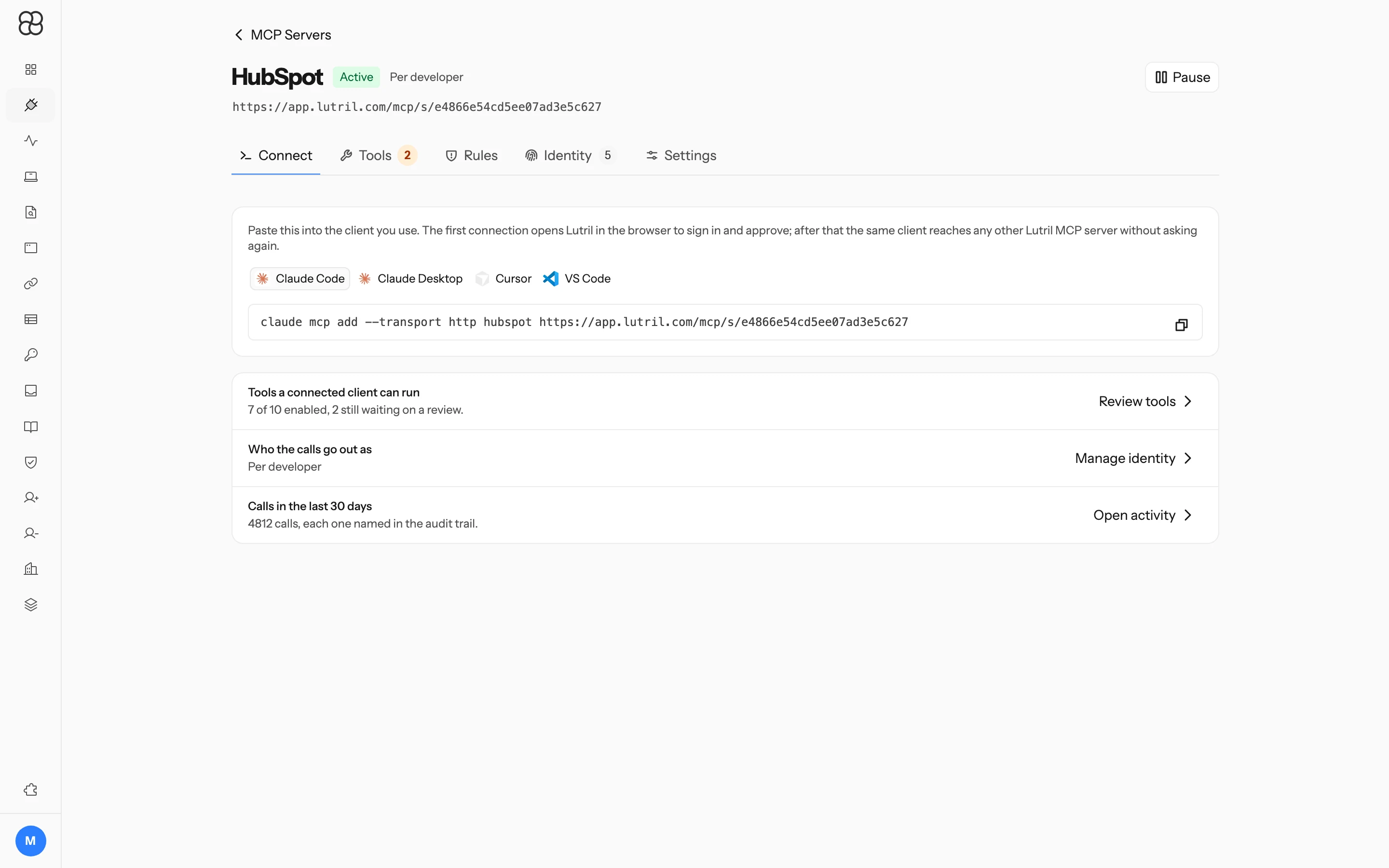
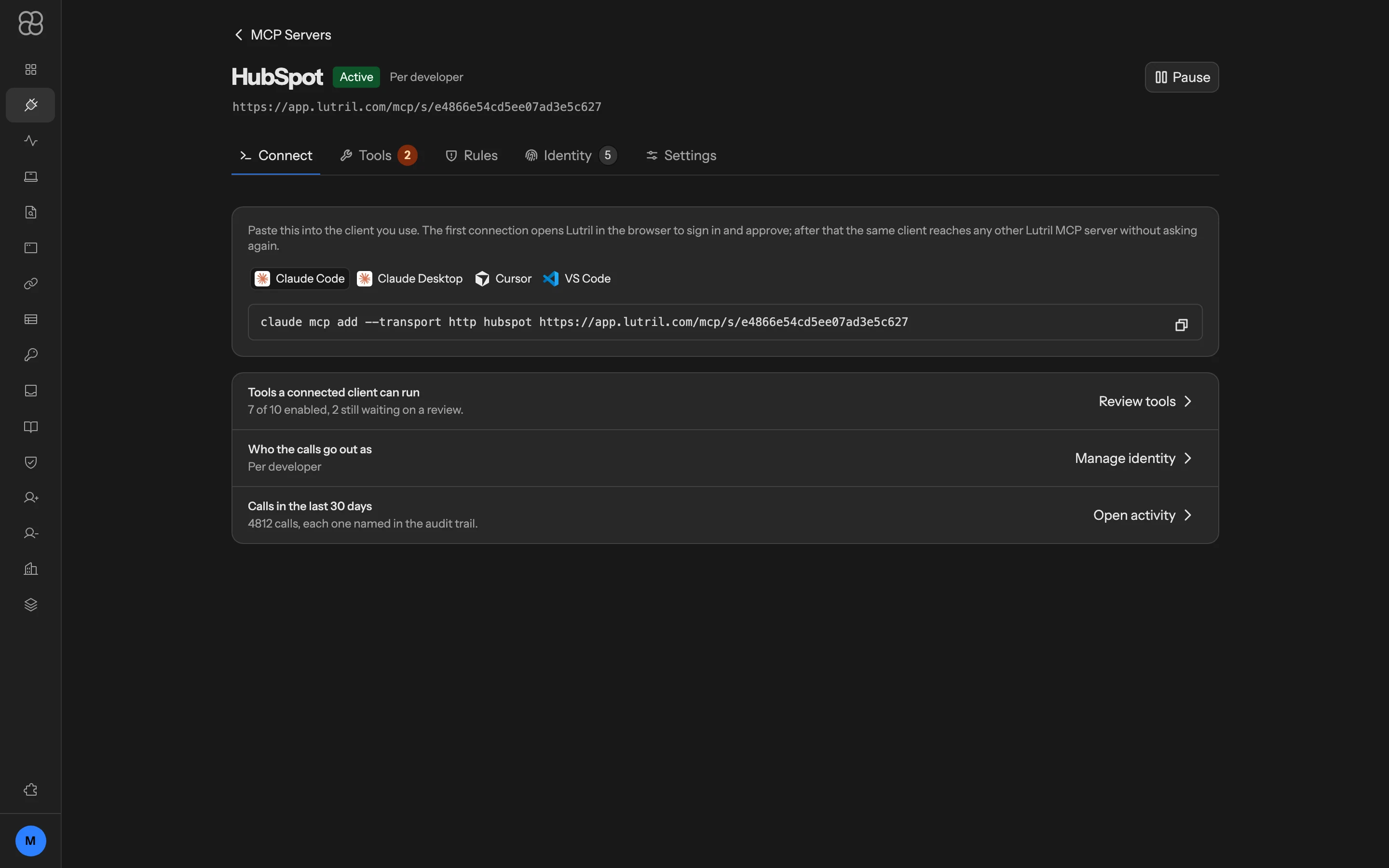
Open the server and stay on the Connect tab. Pick Claude Code, Claude Desktop, Cursor or VS Code and copy the snippet. The first connection opens Lutril in the browser to sign in and approve; after that the same client reaches your other Lutril MCP servers without asking again.
To hand a team several servers behind one URL, create a Connection at the bottom of the MCP Servers page with New connection. A connection grants nothing on its own: each server still applies its own tools and rules.
Decide which tools run
The Tools tab is the inventory of what the vendor exposes. Refresh from vendor reads it again. A tool that appears for the first time arrives disabled and marked Needs review, so nothing new runs until someone approves it.
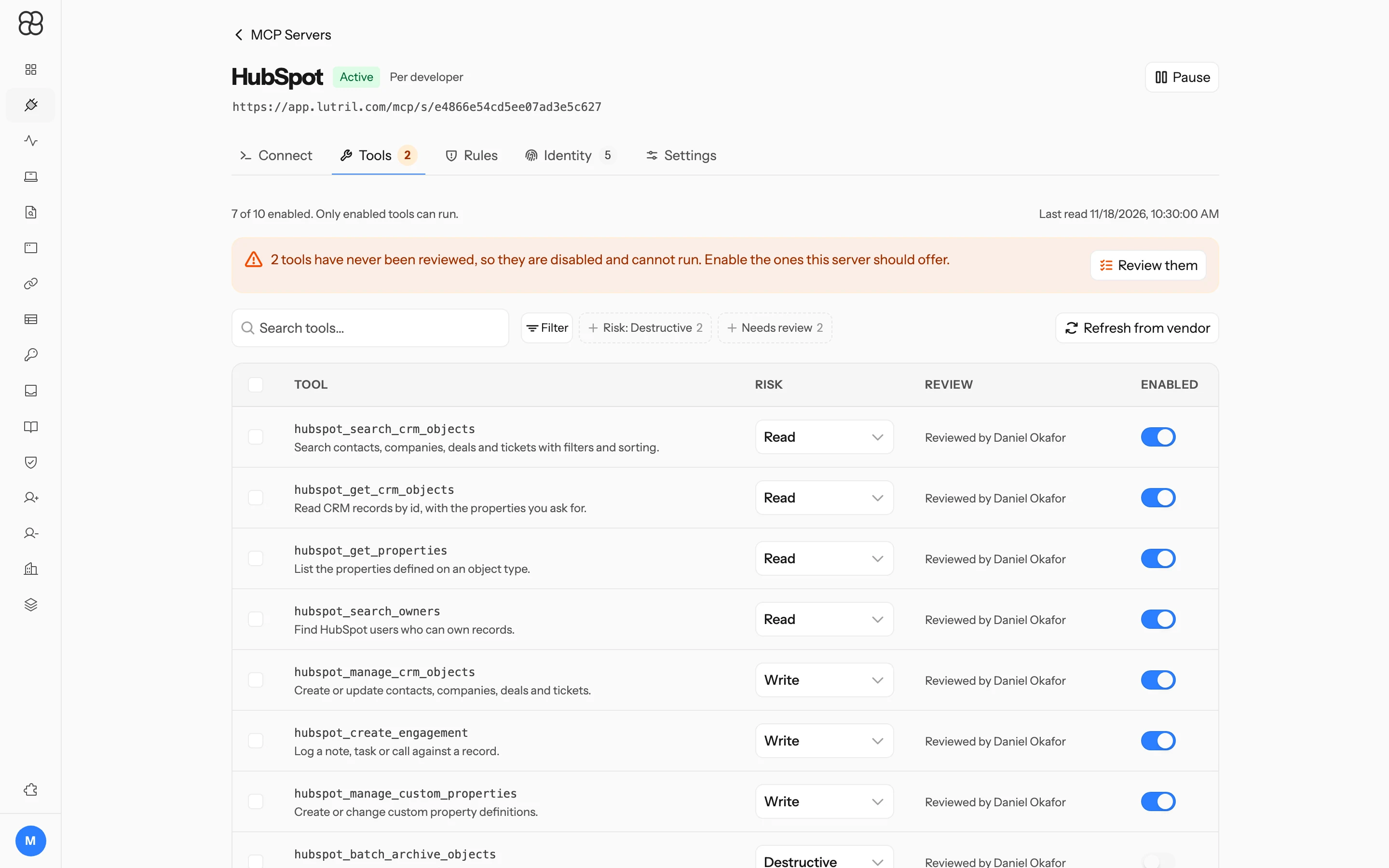
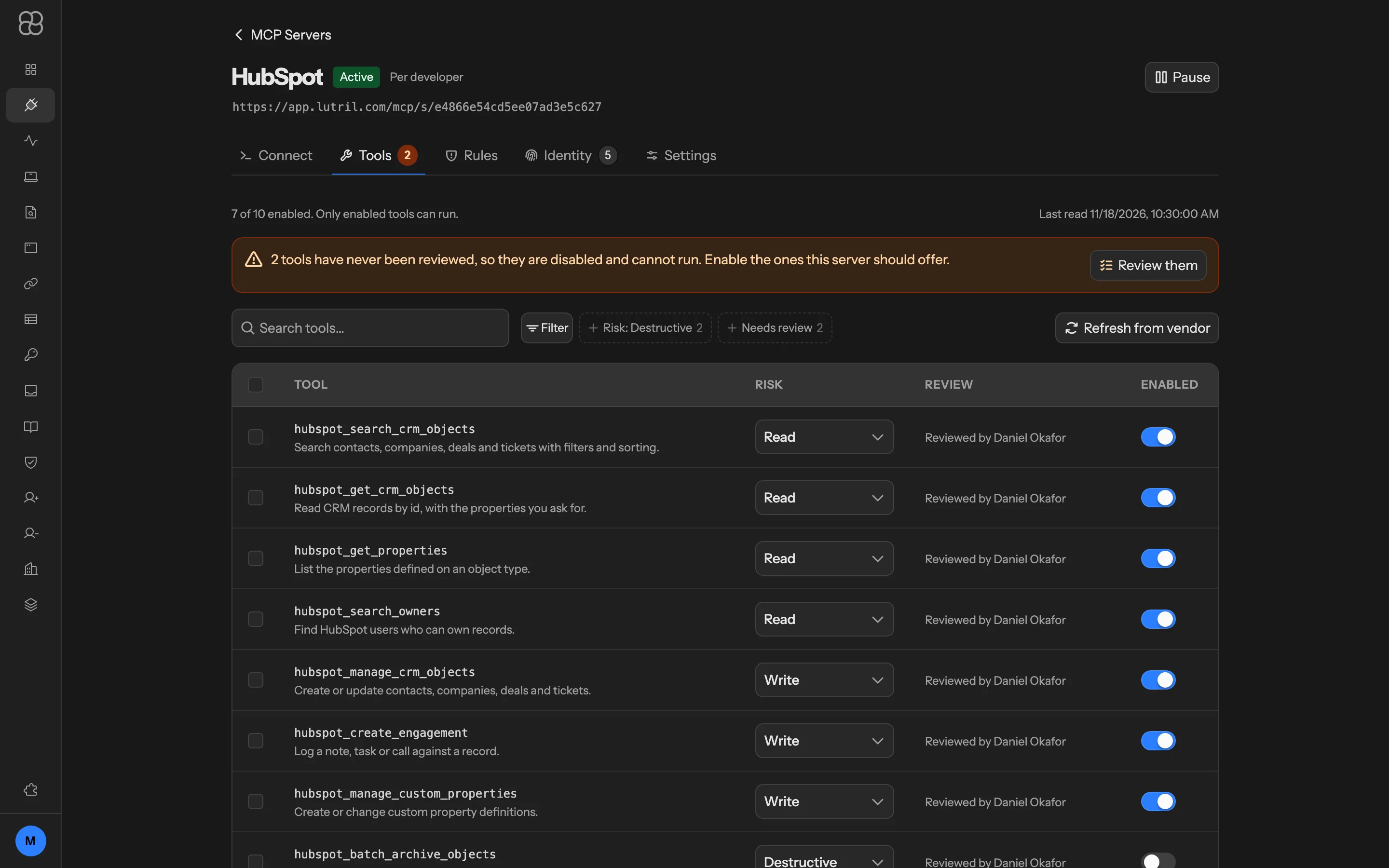
- Risk is Read, Write or Destructive. It starts from the vendor's own annotation (or Lutril's curated list) and you can override it. A tool nobody classified is treated as a write.
- Enabled turns a tool on or off and records your review.
- Tick several tools to Enable, Disable or Set risk in one go. Enabling destructive tools asks you to confirm.
A tool classified Write or Destructive also needs a write grant for the person whose agent calls it. The agent asks for one itself, and the app owner decides from Slack, Teams or the app. See Agent access requests.
Refuse risky argument values
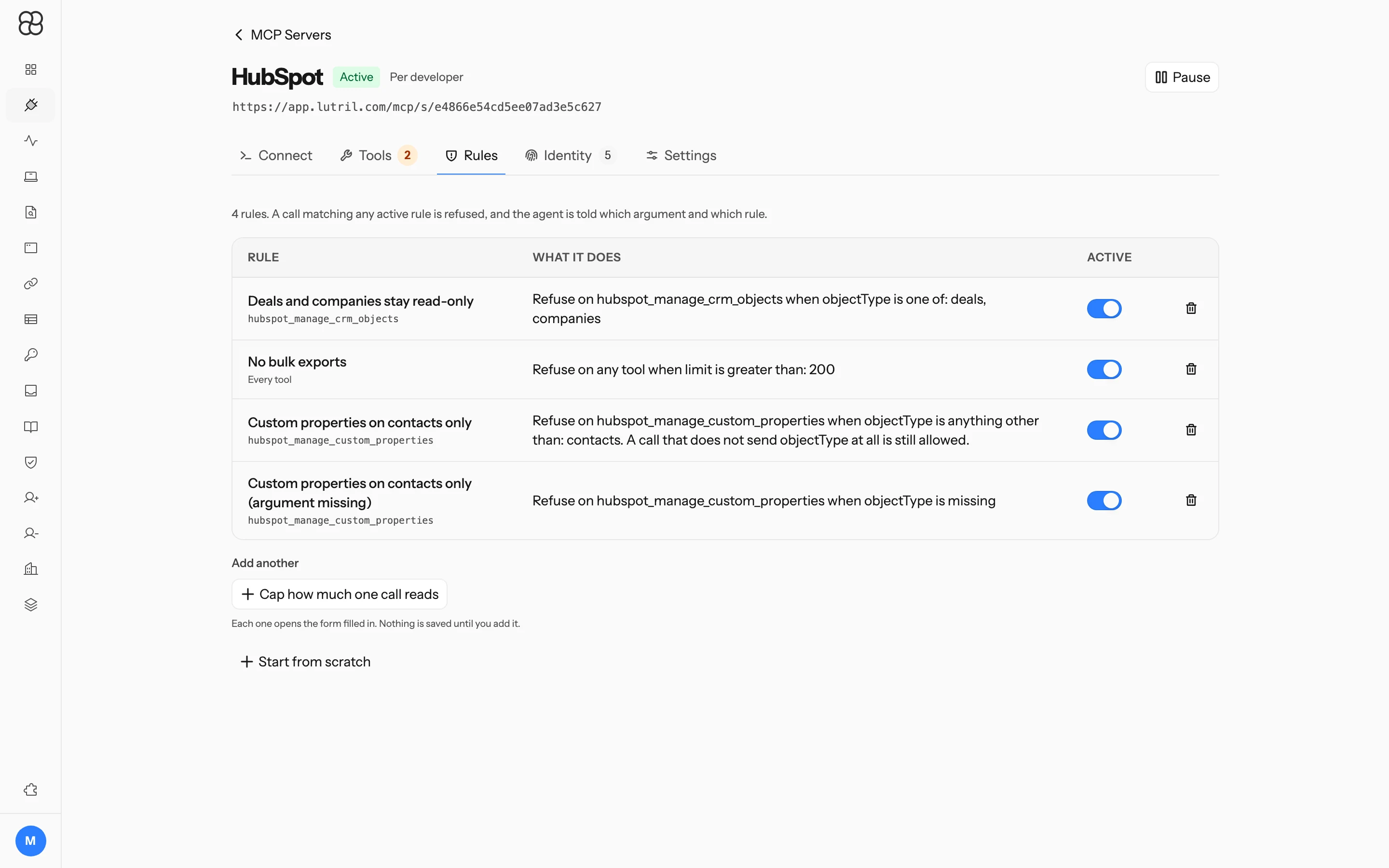
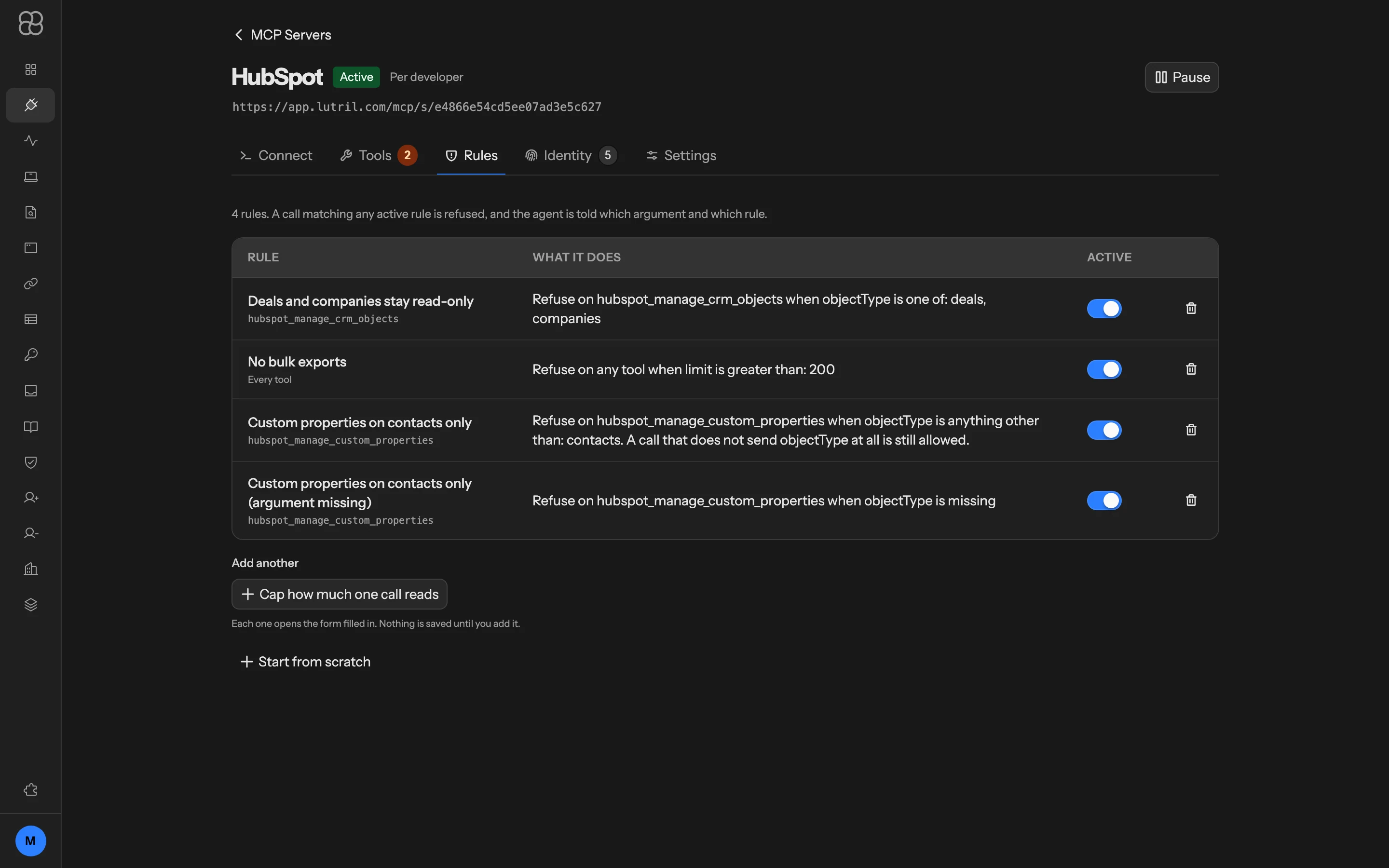
The Rules tab decides which values are refused once a tool is allowed. A rule watches one argument, on one tool or on every tool of the server, and refuses the call when the condition matches. The agent is told which argument and which rule, so it can say what to change.
Start a rule
Click one of the suggestions under Common rules for this server (they are built from arguments this server's tools really accept), or Start from scratch.
Fill in the rule
- Tool: one tool, or Every tool on this server.
- Argument: picked from the parameters the tools accept, or a dotted path for a nested one.
- Condition: is one of (refuses the values you list, the usual choice), is anything other than (an allow list: refuses everything except your values), ends with any of, is exactly, is longer than, is greater than, is less than, is present or is missing.
- Values and a Name. The name is what the agent is shown when a call is refused.
Read it back, then add it
Before you save, the rule is written out as a sentence, for example "Refuse on any tool when limit is greater than: 200". Check the direction, then click Add rule. It applies within a few seconds.
Allow lists and missing arguments
An is anything other than rule does not refuse a call that leaves the argument out. When you write one, keep Also refuse a call that does not send the argument ticked: Lutril adds a second rule for the missing case, and the button reads Add 2 rules.
Settings
The Settings tab holds the server's Name, its Tool exposure (Real tools: agents see the vendor's own tools and schemas; Proxy tools: one call tool per server), its Data sensitivity, and Payload inspection:
- Off: arguments and responses are not read.
- Record only: personal data and secrets found in calls are counted in the audit trail. Nothing is changed or refused. A good first step to see what actually flows.
- Mask and refuse: responses are masked before the model sees them, and a call carrying personal data or a secret in its arguments is refused. Arguments are never rewritten.
The Identity tab lists who has connected their own account on a Per developer server.
Cut off all access
Cut off access at the top of MCP Servers stops every agent and every developer from reaching every MCP server on their next call, within seconds, and no new token can be issued while it stands. Calls already in flight upstream are not interrupted. Restore access lifts it.
Managed authorization
Managed authorization lets your identity provider vouch for your people, so they reach these servers without a separate sign-in. It settles who is calling; what they may call is still decided by the tools and rules above.
AI agents in source code
Find the AI agents your developers build in GitHub and GitLab repositories, see what each one can do, and give it an owner.
MCP Activity
Read every tool call AI agents make through the Lutril MCP gateway, and decide on the write access they ask for from the app, Slack or Teams.