Departments
See your teams as your identity provider organizes them, who is in each one, and what onboardings and offboardings touched them.
Departments mirror the organizational units (or departments) of your identity provider. For each one, Lutril shows its members, their sign-in and MFA status, and the provisioning activity of onboardings and offboardings. It is also the fastest place to onboard someone into a team or offboard someone on the spot.
Before you start
- Your identity provider is connected and has synced (see Connect your identity provider). Departments come from it: Lutril does not create them.
- Offboarding someone from here needs the Owner or Admin role.
Browse departments
Open People > Departments. Each row shows the department, its number of Users with a few of their initials, and how many people were Recently Onboarded and Recently Offboarded. A department with sub-departments expands when you click it; a department without opens its page. Search finds departments by name and by member.
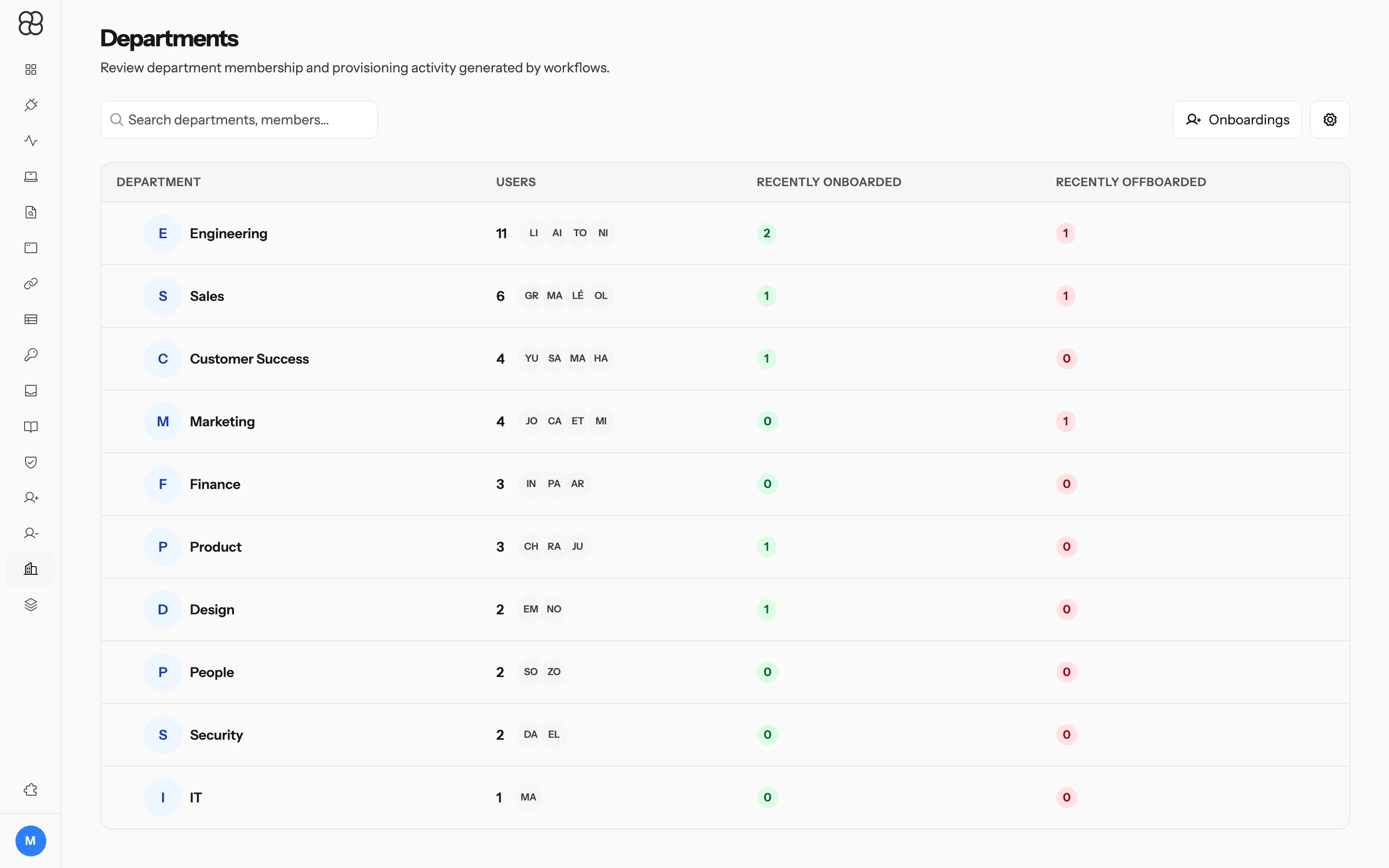
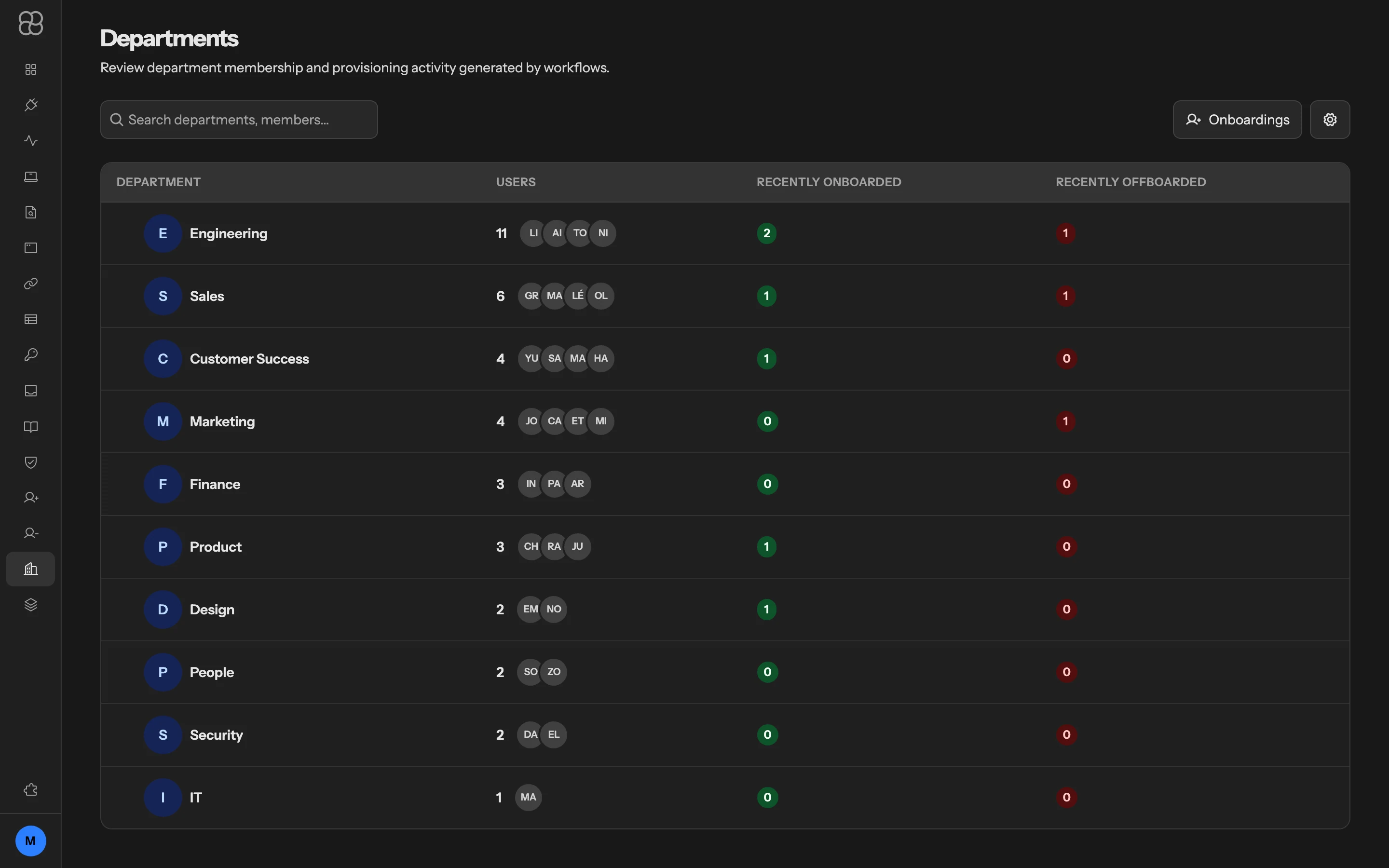
Onboardings opens the onboarding list. The gear icon opens Workflow Automation:
- Directory: the identity provider Lutril uses for provisioning data.
- Provisioning Automation: automatically detect and process new employees. When it is off, you process every new hire yourself.
A department's page
Click a department to open it. The cards count Total Members, Active, Inactive and Stale members (no sign-in for the number of days shown on the card).
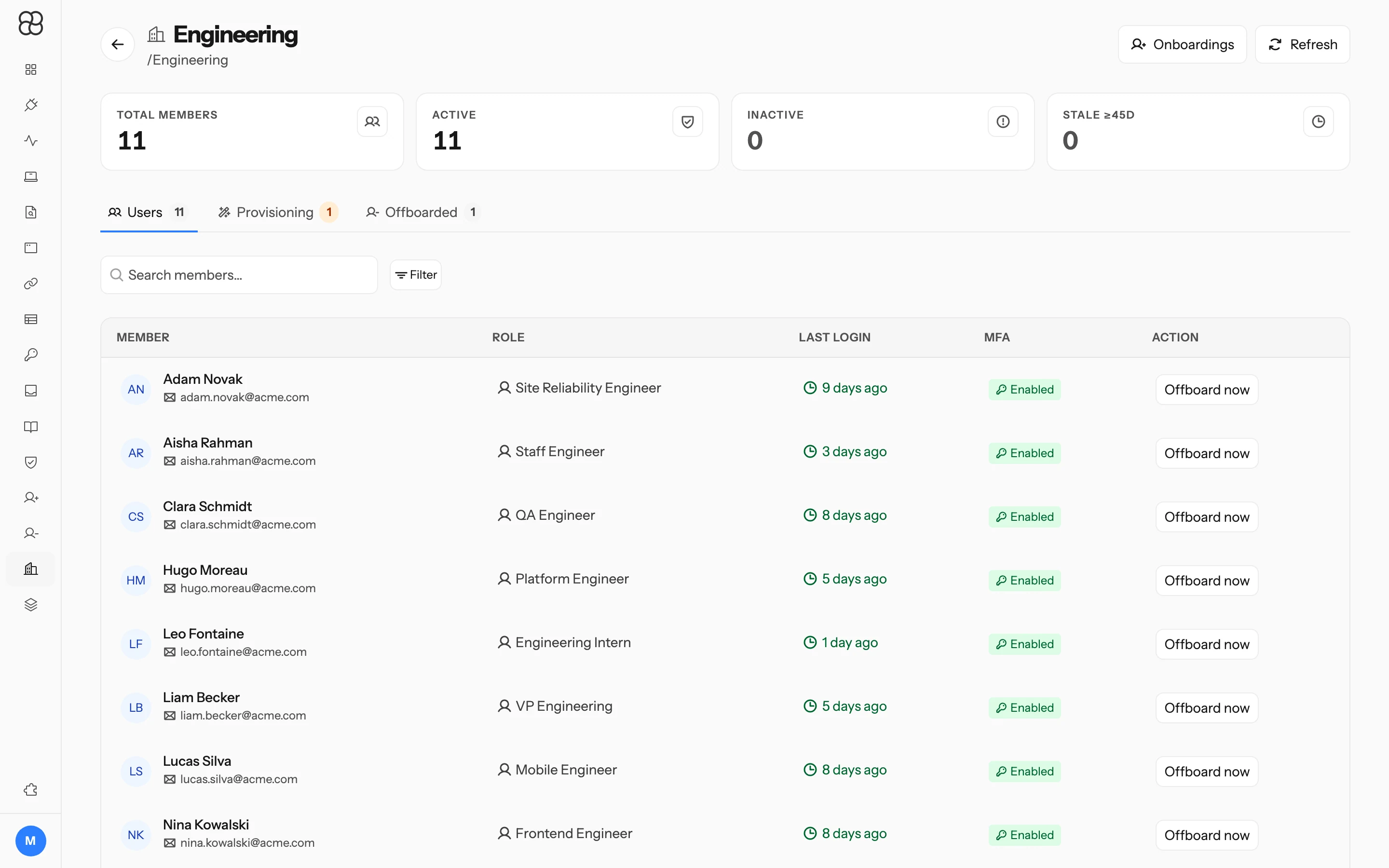
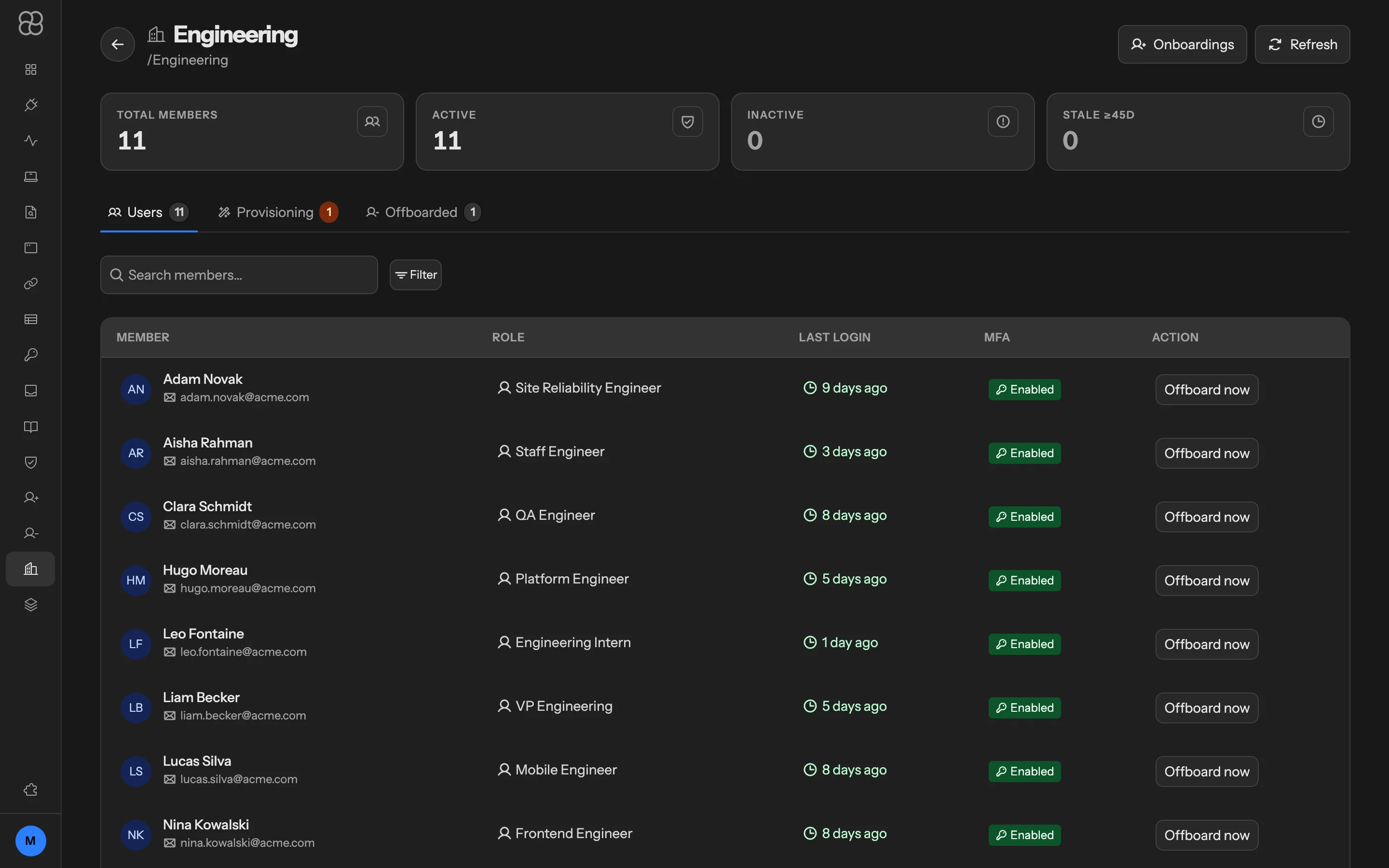
The page has three tabs:
- Users: every member with their Role, Last login and MFA status. Click a member to see all their access across your applications.
- Provisioning: the onboarding tasks created for this department's new hires, grouped by person, with their status.
- Offboarded: the people who left this department, with the progress of their removal tasks. Click one to open their offboarding.
Onboardings at the top of the page opens a new onboarding with this department already selected (see Onboarding).
Offboard someone now
Find the person
On the Users tab, find the member who is leaving.
Confirm
Click Offboard now. In Confirm offboarding, type CONFIRMATION, then confirm.
The offboarding runs immediately, exactly as a scheduled one does when its time comes: the directory account is closed and each application owner gets a removal task. It appears on the Offboarded tab and in Offboarding. To choose who receives the person's files, or to run it at a later date, use Schedule offboarding on the Offboarding page instead.