Install the Slack app
Connect Slack so employees request access, and approvers decide, without leaving Slack.
The Lutril Slack app brings access requests into Slack. Employees message the Lutril app or type /access, approvers get the request as a message with buttons, and everyone is told the outcome in the same thread. Connecting Slack also lets Lutril list your Slack members and review their access like any other application.
Prerequisites
- You are an owner or admin in Lutril.
- You can install apps in your Slack workspace (a Workspace Owner or Admin, or a member allowed to install apps).
Install the app
Select Integrations at the bottom of the sidebar, then the Slack card under Applications.
In Configure Slack, choose API, then select Save. The Slack page opens.
Open the Connection tab and select Connect Slack.
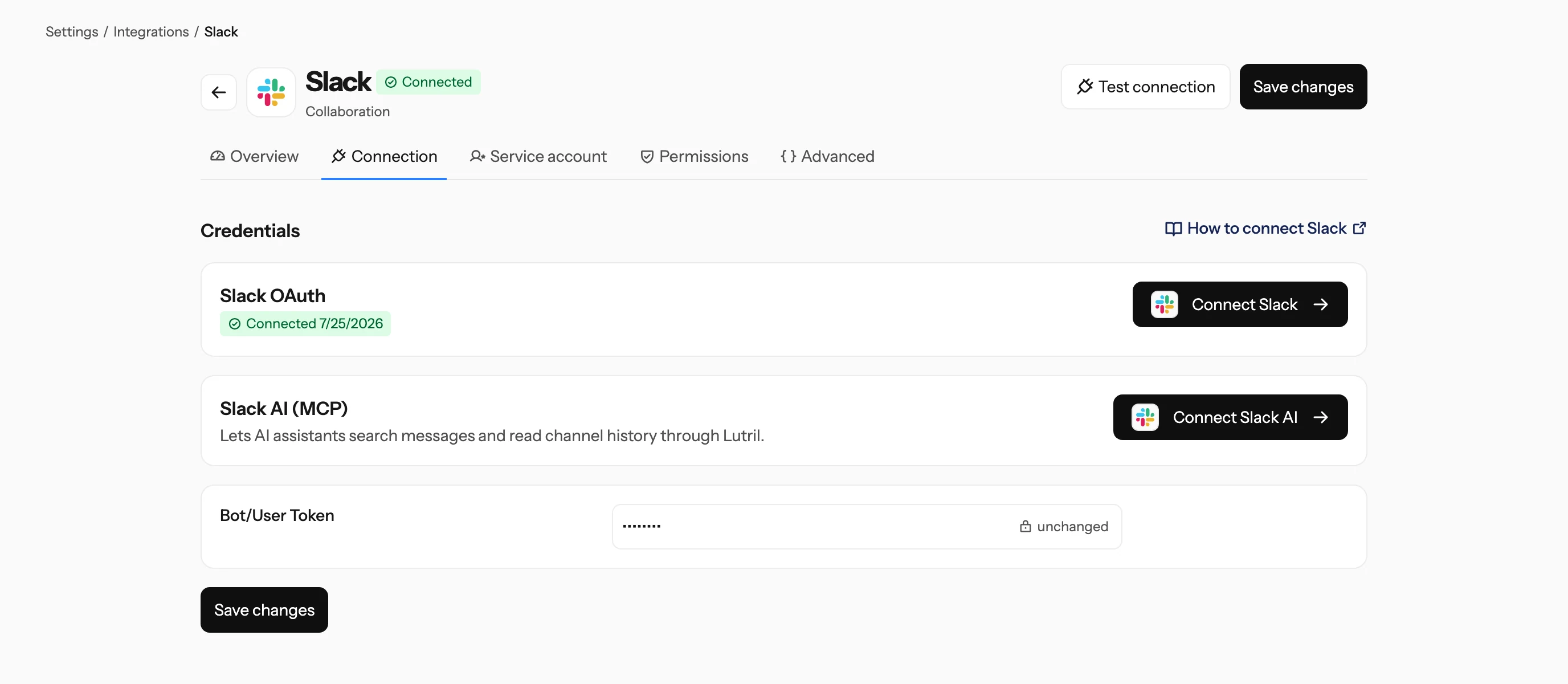
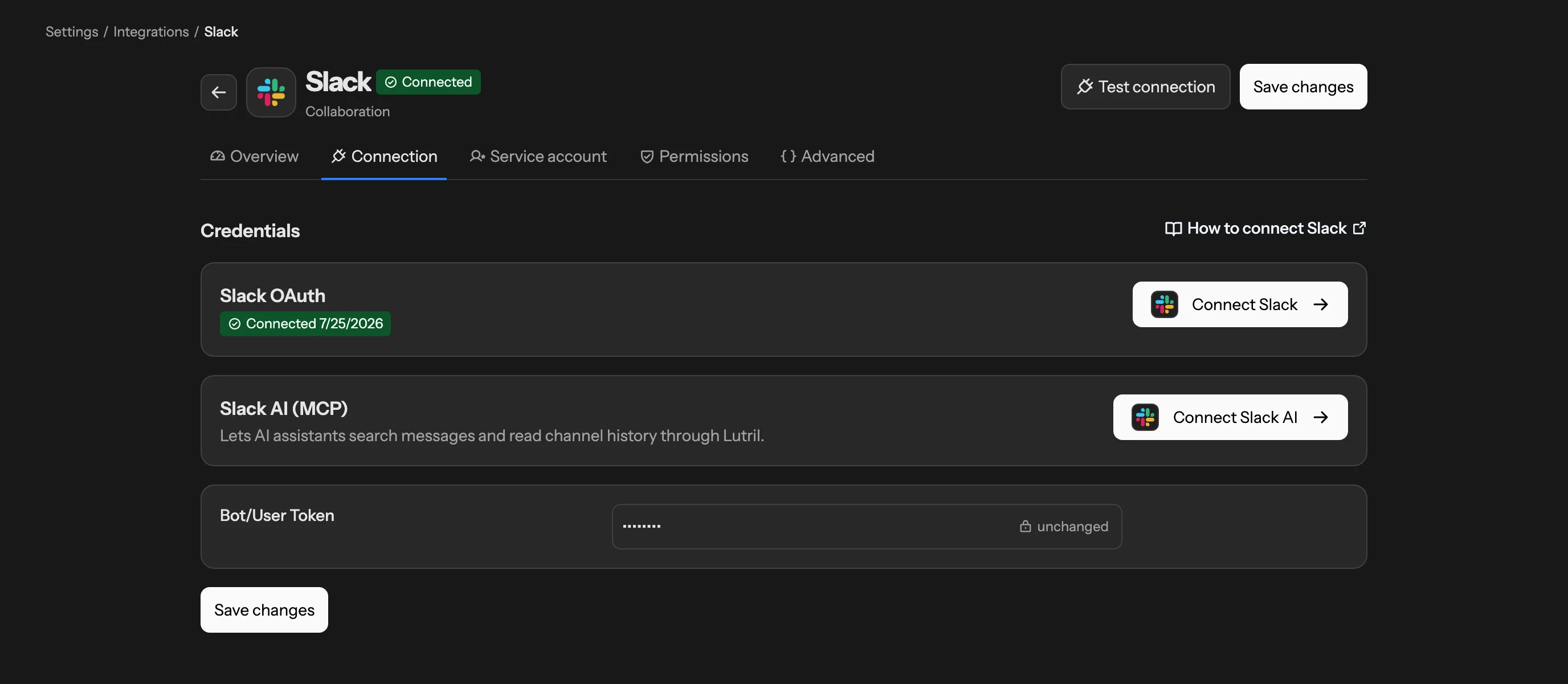
Slack shows the permissions the Lutril app asks for. Check that the workspace at the top right is the right one, then select Allow.
You come back to the Slack page. Slack OAuth shows Connected with the date, and the header shows Connected.
Slack AI (MCP) on the same tab is a separate, optional connection: it lets AI assistants search messages and read channel history through Lutril's MCP gateway. You don't need it for access requests. See AI governance.
Let Lutril invite and remove Slack members
Slack keeps member management behind its admin console. To let Lutril invite people when a request is approved and deactivate them at offboarding, open the Service account tab and give Lutril a dedicated Slack admin account. Until you do, Slack stays read-only in Lutril: reviews and offboardings ask an owner to make the change by hand. See Connect an app.
What employees see
Anyone in your Slack workspace can find Lutril under Apps and message it directly, or mention @Lutril in a channel. Saying hello gets a short guide:
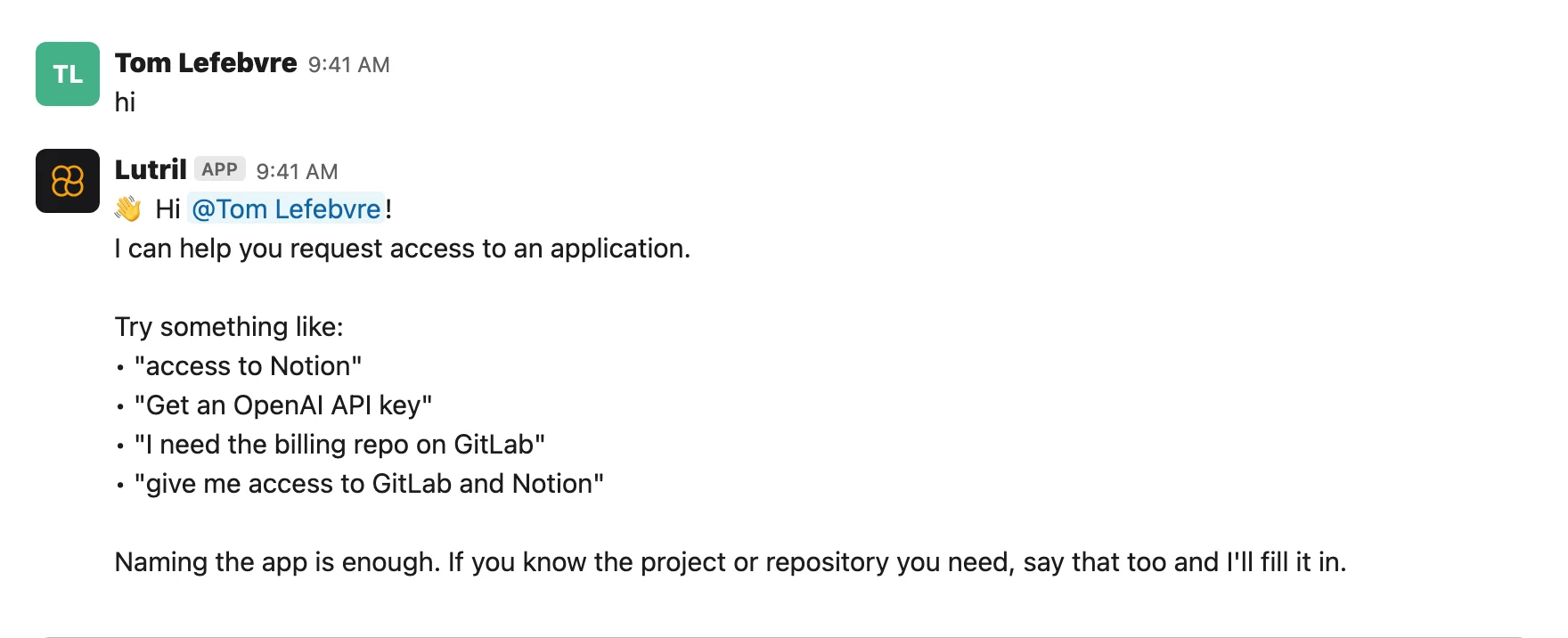
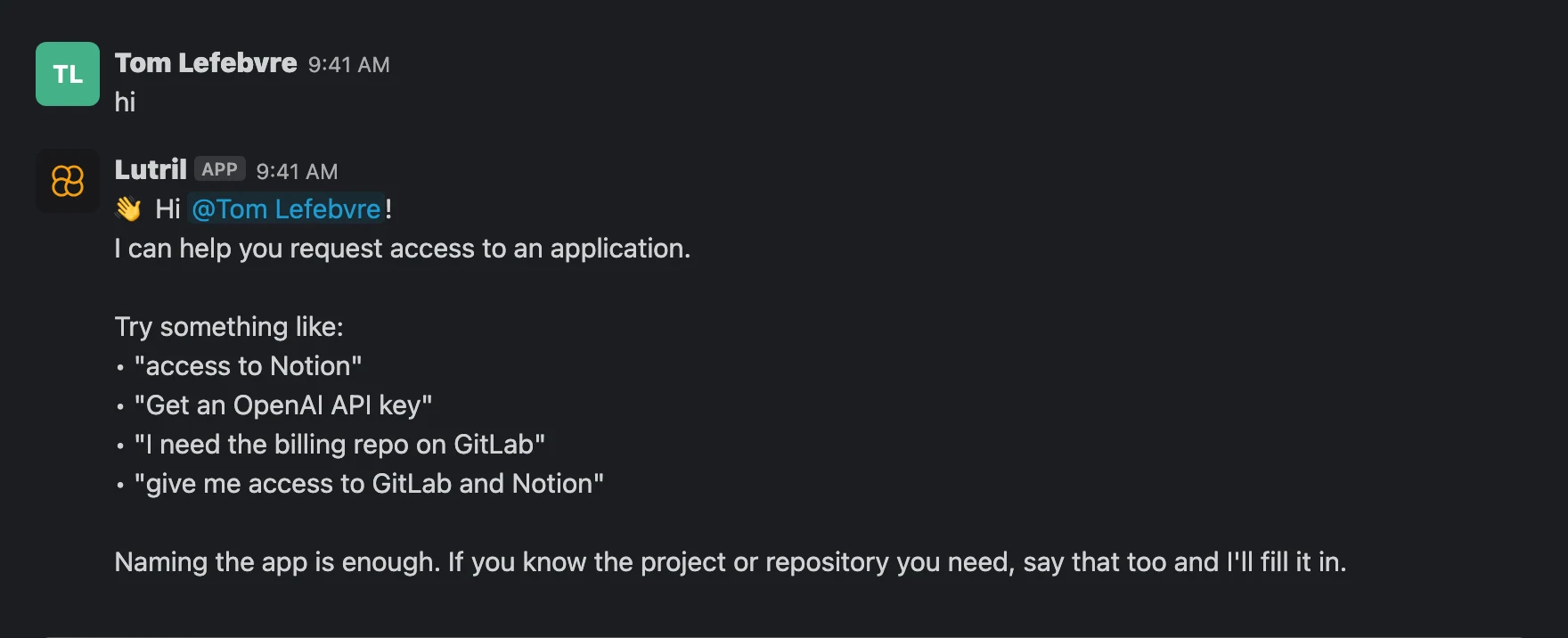
From there, employees can:
- Name the app in plain words, such as "access to Notion" or "I need the billing repo on GitLab". Lutril recognises the app, and the project or role if they mention one, and replies with a button that opens the request form already filled in.
- Type
/accessin any conversation to open the request form directly.
The request then follows the approval workflow set in the catalogue. Approvers receive it as a Slack message and decide from the message itself; the requester is told the outcome in Slack.
Troubleshooting
The Slack consent screen was cancelled or expired. Select Connect Slack again and finish the flow in one go.
Check that the app was installed in the right Slack workspace (the one shown at the top right of the consent screen). If your workspace restricts app installs, an Owner or Admin may need to approve the request in Slack's app management.
The request form lists the applications in your catalogue. Connect or add at least one app there.