Revoke access
Remove the accounts marked for removal in a review, see which removals succeeded, and handle the applications Lutril cannot remove accounts from.
Marking an account for removal records a decision. Revoking carries it out. For applications Lutril can deprovision, you remove every marked account from the review page in one confirmed step; for the others, the decisions are your to-do list in the application's admin console.
Before you start
- You need the Owner or Admin role.
- The review is validated (see Review an application).
- The application's integration has the Remove accounts permission switched on, on its Permissions tab in Integrations. Applications that remove accounts through a service account (Slack, for example) also need that service account configured and tested.
Remove the marked accounts
Open the validated review
Open the application from the campaign page. The toolbar shows Remove N users, where N is the number of accounts marked for removal.
The button stays disabled while the review has decisions that are not validated yet: validate first, so what is removed is exactly what the audit log records.
Check the list and confirm
Click Remove N users. The Execute user removals? dialog lists every account under Users to be removed. Check it, then click Remove N users to confirm. This cannot be undone.
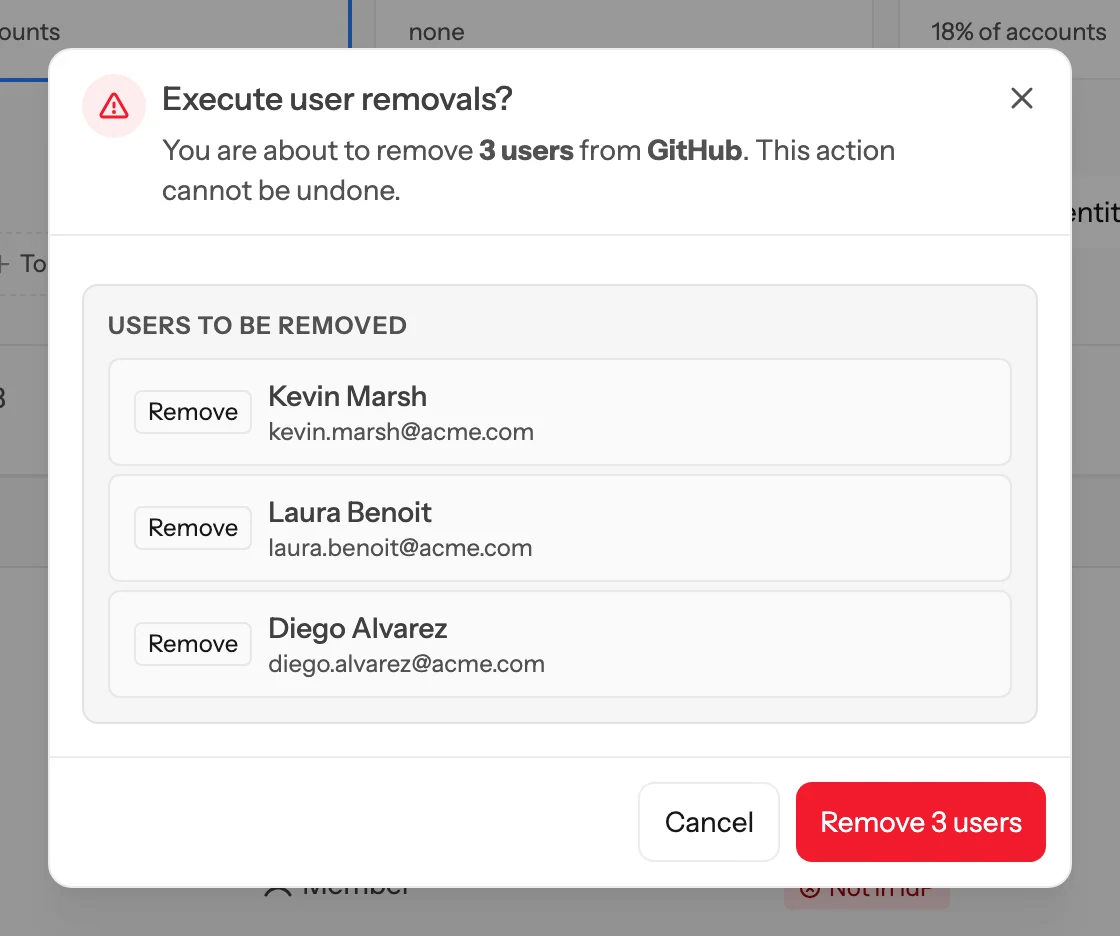
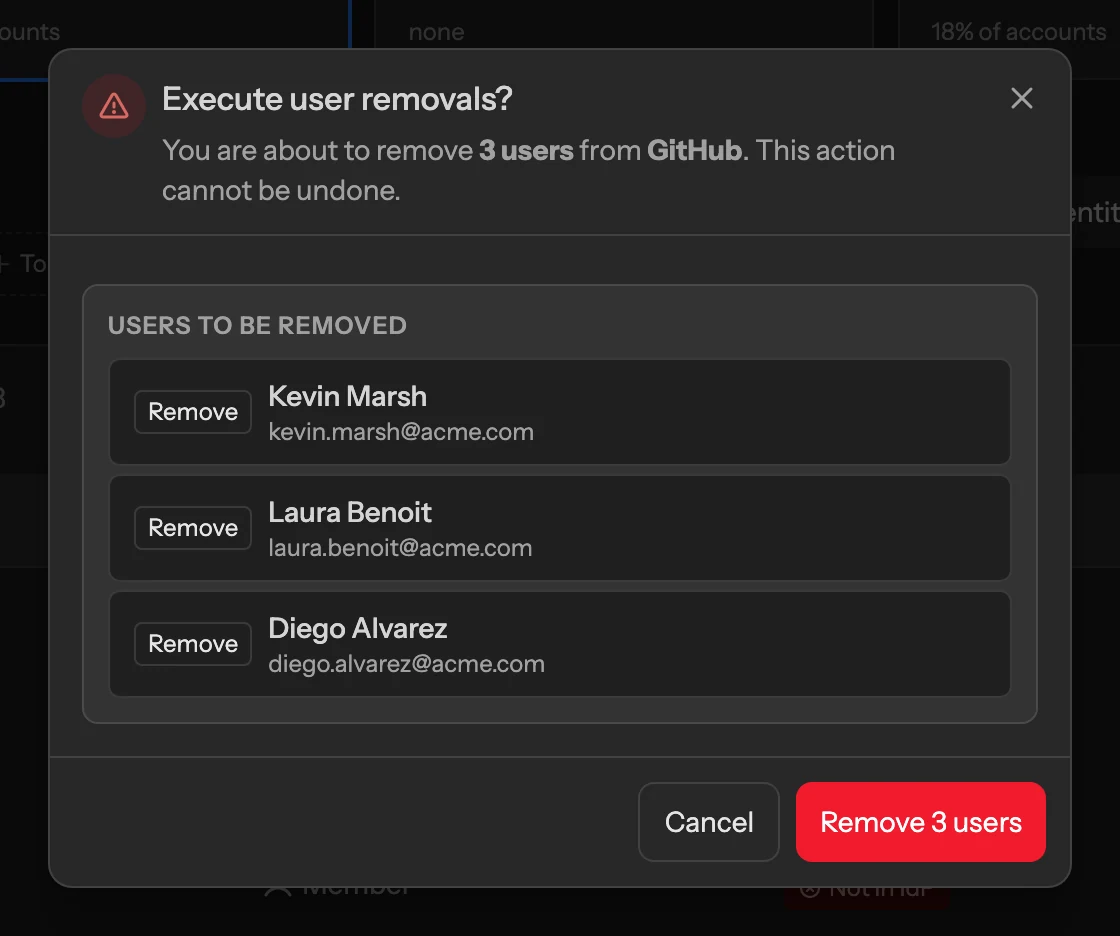
For OpenAI and Claude Console, the dialog also shows the API keys each user owns, because Lutril removes or archives them before deleting the user.
Read the result
Lutril calls the application's API for each account and shows the outcome: Succeeded and Failed counts, a Completion percentage, and one line per account. A failed line carries the application's error message.
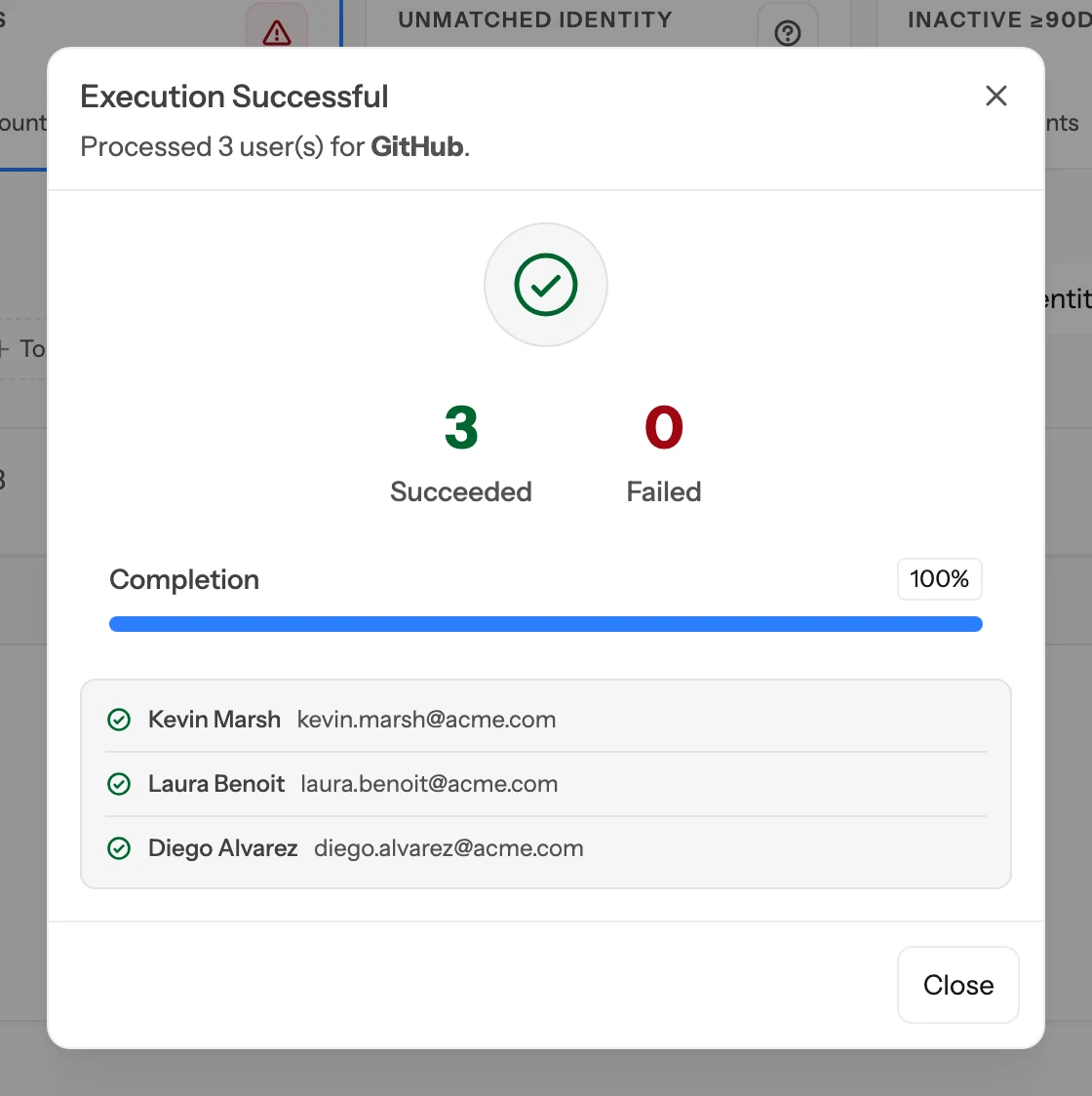
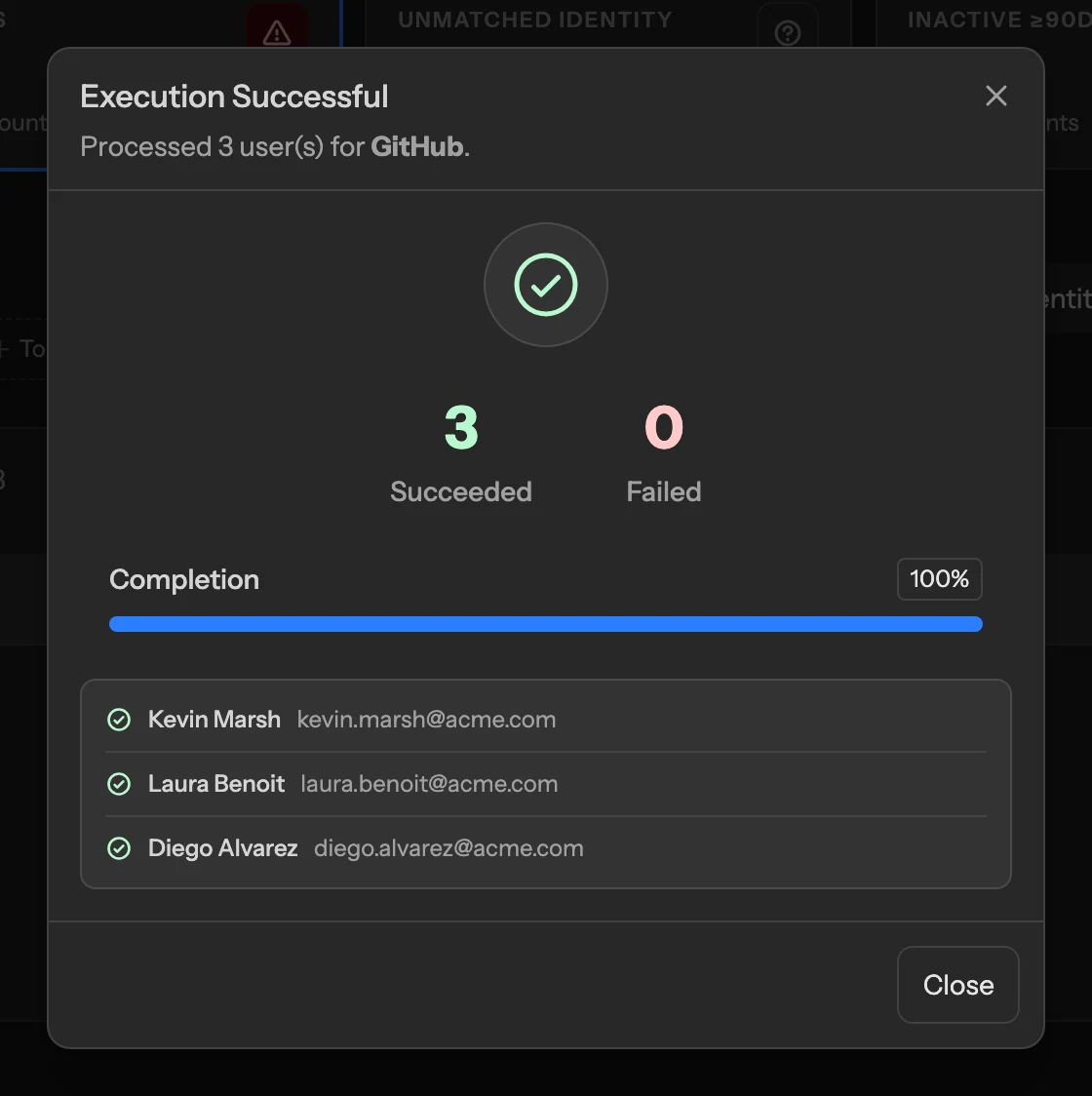
The title tells you how it went: Execution Successful, Execution Partially Successful when some removals failed, or Execution Failed. Every removal attempt is recorded, successful or not. Running the removals again continues with the accounts not attempted yet; an account that failed is not retried, so remove it in the application's admin console.
What Lutril removes, and what you remove
| Situation | What happens |
|---|---|
| The application supports deprovisioning and Remove accounts is on | Remove N users removes the accounts through the application's API. |
| The application supports deprovisioning but Remove accounts is off | The removal stops with "User deletion is not enabled for this integration". Turn the permission on, or remove the accounts by hand. |
| The service account the application needs is missing or untested | The removal stops and asks you to configure and test it on the integration page. |
| The application does not support deprovisioning (read-only connectors) | There is no Remove N users button. Your decisions are still recorded and exported: remove the accounts in the application's admin console. |
To work through manual removals, open the campaign's decisions filtered on Remove (see Results and export) or export the campaign and share the application's sheet with its administrator.
Troubleshooting
- More removals are still pending for this review: one run removes up to 500 accounts and stops after two minutes. Click Remove N users again to continue with the rest.
- The application did not answer in time: the vendor was slow for that account. Check in the application's admin console whether the account is gone, and remove it there if not.
- A failed line mentions permissions: the credentials Lutril uses for this application cannot delete users. Check the scopes in the application's setup guide on lutril.com/integrations.
Review an application
Decide keep or remove for every account in an application, use the findings and filters to go faster, and validate the review.
Results and export
Follow a campaign's progress, read the decisions recorded for each application, rename the campaign and export it as an Excel workbook for your auditors.