Policies and just-in-time access
Route requests through an approval chain, or time-box them with a just-in-time policy that can grant instantly to the people its conditions allow.
A policy decides what happens to a request for one application, or for one access level of it. There are three kinds:
- Approval workflows grant standing access once a chain of reviewers approves.
- Just-in-time policies give every grant a deadline. They can grant instantly to requesters who match their conditions, send the rest to approvers, or refuse requests outright.
- Catalogue-wide rules apply one rule across every application, narrowed by their conditions. A policy written for a specific application always takes precedence.
A request for an application with no policy goes to the application owners listed in the catalogue.
Before you start
- You need the Owner or Admin role.
- The application is in the catalogue, with its access levels declared if you want a policy per level.
- For just-in-time access, Lutril must be able to grant the access: the integration can provision accounts, or a Google or Entra group workflow is active for the application. The policy editor lists only the applications that qualify, and says why for the others.
The Policies page
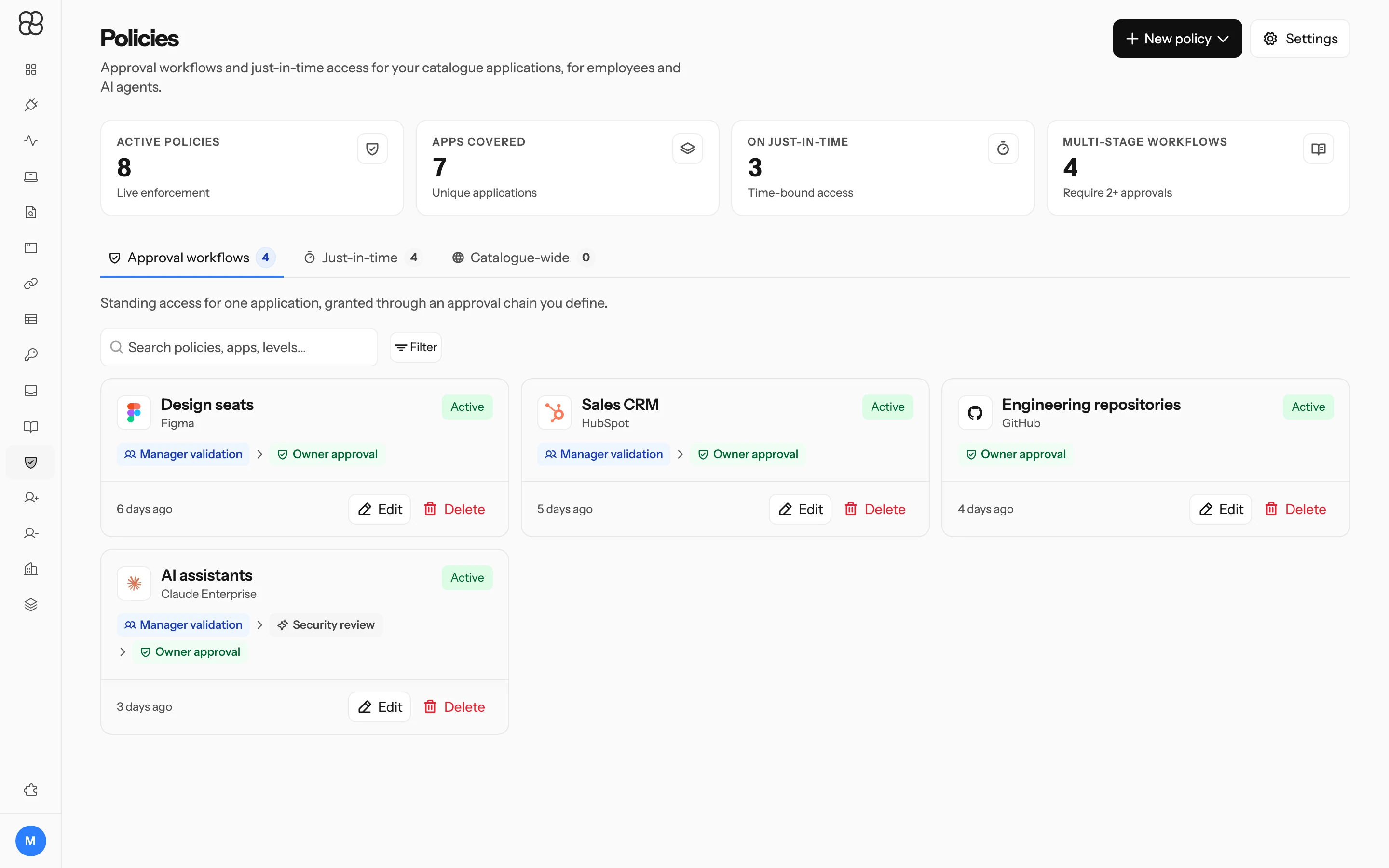
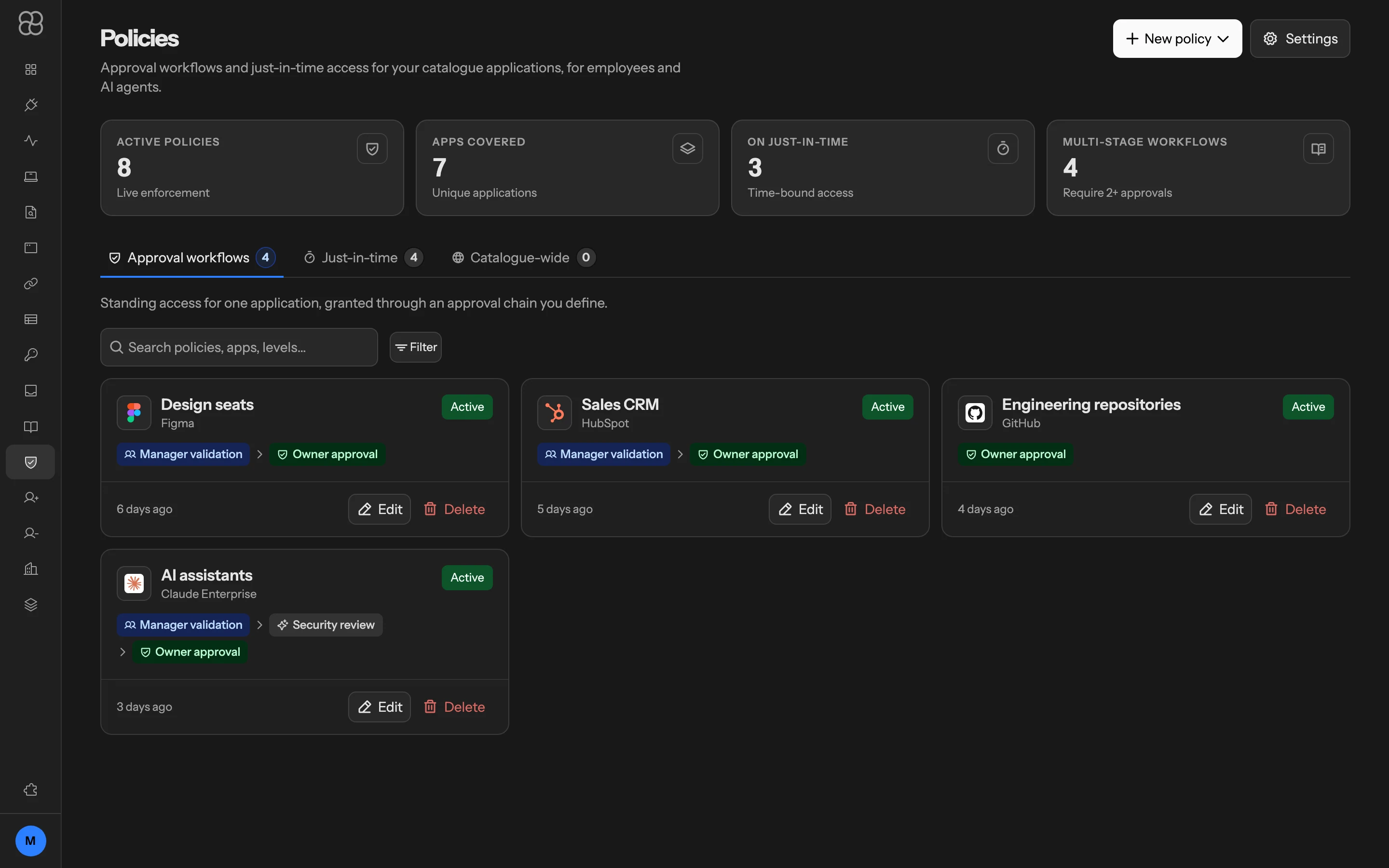
Open Access Management > Policies. The counters show Active policies, Apps covered, the applications On just-in-time and the Multi-stage workflows that need two approvals or more. Each tab lists its policies as cards: the application, the access level, the approval chain and, for just-in-time policies, the maximum duration and the number of conditions.
The Just-in-time tab adds, on each card, the maximum duration per audience (a lightning bolt marks one that auto-approves) and the number of conditions.
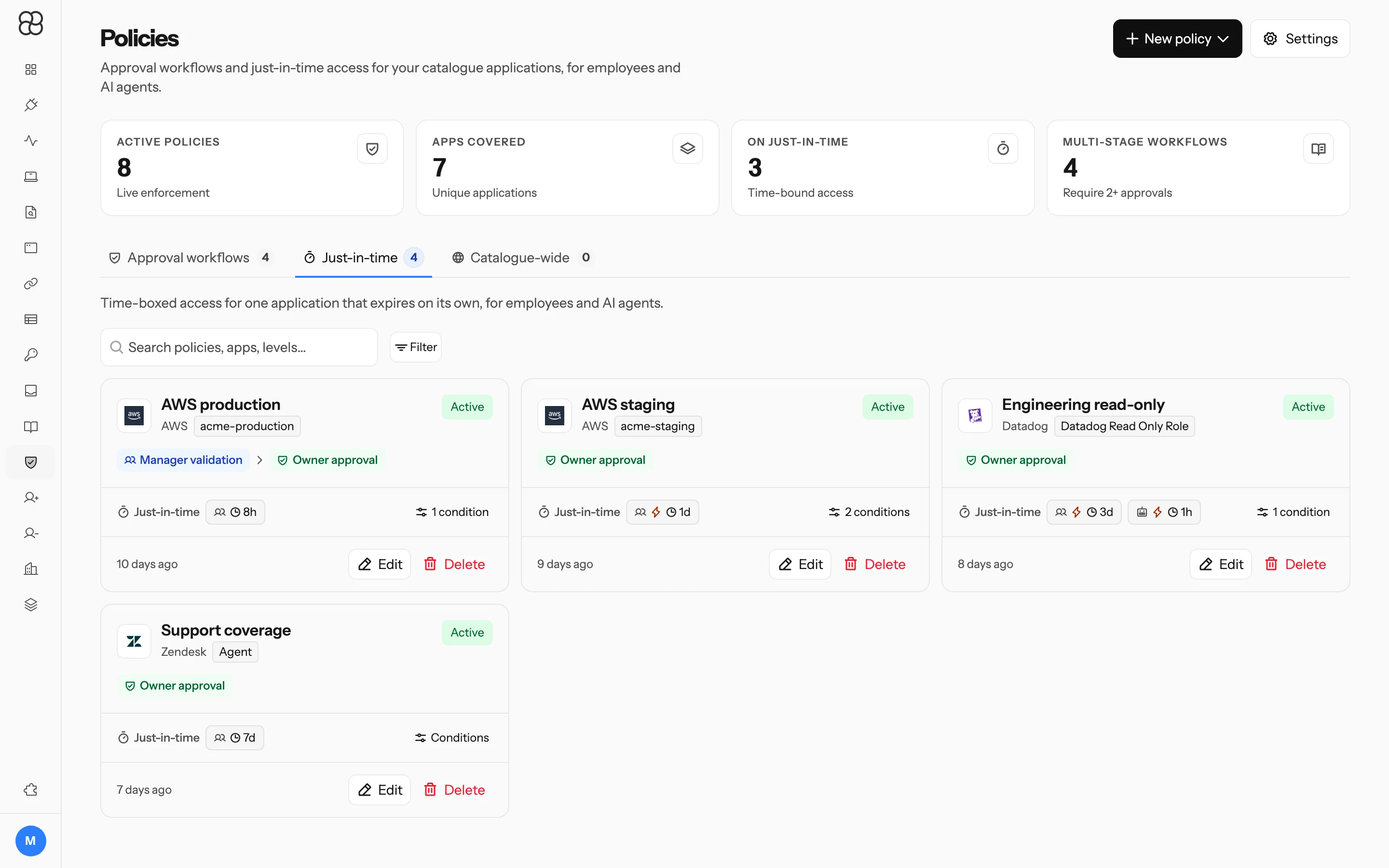
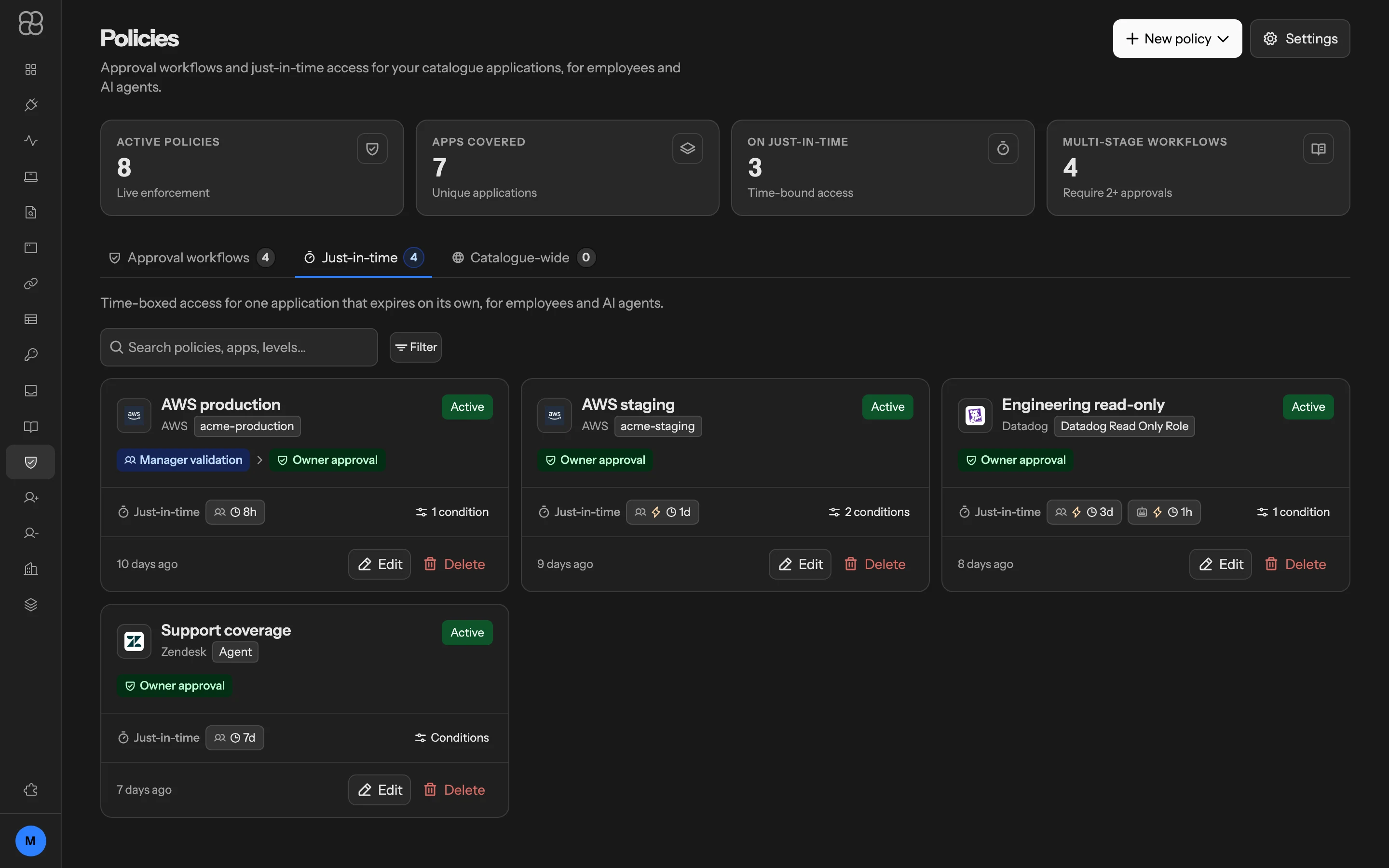
A policy set on an access level (for example acme-production on AWS) applies to requests for that level. The application default applies to every level that has no policy of its own.
Create an approval workflow
Name the policy and pick the application
Click New policy > Approval workflow. Fill in Policy name and Application. Leave Access level on App default (all levels), or pick one level to govern only that one.
Build the chain
Under Approval workflow, click Add stage for each approval, in the order they run:
- Manager validation: the requester's manager, from your identity provider.
- Custom reviewer: a named group of people, such as security or legal. Give it a Role name and pick its Reviewers.
- Owner approval: the application owners. This is the stage that grants the access.
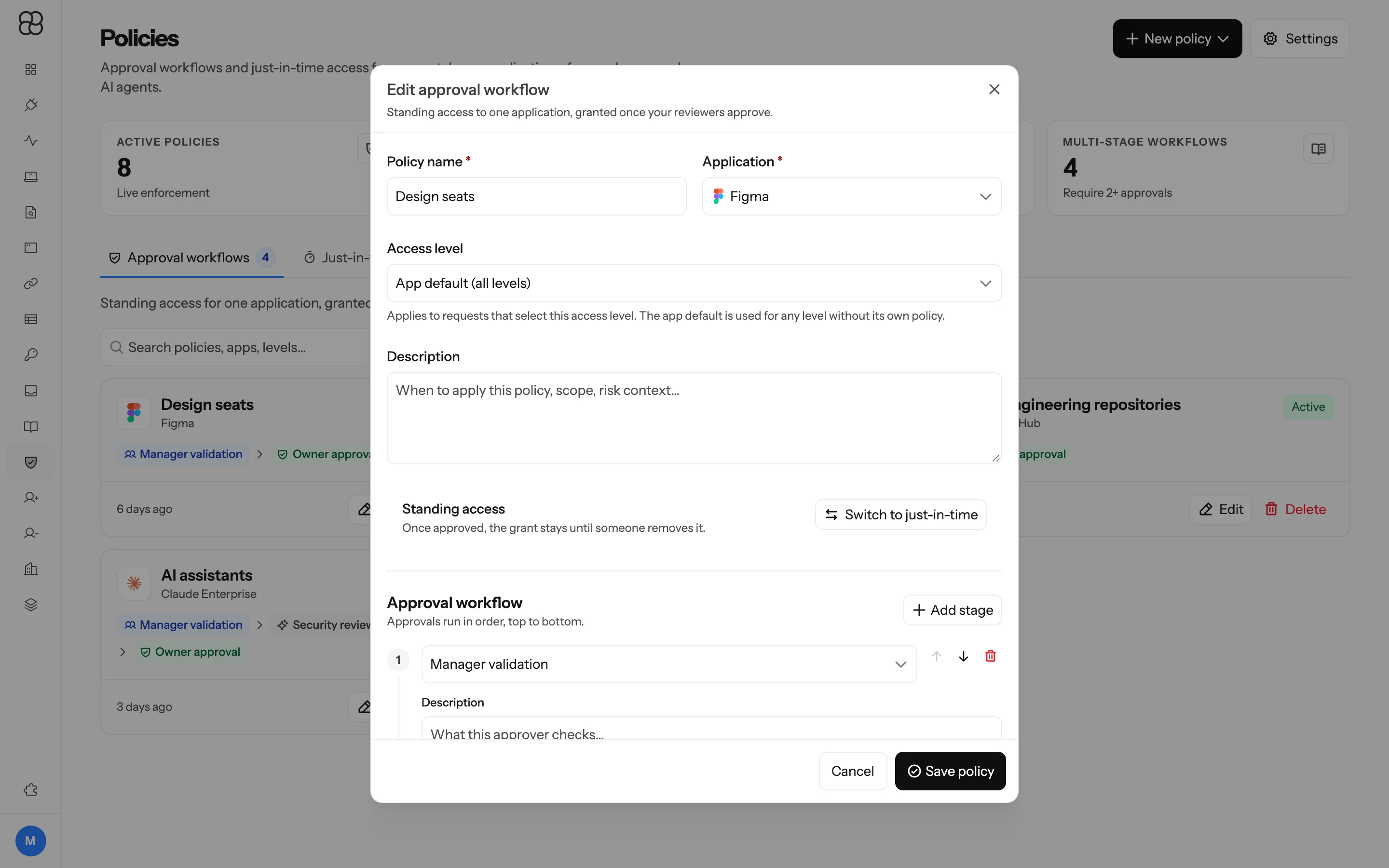
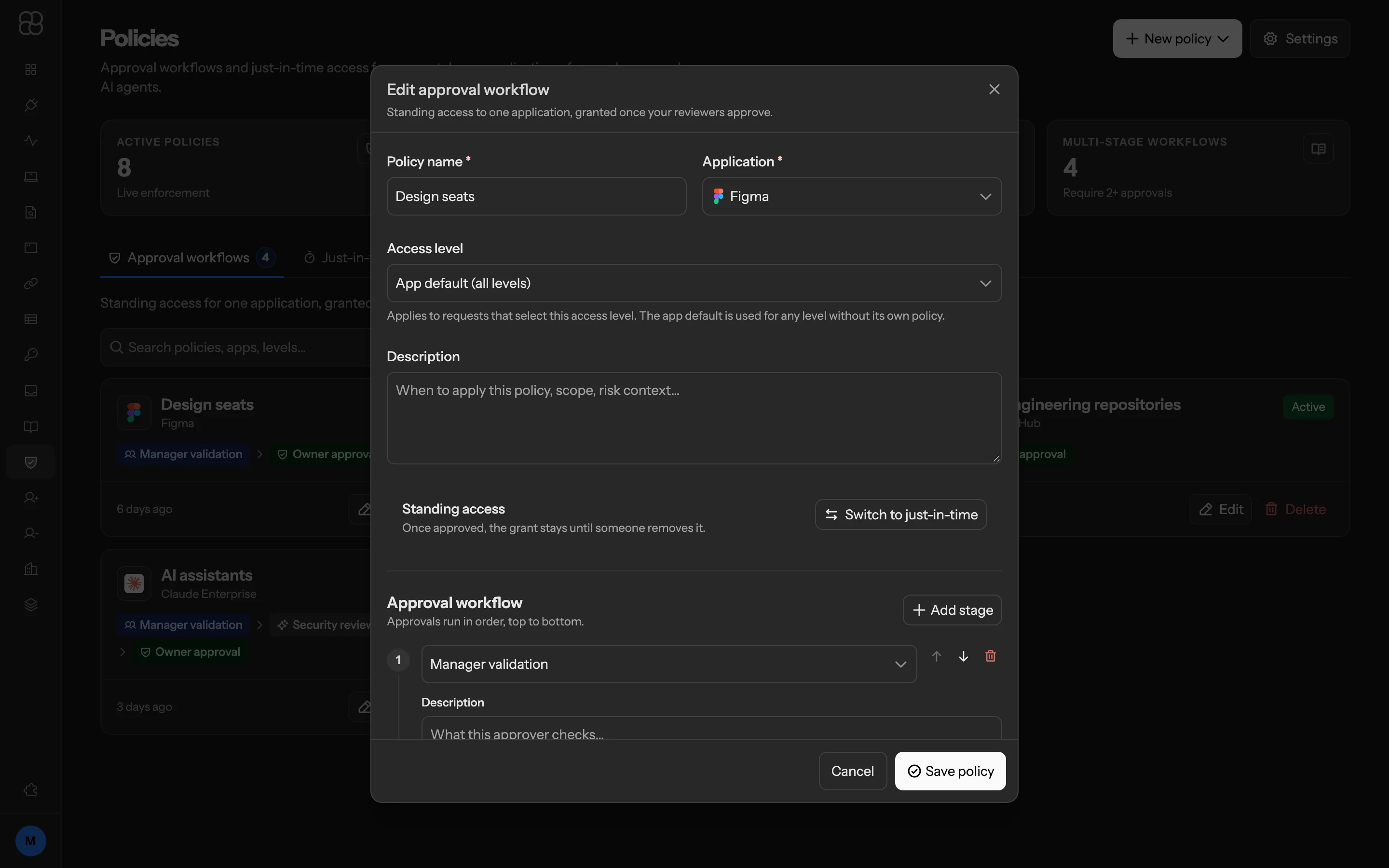
Save
Keep Active on and click Save policy. The next request for this application follows the new chain.
Create a just-in-time policy
Pick the application and level
Click New policy > Just-in-time access. Fill in Policy name, Application and, optionally, Access level. The dialog shows how many of your applications can be time-boxed.
Set the rules for employees
Under Just-in-time access, switch Employees on, then choose:
- Requests are: Time-boxed, or Refused to turn every request down before any condition is read.
- Maximum duration: the longest a grant can last, in hours or days. Requesters pick from a fixed ladder (1 hour, 4 hours, 8 hours, 1 day, and so on) capped at this value.
- At the deadline: Remove the access automatically, offered only where Lutril can actually take it back, or Notify, and let someone remove it.
- Auto-approve: Nobody (every request goes to an approver), Requesters matching conditions, or Everyone (no approver at any point, the maximum duration is the only control).
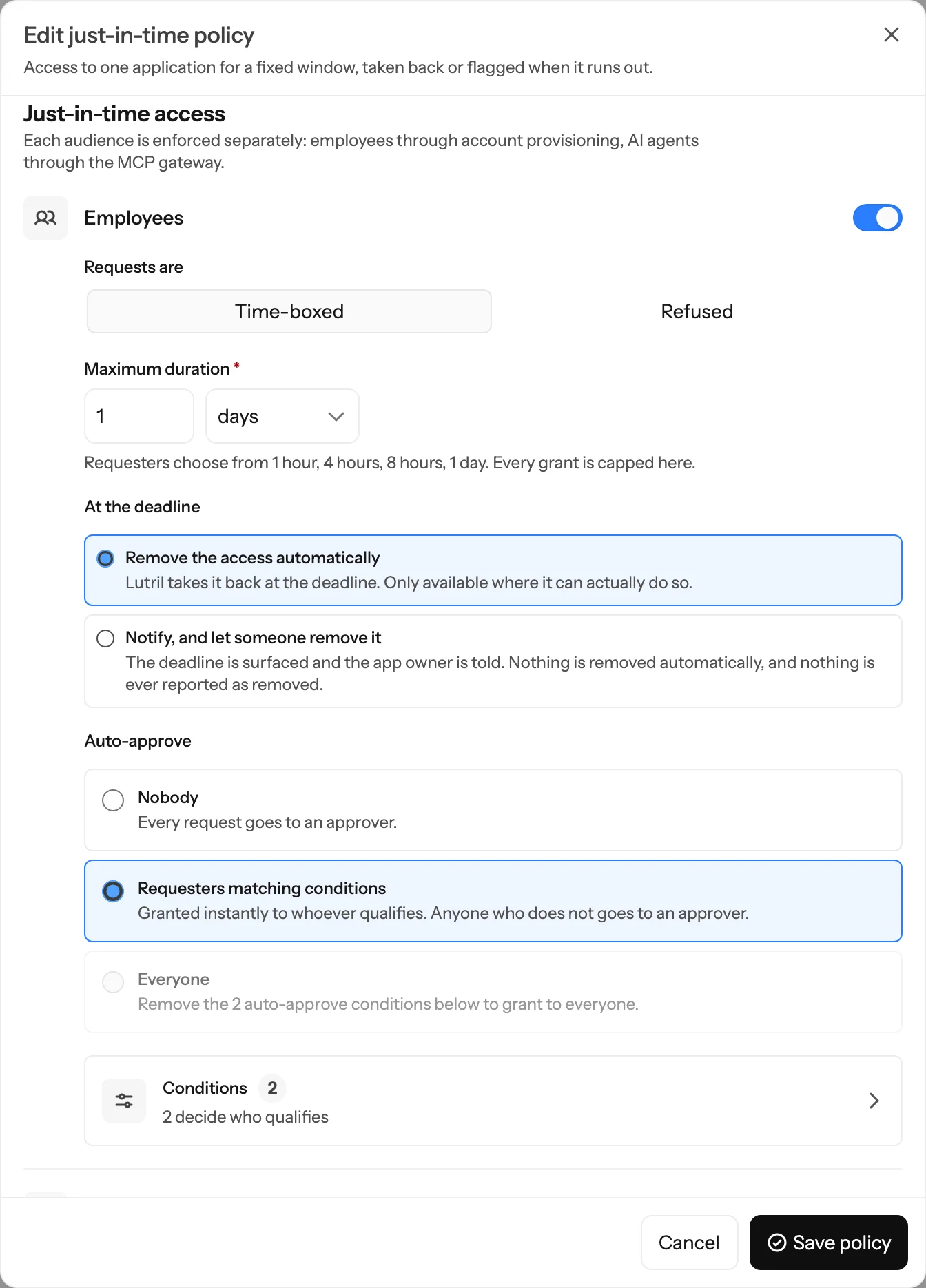
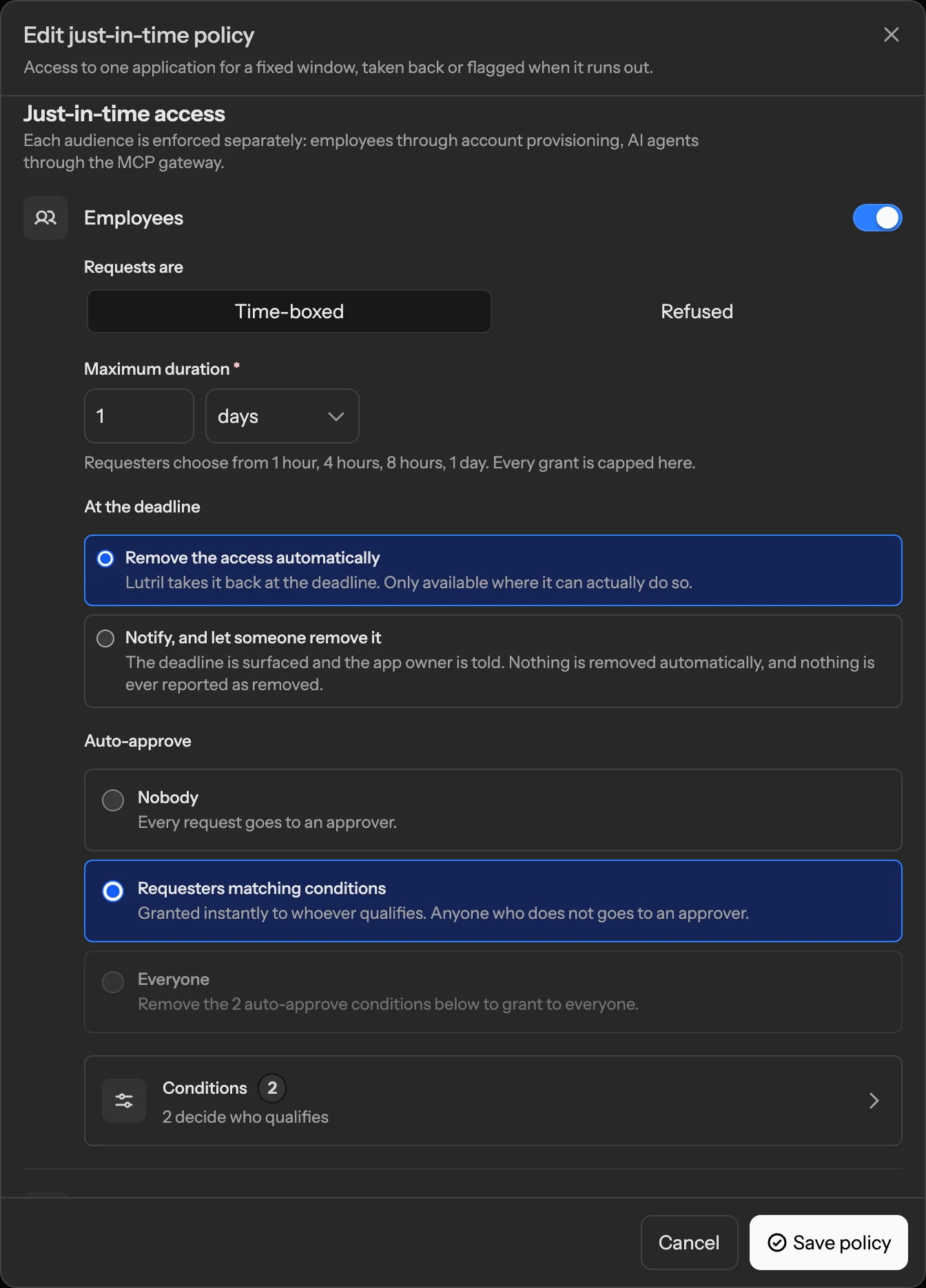
The AI agents row sets the same rules for agents reaching the application through the MCP gateway.
Set the approval chain
If any audience is set to Nobody or to conditions, requests that are not granted automatically run through the Approval chain below, in order. The clock starts once the last approver says yes.
Write the conditions
Click Conditions. Lutril saves the policy and opens the condition editor.
Under Grant automatically when, click Add condition and pick an attribute: the requester's Department, their role in another application, a group in your directory, the Requested duration, the reason they gave, and more. Choose whether the requester must match all or any of them.
Then answer And everyone who does not match?: An approver decides, and it still expires, or An approver decides, and it never expires (the policy does not govern them at all).
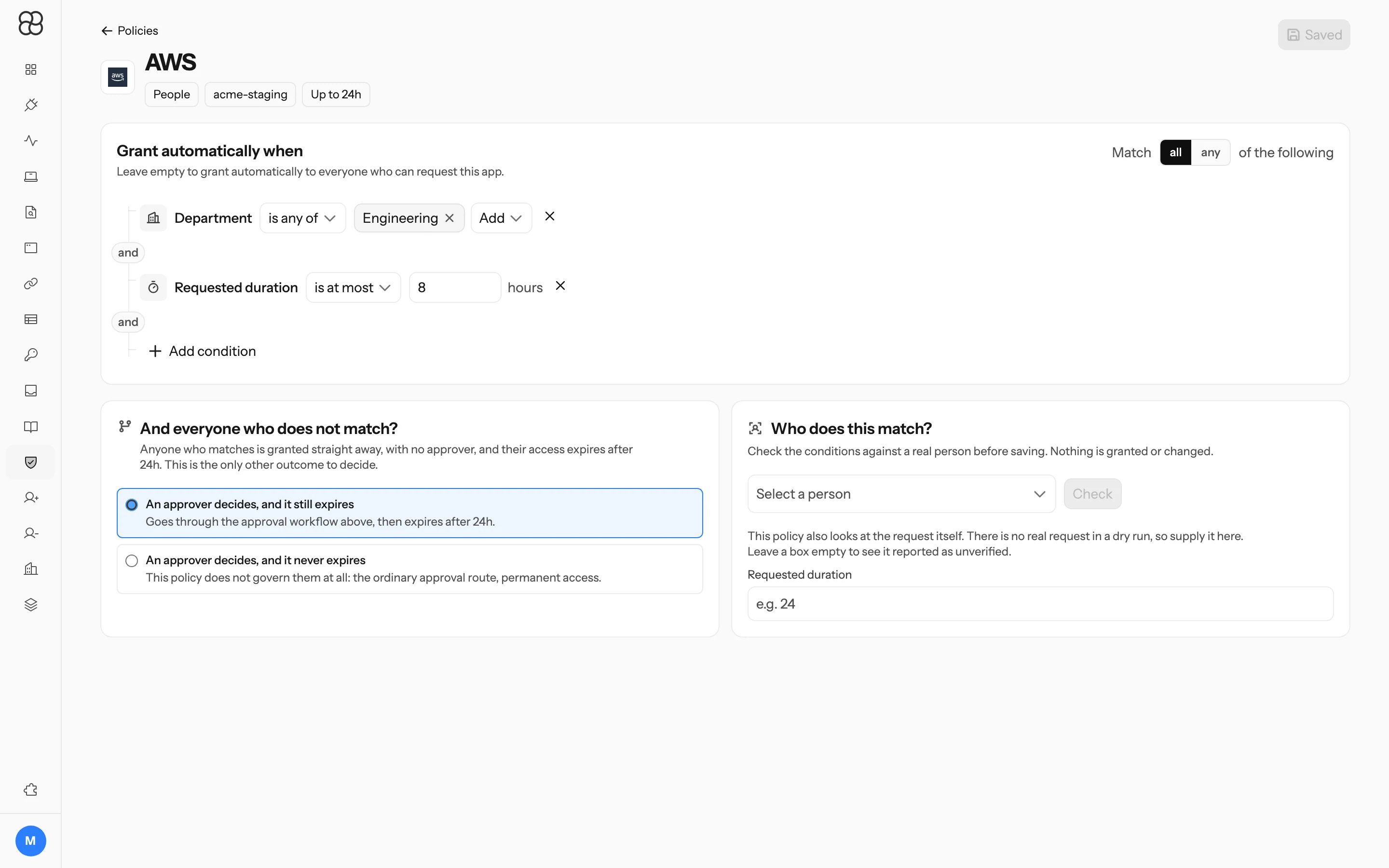
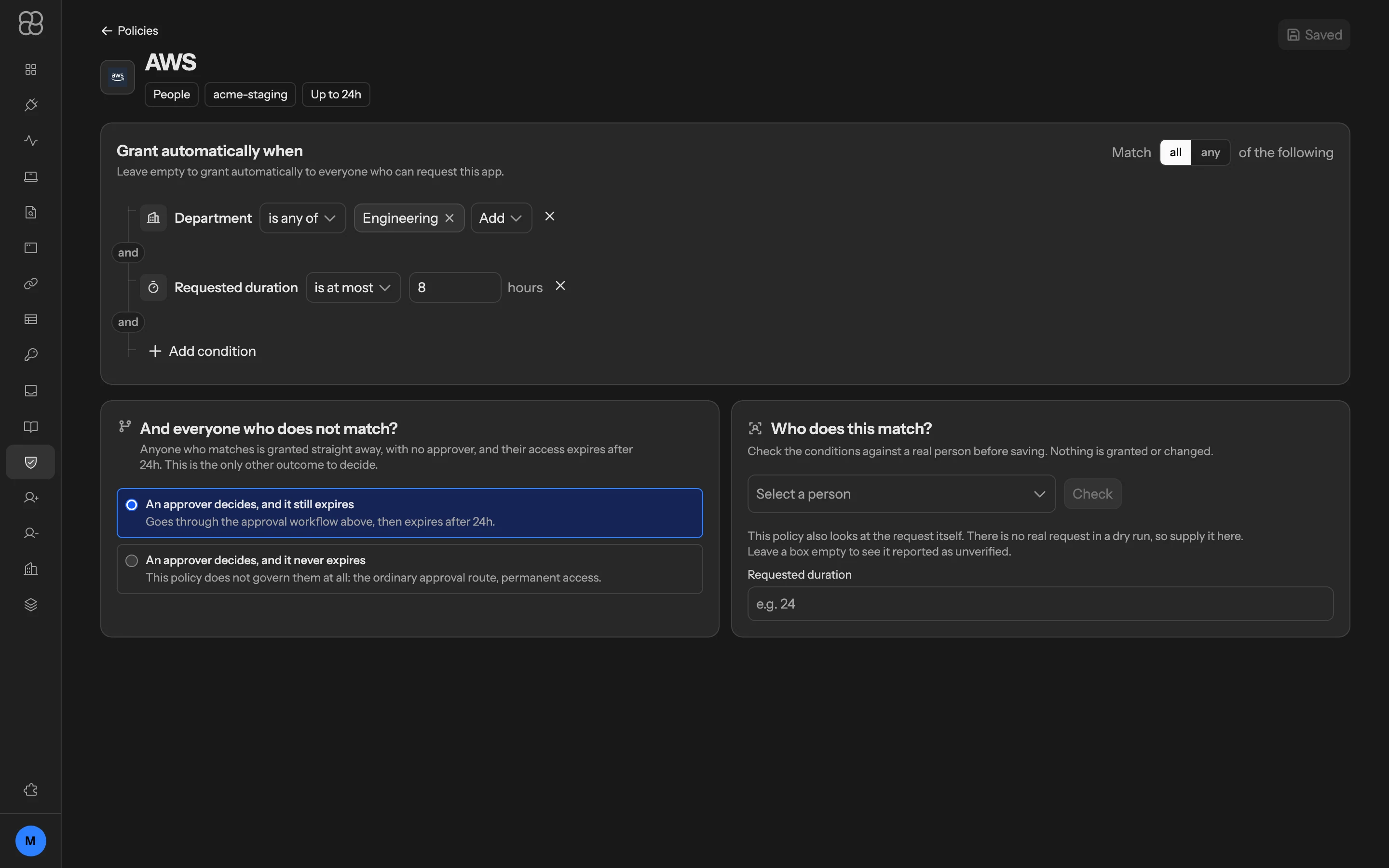
Under Who does this match?, pick a person and click Check to test the conditions before you save. Nothing is granted or changed. Click Save conditions.
What an automatic grant applies
An auto-approved request is granted without anyone looking at it, so Lutril never lets the requester decide how much access they get:
- The access level is applied only if it is one of the levels the owner declared for the application in the catalogue. A value the requester typed that matches no declared level is not sent to the application.
- The role, seat or permission is the Default the owner set on the application's Provisioning fields tab, the same value automated onboarding sends.
- If the application needs a role to grant anything and the owner has not configured one, Lutril does not create an account with no role. The automatic grant is abandoned and the request goes to an approver.
- A role the requester picked outside the owner's allow-list is never granted automatically. It waits for a human.
- If creating the account fails, the automatic grant is cancelled rather than reporting access the person does not have.
Removal at the deadline
Next to New policy, Settings opens Just-in-time revocation for the whole workspace:
- Remove access at the deadline lets Lutril take back what just-in-time policies granted. Standing access and grants made by owners are never touched.
- Warn before access expires messages the requester before the deadline, with the option to extend.