MCP Activity
Read every tool call AI agents make through the Lutril MCP gateway, and decide on the write access they ask for from the app, Slack or Teams.
MCP Activity is the audit trail of the MCP gateway. Every tool call an AI agent makes is recorded under the person it acts for, with the outcome and the reason it was refused, if it was. The same page holds the access requests agents raise when they need to write.
Tool calls
Open AI Governance > MCP Activity. The Tool Calls tab opens first.
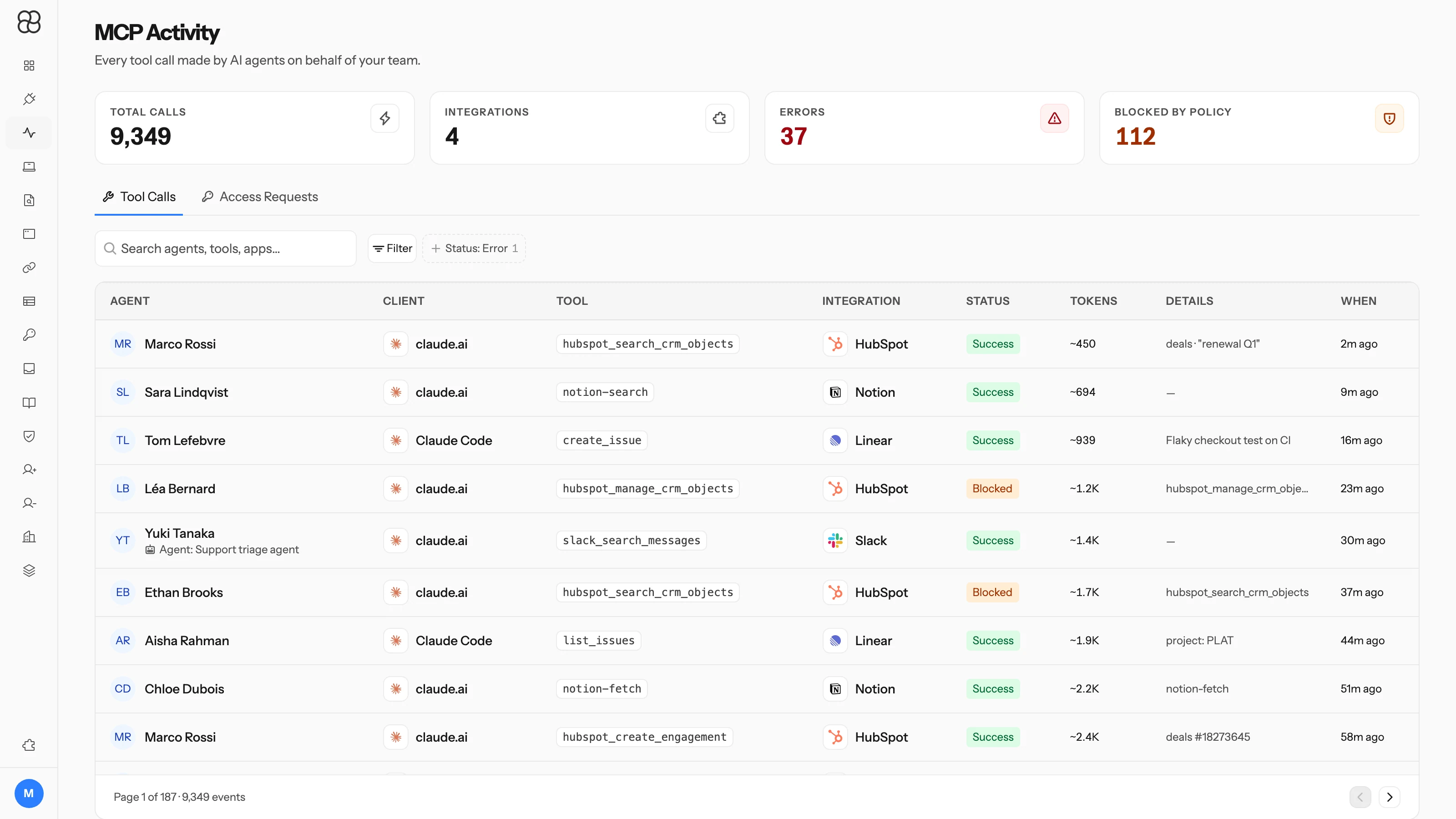
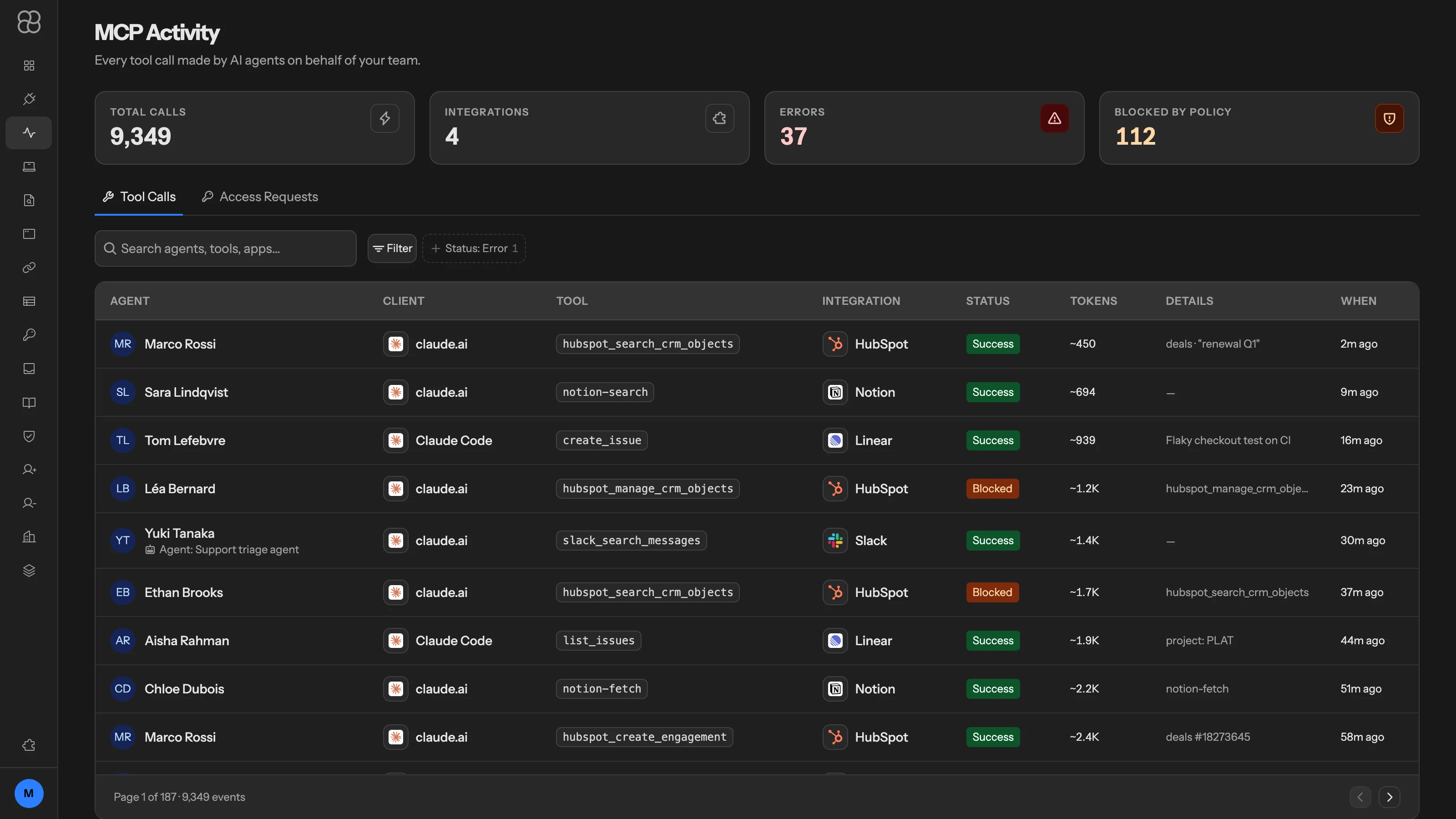
The cards count Total calls, Integrations, Errors and calls Blocked by policy.
| Column | What it shows |
|---|---|
| Agent | The person the call was made for, and the agent's name when a registered agent made it. |
| Client | The AI client: Claude, Claude Code, ChatGPT, Cursor and so on. |
| Tool and Integration | What was called, on which server. |
| Status | Success, Blocked (refused by an argument rule or by payload inspection) or Error. A blocked call records the rule and the argument it named, never the refused value. |
| Tokens | An estimate from the data that went through the tool, not the model's own token bill. |
| Details | A one-line summary of the call, such as the object and query searched. |
Click a row to expand it: the arguments, the error or the rule that refused it, what payload inspection found, and the response. Use the search and Filter (by integration, Person, Tool, Client and status) to investigate one person or one tool.
Agent access requests
Reading is the default. When an agent needs a tool classified Write or Destructive and its user has no write grant, the agent asks for one itself, with the reason the user gave. The request goes to the owners of that application in the Catalogue, who decide where they already work.
Who decides
The Owner and second owner set on the application in the Catalogue receive the request in Slack or Teams, whichever your workspace uses. Workspace owners and admins can also decide from the app. If an application has no owner in the Catalogue, nobody is notified: the request only waits on this page.
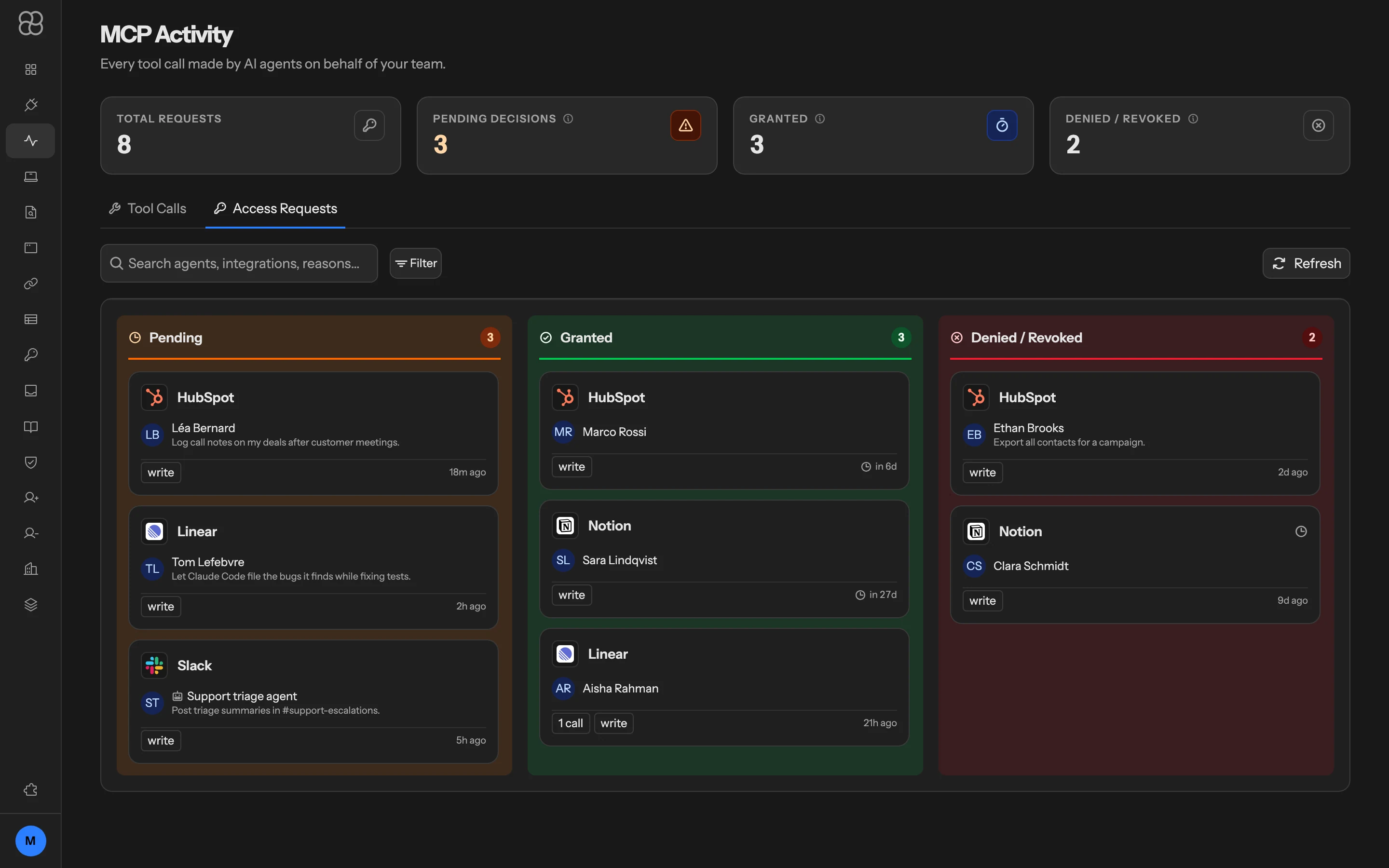
Open the Access Requests tab. The cards count Total requests, Pending decisions, Granted and Denied / Revoked, and the board sorts requests into the same three columns.
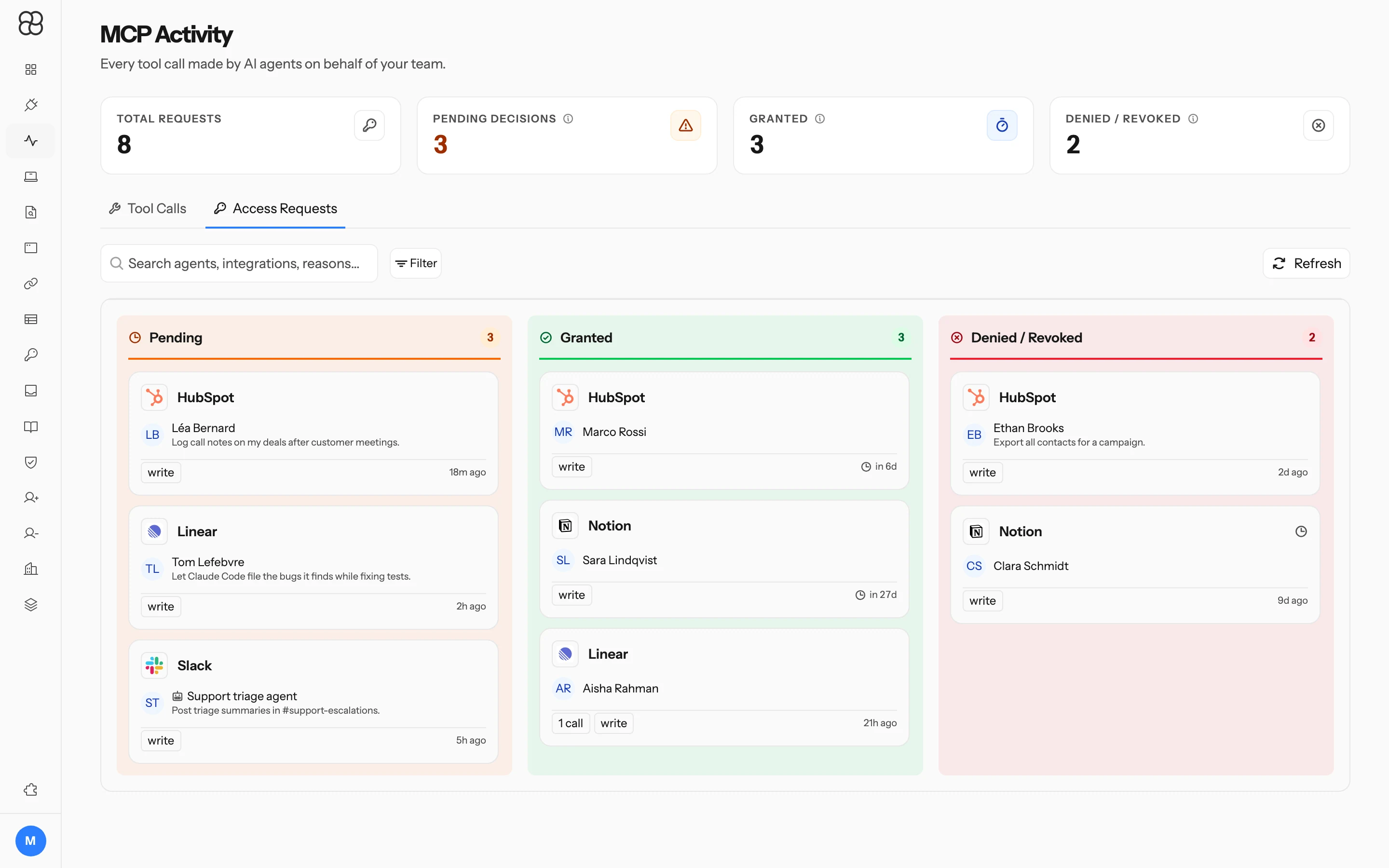
Click a card to open the request. Choose a length under Grant for (7 days, 30 days or Unlimited) and click Grant, or click Deny. The arrows at the top step through the other pending requests.
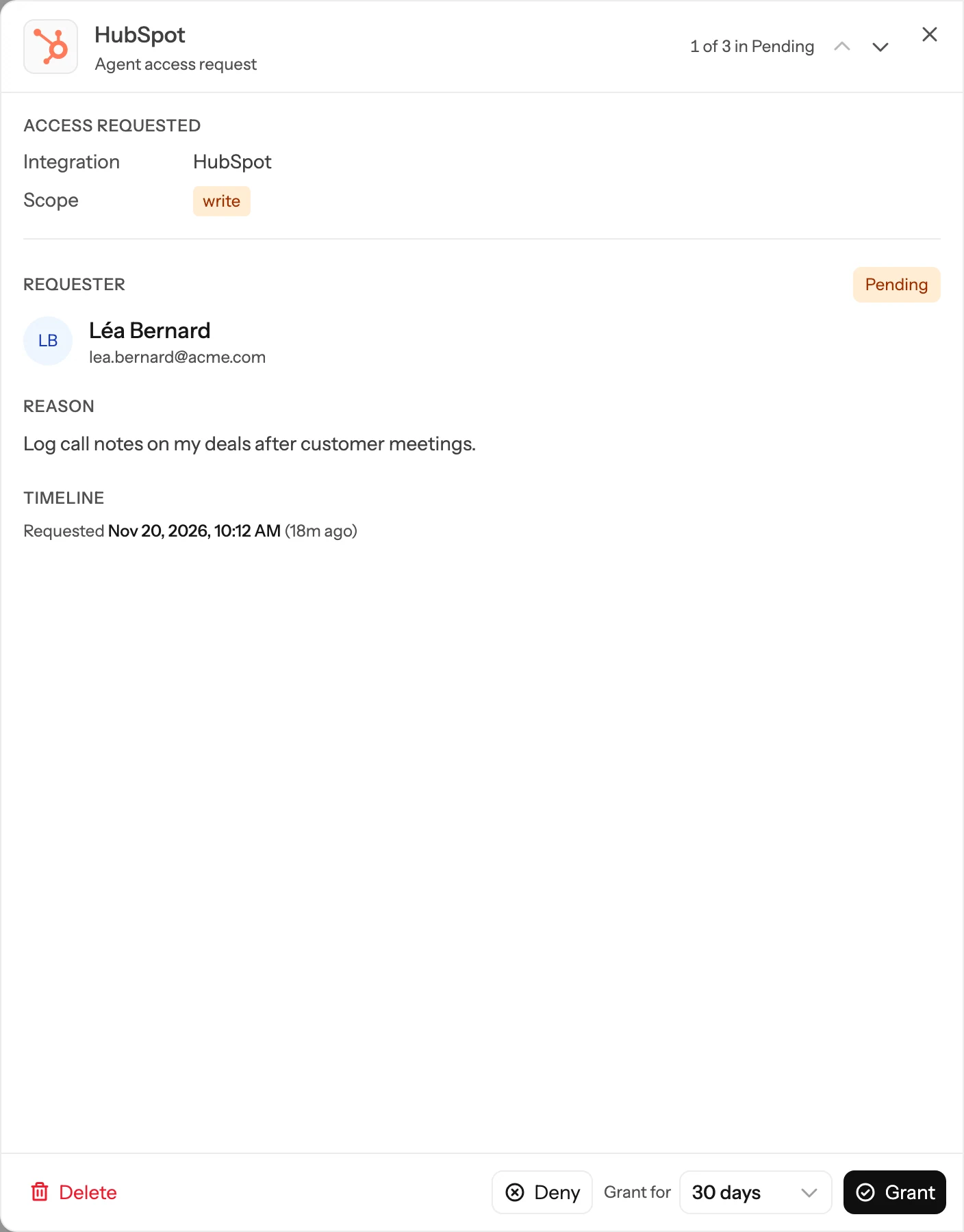
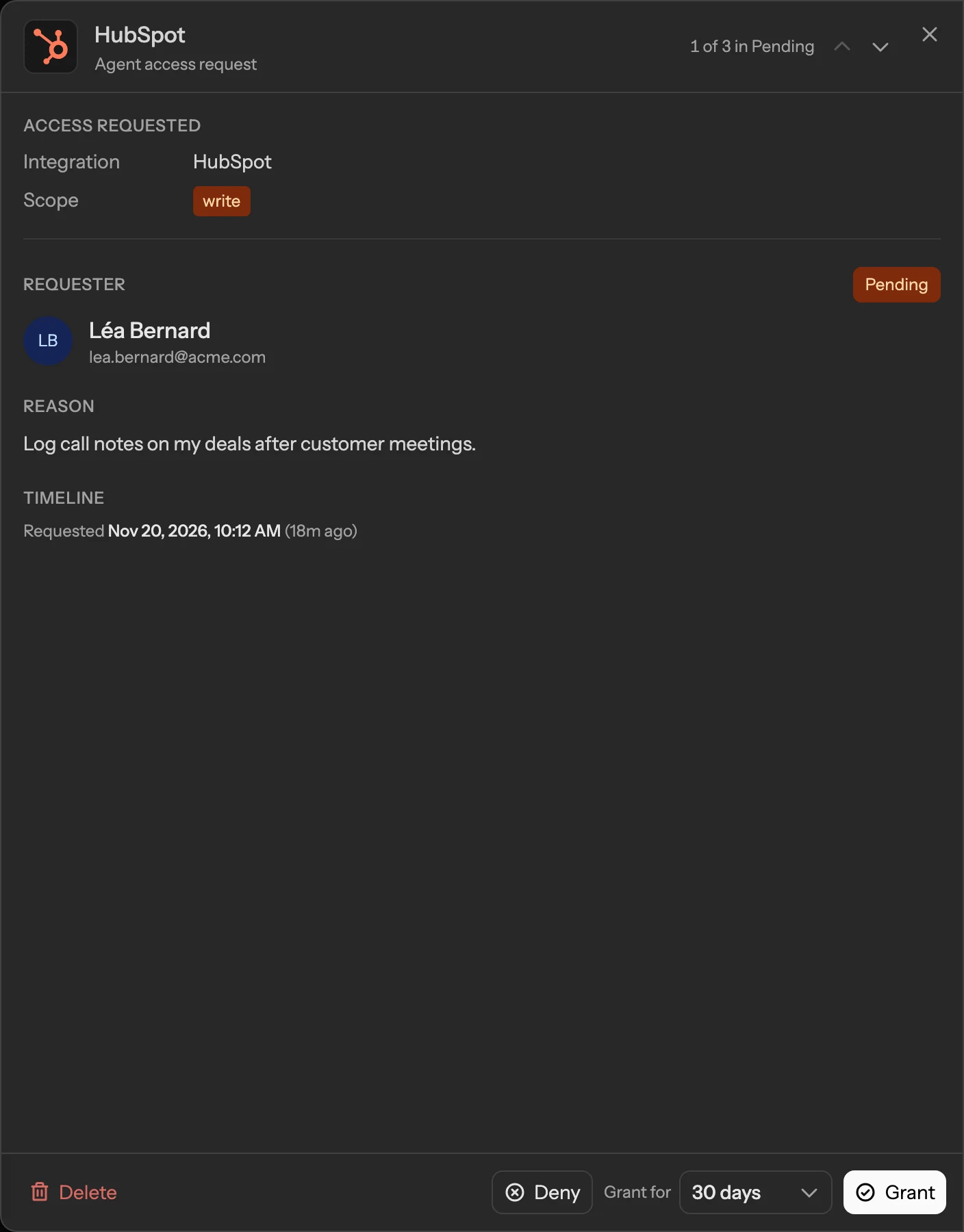
When the requester has no account of their own at the vendor, the message says so before you decide: on a server with a shared connection, approving gives them access through that one account.
What happens next
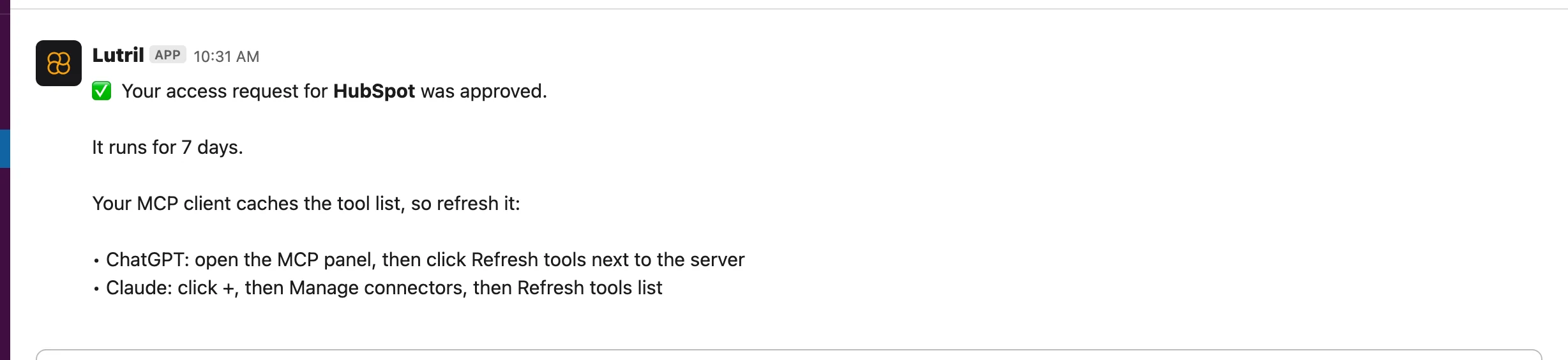
The requester gets a direct message in Slack or Teams with the decision and how long it runs. Because MCP clients cache their tool list, the message tells them how to refresh it.
- A time-boxed grant ends on its own at its deadline. It then moves to Denied / Revoked with a clock icon: it reached the end of its term, it was not refused. The next request is the way back.
- A one-call grant (marked 1 call) closes on its first successful call.
- To end a grant early, open it and click Revoke.
MCP gateway
Serve MCP servers to AI agents through Lutril, decide which tools they may run, refuse risky argument values, and cut off access in one click.
MCP Discovery and the endpoint agent
What the read-only Lutril MCP agent does on a laptop, how to deploy it through your MDM on macOS, Windows and Linux, and how to review what it finds.