Review an application
Decide keep or remove for every account in an application, use the findings and filters to go faster, and validate the review.
Reviewing an application means taking one decision per account: keep it, or mark it for removal. Lutril lists the application's accounts next to what your identity provider knows about each person, and flags the accounts that deserve a closer look.
Before you start
- You need the Owner or Admin role to record decisions.
- The application is part of a campaign. See Create a campaign.
Open the application
Open the campaign from Access Reviews, then click the application's row in the Applications table. The review page opens, with a breadcrumb back to the campaign.
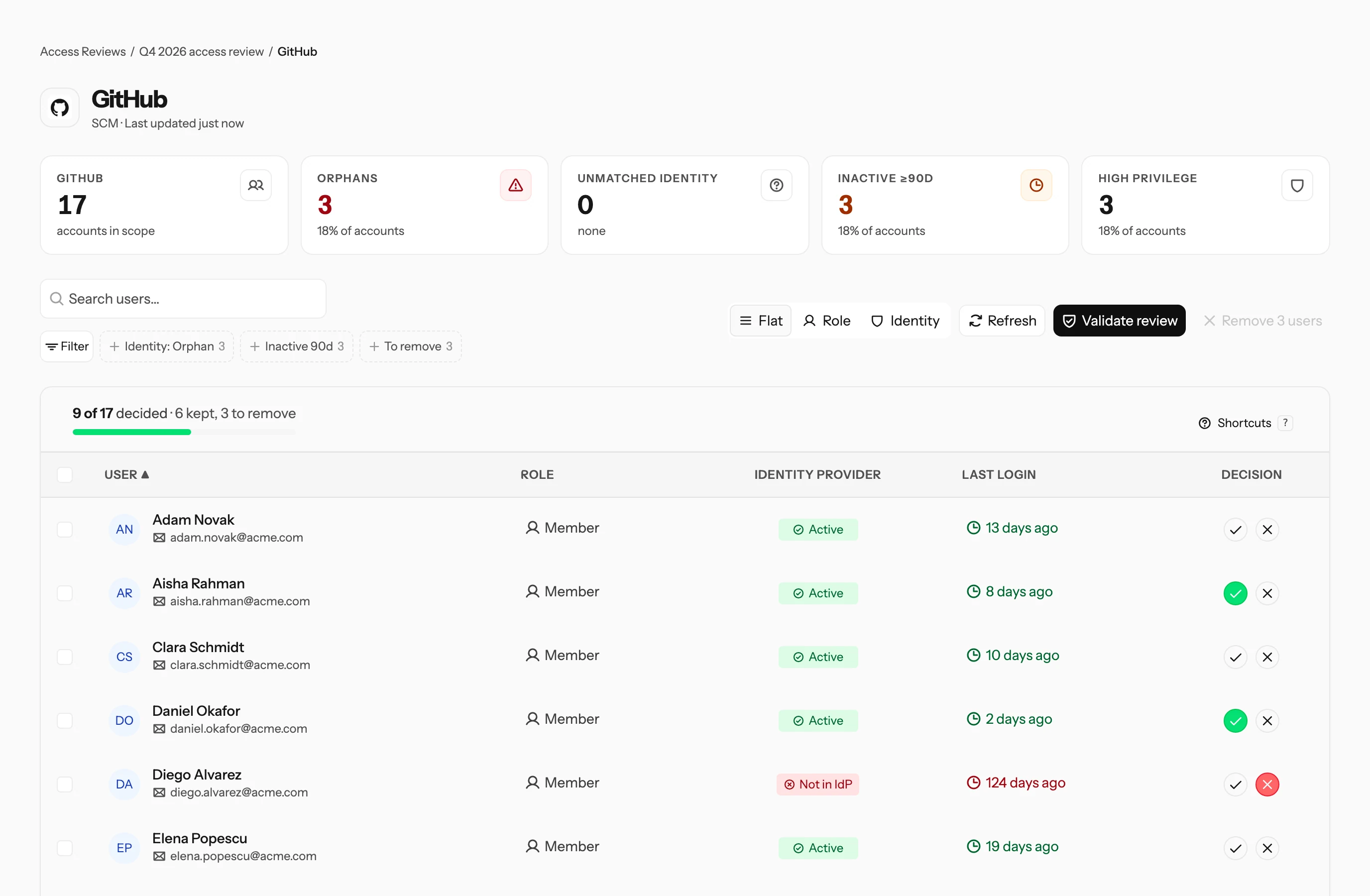
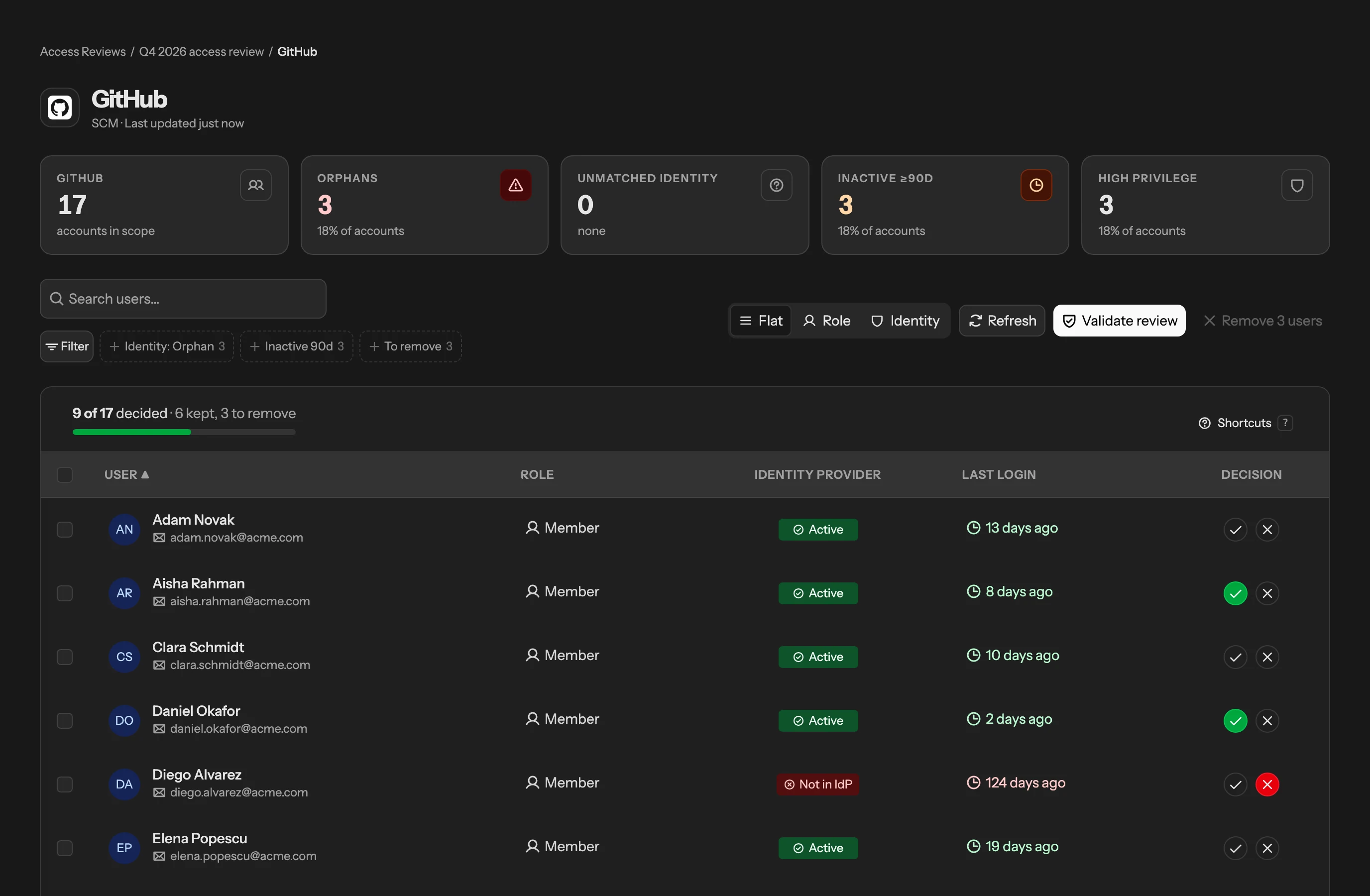
The page has three parts:
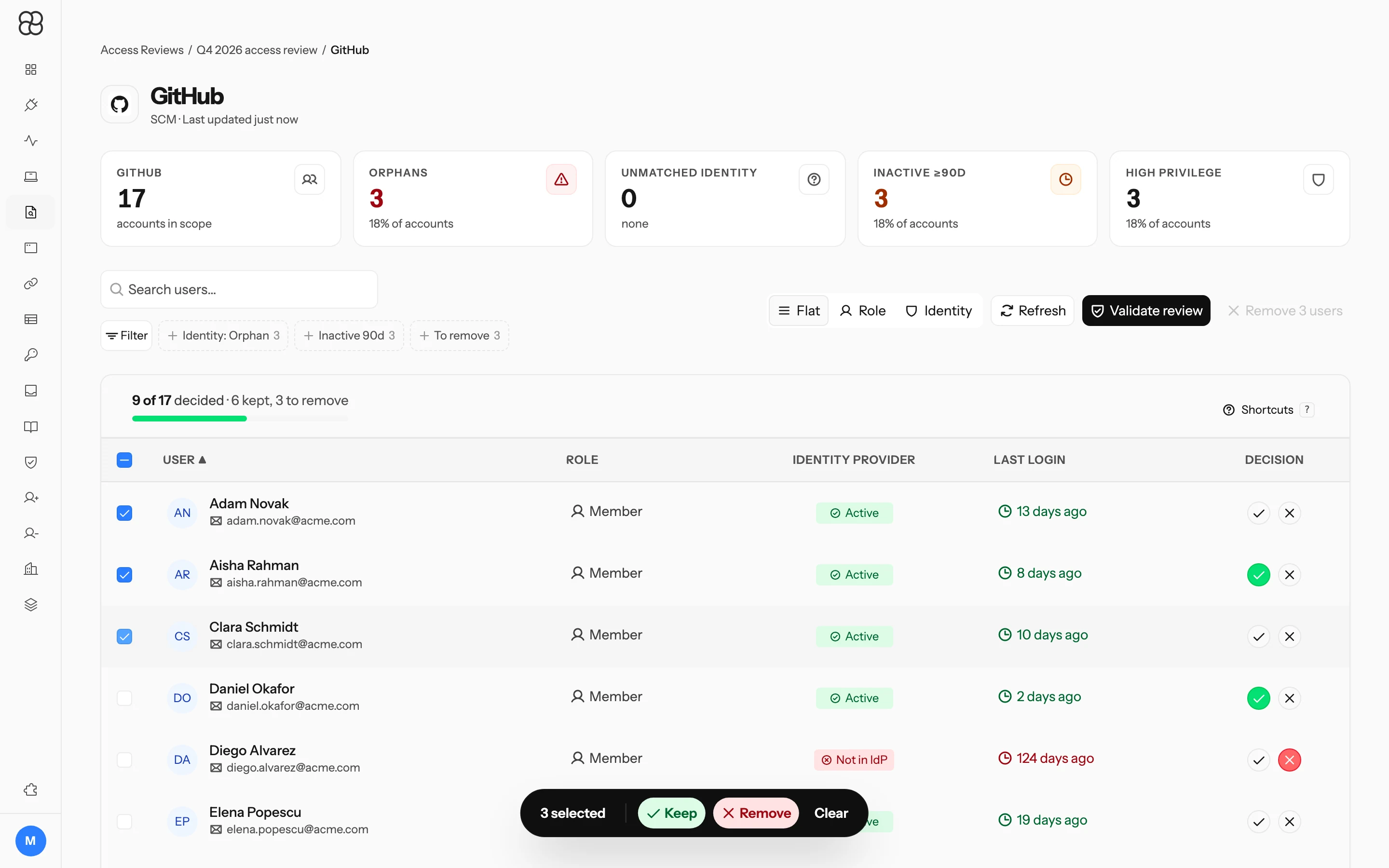
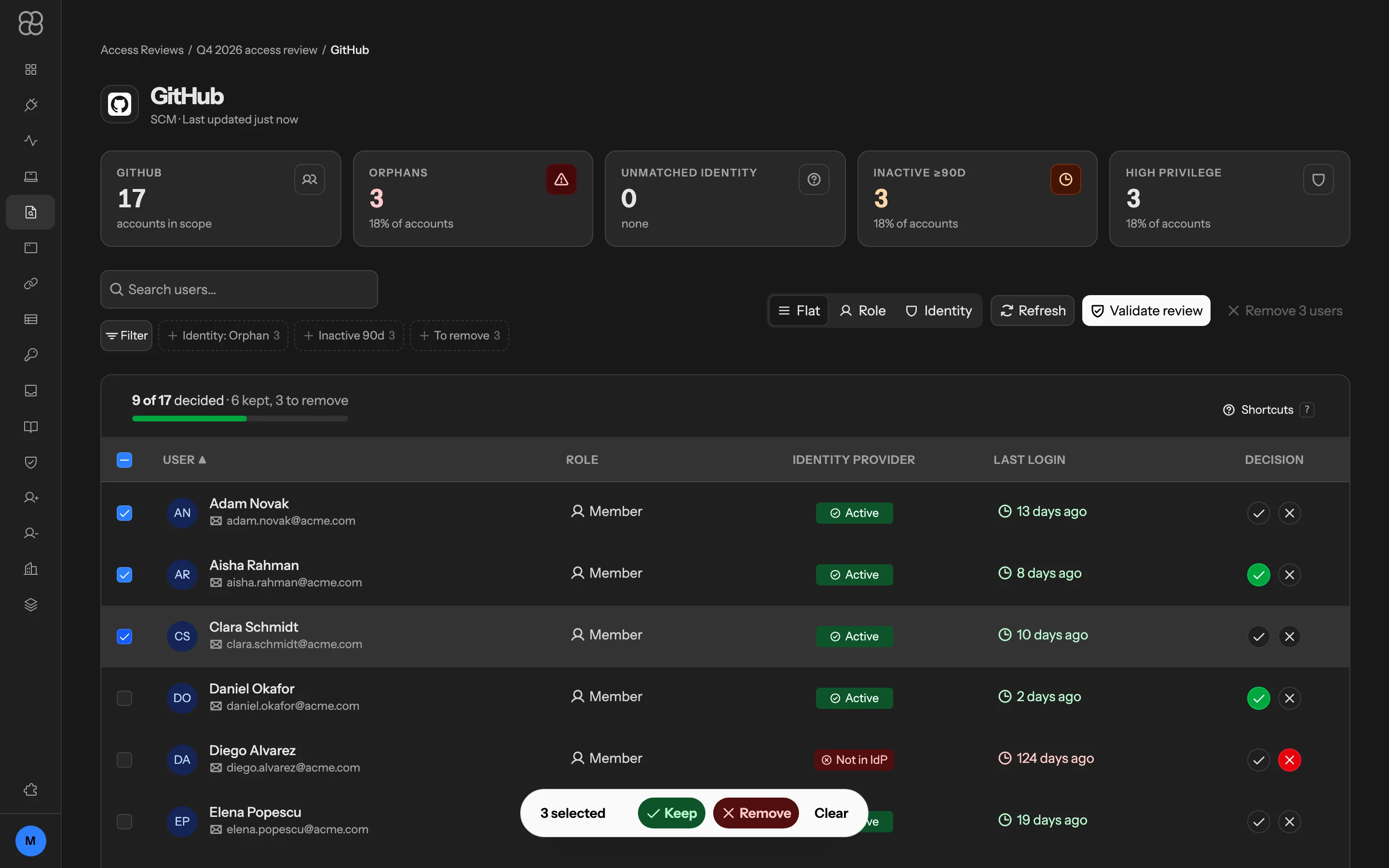
- Findings: the number of accounts in scope, then Orphans, Inactive ≥90d, High privilege and, depending on the application, Bots, Guests, No product or Unmatched identity. Each card shows its share of the accounts.
- Toolbar: Search users…, Filter, the grouping toggle, Refresh (fetches the application's accounts again), Validate review and, once accounts are marked for removal, Remove N users.
- Account list: each account with its Role, its Identity provider status (Active or Not in IdP), its Last login and a Decision column. Above the table, a progress line reads, for example, "9 of 17 decided · 6 kept, 3 to remove".
Decide, account by account
Start with the findings
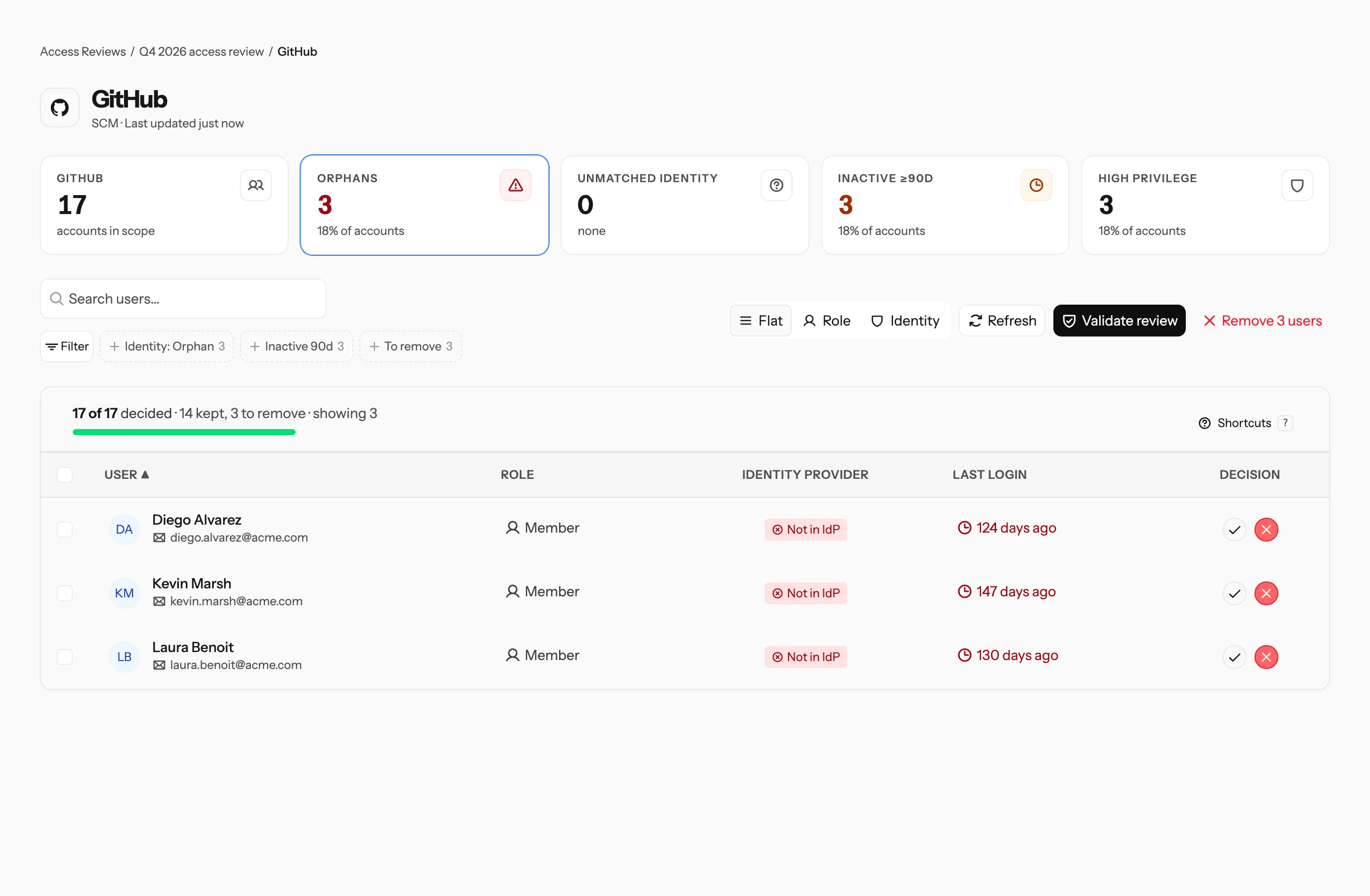
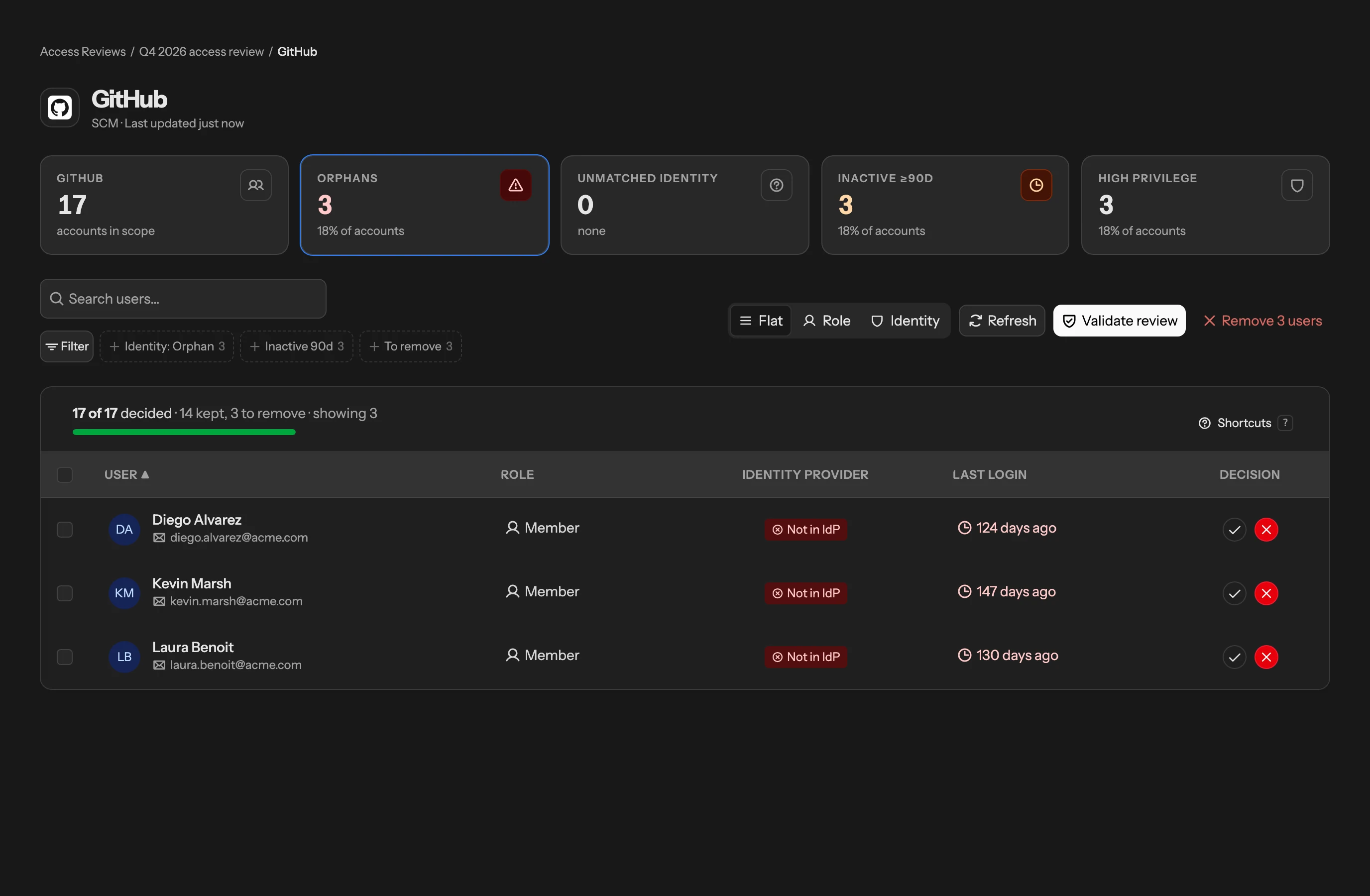
Click Orphans to list only the accounts that have no active user in your identity provider. These are usually former employees and are the first to remove. Click other cards to narrow further: Orphans and Inactive ≥90d together list orphaned accounts that are also unused. Click the total card to clear the card filters.
Keep or remove
In the Decision column, click the check mark to keep the access, or the cross to mark it for removal. Click the same button again to clear the decision. Marking an account only records your intent: nothing is removed until you revoke access.
Decide in bulk
Tick the boxes on the left (or the box in the header to select every account shown), then use the bar at the bottom of the page: Keep, Remove, or Clear to drop the decisions of the selected accounts.
You can also group the list with the toggle in the toolbar: Role, Identity (in the directory or not), or Product for applications made of several products. Each group header has Keep all and Remove all, so "keep every member who is in the directory" is a single click.
Validate the review
When every account has a decision, click Validate review. Lutril records the review: each decision with its date, the list of accounts in scope, and the findings at that moment (accounts in scope, orphans, high privilege and bots, used for the compliance score). A confirmation reads Review validated.
Validate once, at the end
Until you validate, your decisions are a draft saved in your browser: you can close the tab and come back to them on the same device. Once validated, decisions are part of the audit log and cannot be edited. To change a validated review, Lutril asks you to delete the existing run with Delete existing run and validate again from scratch.
Filters and search
- Search users… matches names, email addresses and organizational units.
- Filter combines the identity facets (identity status, inactivity, role, and the groups or products the application reports) with Decision: Undecided, Kept or To remove. Filtering on Undecided is the quickest way to find what is left.
- Click a column header (User, Role, Last login) to sort.
Keyboard shortcuts
Press ? on the review page, or click Shortcuts, to see them.
| Key | Action |
|---|---|
j or ↓, k or ↑ | Next or previous user |
g, G | First or last user |
a | Keep this access |
x | Mark this access for removal |
u | Undo the decision on this row |
Esc | Drop the keyboard cursor |
Shortcuts only mark accounts. Removal always goes through Remove N users and its confirmation.
Troubleshooting
- A review run already exists for this campaign: the application was already validated in this campaign. Click Delete existing run to discard that run and its decisions, then validate again.
- No email address for some accounts: they appear under Unmatched identity. They are not counted as orphans, because Lutril cannot tell who they belong to; check them in the application itself.
Create a campaign
Launch an access review campaign, choose the identity provider and applications in scope, and assign a reviewer to each application.
Revoke access
Remove the accounts marked for removal in a review, see which removals succeeded, and handle the applications Lutril cannot remove accounts from.