Install the Teams app
Connect Microsoft Teams so employees request access, and approvers decide, without leaving Teams.
The Lutril app for Microsoft Teams brings access requests into Teams. Employees chat with Lutril or type access, approvers get the request as a card they can act on, and everyone is told the outcome in Teams. Setting it up takes two steps: an admin consent in Lutril, then the app itself in the Teams Admin Center.
Prerequisites
- You are an owner or admin in Lutril.
- A Microsoft Entra administrator who can grant tenant-wide admin consent is available.
- You can manage apps in the Teams Admin Center.
Grant admin consent
Select Integrations at the bottom of the sidebar, then the Microsoft Teams card. It is listed under Applications as a notification channel, and opens its page directly.
On the Connection tab, under Microsoft Teams Bot, select Grant Admin Consent.
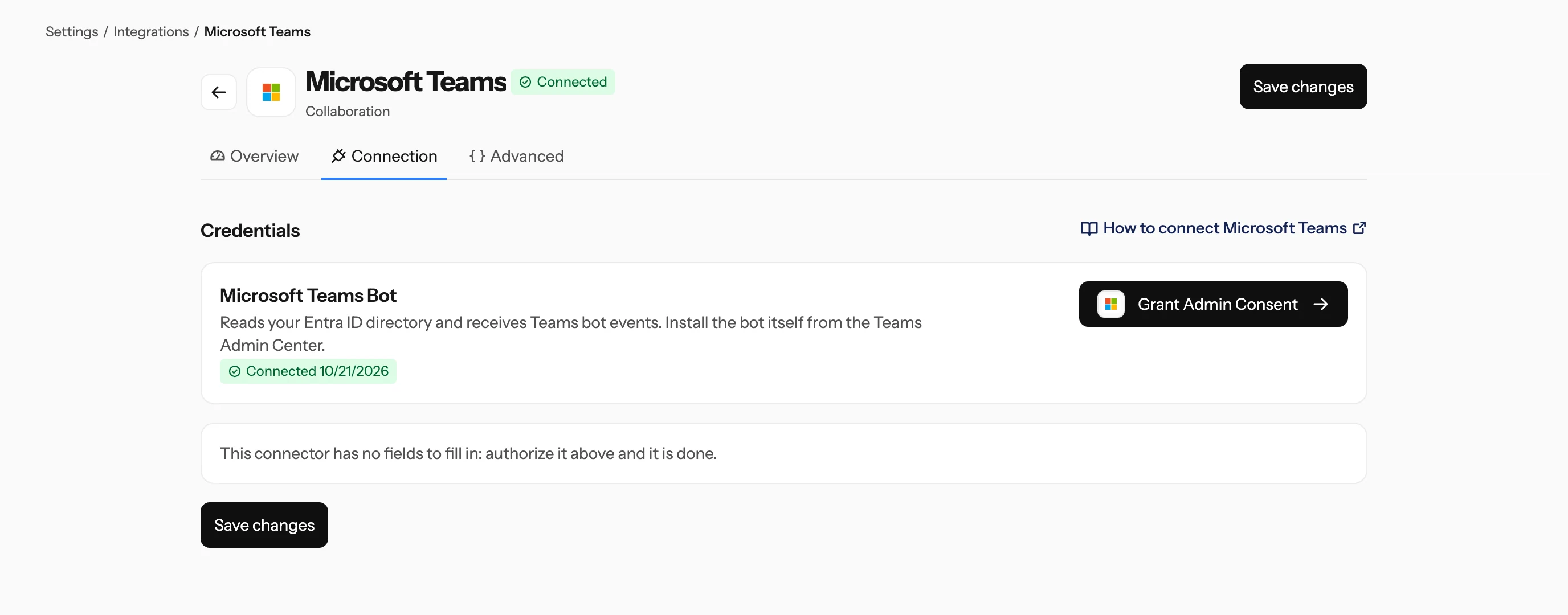
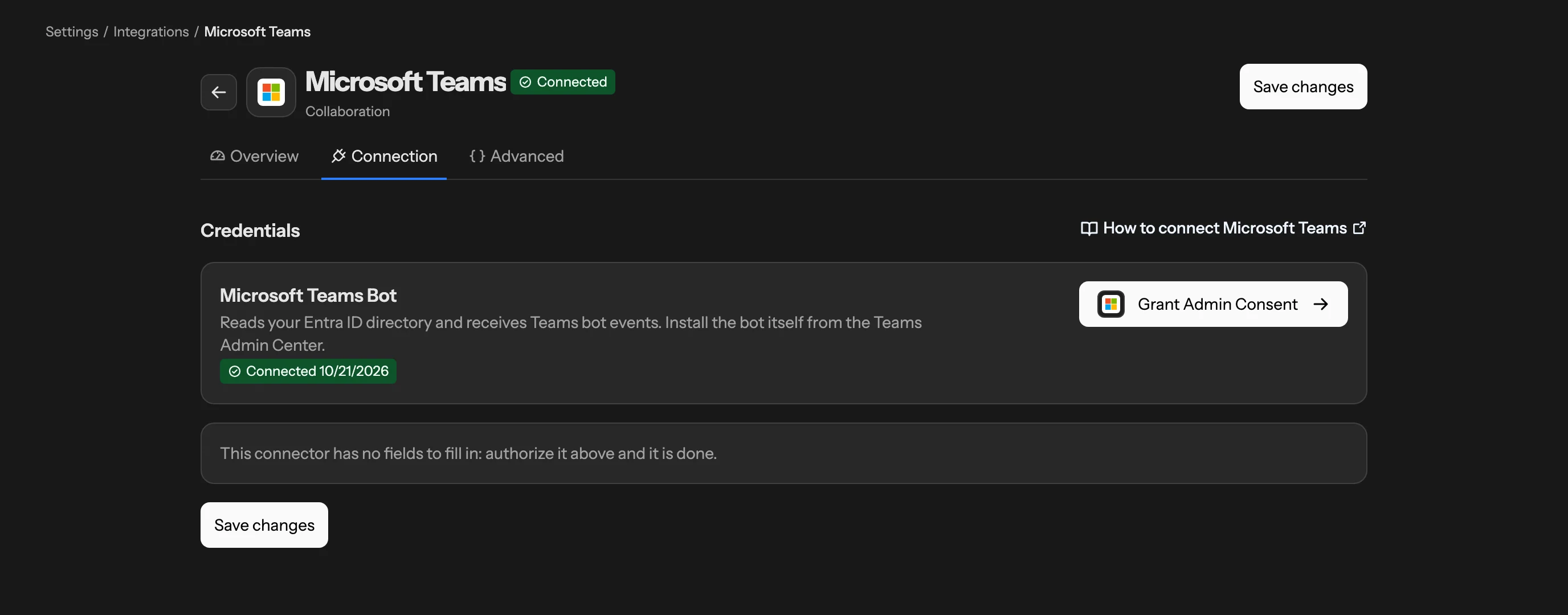
Sign in as an Entra administrator and accept. The consent lets Lutril read your Entra ID directory and receive the bot's events. It asks for no other field: the panel shows Connected with the date, and the connector says it has no fields to fill in.
Install the app in Teams
In the Teams Admin Center, open Teams apps, then Manage apps.
Upload the Lutril app package (Upload new app), or find Lutril if it is already listed, and allow it for your organization. Ask Lutril support for the package if you don't have it.
Optionally, pin it for everyone with a setup policy so nobody has to look for it.
The app works in personal chats, in team channels and in group chats. When it is added to a team, Lutril records that team's channels so you can pick one as the destination for Shadow IT alerts.
What employees see
When an employee opens Lutril for the first time, or says hello, Lutril answers with a help card:
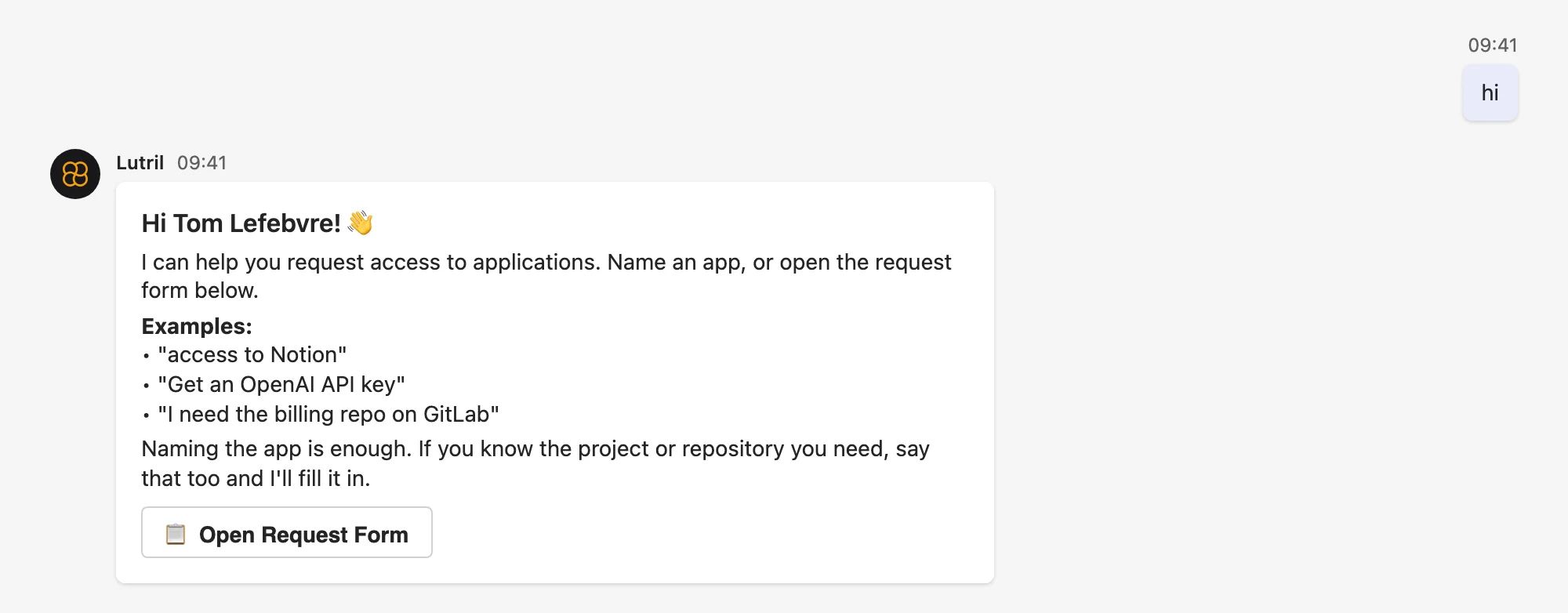
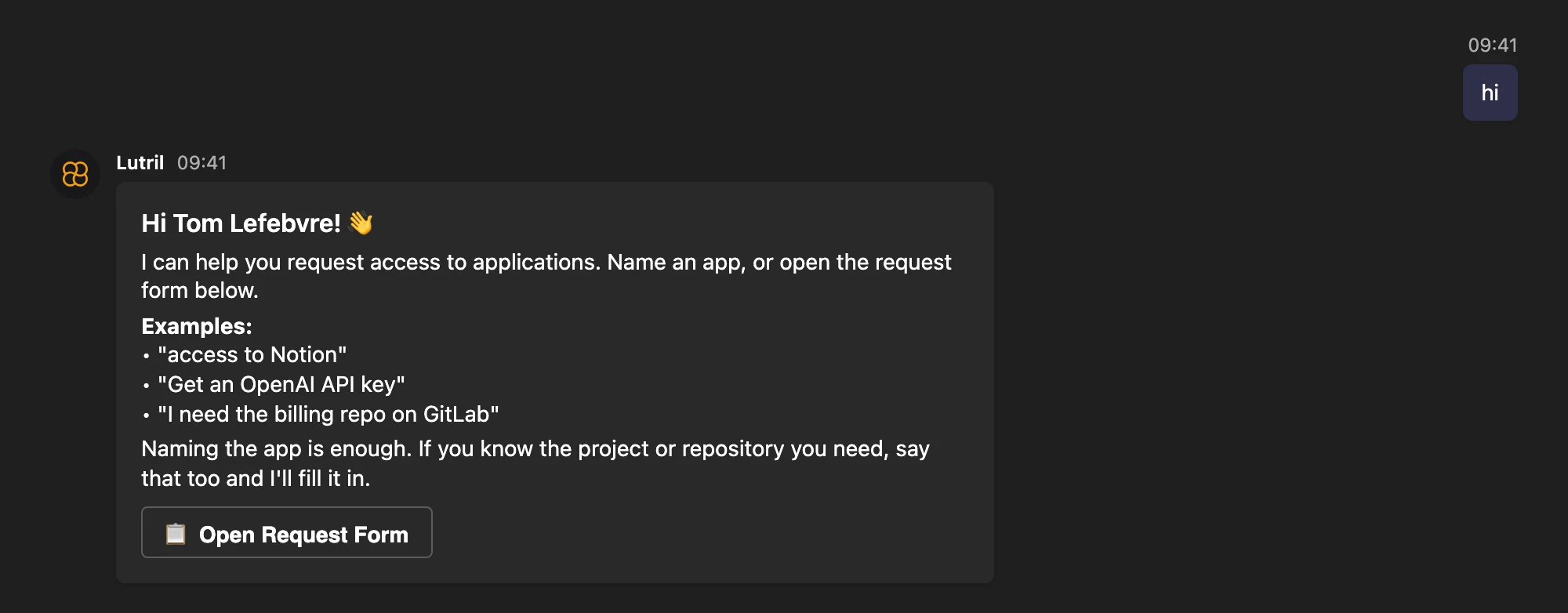
From there, employees can:
- Name the app in plain words, such as "access to Notion". Lutril recognises the app and offers a button that opens the request form for it.
- Select Open Request Form to search the catalogue and fill in a request.
- Type a command:
accessopens the request form,helpshows the card again, andclearremoves Lutril's messages from the chat.
The request follows the approval workflow set in the catalogue. Approvers receive it as a card in Teams and decide from the card; the requester is told the outcome in Teams.
Troubleshooting
The consent was cancelled, or the account that signed in cannot grant admin consent for your tenant. Select Grant Admin Consent again as an Entra administrator.
The app is not allowed for them yet. In the Teams Admin Center, check that Lutril is allowed under Manage apps and that no permission policy blocks it.
Request forms opened from Teams use a short-lived link. Close the form and open a fresh one from the chat.