Expiry and extensions
How a just-in-time grant is warned before its deadline, extended by the requester within the policy's limits, and removed or flagged when it runs out.
Every grant made under a just-in-time policy carries a deadline: the duration the requester picked, capped by the policy maximum and by anything the approver shortened it to. Before the deadline the requester is warned and can extend. At the deadline the access is removed automatically, or flagged so the application owner removes it.
Before you start
Both behaviours are switched on for the whole workspace in Access Management > Policies > Settings (Just-in-time revocation, in Beta). You need the Owner or Admin role to change them.
Turn on warnings and removal
Warn first
Open Policies and click Settings. Switch on Warn before access expires. It removes nothing, so it is safe to turn on first: requesters get a message before their deadline with the option to extend. With warnings on and removal off, Lutril runs in advisory mode.
Then remove at the deadline
Switch on Remove access at the deadline. Lutril then takes back what just-in-time policies granted, and only that: standing access and grants made by owners are never touched. The dialog tells you how many grants expire in the next 24 hours, and how many are already past their deadline and would be removed within minutes.
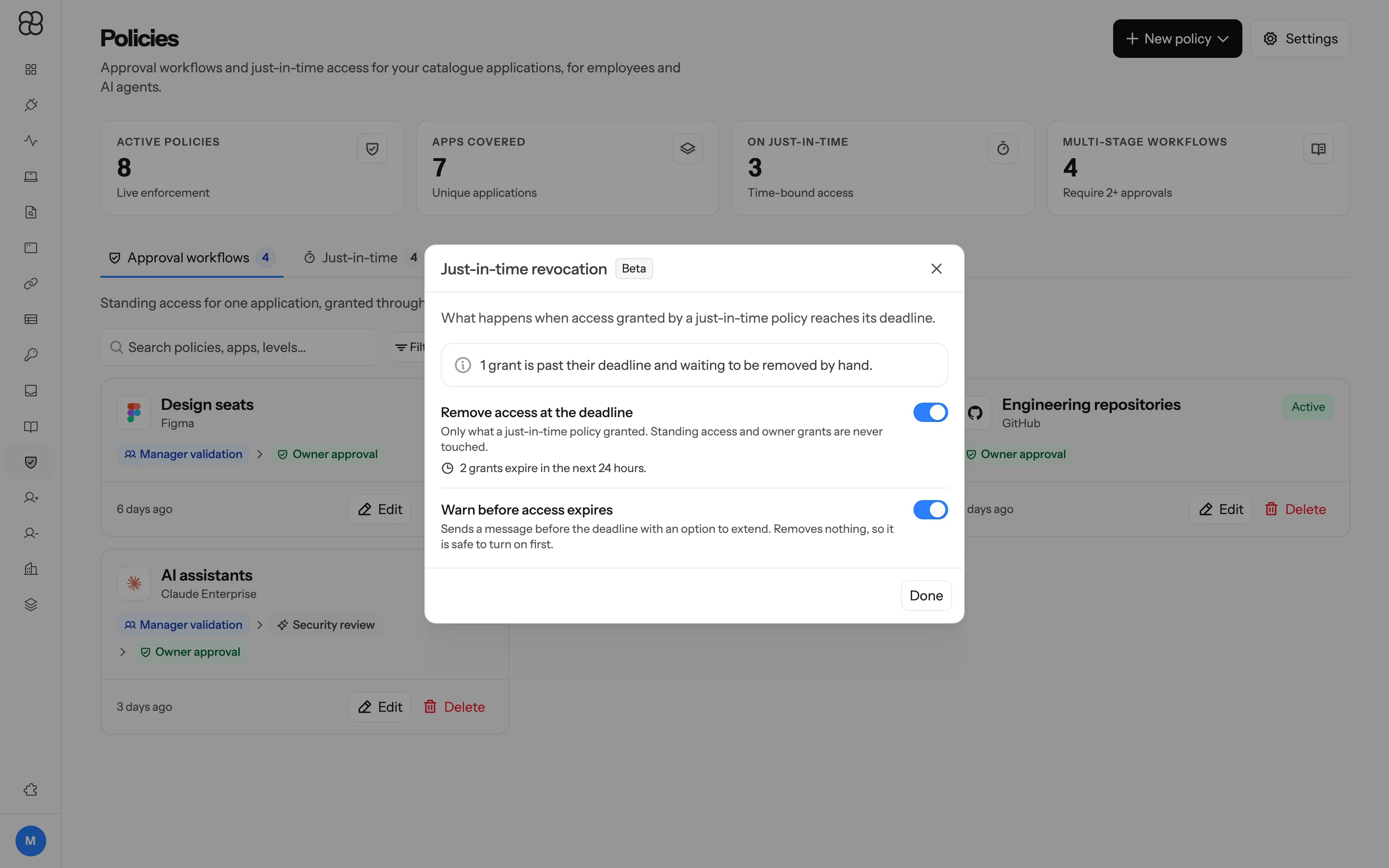
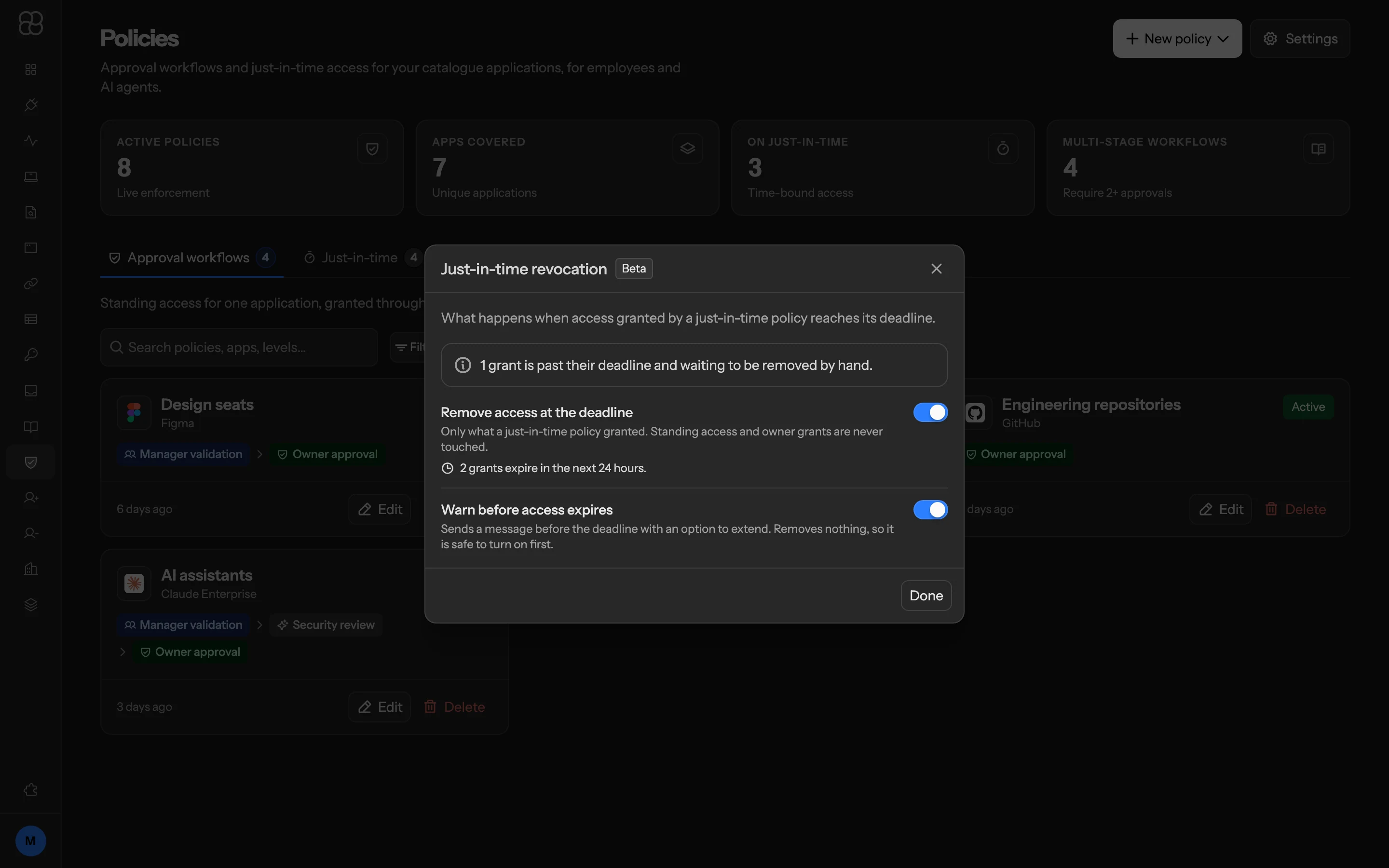
If a policy asks for an automatic removal Lutril cannot perform (no group workflow, an integration that is switched off, an application where removal would mean deleting the account), the dialog lists it and removal stays off until you switch that policy to Notify, and let someone remove it or give Lutril a way to remove the access.
The requester's warning
The warning arrives about a quarter of the way before the end of the grant: 1 hour before the end of a 4-hour grant, 6 hours before a 1-day grant, and never more than 24 hours ahead. Grants shorter than 4 hours are not warned. It is sent where the request came from: in Teams for a request made in Teams, in Slack otherwise.
When a policy grants a request automatically, the confirmation in the app gives the deadline ("granted automatically, until..."). The app has no extend button for the requester: extend from the Slack or Teams warning. If you need access past the extensions the policy allows, submit a new request from My Applications.
Admins see every deadline, and can revoke a grant early, from the Just-in-time tab of Access Requests (see below).
Extension rules
An extension needs no new approval: the approver already agreed to grant up to the policy maximum. To keep it from turning into standing access:
- Each extension is at most as long as the original grant, and never more than the policy currently allows.
- A grant can be extended three times. After that, the warning says so and the requester submits a new request, which puts an approver back in the loop.
- Only the person the access belongs to can extend it.
- If the policy that granted the access has been switched off, the access cannot be extended.
At the deadline
- Removed automatically: when the policy says Remove the access automatically and Remove access at the deadline is on, Lutril undoes exactly what the grant did. It removes the directory groups the grant added, and disables an account only if the grant created or re-enabled it.
- Flagged for removal: when the policy says Notify, and let someone remove it, when removal is off for the workspace, or when an automatic removal fails, Lutril leaves the access in place and tells the application owner in Slack (or Teams if they are not on Slack). It never reports a removal that did not happen.
Track time-boxed access
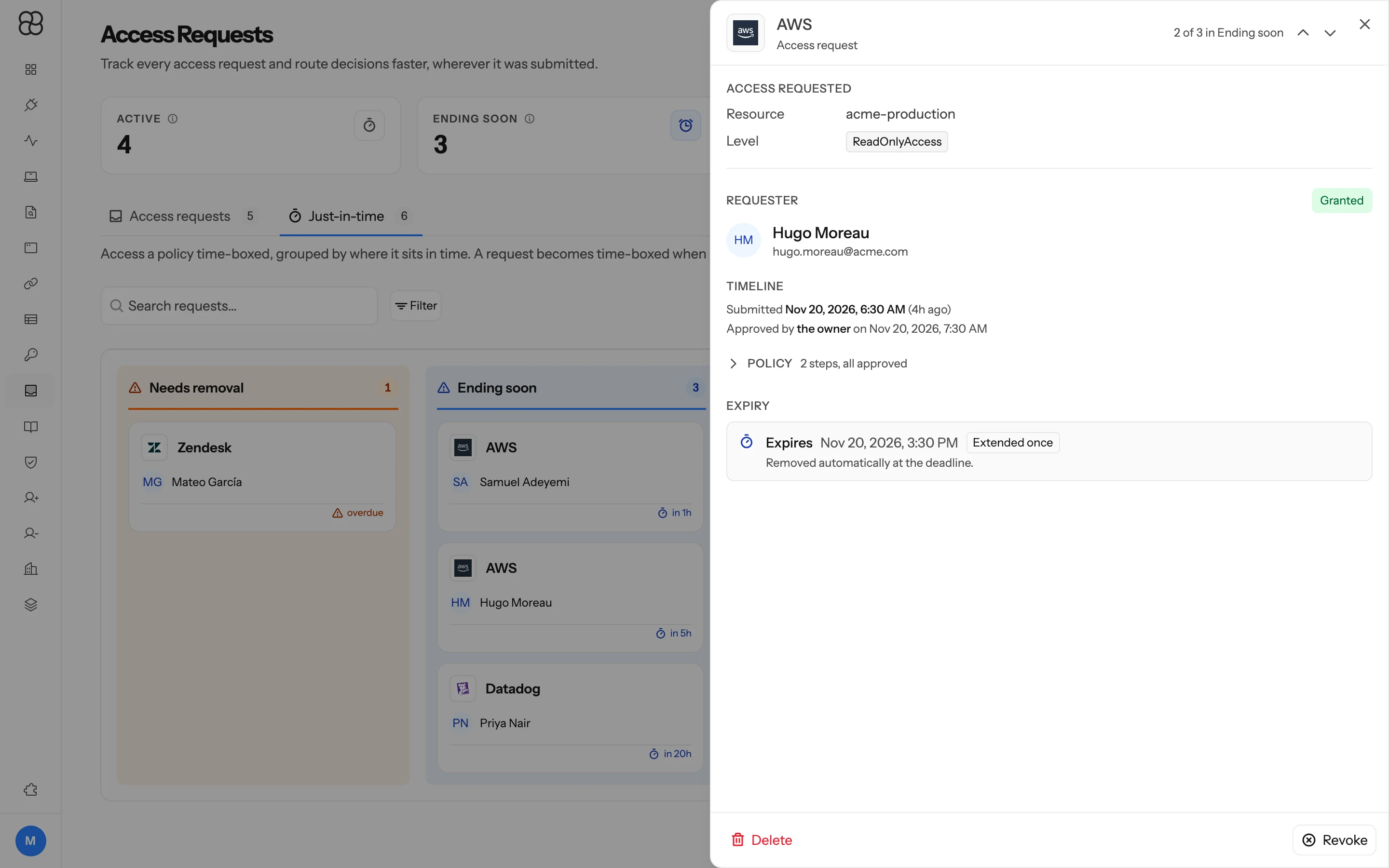
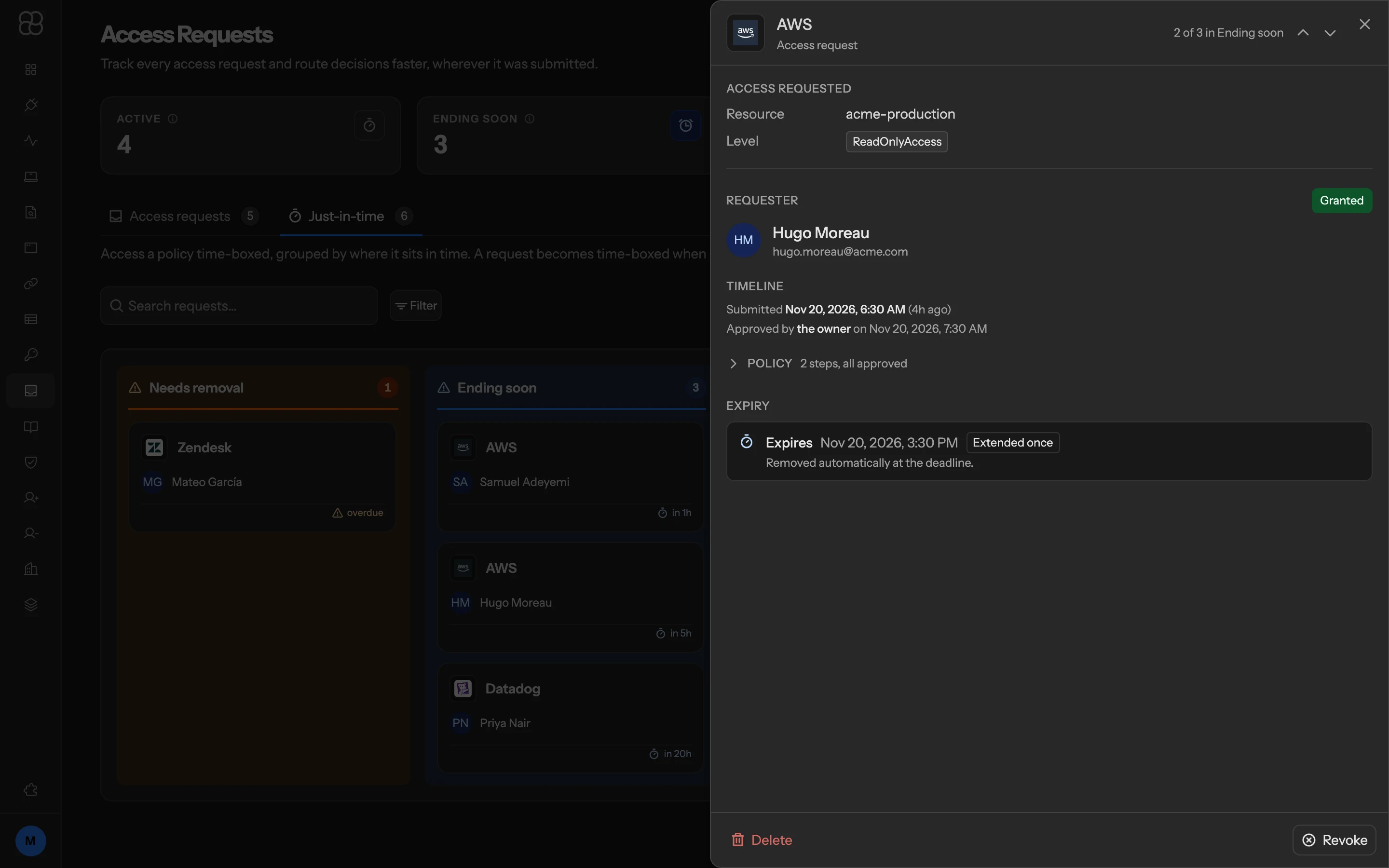
Open Access Management > Access Requests > Just-in-time. Every grant is placed by where it sits in time: Needs removal (past its deadline and still in place), Ending soon (within 24 hours), Active, and Ended. The counters above add the number of grants that were Extended: if most grants get extended, the policy maximum is probably too short.
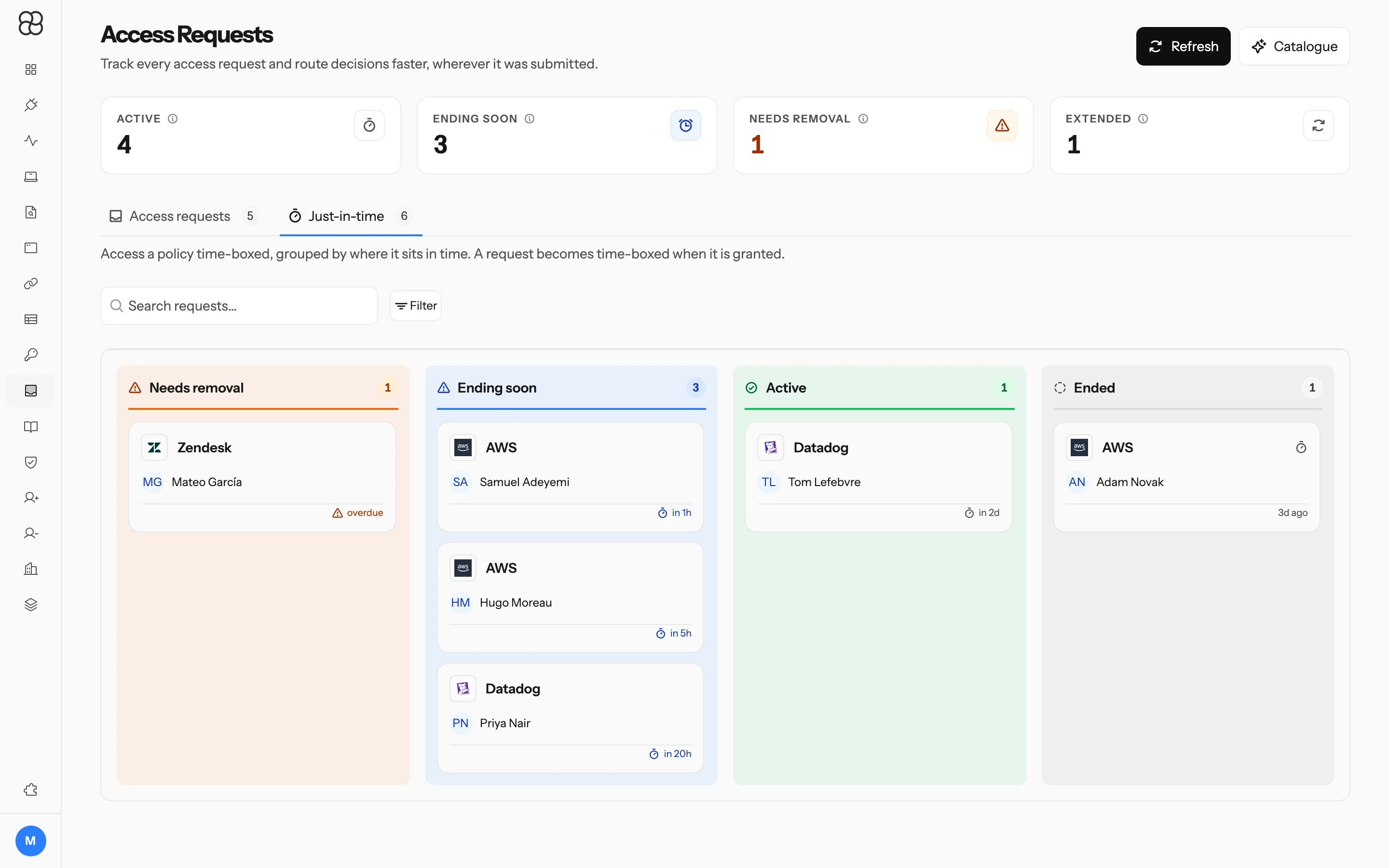
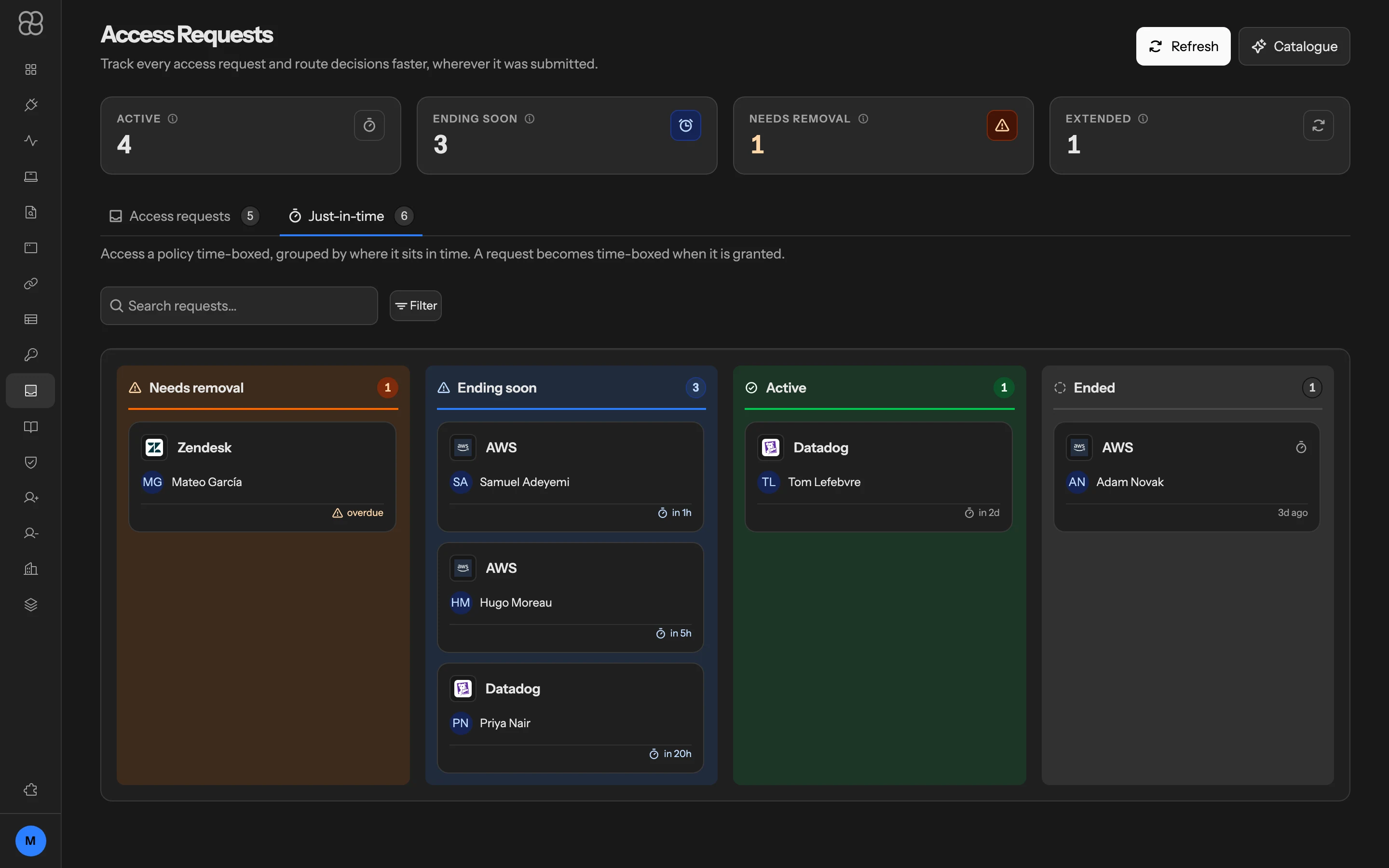
Click a grant to see when it expires, how many times it was extended, and what happens at the deadline. Revoke removes it now.
Approve requests
Decide on the requests waiting on you as an application owner, a manager or a reviewer, from the app, from Slack or from Teams.
Onboard a new hire
Create a new hire's accounts, groups, tasks and emails in one plan, run it now or on their start date, and follow every task to completion.