How integrations work
How Lutril connects to your identity provider and your SaaS apps, and what each part of a connection page controls.
An integration is a connection between Lutril and one application. Through it, Lutril reads who has an account and with which role, and, when you allow it, creates and removes accounts for access requests, reviews and offboarding.
You manage every integration from Settings > Integrations. The page groups them into Identity Provider (Google, Microsoft, and HR tools such as Lucca or PayFit), Applications, and Custom integrations.
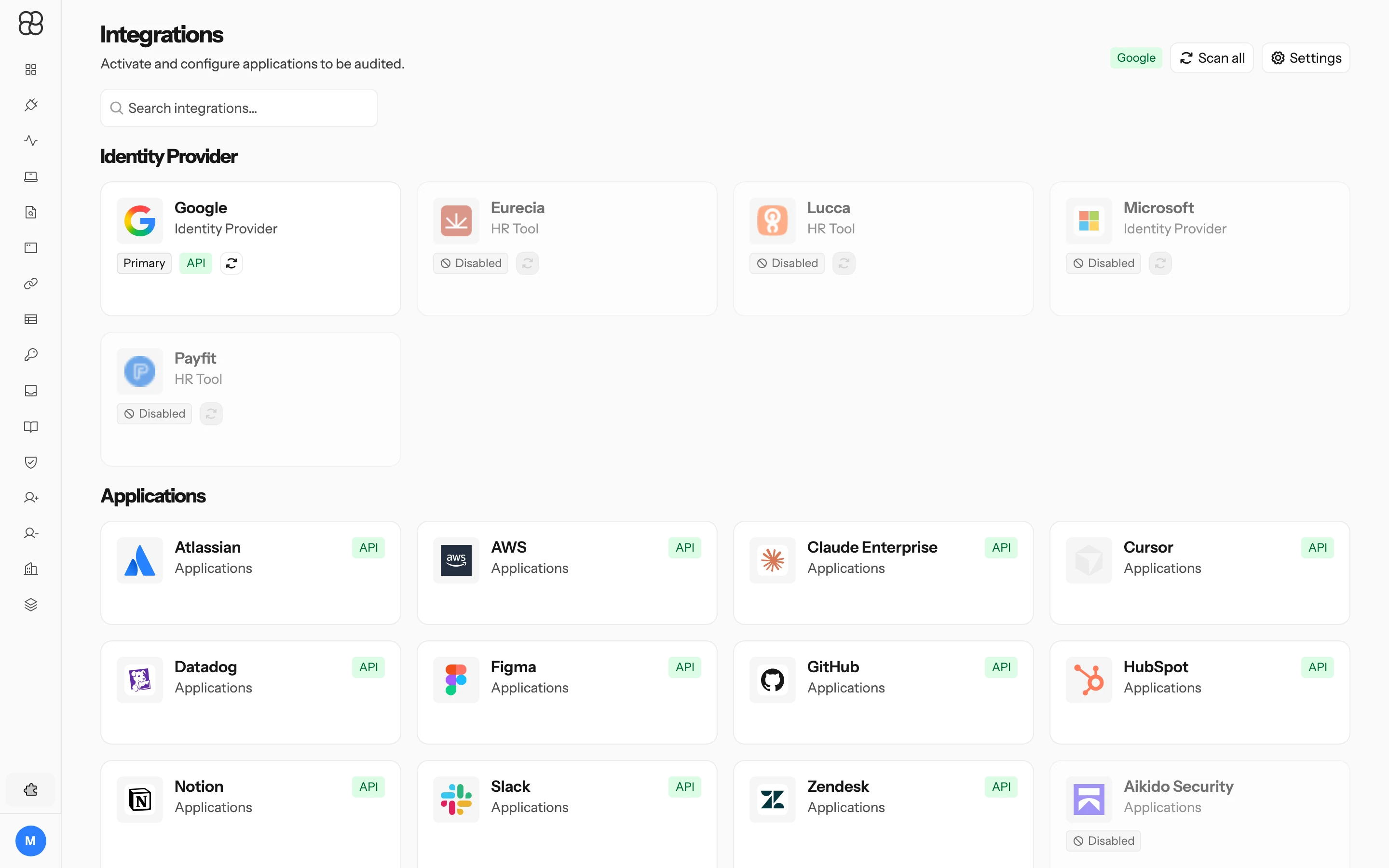
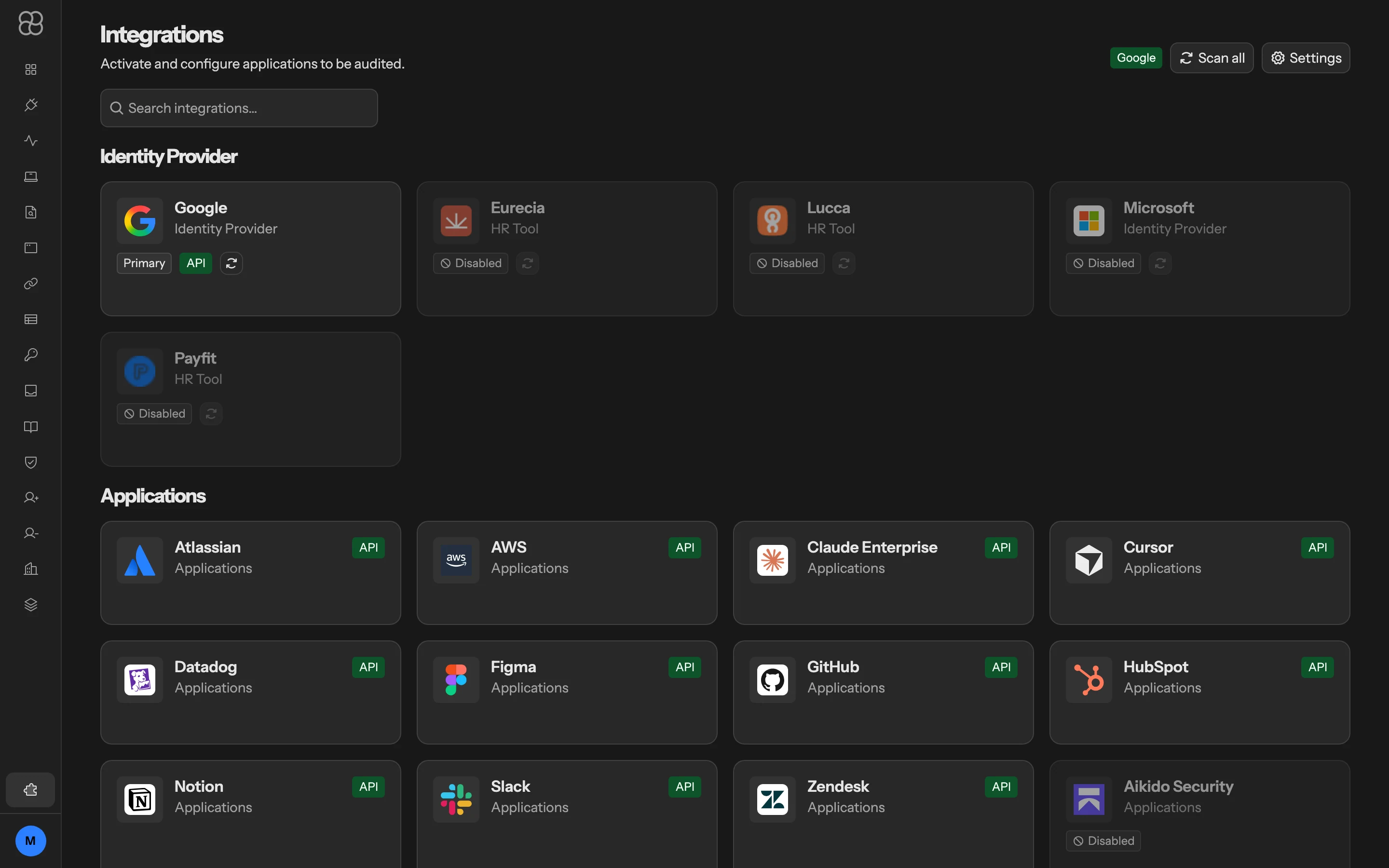
Each card shows the state of its connection:
| Badge | Meaning |
|---|---|
| API | Lutril syncs accounts continuously from the vendor's API. |
| CSV | Accounts come from a file you import. |
| Connected | A channel (Microsoft Teams) is connected. Channels carry no accounts. |
| Disabled | Not connected yet. |
| Primary | The identity provider every other app is compared against. |
| N environments | The vendor is connected more than once. See Multiple instances. |
Scan all syncs every connected integration now instead of waiting for the next scheduled sync. Settings sets the primary identity provider and the Auto-provision end users on login switch, which creates a locked requester account when someone from your directory signs in to Lutril for the first time.
API or import
The first time you open an application, Lutril asks where it should read accounts from:
- API: continuous sync from the official source. This is the recommended mode, and the only one that lets Lutril create and remove accounts.
- Import: a one-off file import, for apps without a usable API. You upload the export on the app's review page.
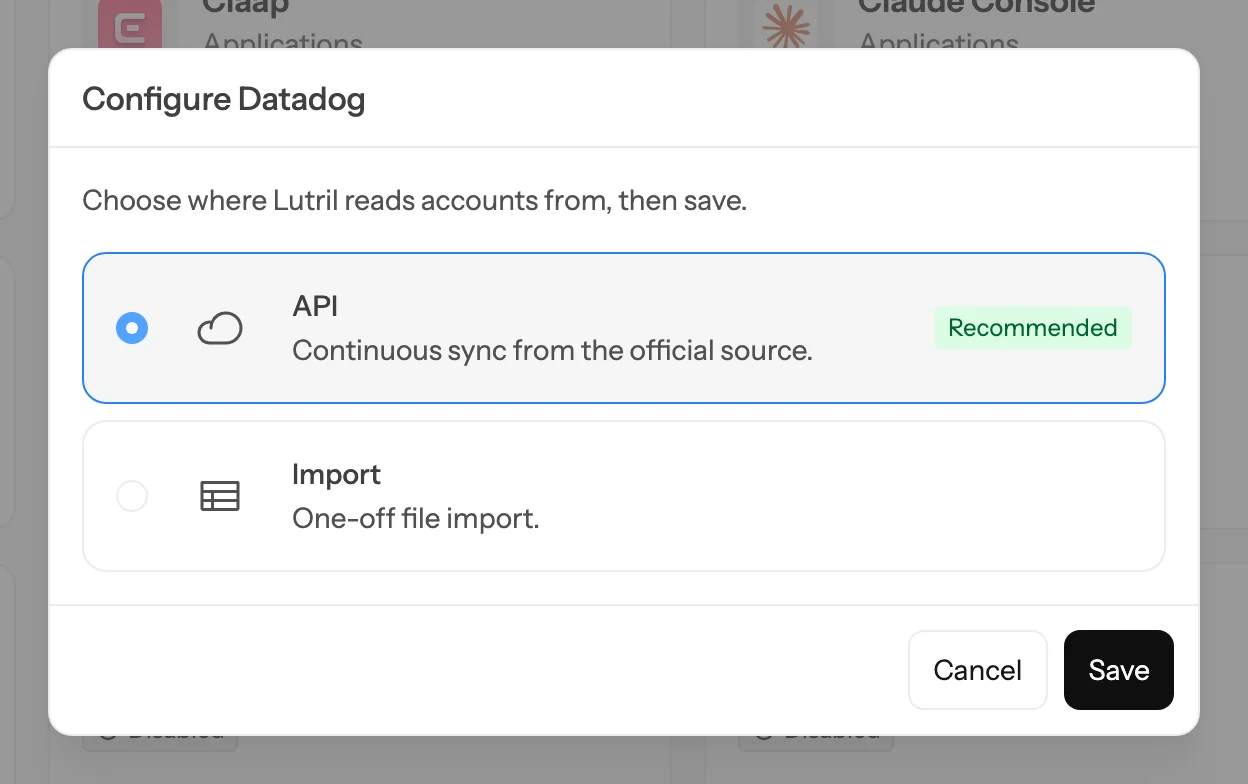
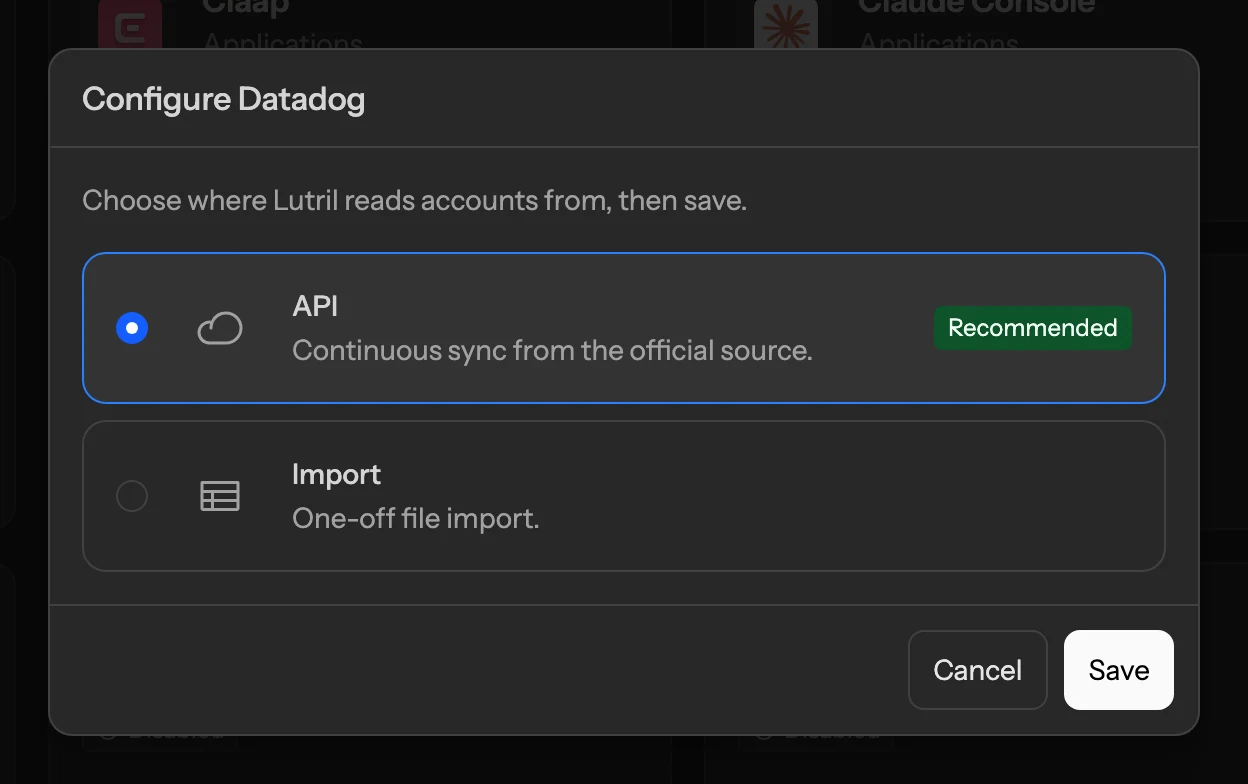
You can change the mode later by clicking the card again. The dialog marks the mode in use as Current.
API key or OAuth
Each vendor authenticates in one of two ways, and the Connection tab shows the fields that vendor needs:
- API key: you create a key or token in the vendor's admin console and paste it in. Secrets are encrypted and never sent back to the browser; a stored one shows as unchanged.
- OAuth: you click Connect and approve Lutril in the vendor's own consent screen. When a vendor also accepts a token, it sits under Connect with a credential instead as a fallback.
Every Connection tab links to the vendor's setup guide (How to connect followed by the app name). The full list is in Setup guides.
The connection page
Opening an API integration takes you to its own page, with one tab per question:
| Tab | What it answers |
|---|---|
| Overview | Is this connection working, and what is left to finish? Lists where it points, whether credentials are stored, the owner, and what Lutril may do. |
| Connection | Which credential it holds. API keys, OAuth buttons and vendor options. |
| Service account | Slack, Notion and Figma only. The account Lutril signs in with to invite and remove people where the vendor has no API for it. |
| Permissions | Apps that support provisioning. Whether Lutril may Create accounts and Remove accounts. |
| Environments | Vendors that can be connected more than once. Which connection you are editing. |
| Advanced | Every stored value except secrets, as JSON. |
The tag next to the app name gives the state: No credentials, Not live yet, or Connected. Saving valid credentials is what makes a connection live; there is no separate switch.
Test connection
Test connection saves the form, then asks the vendor for its user list with the stored credentials. The result appears under the header:
- A green banner with the number of users found means the connection works.
- An amber banner means the vendor answered but returned no users, or returned a warning. Check that the account you authorized can read the directory.
- A red banner explains what failed, for example a revoked token or a wrong host.
Disconnect
Disconnect on the Overview tab deletes the stored credentials and stops every sync and grant that uses the connection. Access reviews and requests already recorded keep their history.