Results and export
Follow a campaign's progress, read the decisions recorded for each application, rename the campaign and export it as an Excel workbook for your auditors.
The campaign page is where you follow a review to completion and collect the evidence. Open it from Access Reviews by clicking the campaign's row.
Follow progress
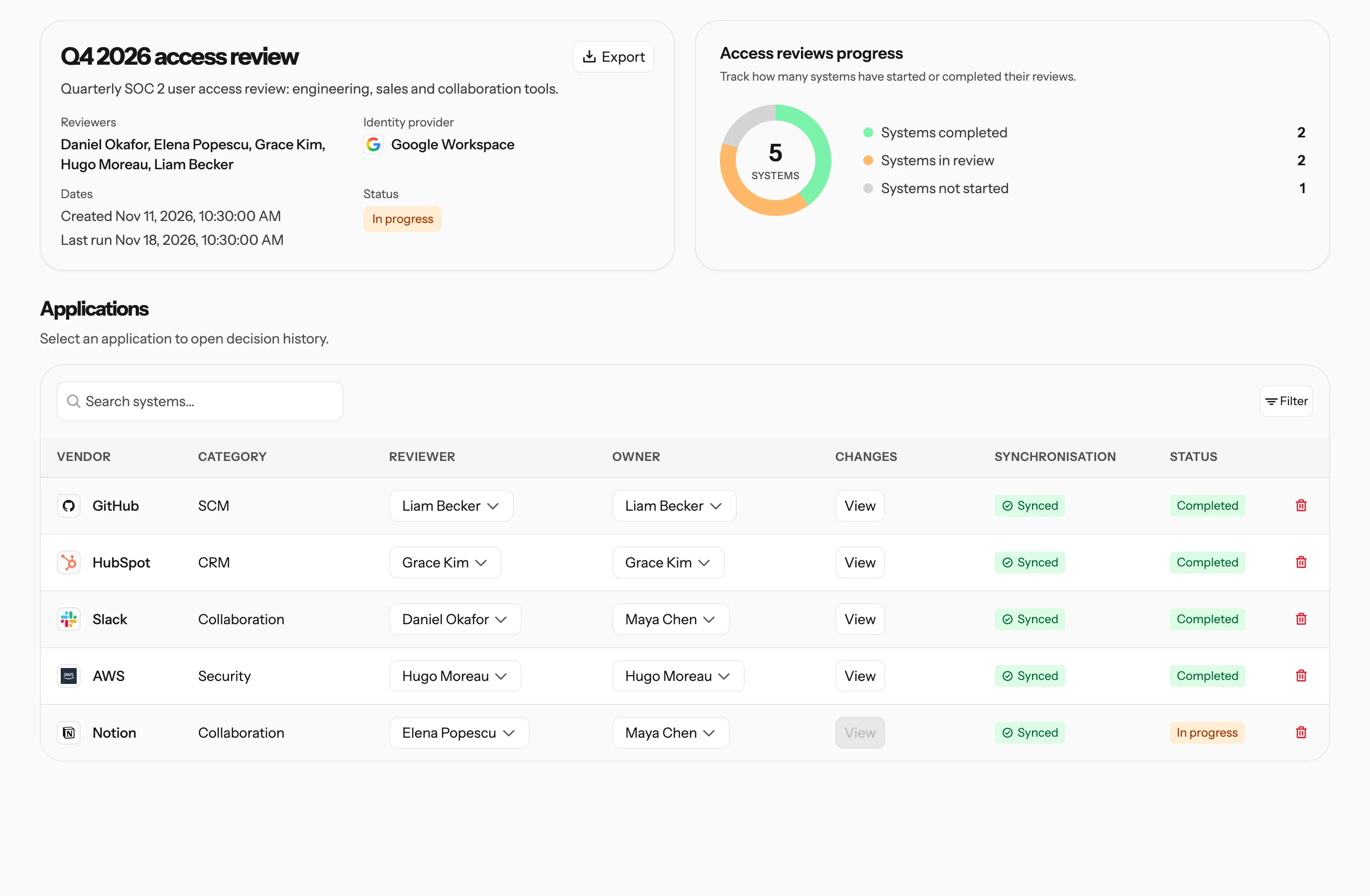
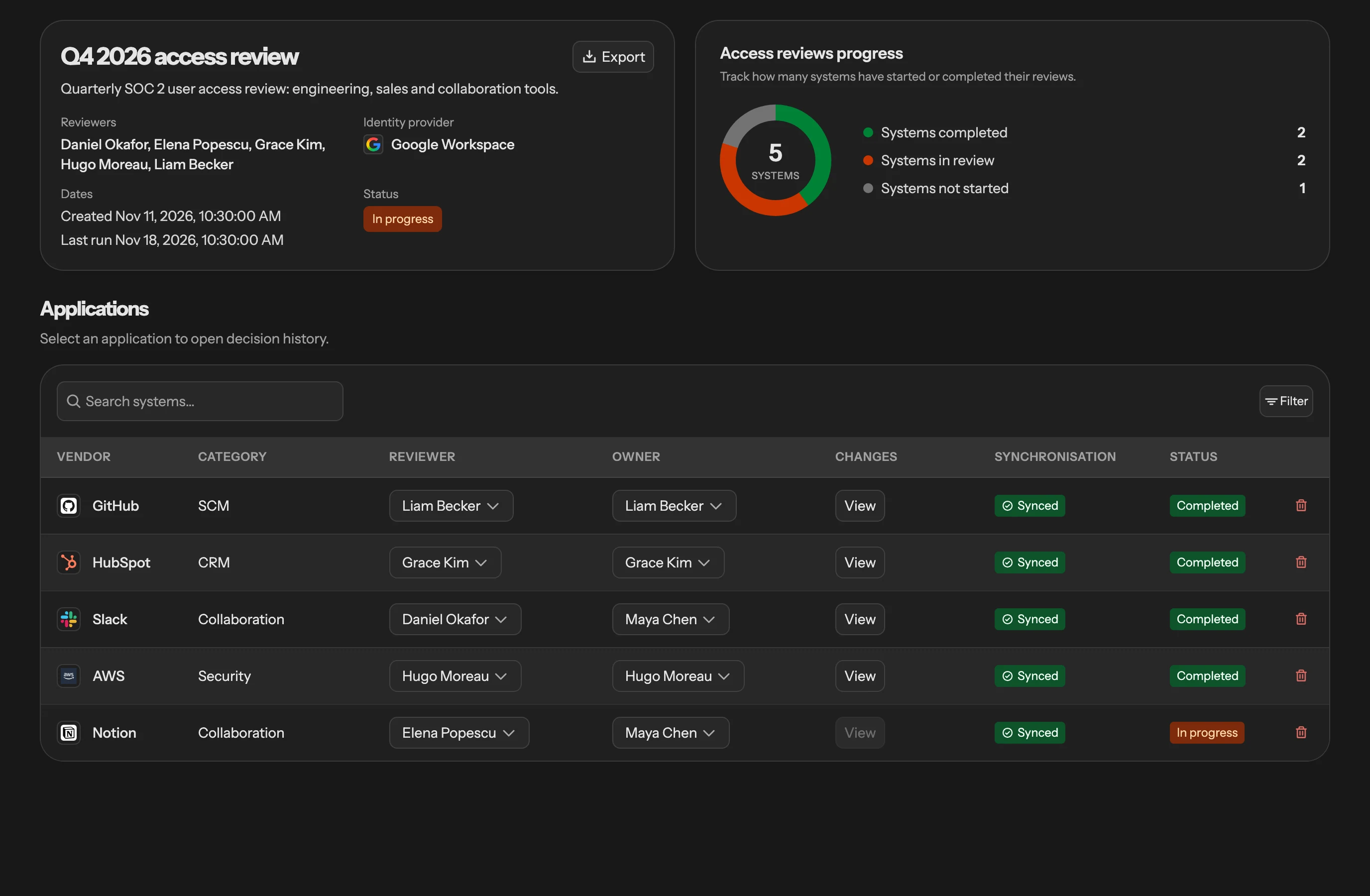
- The details card shows the Reviewers, the Identity provider, the Dates (created, then last run or completed) and the Status.
- Access reviews progress counts the applications: Systems completed (every account decided), Systems in review (some accounts decided) and Systems not started.
- In the Applications table, the Status column turns to Completed once an application has a validated review.
When every application has a validated review, the campaign status changes to Completed and its date of completion is recorded. A completed campaign is read only: its applications no longer open for review, but every decision stays available.
Read the decisions
Open an application's decisions
In the Applications table, click View in the Changes column. The button is available once the application has recorded decisions.
Filter them
The dialog shows the totals ("Keep 14 • Remove 3 • Total 17") and one row per account: Run, User, Role, Decision, Reason and Recorded. Use All, Keep and Remove to filter. Remove is the list to hand over when accounts have to be removed by hand.
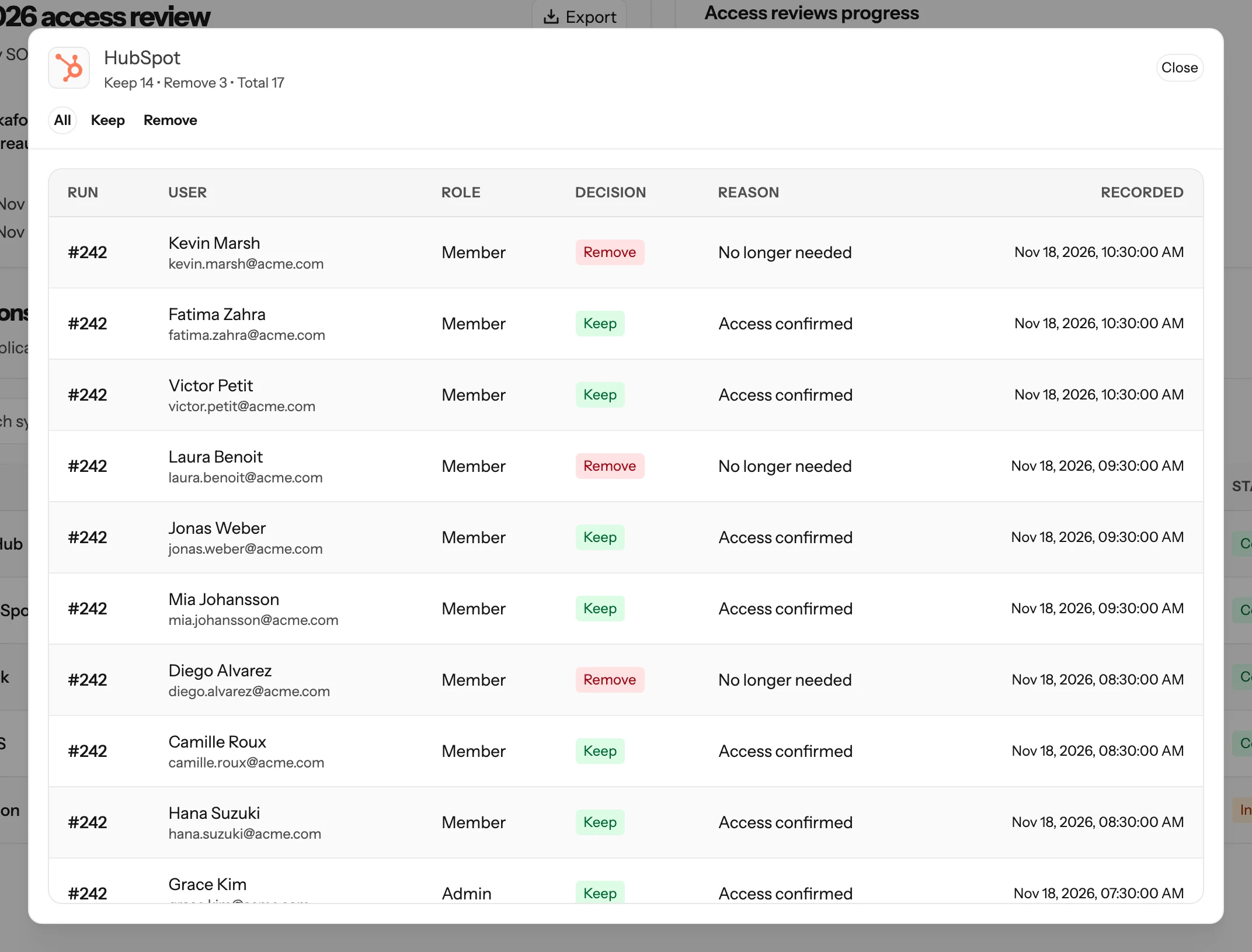
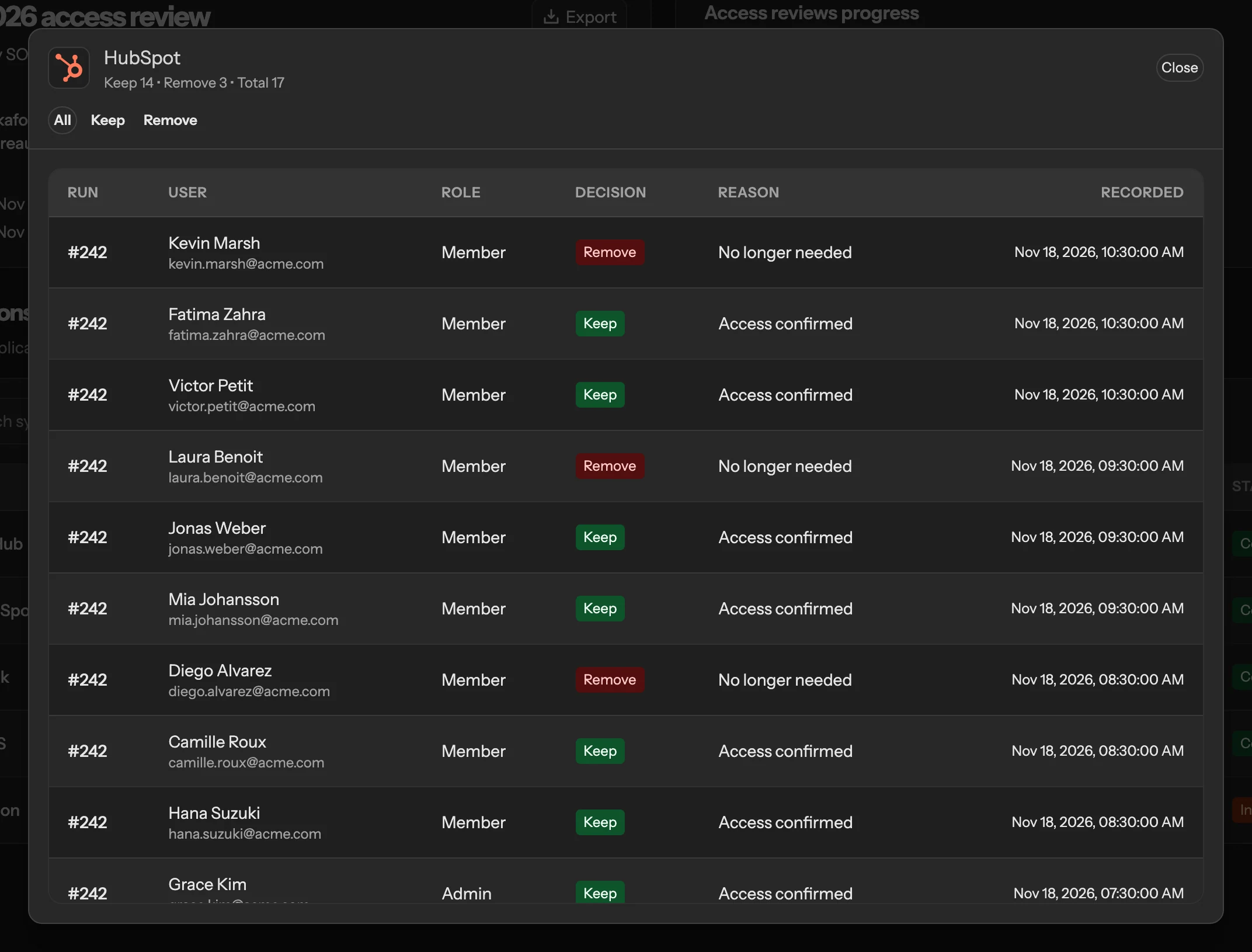
The Reason is set by Lutril from the decision: "Access confirmed" for a keep, "No longer needed" for a removal.
Rename the campaign
Hover over the campaign name at the top of the page and click the pencil icon. Edit the name, then press Enter or click the check mark to save (Esc cancels).
Export for your auditors
Click Export at the top of the campaign page. Lutril downloads an Excel workbook (.xlsx) named after the campaign:
- A Summary sheet with the campaign (name, status, who created it, identity provider, creation and completion dates) and one line per application: Reviewer, In Scope, Reviewed, Keep, Remove and Coverage.
- One sheet per application, listing every decision: Display Name, Email, Role, Decision, Reason, Reviewer and Decided At.
This workbook is the evidence most auditors ask for in a user access review (SOC 2, ISO 27001): who had access, who reviewed it, what was decided and when. Export it once the campaign is Completed and file it with the period it covers.
Over time
The Access Reviews page sums up every campaign: Vendors & Reviewers (applications reviewed and distinct reviewers per quarter) and Accounts overview (accounts decided and account changes per quarter). The Changes column of the campaigns table is the number of accounts marked for removal in each campaign.
Revoke access
Remove the accounts marked for removal in a review, see which removals succeeded, and handle the applications Lutril cannot remove accounts from.
How access requests work
Follow a request from the employee who asks, through the approval chain, to the grant and, for just-in-time access, to its deadline.