Approve requests
Decide on the requests waiting on you as an application owner, a manager or a reviewer, from the app, from Slack or from Teams.
When a request reaches your stage of its approval chain, Lutril tells you where you work: a direct message in Slack, a card in Teams, and an entry under To approve in the app. Deciding in any of them does exactly the same thing. The first decision wins: if a co-owner already decided, you are told instead of deciding twice.
There are three kinds of approvers:
- Managers validate requests from their reports. Approving forwards the request to the next stage.
- Custom reviewers (a security team, legal) validate the stage named after them in a policy, and forward it too.
- Application owners make the final decision. Approving grants the access.
Decide on a request
Open your approvals
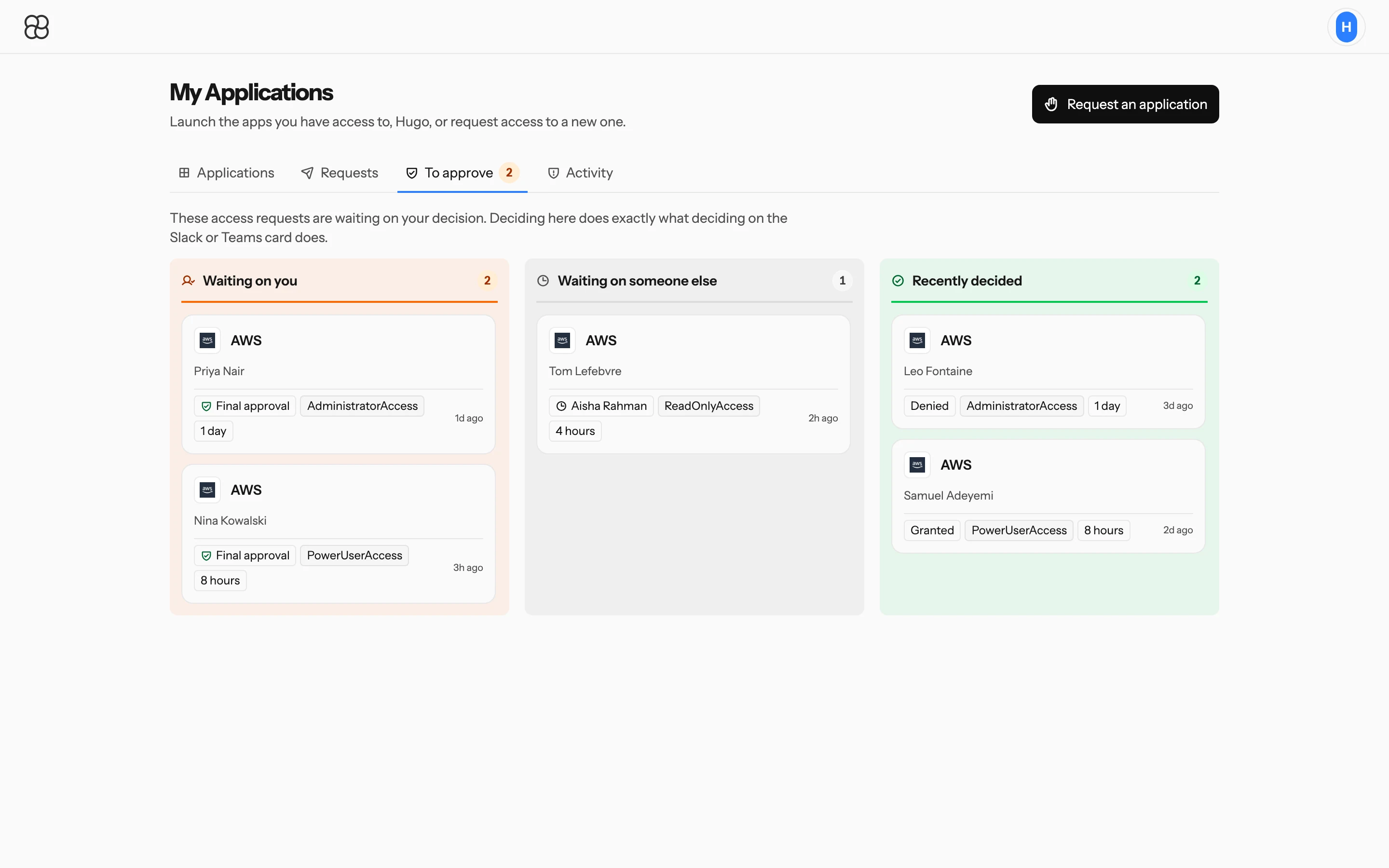
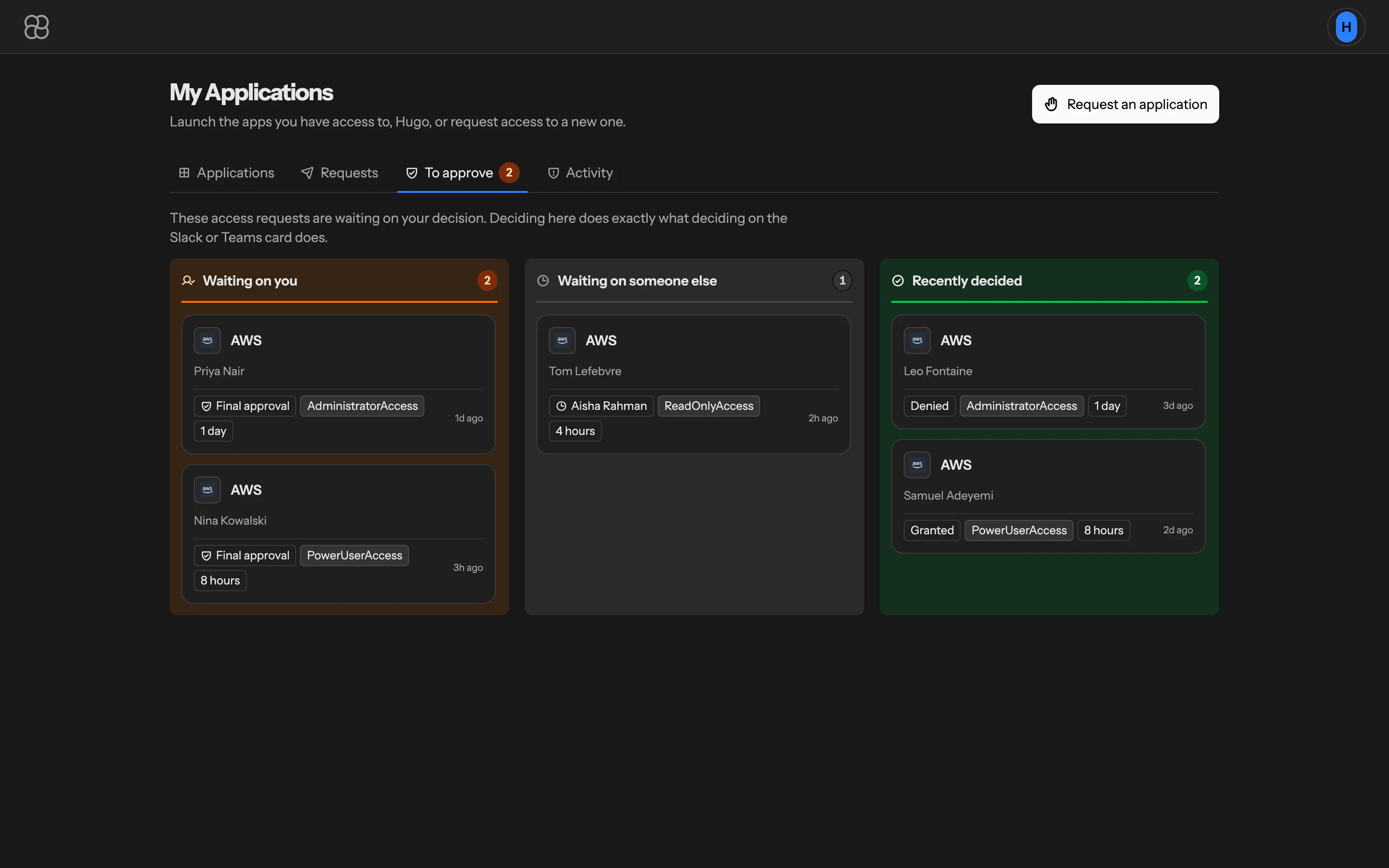
Open My Applications > To approve. The tab appears once a request has been routed to you, with a badge counting what is waiting. Requests are grouped into Waiting on you, Waiting on someone else (queued at another approver's stage) and Recently decided.
Each card names the requester, what they asked for and for how long. Final approval marks a request whose approval grants the access, Manager step or Reviewer step one you forward.
Read the request
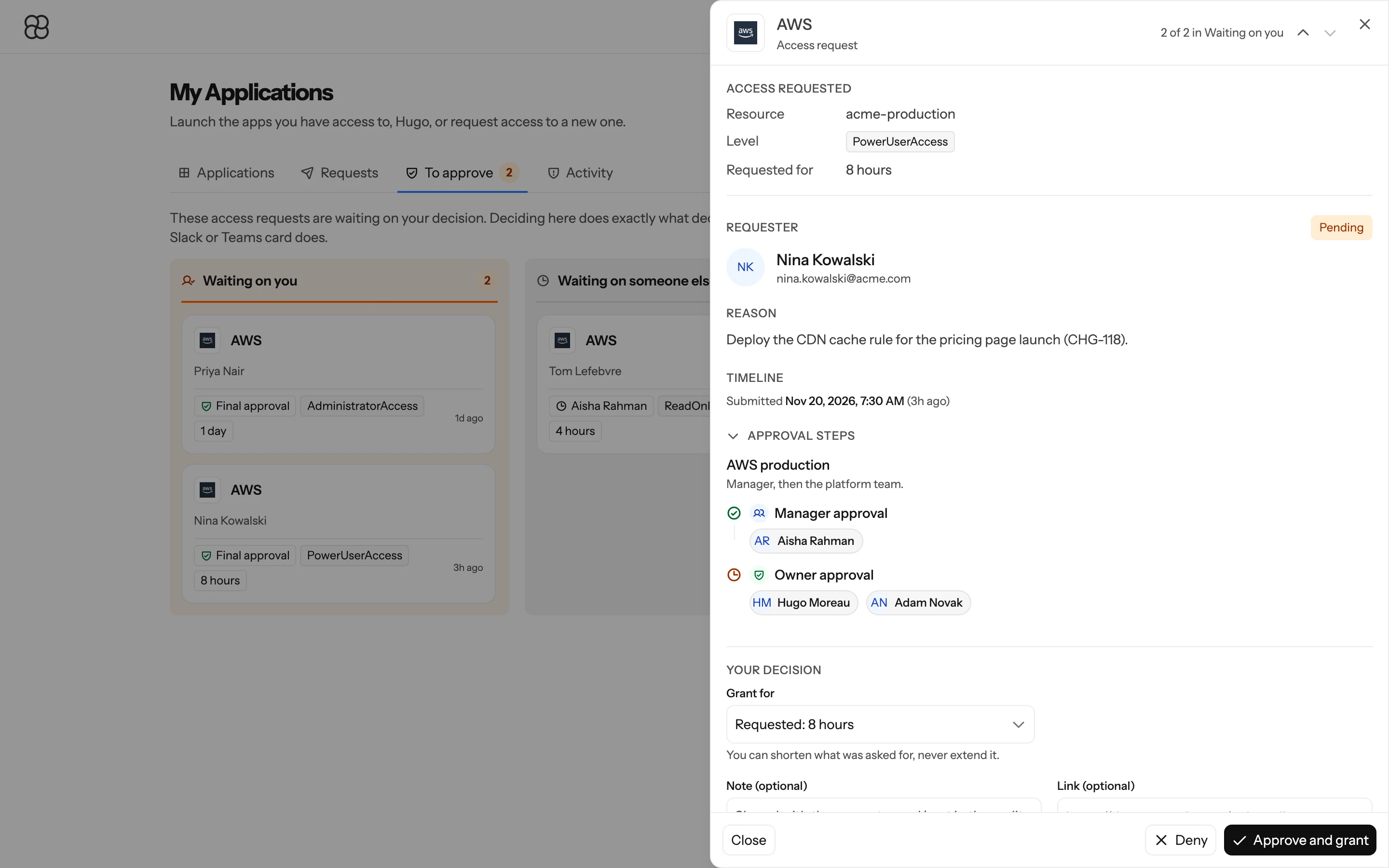
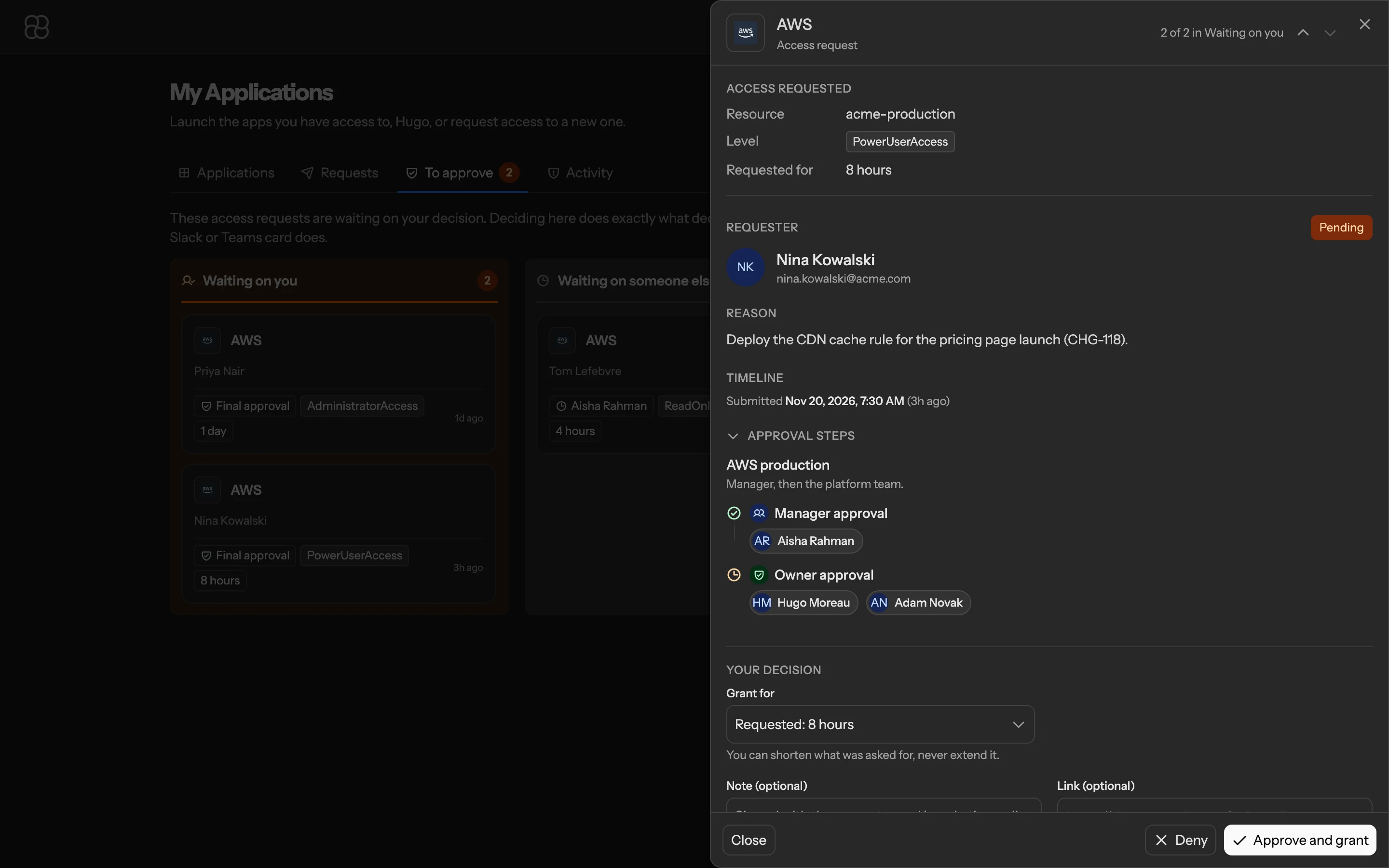
Click a card. The panel shows the access requested, the requester, their reason, the Timeline and the Approval steps already completed.
Decide
Under Your decision:
- Grant for: leave it on the requested duration, or shorten it. You can never extend what was asked for.
- Note (optional): shared with the requester and kept in the audit trail.
- Link (optional): where the requester should go next, such as the application's onboarding page.
Then click Approve and grant (or Approve and forward at a manager or reviewer step), or Deny. When Lutril can create the account in the application, Create user and grant opens the application's provisioning fields, prefilled with the owner's defaults, then creates the account and grants. Grant only grants without creating anything.
What happens next
- Approved at a manager or reviewer stage: the request moves to the next stage, and its approvers are notified.
- Approved at the owner stage: Lutril grants the access (directory groups, account creation, or a record that the owner granted it by hand) and tells the requester. A just-in-time grant gets its deadline now: the clock starts at the last approval.
- Denied: the request stops, and the requester sees your note.
Admins can also act from Access Management > Access Requests: Reminder nudges the current approver, and Validate step or Grant decides on the approver's behalf when someone is away.