Connect your identity provider
Connect Google Workspace, Microsoft Entra ID or an HR tool as the directory Lutril checks every account against.
Your identity provider tells Lutril who works at your company. Every account found in a connected application is matched against it: a match is an employee, a miss is an orphan to review. It also supplies departments, managers and multi-factor status.
Lutril supports these sources:
| Provider | Type | How it connects |
|---|---|---|
| Google Workspace | Identity provider | OAuth, or a service account with domain-wide delegation |
| Microsoft Entra ID | Identity provider | OAuth, plus an admin consent for tenant-wide read access |
| Lucca | HR tool | API client ID and secret |
| Payfit | HR tool | API key |
| Eurecia | HR tool | API token |
Okta and other identity providers are not supported.
Prerequisites
- You are an owner or admin in Lutril.
- For Google Workspace: you can sign in as an administrator of the Workspace.
- For Microsoft Entra ID: you can sign in as an Entra administrator, and a Global Administrator is available to approve tenant-wide read access.
Open the identity providers
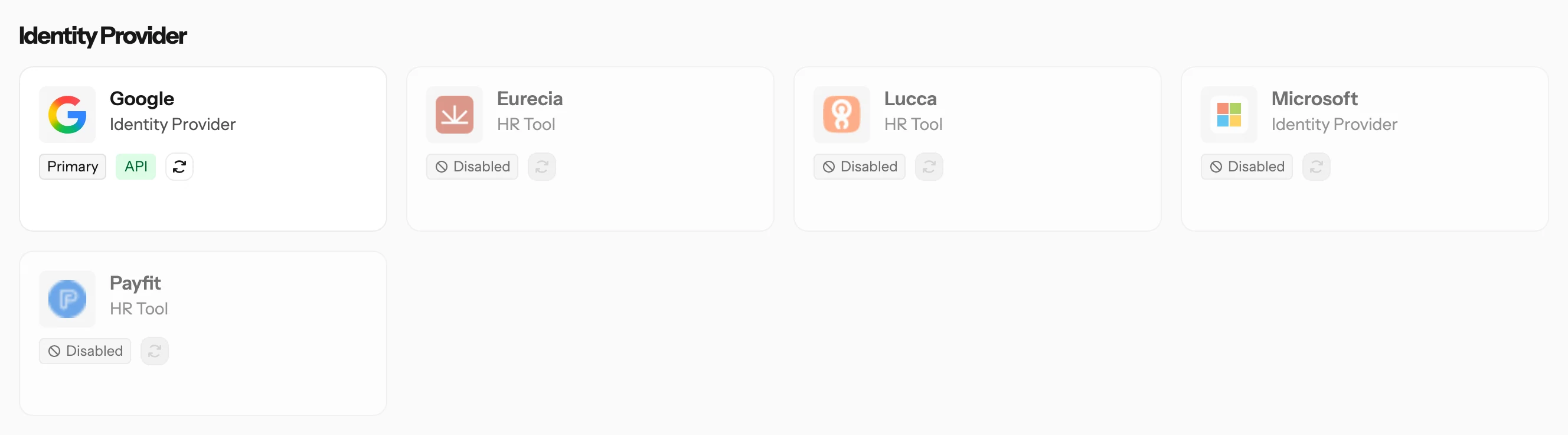
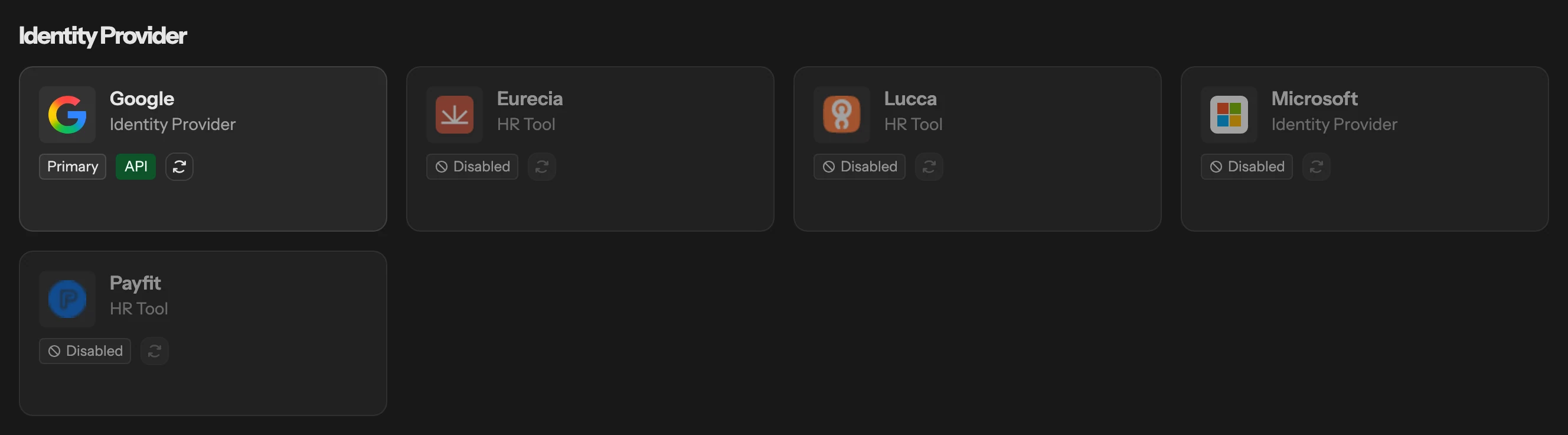
Select Integrations at the bottom of the sidebar. The Identity Provider section lists every supported source. A connected provider shows API; the primary one also shows Primary.
Connect a provider
Select the Google card. In Configure Google, choose API, then select Save. The Google page opens.
Open the Connection tab and select Connect Google.
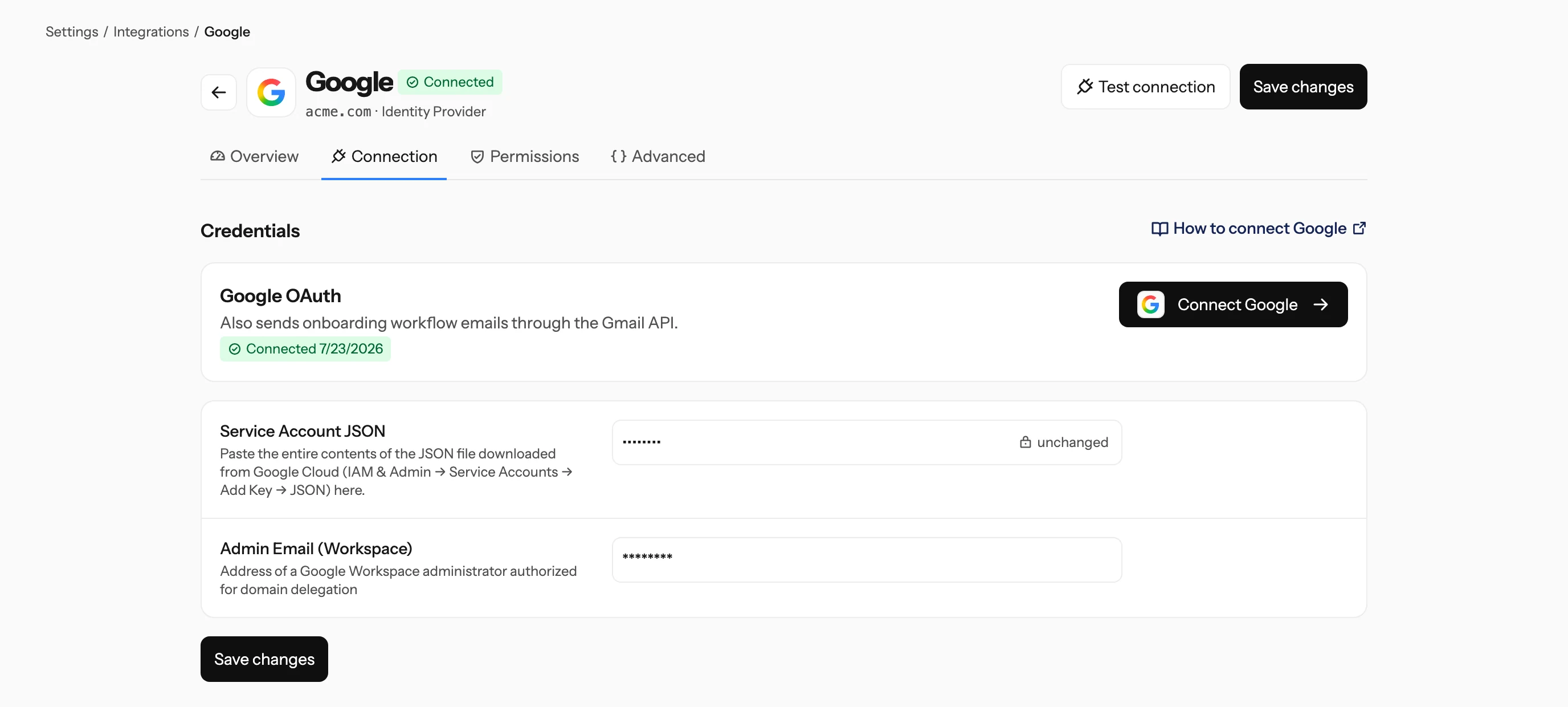
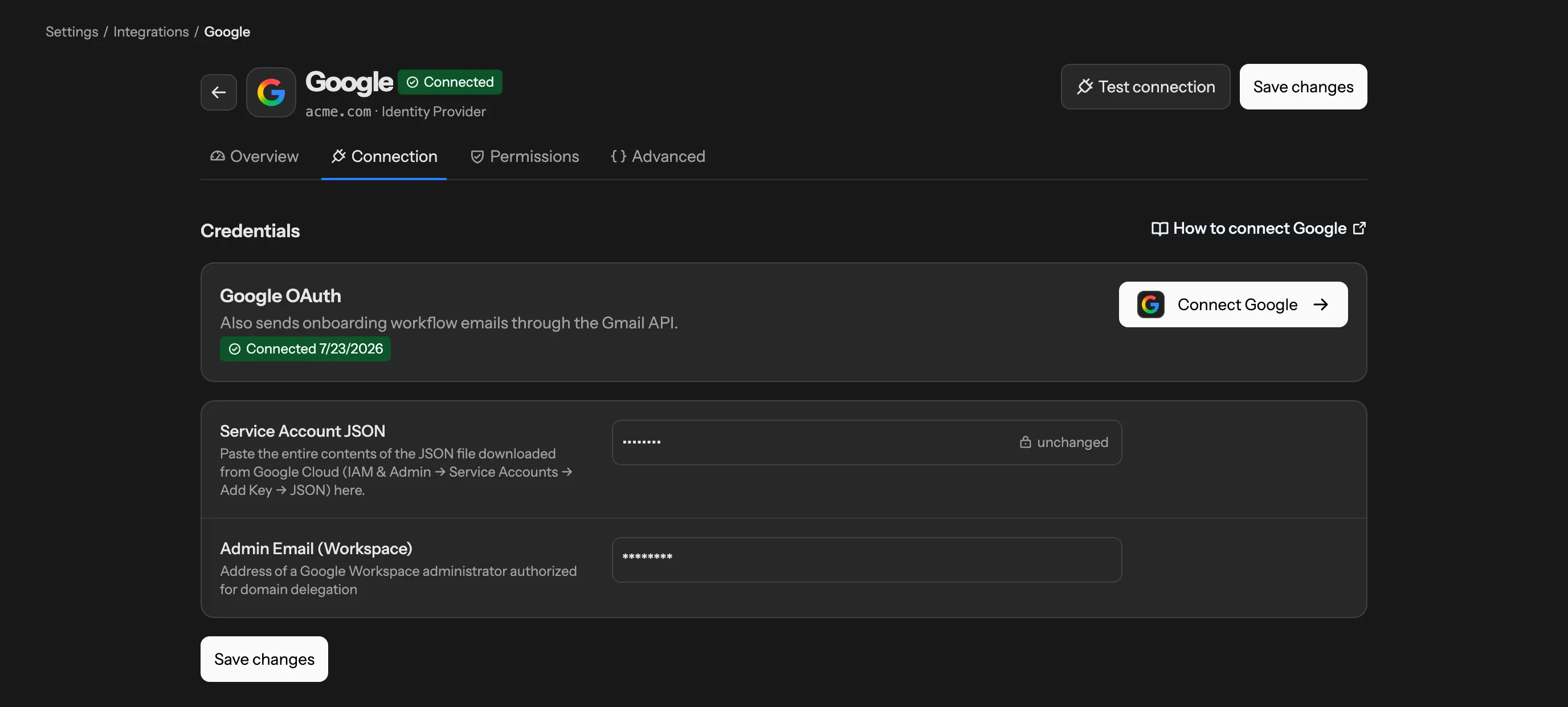
Sign in as a Google Workspace administrator and approve the requested permissions. Back in Lutril, Google OAuth shows Connected with the date, and your users are already synced. Groups follow in the background.
The grant also lets Lutril send onboarding workflow emails through the Gmail API.
If your security policy rules out OAuth, connect with a service account instead: paste the key file in Service Account JSON, enter the address of a Workspace administrator in Admin Email (Workspace), then select Save changes. The service account needs domain-wide delegation in the Google Admin console. The Google Workspace setup guide lists the scopes.
Choose the primary identity provider
When more than one source is connected, tell Lutril which one is the reference.
On Integrations, select Settings at the top right.
Under Primary identity provider, select the provider, then select Save.
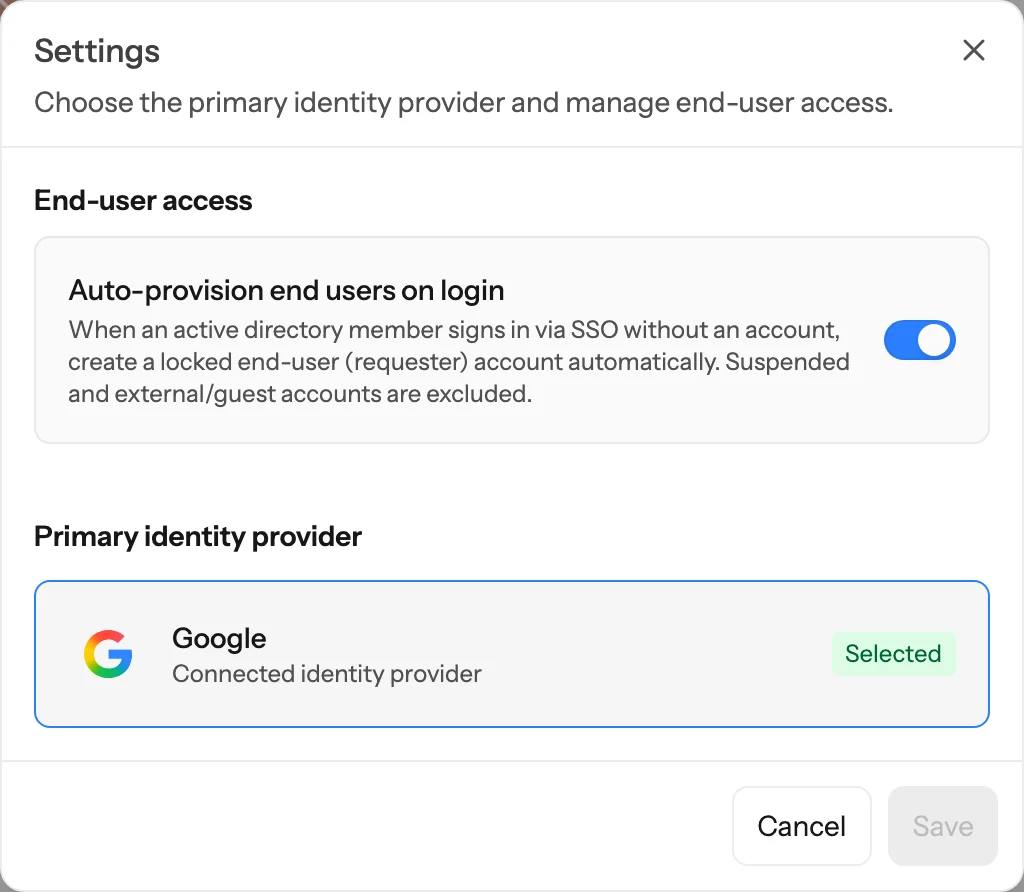
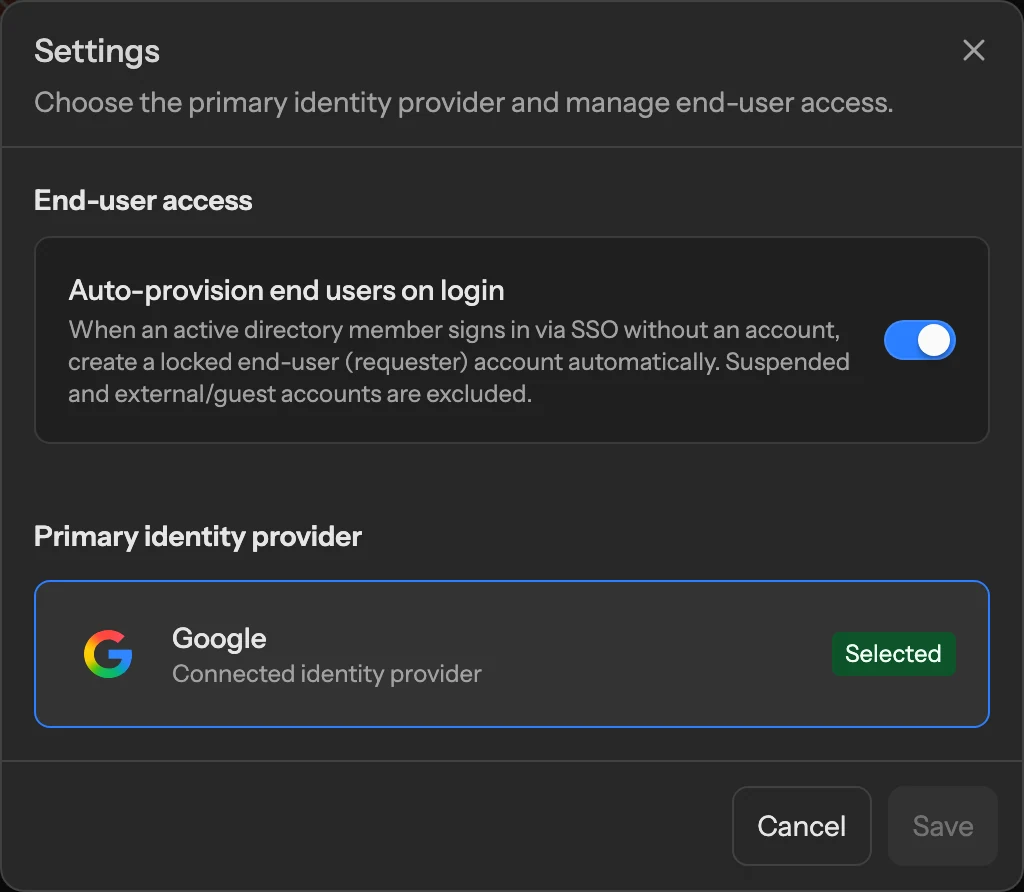
The same dialog holds Auto-provision end users on login. Turn it on to let any active, internal member of your directory sign in and get a requester account automatically. Suspended, external and guest accounts are excluded.
Keep the directory in sync
Lutril re-reads the directory every night. To pick up a change now, select the refresh button on the provider's card; it reports "Synced N users." when it finishes. Scan all at the top of the page refreshes every connected application at once.
Troubleshooting
The primary provider can only be one you have connected. Connect it first, then come back to Settings.
The tenant-wide consent is missing. Open the Microsoft Entra ID Connection tab and select Grant admin consent under Tenant-wide read access.