Bundles and workflows
Save the apps, groups, tasks and emails each team needs as bundles, and chain provisioning steps into reusable workflows.
A bundle is a reusable pack: the applications and directory groups a team gets, the tasks other teams owe a new hire, the emails they receive, or the message that welcomes them. You pick a bundle when you onboard someone and adjust it for that person. A workflow goes one step further: an ordered sequence of provisioning steps you publish once and run on anyone.
Before you start
- You need the Owner or Admin role to create or change bundles and workflows.
- Your applications are in the Catalogue and your identity provider is connected, so there are apps and groups to choose from.
Open People > Bundles & Workflows.
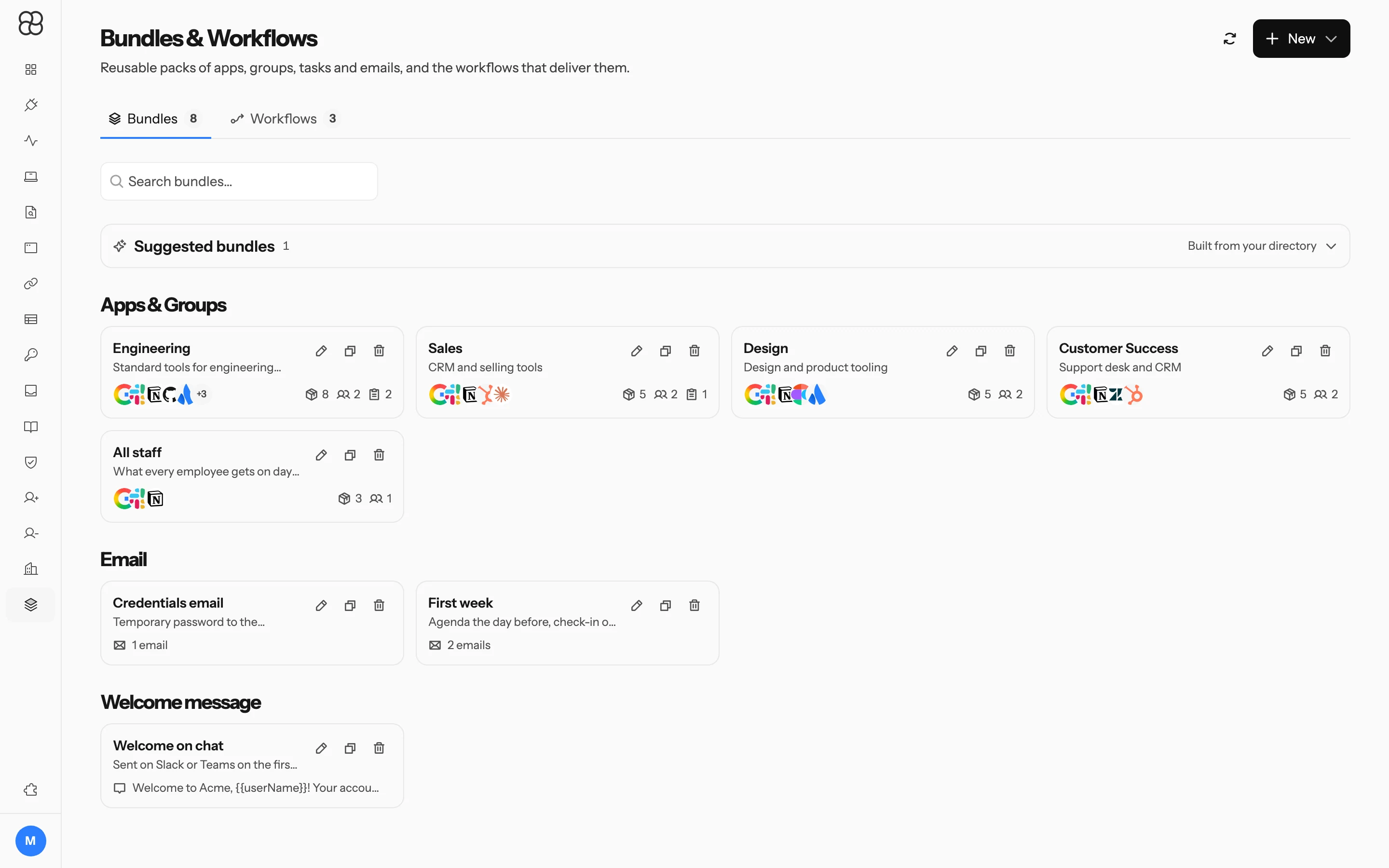
Kinds of bundle
Click New to create one of three kinds:
| Kind | What it holds | Where you use it |
|---|---|---|
| Apps & Groups bundle | Applications, directory groups and custom tasks. | The Apps and groups step of an onboarding. |
| Email bundle | Credentials and welcome emails. | The Emails and other tasks step of an onboarding. |
| Welcome message | One Slack and Teams greeting for new hires, with placeholders such as {{userName}}. | Send welcome on a person's onboarding page. |
Create an Apps & Groups bundle
Name it
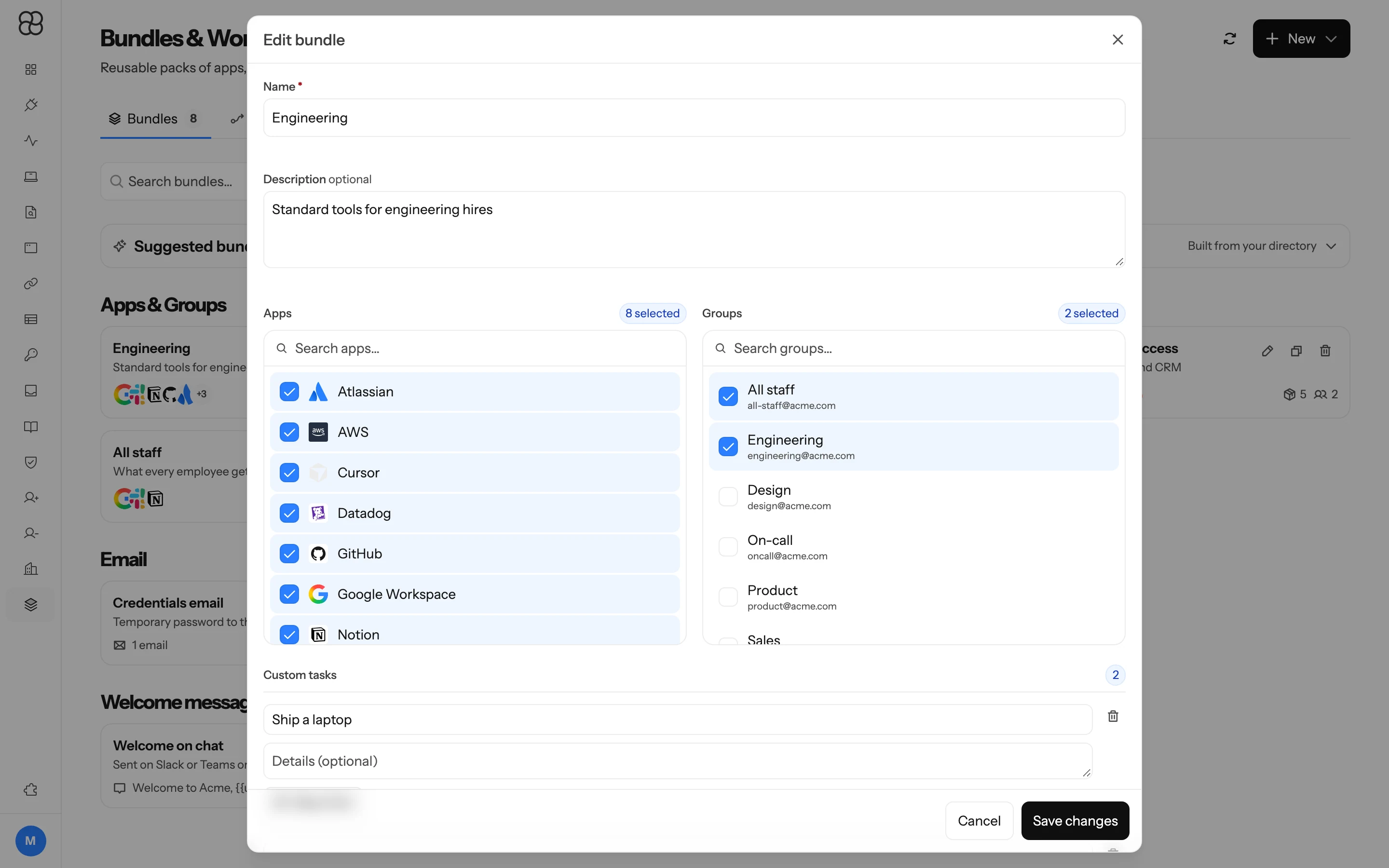
Click New > Apps & Groups bundle. Give it a Name (a team, a role, or "All staff") and an optional Description.
Pick apps, groups and tasks
Check the applications under Apps and the directory groups under Groups. Under Custom tasks, add the work someone outside IT owes every hire of this kind, for example shipping a laptop, with the person responsible.
Save
Click Save changes. The bundle is available in every new onboarding straight away. Changing it later does not change onboardings already created from it.
Use the icons on a card to edit, duplicate or delete a bundle.
Suggested bundles
Suggested bundles proposes one bundle per department, built from your directory: the applications and groups the people in that department already have. Each suggestion shows how many people it is based on and how strong the evidence is (Strong match, Some evidence or Low evidence). Click Review to see what it contains, uncheck anything a new joiner should not get, and create the bundle. Dismiss a suggestion you do not want; you can restore it later from the same panel.
Workflows
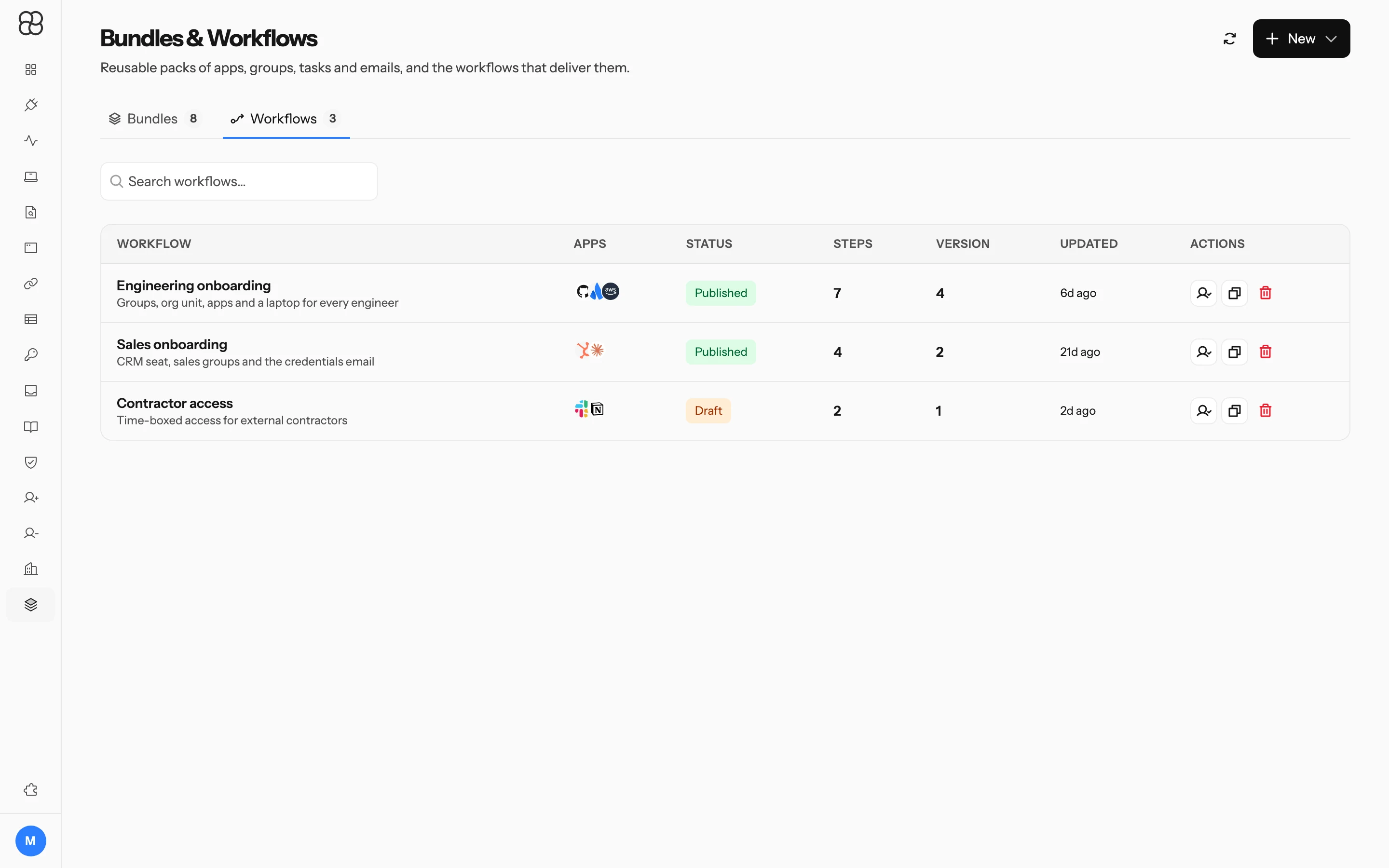
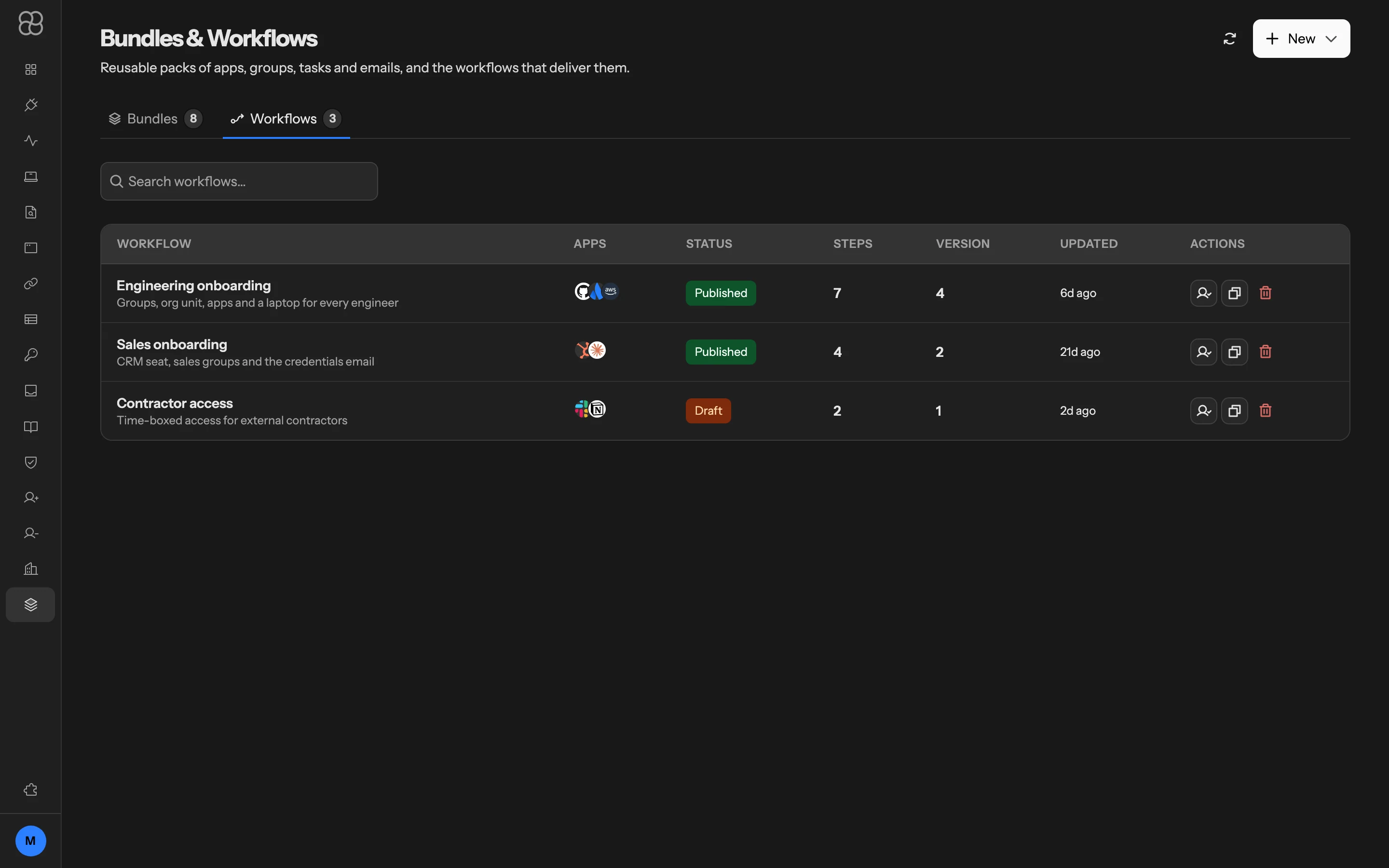
A workflow is an ordered list of blocks that Lutril runs for a person, top to bottom. Open the Workflows tab to see them with their applications, status (Published or Draft), number of steps and version.
Create a workflow
Start it
Click New > Workflow. Enter a Workflow name and a Description. Under Start from, choose Blank workflow, or From a bundle to turn a bundle's apps, groups, tasks and emails into the first blocks.
Add blocks
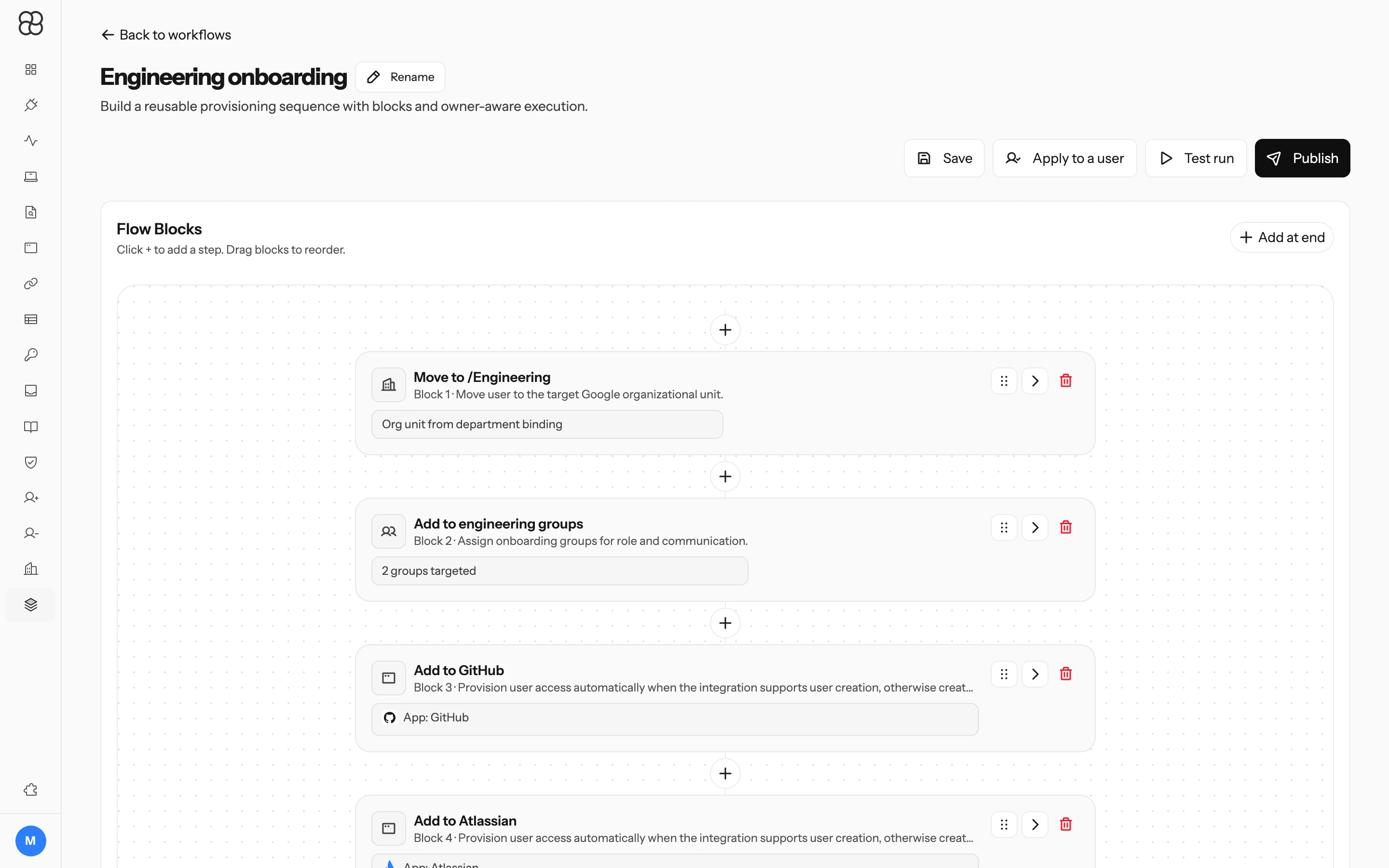
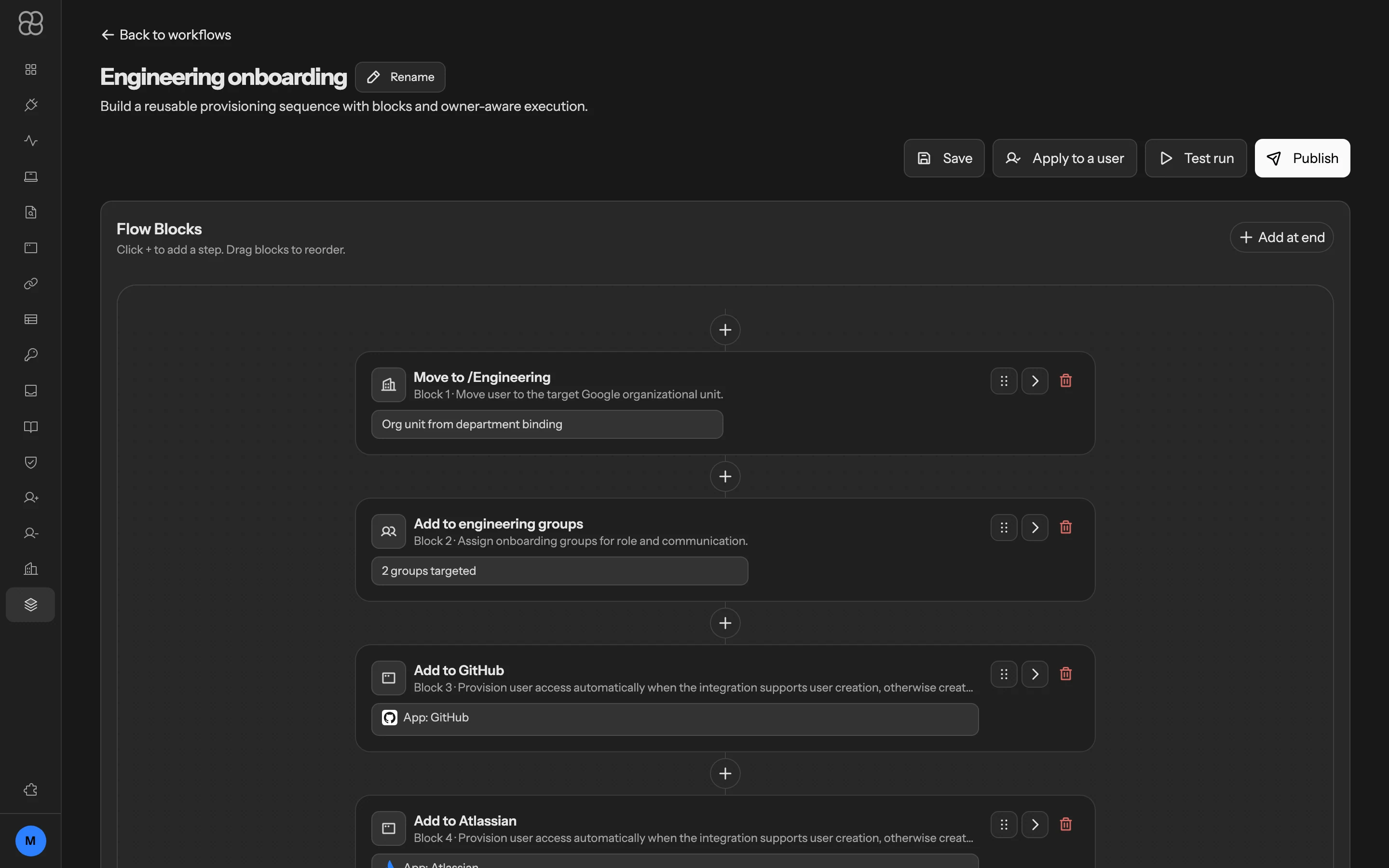
In Flow Blocks, click + between two blocks or Add at end, and drag blocks to reorder them. The available blocks are:
- Map HR department to organization unit
- Add Google user to groups, Remove Google user from groups and Set Google user's organizational unit
- Add Microsoft user to groups
- Add user to application: Lutril creates the account when the integration supports it, and creates an owner task otherwise.
- Send DocuSign template
- Manual task
- Send email
Test and publish
Click Save to keep a draft. Test run runs the workflow on one email address; check Dry run (no provisioning task creation) to see what would happen without creating anything. When it is right, click Publish.
Run it on people
Click Apply to a user in the editor, or the person icon on the workflow's row. In Run workflow on people, pick one or more people, then Run now, Schedule for a date and time, or Save as draft. The run appears in the Plans tab of Onboarding, like any other onboarding.
Bundle or workflow?
- Use a bundle when the steps are always "give these apps and groups": it is quicker, and you adjust it per person in the onboarding wizard.
- Use a workflow when order matters or you need blocks a bundle does not have: moving the person to an organizational unit, mapping an HR department, removing inherited groups, or sending a DocuSign template.
Offboard a leaver
Schedule a departure, let Lutril close the directory account and revoke OAuth connections, and track every application owner until the last access is removed.
Departments
See your teams as your identity provider organizes them, who is in each one, and what onboardings and offboardings touched them.