Quickstart
Go from an empty workspace to a first access review in about fifteen minutes.
This guide takes a new workspace from the sign-in screen to a governed setup: your directory synced, a first application connected, employees able to request access from chat, and a first access review running. Each step links to a page with the details.
Before you start
- You are the owner or an admin of your Lutril workspace. Lutril creates the owner account when your workspace is opened.
- You can sign in as an administrator of your directory: a Google Workspace super admin, or a Microsoft Entra administrator who can grant tenant-wide consent.
- You can install apps in your Slack workspace or in the Teams Admin Center.
Sign in
Open your Lutril workspace and select Continue with Google or Continue with Microsoft, using the account your workspace was opened for. Lutril works out your company from your email domain.
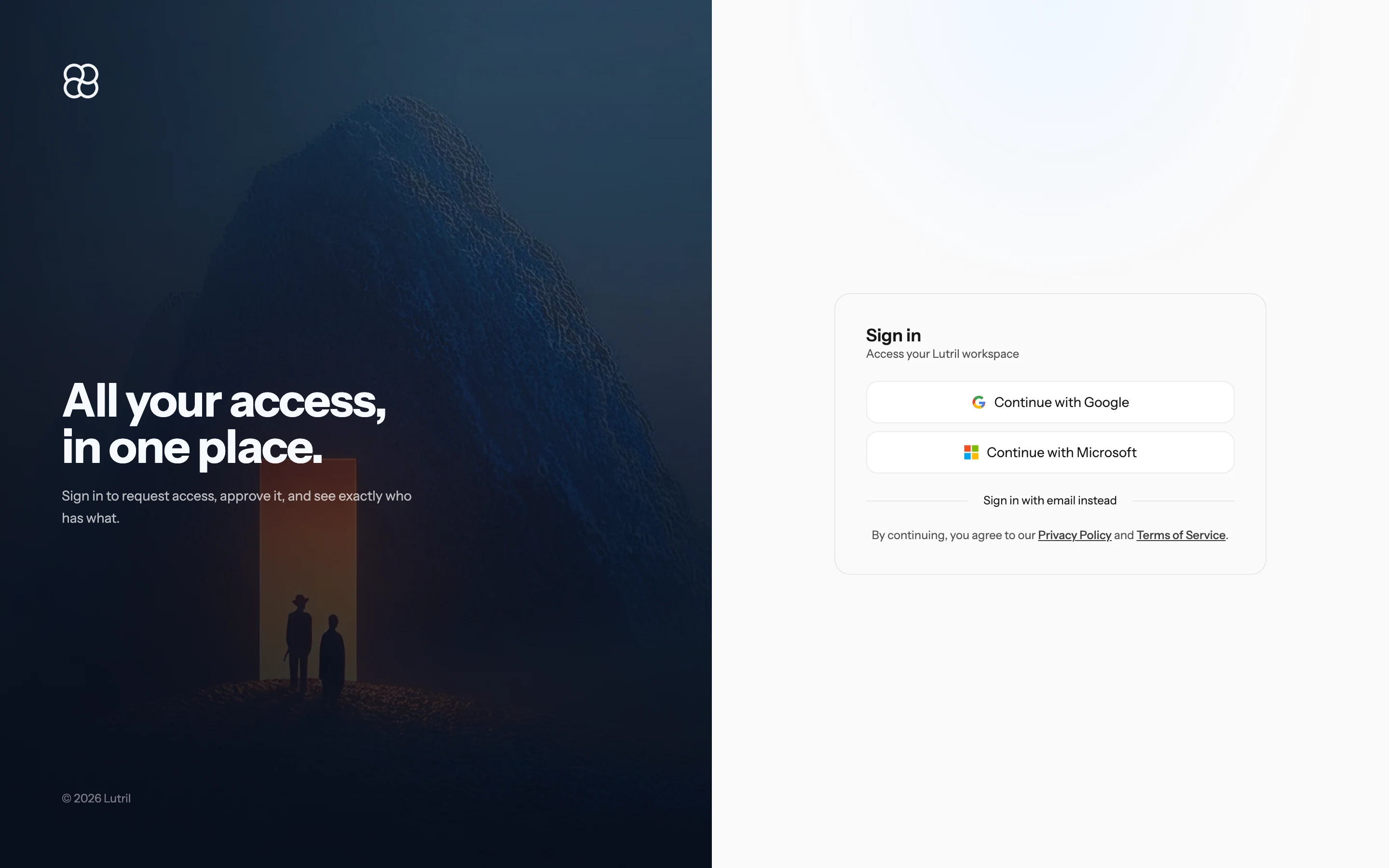
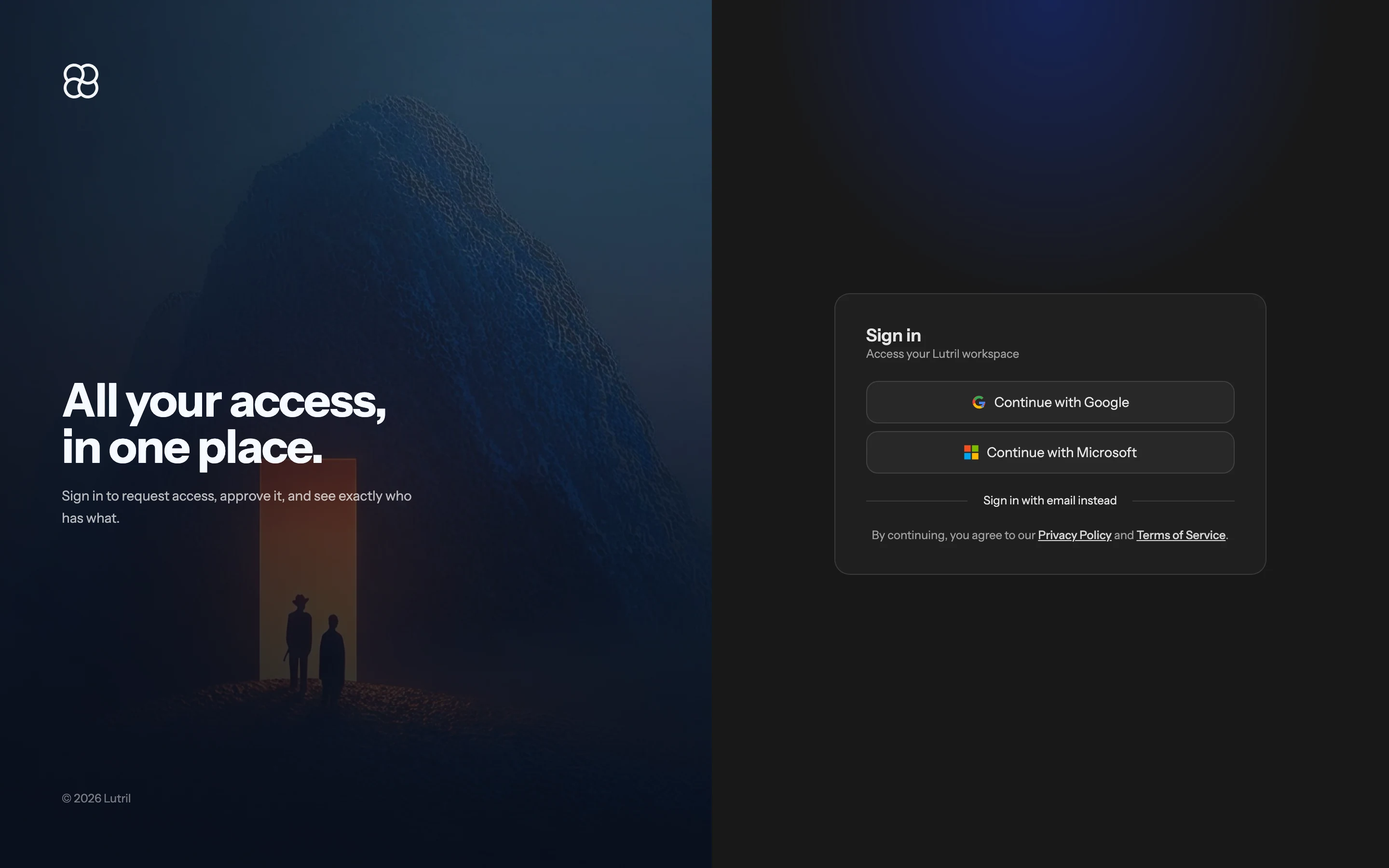
There is no setup wizard. You land on the dashboard, which fills in as you connect sources. See Sign in for email sign-in and the error messages you may meet.
Connect your identity provider
Your identity provider is the list of people Lutril checks every account against. Open Integrations at the bottom of the sidebar. The Identity Provider section lists Google, Microsoft and the supported HR tools (Lucca, Payfit, Eurecia).
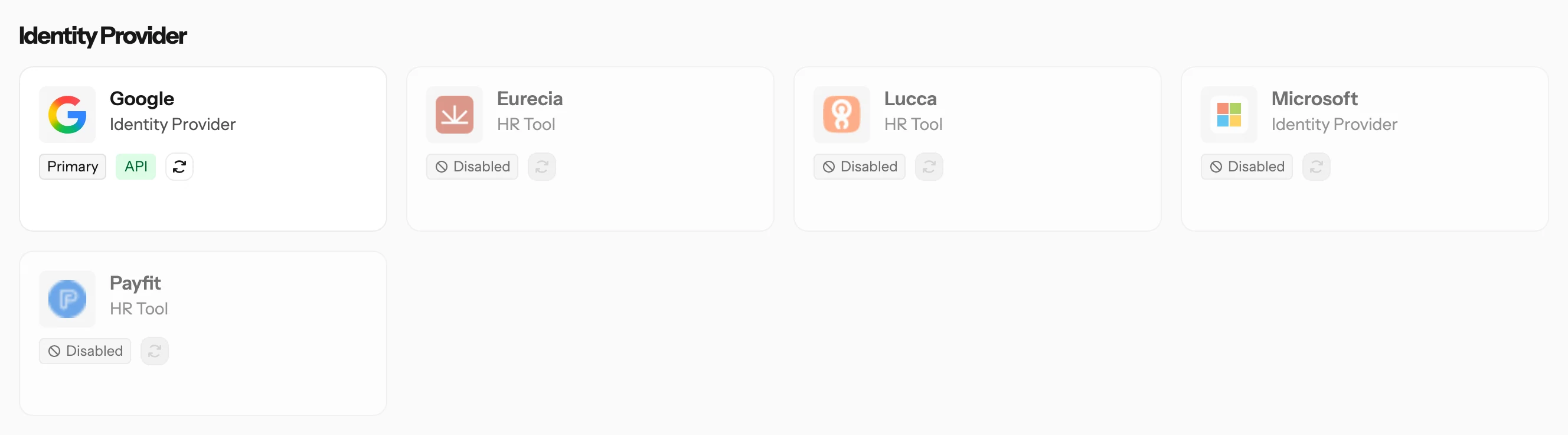
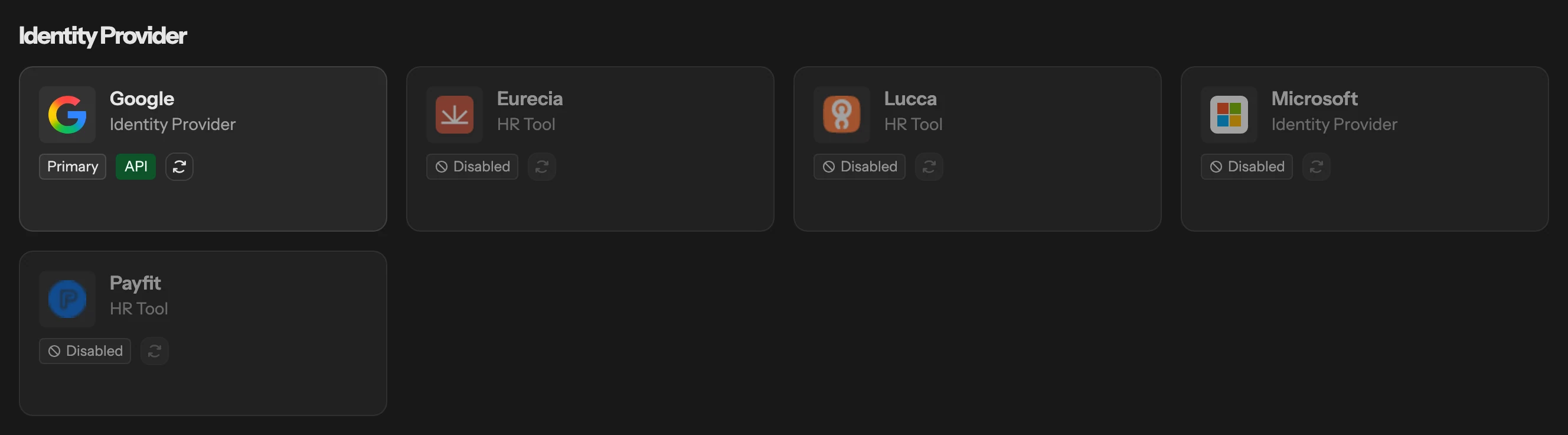
Select your provider, choose API, select Save, then on the Connection tab select Connect Google or Connect Microsoft and approve the consent screen. Lutril syncs your directory as soon as you come back.
If you connect more than one source, select Settings on the Integrations page and pick the Primary identity provider. Full walkthrough: Connect your identity provider.
Connect a first application
Still on Integrations, scroll to Applications and select the app you want to govern first. Lutril asks where it should read accounts from.
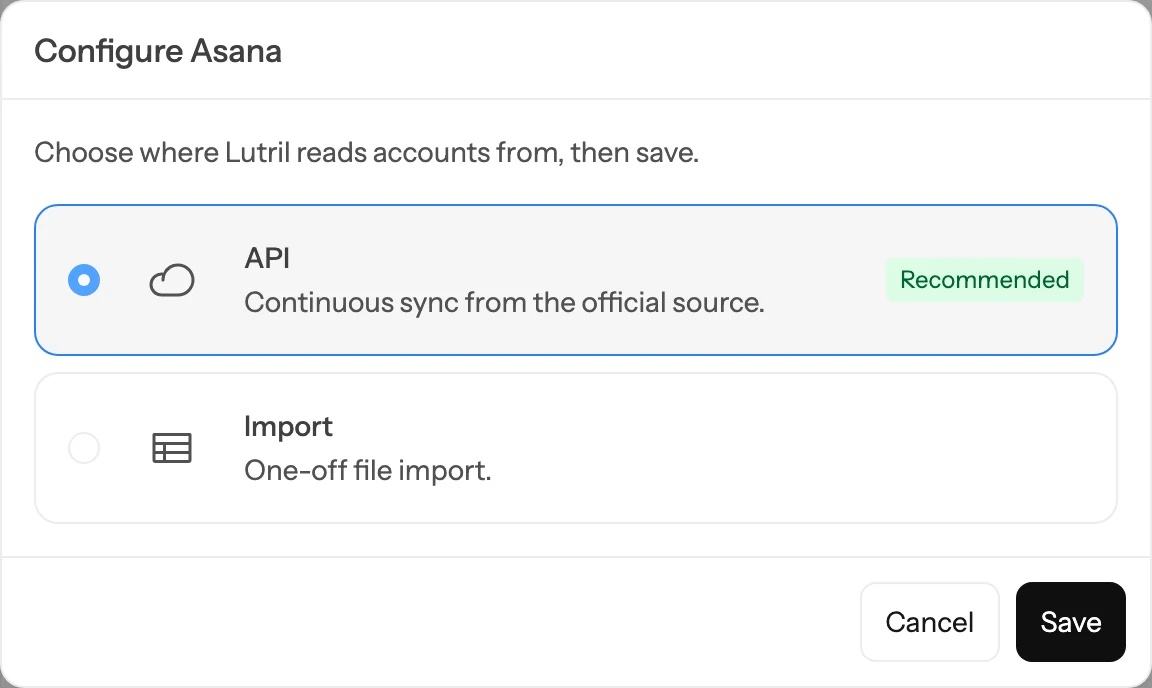
Pick API for a continuous sync, select Save, then fill in the Connection tab: an OAuth button for vendors that support it, an API key or token for the others. Pick Import if the vendor has no API and you want to load a file instead. Each vendor's setup guide is linked from the How to connect link on that tab. Details: Connect an app.
Install Slack or Teams
Employees request access where they already work. Connect the chat platform your company uses:
- Slack: open the Slack integration, then Connection, and select Connect Slack. See Install the Slack app.
- Microsoft Teams: open the Microsoft Teams integration, select Grant Admin Consent, then install the Lutril app from the Teams Admin Center. See Install the Teams app.
Once installed, anyone can message the Lutril app with "access to Notion" and get a request form back.
Publish the app in the catalogue
Connecting an application adds it to the Catalogue (under Access Management in the sidebar), the list of apps people can request. Open it, select the app, assign its owners and choose how requests are approved. Requests for that app then reach the right approver in the app, in Slack or in Teams. See The application catalogue.
Run a first access review
Open Access Reviews under Security and select New Campaign. Pick the application you just connected and the reviewers. Lutril lists every account in that app, flags the ones that match nobody in your directory, and asks reviewers to keep or remove each one. See Create a review campaign.
What happens next
As your sources sync, the dashboard fills in: it shows your compliance score per application, multi-factor coverage from your identity provider, and the volume of access requests.
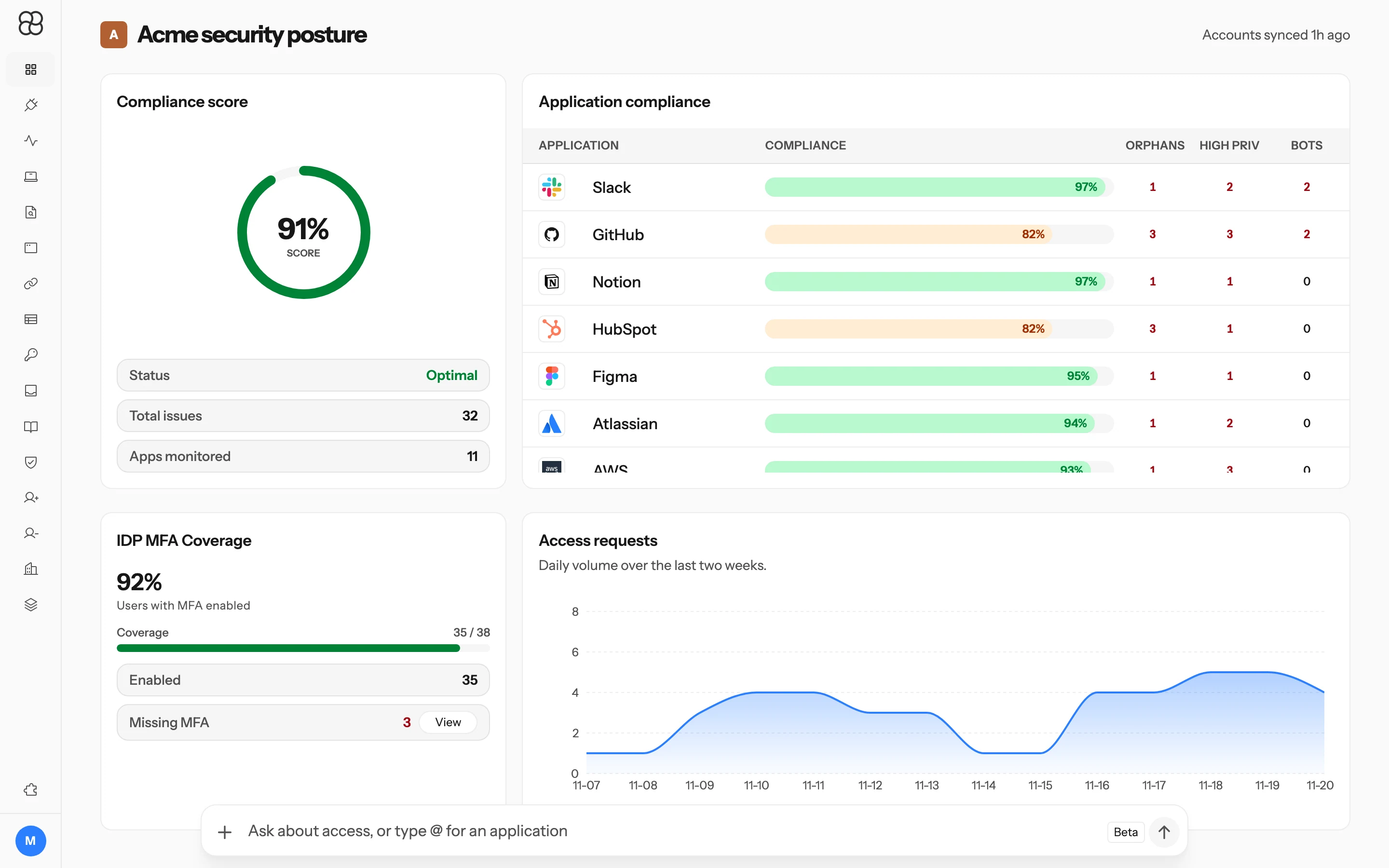
From here, invite the rest of your IT and security team on Members and roles, and read Core concepts for how the pieces fit together.