Request access
Ask for an application from the app, from Slack or from Teams, then follow the request until it is granted.
Any employee can ask for an application in the catalogue. The form only asks what that application's policy needs: an access level, a role, a duration when the access is time-boxed, and who signs it off. Managers can request for their direct reports, and admins for anyone.
Before you start
- You can sign in to Lutril, or your workspace has the Lutril app in Slack or Teams.
- The application is in your company's catalogue. If it is not, ask your IT team to add it.
Submit a request
Pick the application
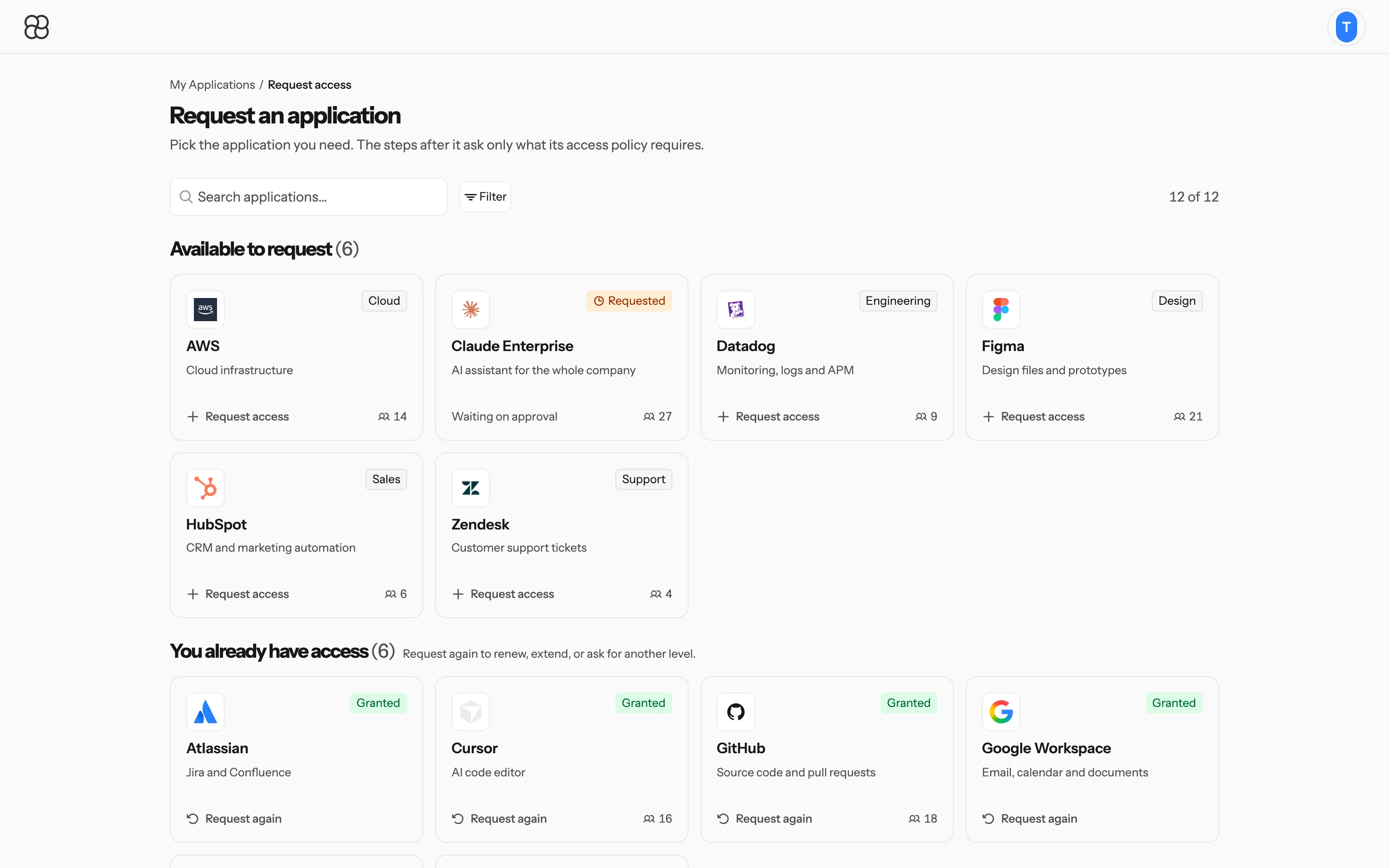
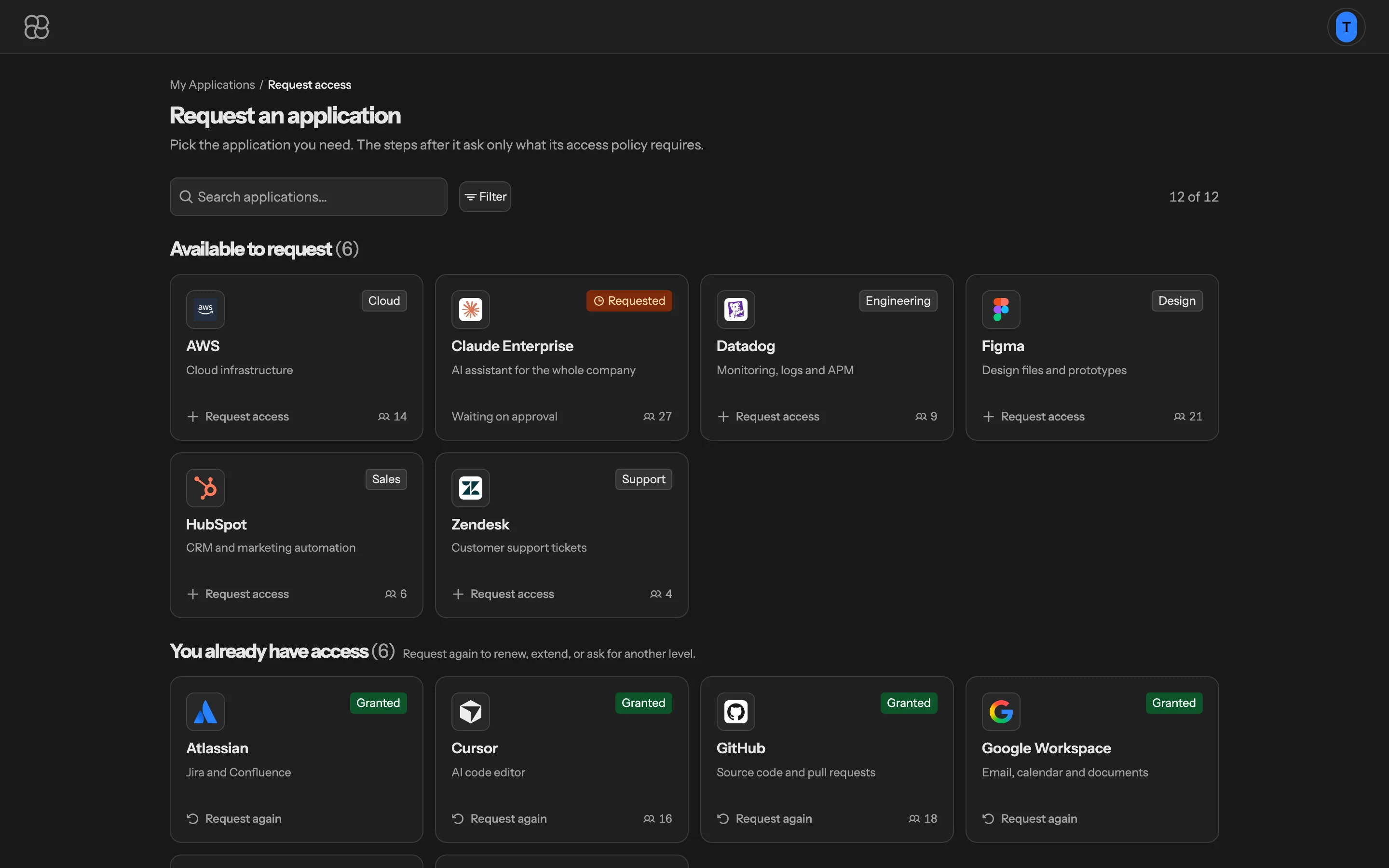
Open My Applications and click Request an application, or click Request access on an application's card. The page lists what is Available to request, and below it what You already have access to (click Request again to ask for another level).
Say what you need
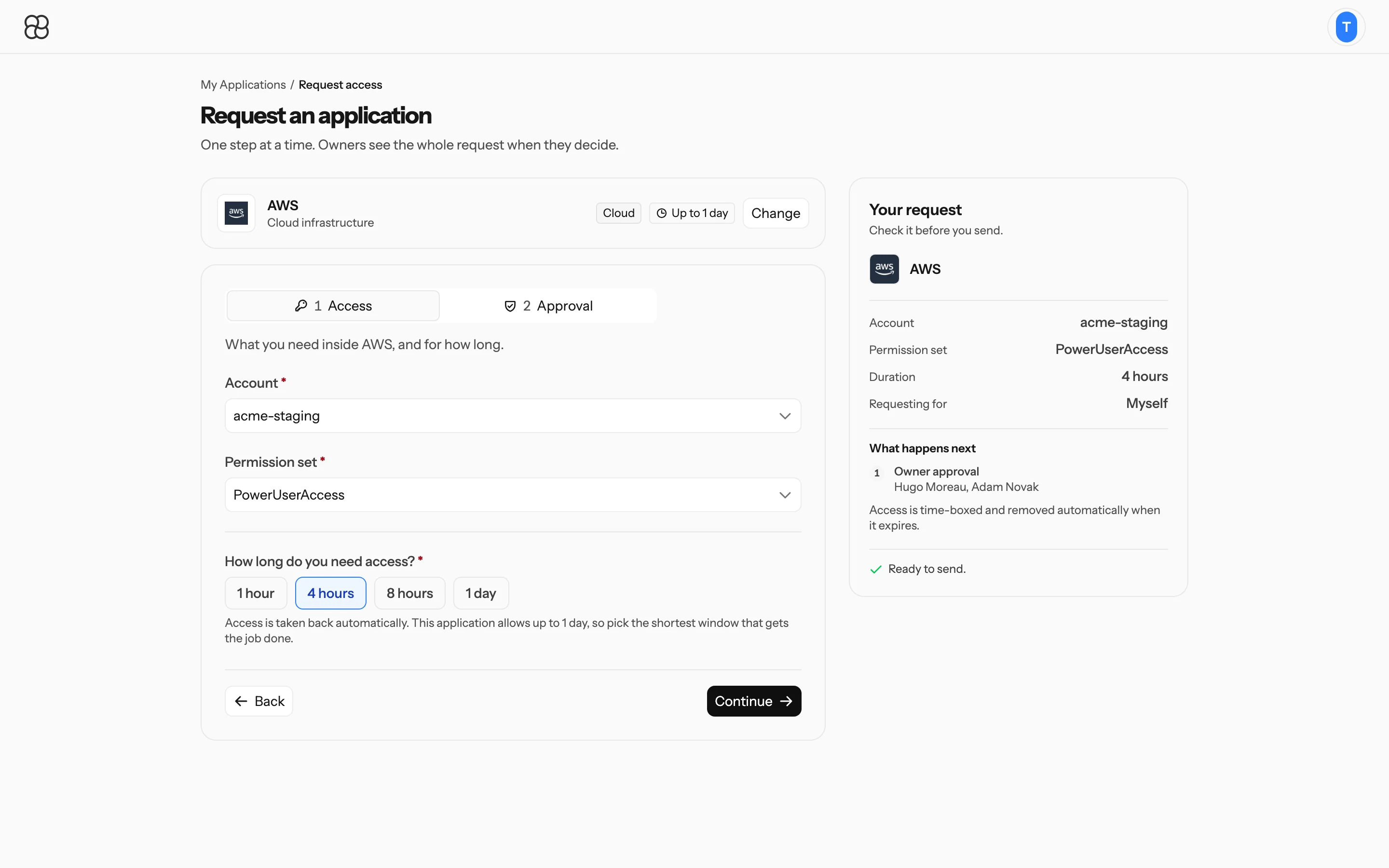
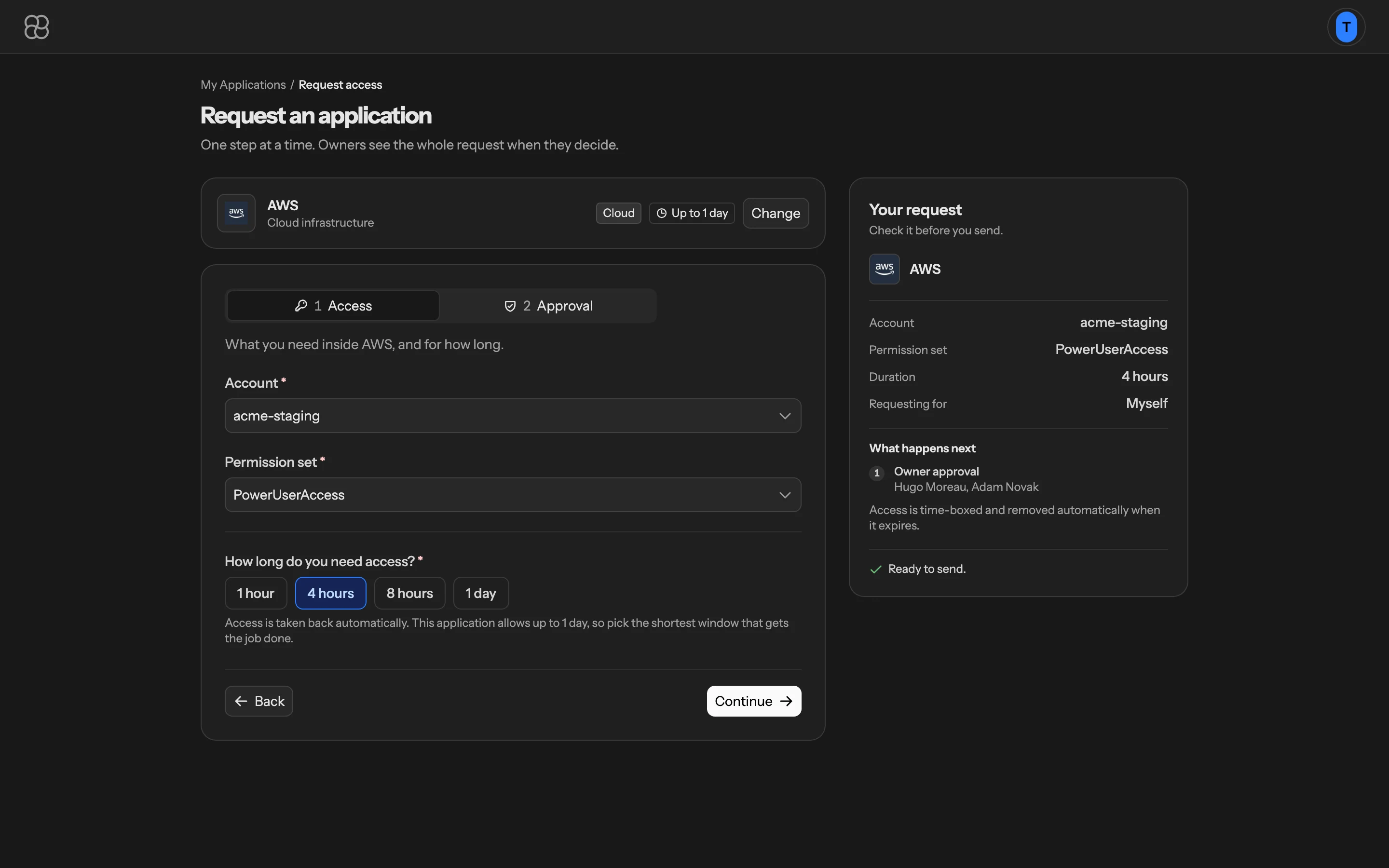
On the Access step, pick the access level (here an AWS Account) and, when the application offers them, a role (here a Permission set). If a just-in-time policy governs the application, answer How long do you need access? with the shortest window that gets the job done. The ladder stops at the policy maximum, and the access is taken back automatically at the end.
The Your request panel on the right shows what you picked, What happens next (who approves, in order), and what is Still needed before you can send.
Say who signs it off, and why
On the Approval step, check the Manager Lutril filled in from your directory. It is required when the application needs manager validation. Some applications also ask you to pick a reviewer. Managers and admins see Requesting for, to ask on someone else's behalf.
Fill in Why do you need this access?: the ticket, customer or project it unblocks. It is optional, and the one thing that gets a request approved faster.
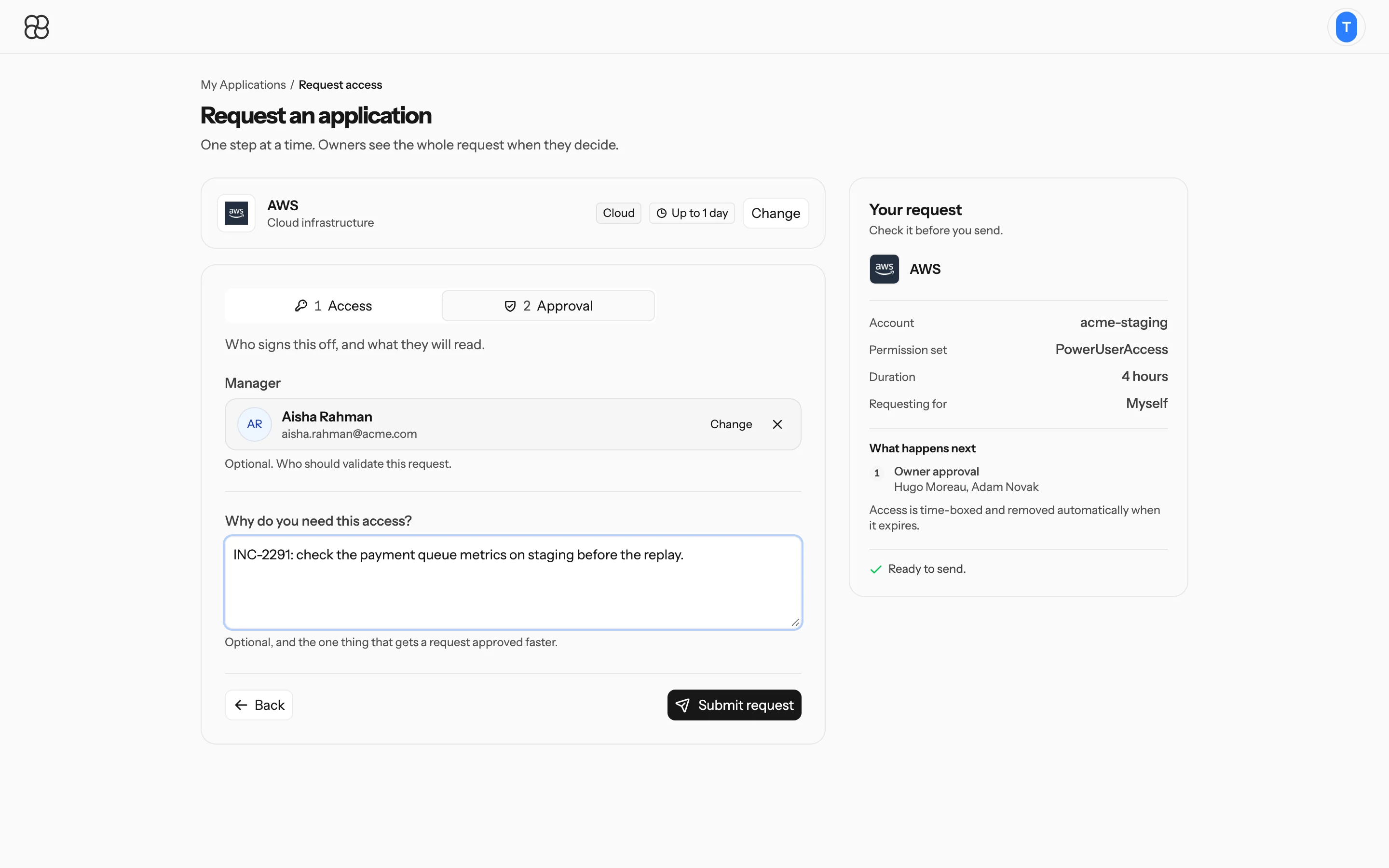
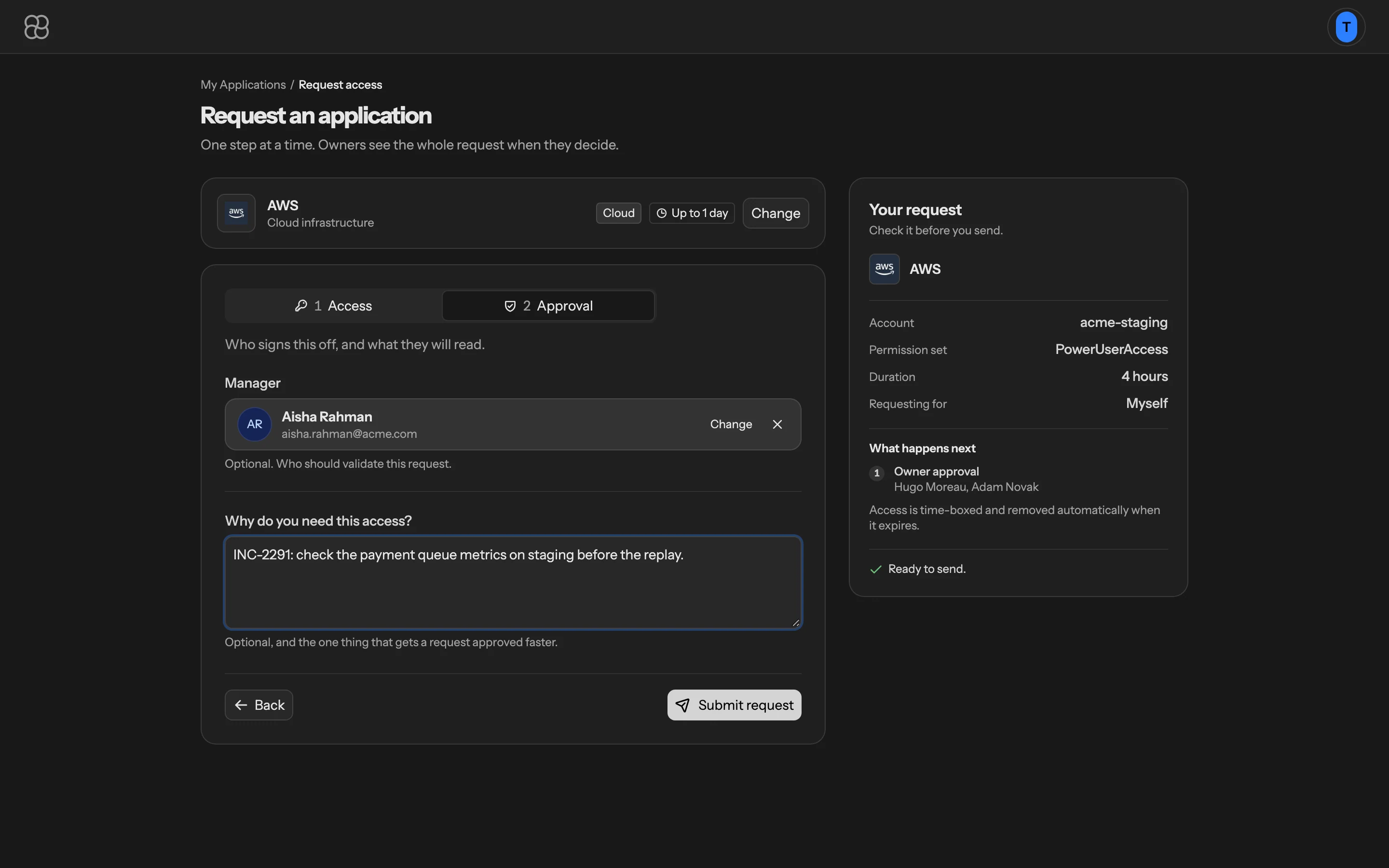
Submit
Click Submit request. If a policy grants the request automatically, Lutril says so right away, with the deadline: "Access to AWS granted automatically, until..." Otherwise the request goes to its first approver.
Follow your requests
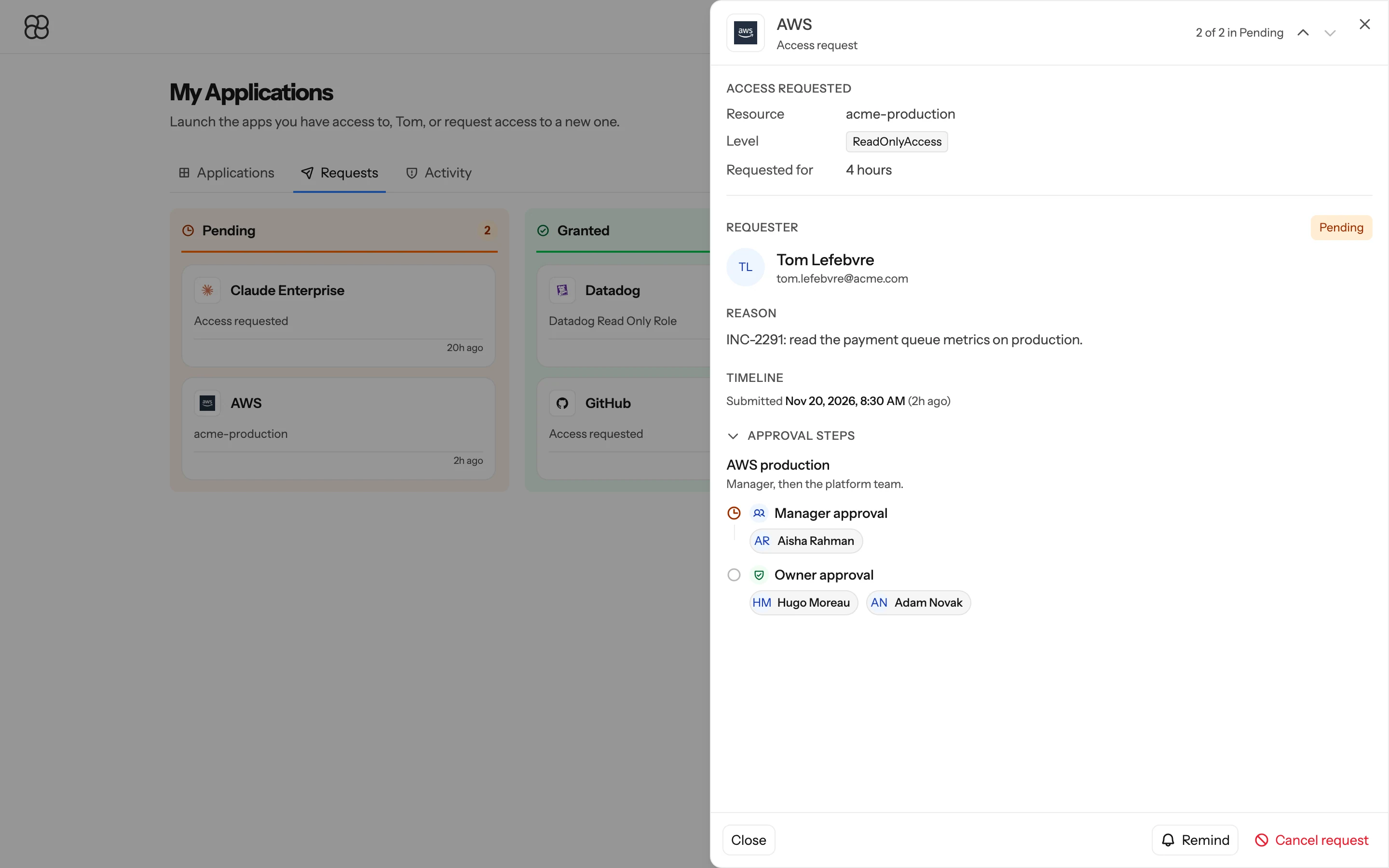
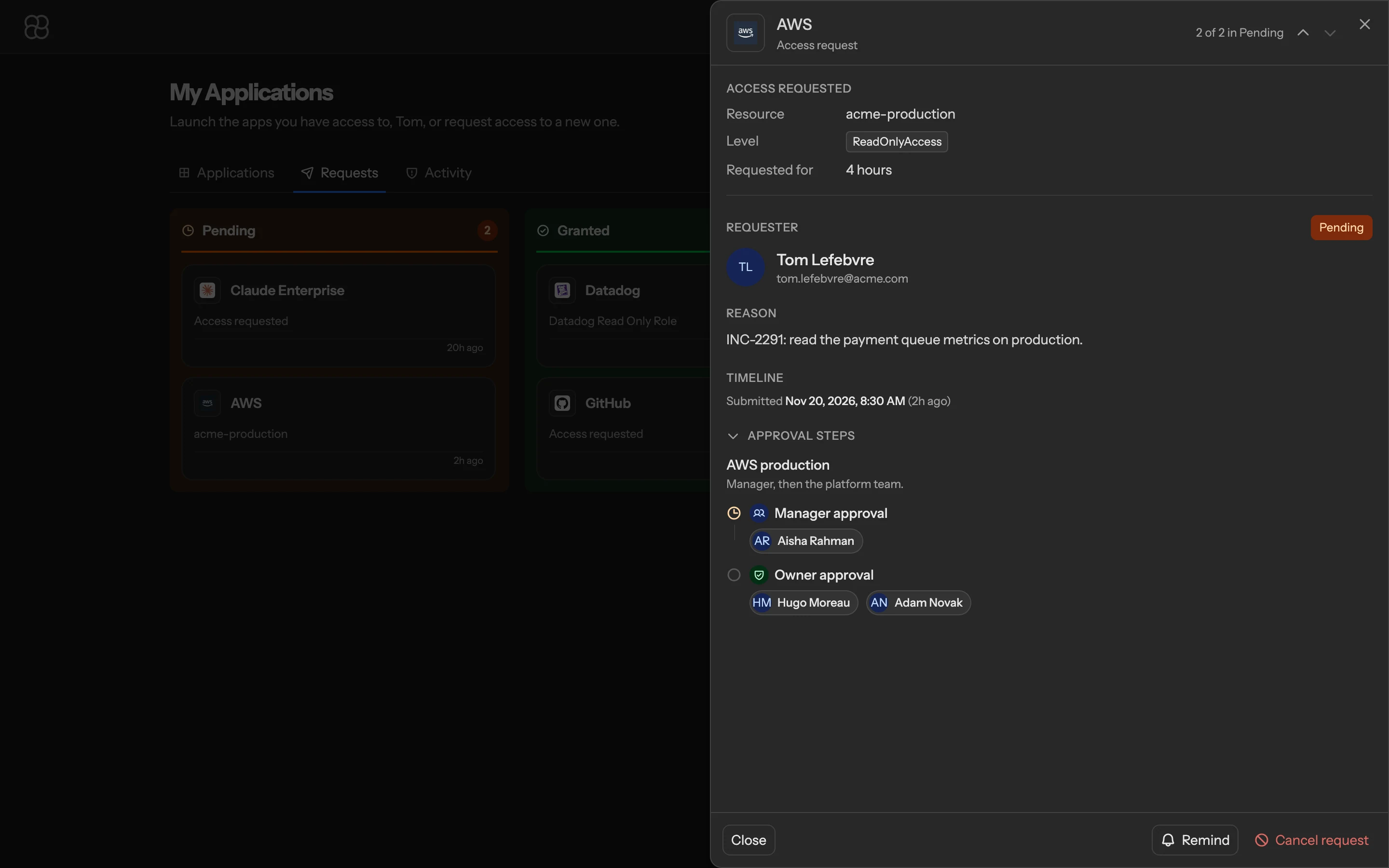
Open My Applications > Requests. Your requests are grouped into Pending, Granted and Denied, whichever surface you sent them from.
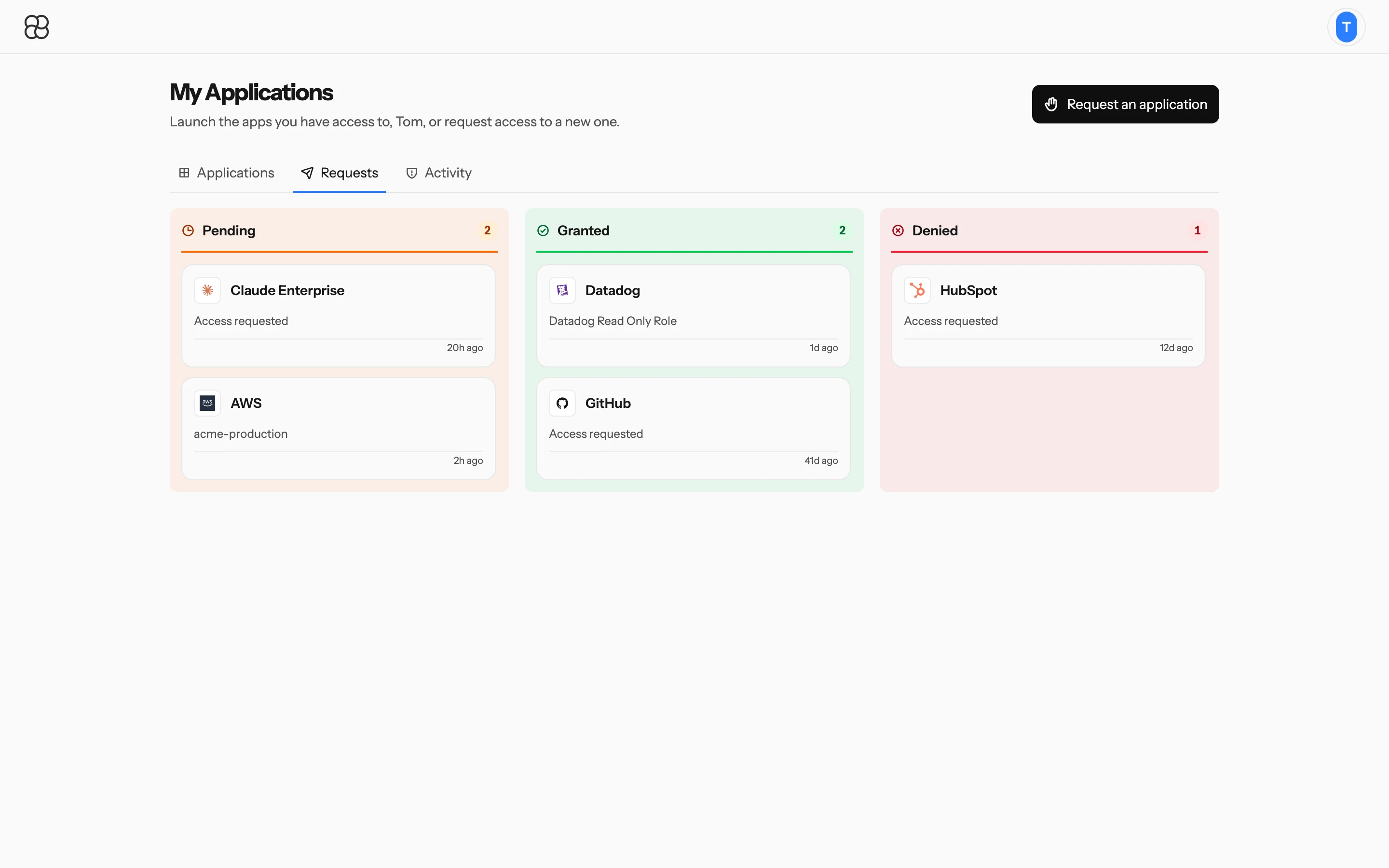
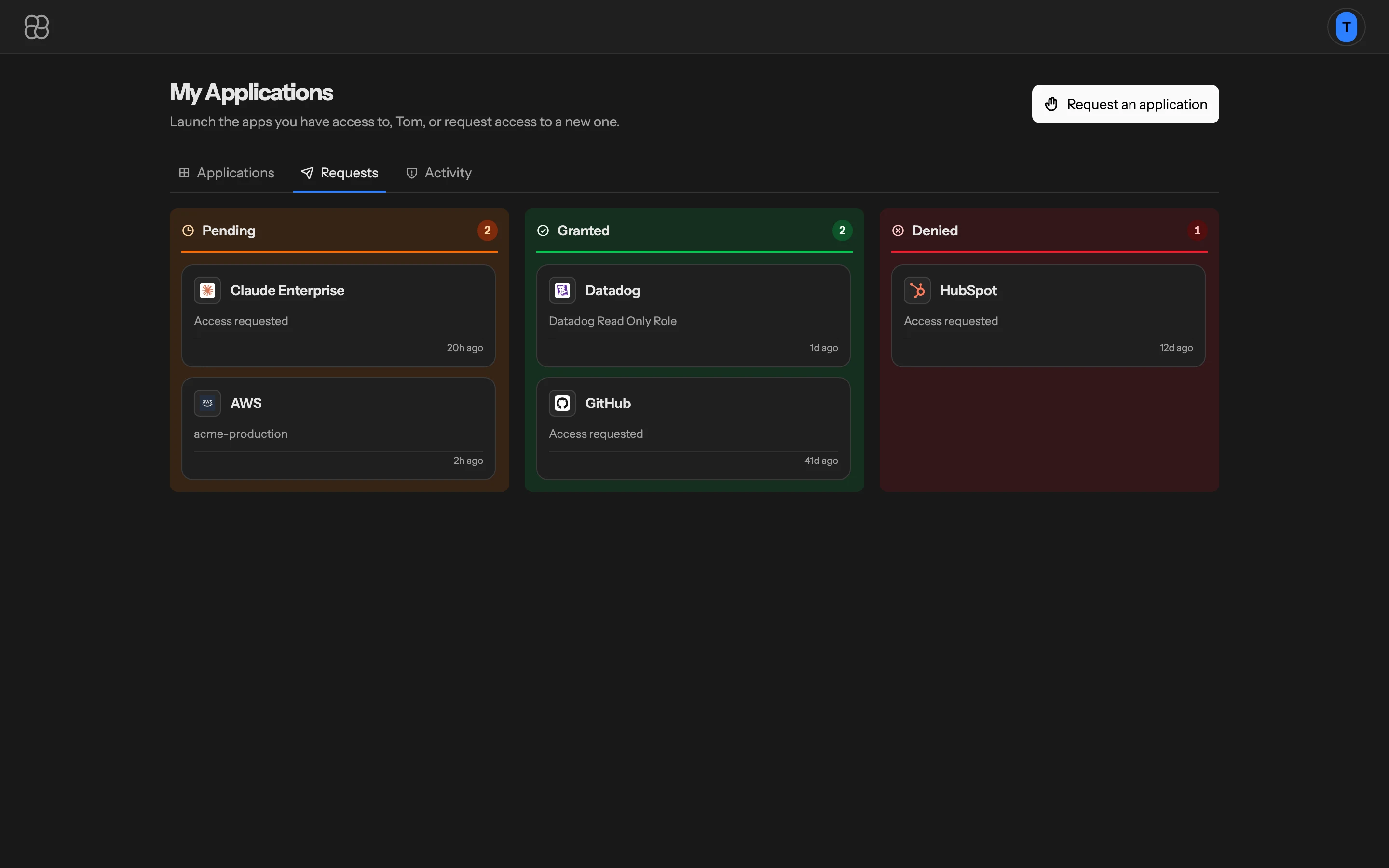
Click a request to see what you asked for, your reason, the Timeline and the Approval steps, with who has approved and who you are waiting on. While it is pending, Remind nudges the current approver and Cancel request withdraws it.
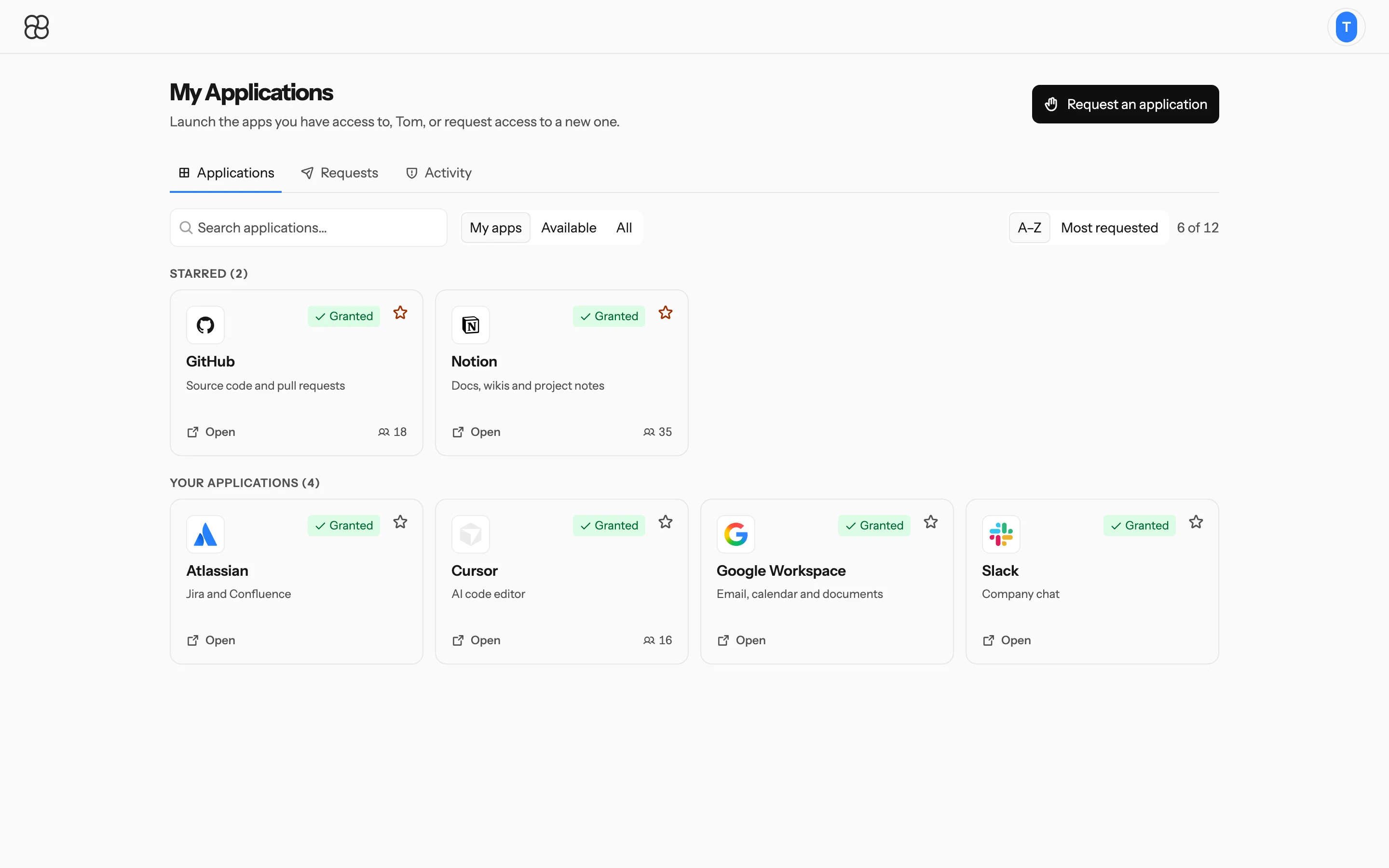
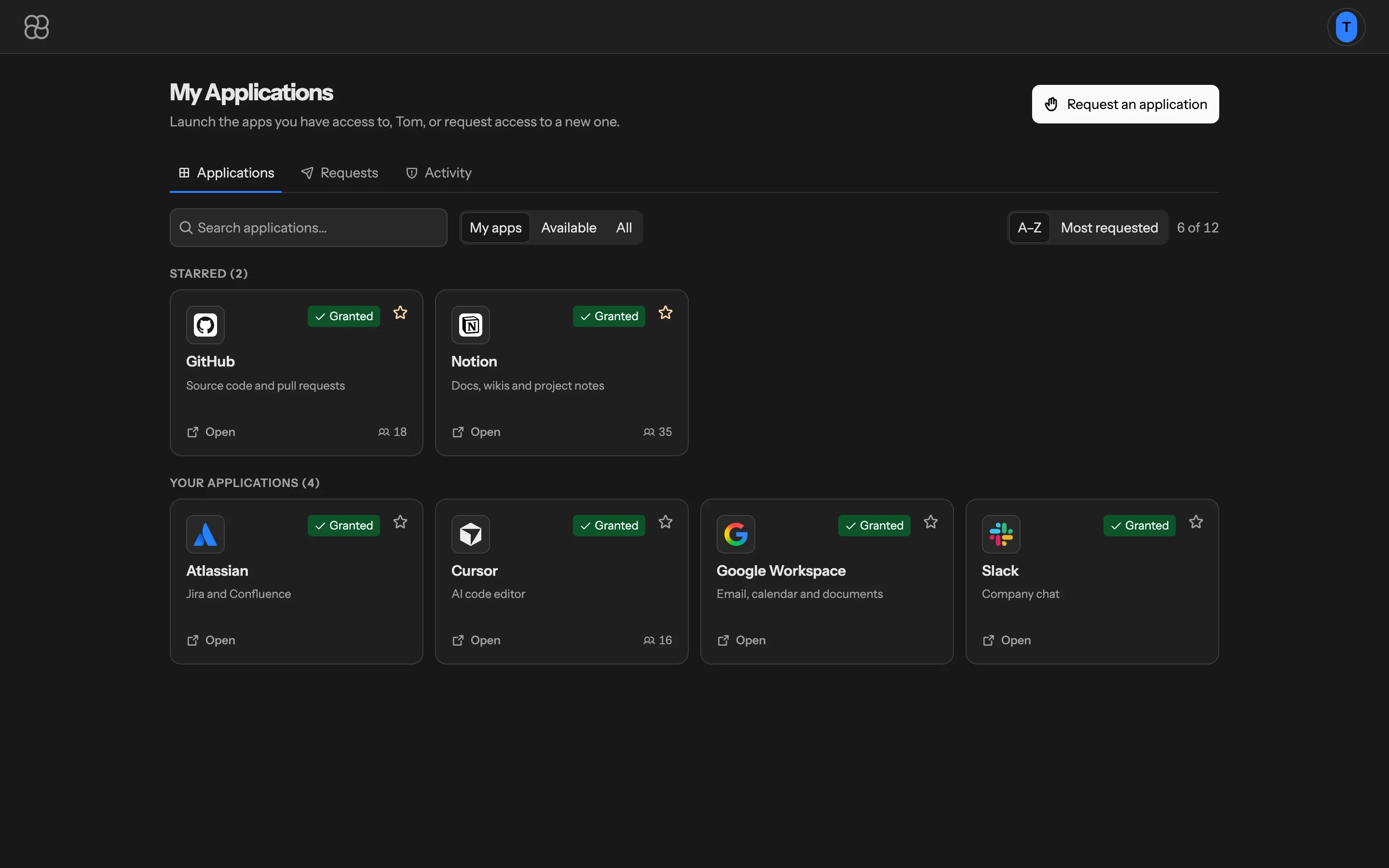
When the request is granted, the application moves to Applications with Open, which takes you to its launch URL.
Troubleshooting
- The application is not listed. It is not in the catalogue, or an admin disabled it. Ask your IT team.
- "You already have a pending request for this application." Only one request per application can wait at a time. Track it under Requests, or cancel it first.
- The duration you want is not offered. The ladder stops at the policy maximum. Ask for the longest option and extend it before it expires if you still need it.
Policies and just-in-time access
Route requests through an approval chain, or time-box them with a just-in-time policy that can grant instantly to the people its conditions allow.
Approve requests
Decide on the requests waiting on you as an application owner, a manager or a reviewer, from the app, from Slack or from Teams.