Offboard a leaver
Schedule a departure, let Lutril close the directory account and revoke OAuth connections, and track every application owner until the last access is removed.
Offboarding removes a departing person's access everywhere Lutril sees an account. At the time you schedule, Lutril closes the directory account itself (OAuth connections revoked, data transferred, account suspended then deleted or deactivated) and opens one removal task per application, sent to its owner on Slack or Teams. You follow every task until nothing is left.
Before you start
- You need the Owner or Admin role.
- Your identity provider is connected (see Connect your identity provider). The applications to clean up come from the accounts Lutril has synced, so connect the applications you want covered.
- For Lutril to remove an account itself, the application's integration has the Remove accounts permission switched on, on its Permissions tab in Integrations.
The Offboarding page
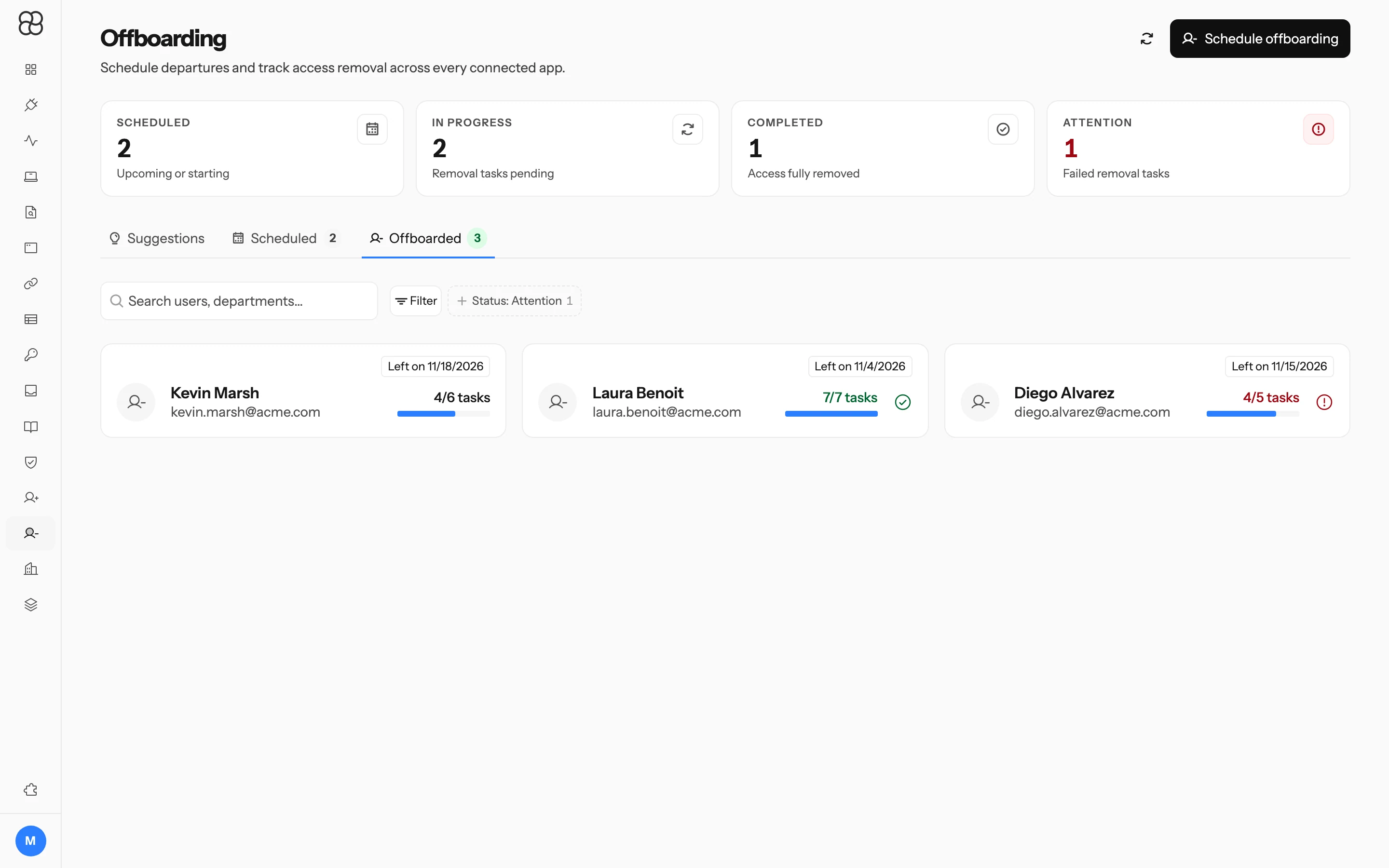
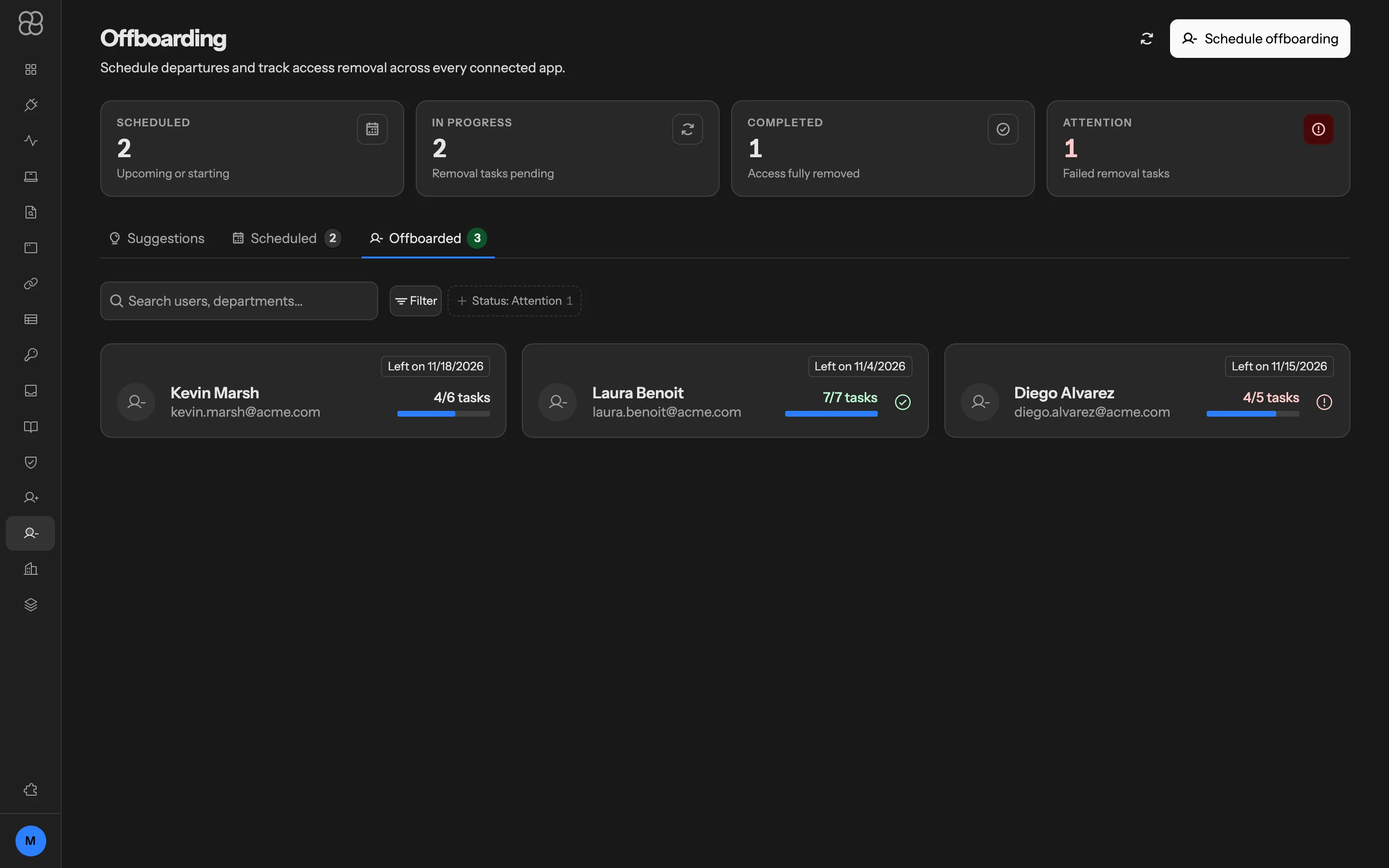
Open People > Offboarding. The cards count Scheduled departures, offboardings In progress (removal tasks pending), Completed ones (access fully removed) and those needing Attention (a removal task failed). Click a card to filter on it.
- Suggestions lists contracts your HR tool reports as ended in the last 60 days or ending in the next 30, tagged Contract ended or Ending soon. Click Schedule offboarding on a card to start with that person.
- Scheduled lists departures that have not run yet. Reschedule changes the date, Cancel removes the schedule without revoking anything.
- Offboarded lists the people already offboarded. Click a card to open their page.
Schedule an offboarding
Pick the person and the date
Click Schedule offboarding. Under Person, search for the departing employee. Under Offboard at, pick when access should be removed; the time is in the timezone shown next to the field. Click Continue.
Check the applications
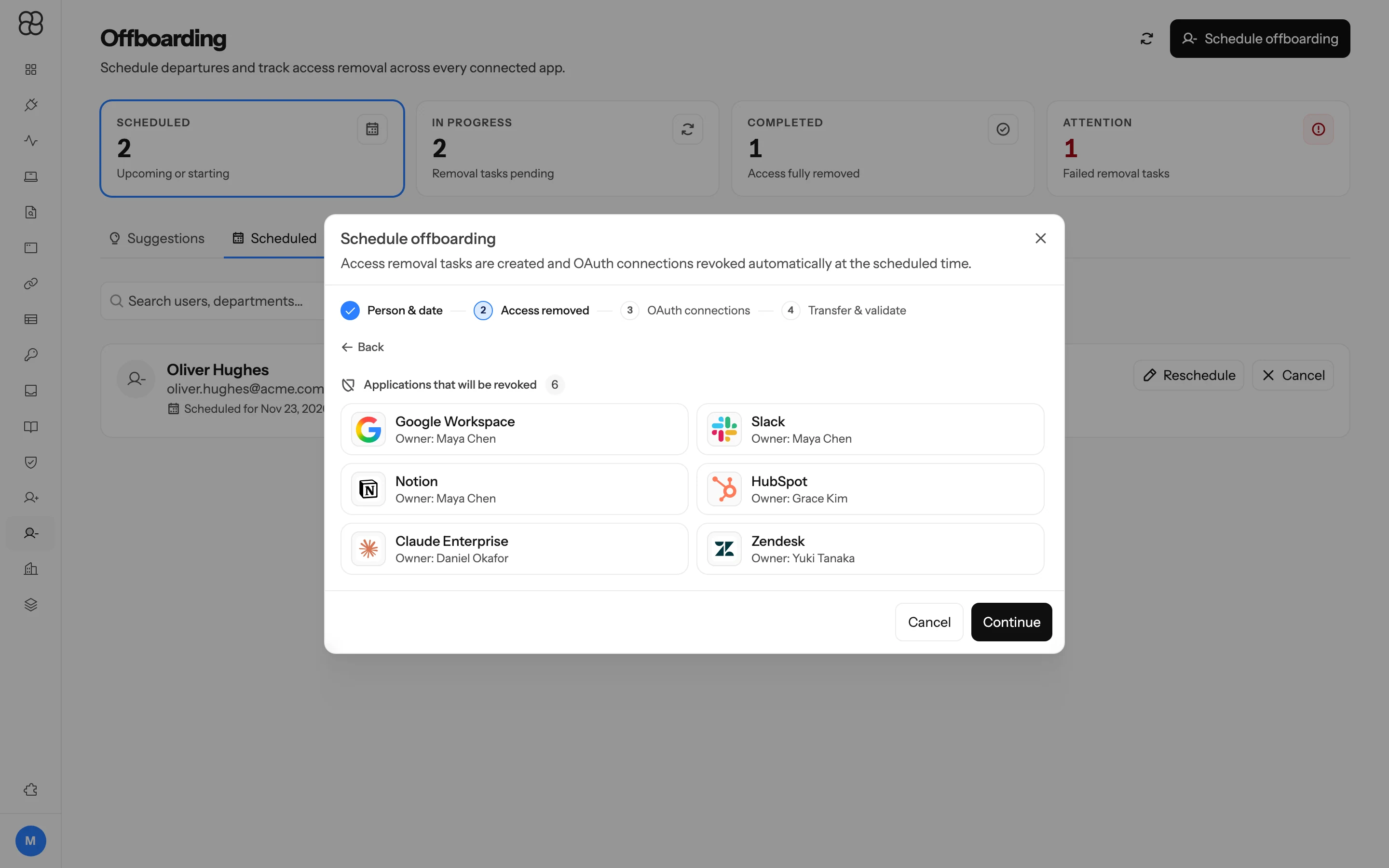
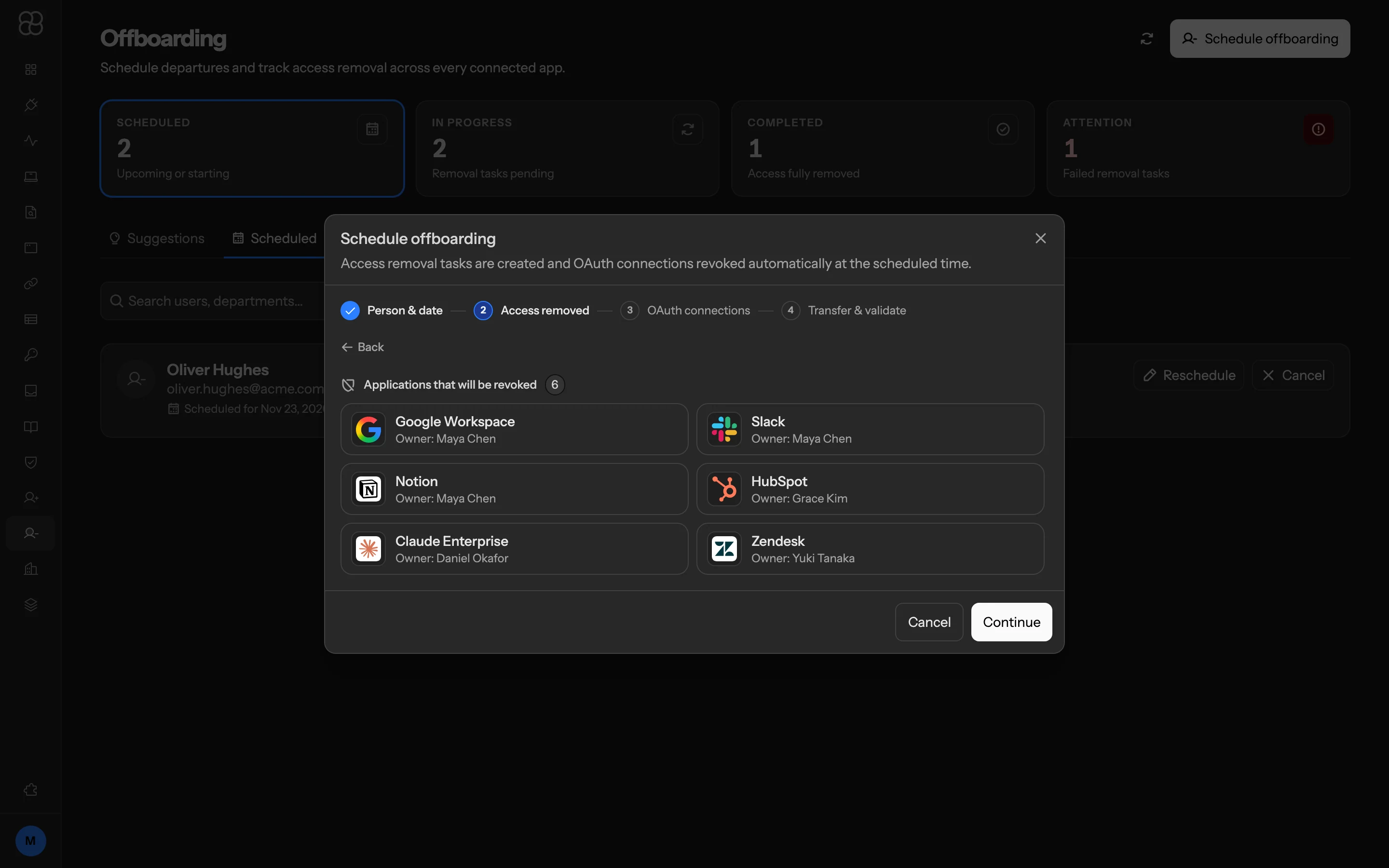
Applications that will be revoked lists every application where the person has an account, with its owner. Each one becomes a removal task when the offboarding runs.
Check the OAuth connections
OAuth connections that will be revoked lists the third-party apps the person authorized with their work account. Lutril revokes them automatically when the offboarding runs, before the account is deleted. An app consented for the whole company cannot be revoked for one person: the dialog names it, so you can review it in Shadow IT afterwards.
Transfer data and validate
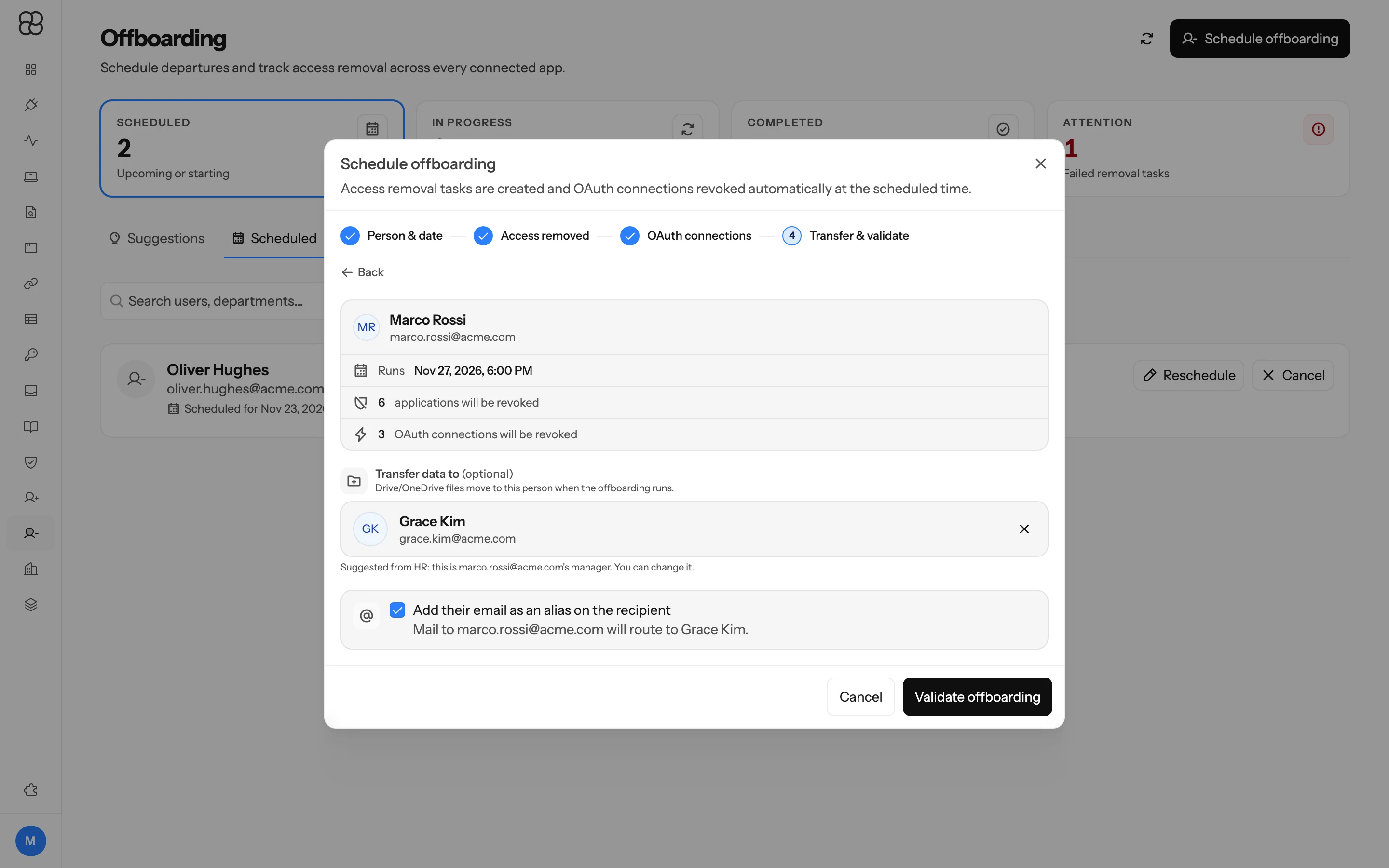
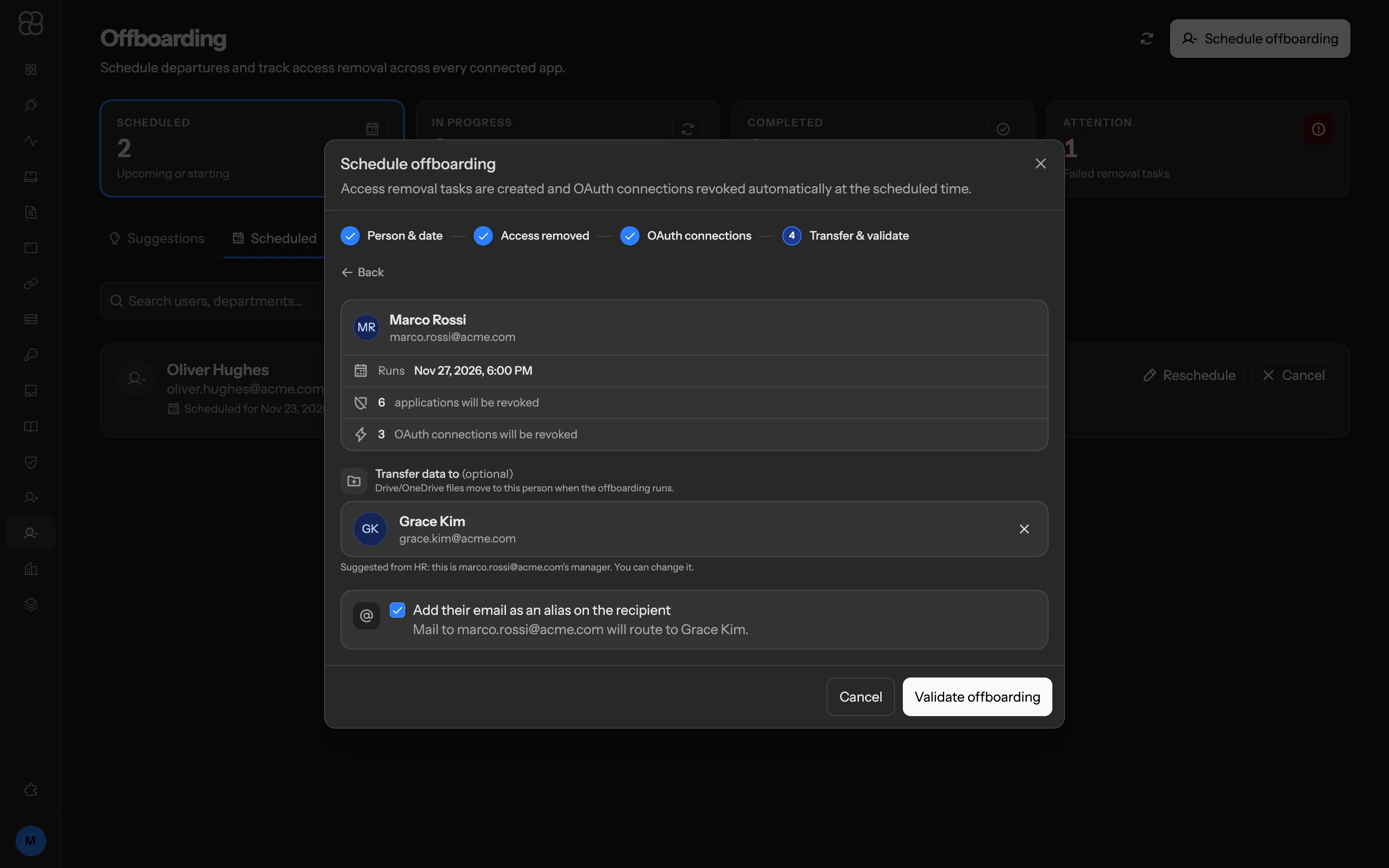
Transfer & validate recaps the plan. Under Transfer data to, pick who receives the person's Drive or OneDrive files; Lutril suggests their manager from your HR tool. With a recipient set, Add their email as an alias on the recipient routes mail sent to the leaver to that person.
Click Validate offboarding.
To offboard someone right away, open their department and click Offboard now next to their name (see Departments).
What happens when it runs
Lutril checks for due offboardings every minute. When one runs:
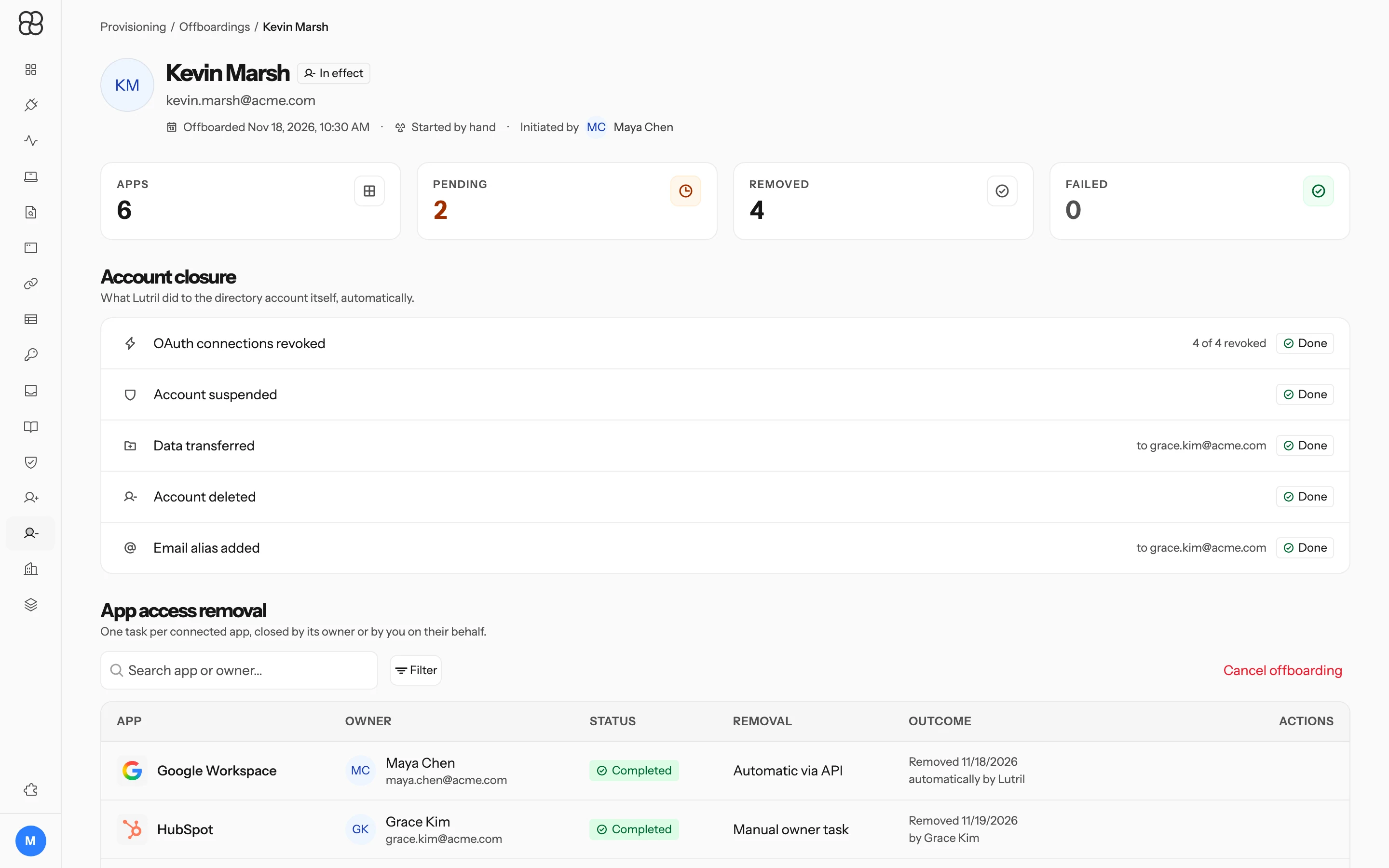
- The directory account is closed automatically. OAuth connections are revoked first, then the account is suspended, the data is transferred, and the account is deleted (Google Workspace) or deactivated (Microsoft Entra). With Google Workspace and a recipient, the deletion waits until Google reports the transfer complete, so no file is lost. The alias is added at the end.
- One removal task per application is sent to its owner. Where Lutril can remove the account, the owner can let Lutril do it from the card; otherwise they remove the access in the application and mark it removed.
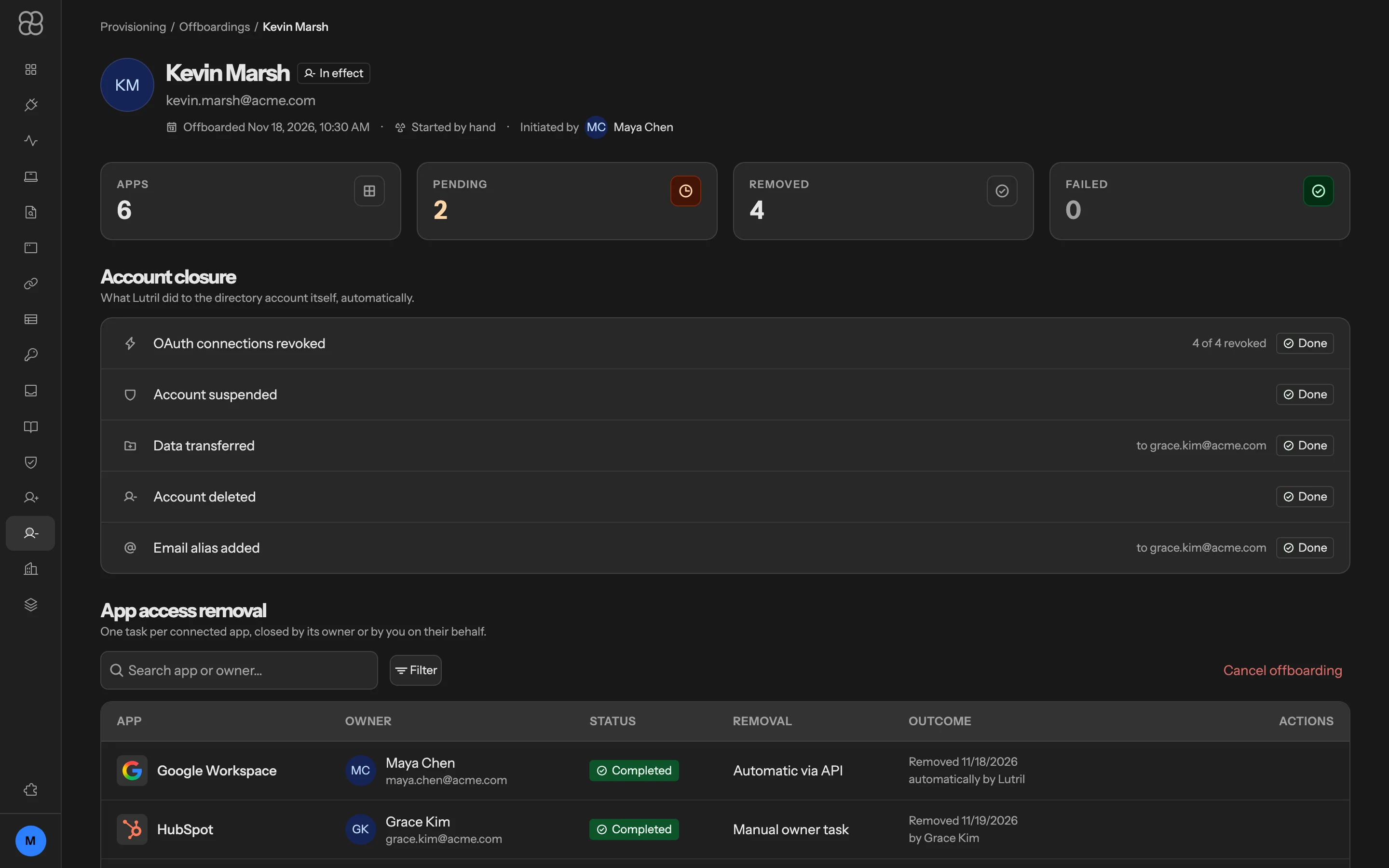
Open the person from the Offboarded tab. Account closure shows what Lutril did to the directory account, step by step. App access removal lists one task per application with its Owner, Status, Removal method and Outcome. For a pending task, Remind sends the owner a reminder on Slack and Teams, and Complete for owner closes it once you removed the access yourself.
When the integration has Remove accounts off, the card says Automatic removal is turned off for this integration, and the owner removes the access by hand.
Cancel an offboarding
- Scheduled: click Cancel on its card, or Cancel schedule on its page. Nothing is revoked, and the record of the decision is kept.
- Already run: click Cancel offboarding on its page and type
CONFIRMATION. This deletes the record and its tasks, and closes the owners' Slack and Teams cards. Access already removed is not restored.
Troubleshooting
- A task shows Failed: the Outcome column carries the application's error, often a missing permission on the credentials Lutril uses. Fix it in the integration, then remove the access and click Complete for owner.
- The account still exists after the offboarding ran: with Google Workspace and a data recipient, deletion waits for the transfer to finish. Account closure shows the step as waiting and says why.
- An application is missing from the list: Lutril only sees accounts in connected applications. Remove access in the others by hand, and connect them so the next offboarding covers them.