How access requests work
Follow a request from the employee who asks, through the approval chain, to the grant and, for just-in-time access, to its deadline.
Employees ask for the applications they need from the app, from Slack or from Teams. Lutril routes each request to the right people, grants the access when they approve, and, when a just-in-time policy governs the application, takes it back at the deadline. Every step is recorded on the same request, whichever surface it happened on.
Before you start
- Your identity provider is connected (see Connect your identity provider), so Lutril knows each person's manager and department.
- Slack or Teams is connected (see Slack and Teams) if approvers should decide from chat.
- The applications people will ask for are in the catalogue, each with at least one owner.
The life of a request
An employee asks
From My Applications in the app, the /access command in Slack or the Lutril chat in Teams, the employee picks an application and answers only what that application's policy needs: an access level, a role, a duration, a reason. Managers can ask on behalf of their direct reports, and admins on behalf of anyone. See Request access.
A policy decides the route
Lutril looks up the policy for the application and the access level asked for.
- With an approval workflow, the request goes through its stages in order: Manager validation, a Custom reviewer such as a security team, then Owner approval.
- With a just-in-time policy, the request can be granted at once for requesters who match its conditions, refused, or sent to the same kind of approval chain. Either way the grant carries a deadline.
- With no policy, the request goes to the application owners.
Approvers decide
Each approver gets a direct message in Slack or a card in Teams, and the same request under To approve in My Applications. Approving at a middle stage forwards the request to the next one. Approving at the owner stage grants it. See Approve requests.
Lutril grants the access
On the final approval, Lutril runs what the application is configured to do: add the person to directory groups, create the account through the integration, or record that the owner granted it by hand. The requester is told in the surface they asked from.
Just-in-time access ends on time
A time-boxed grant is warned before its deadline, can be extended by the requester within the policy's limits, and is removed automatically or flagged for removal when it runs out. See Expiry and extensions.
Follow every request
Open Access Management > Access Requests. The cards at the top count Total requests, the last 24 hours, the last 7 days and Pending decisions. The Access requests tab holds requests awaiting a decision and access granted with no deadline, grouped into Pending, Granted and Denied / Revoked. The Just-in-time tab holds every time-boxed grant.
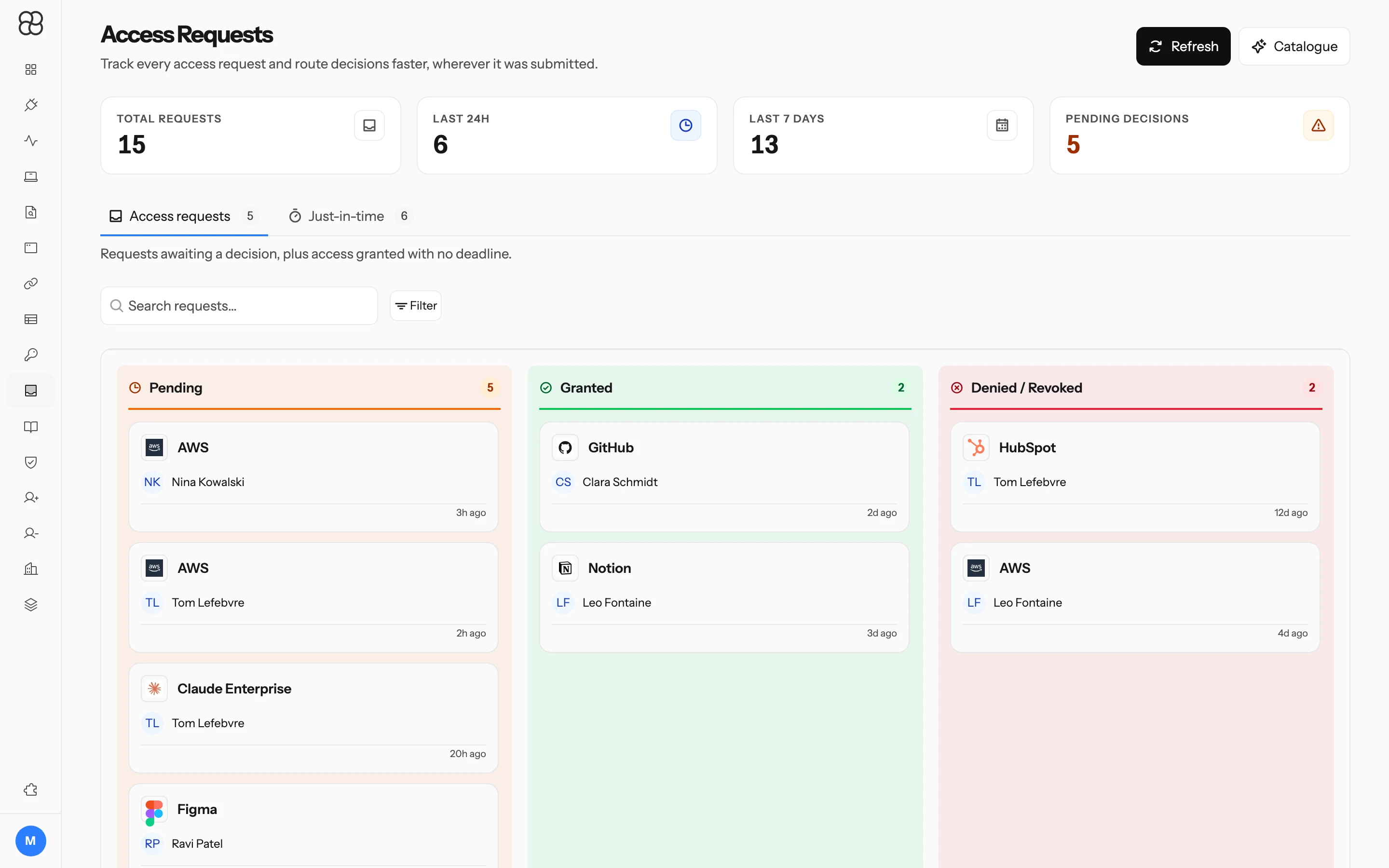
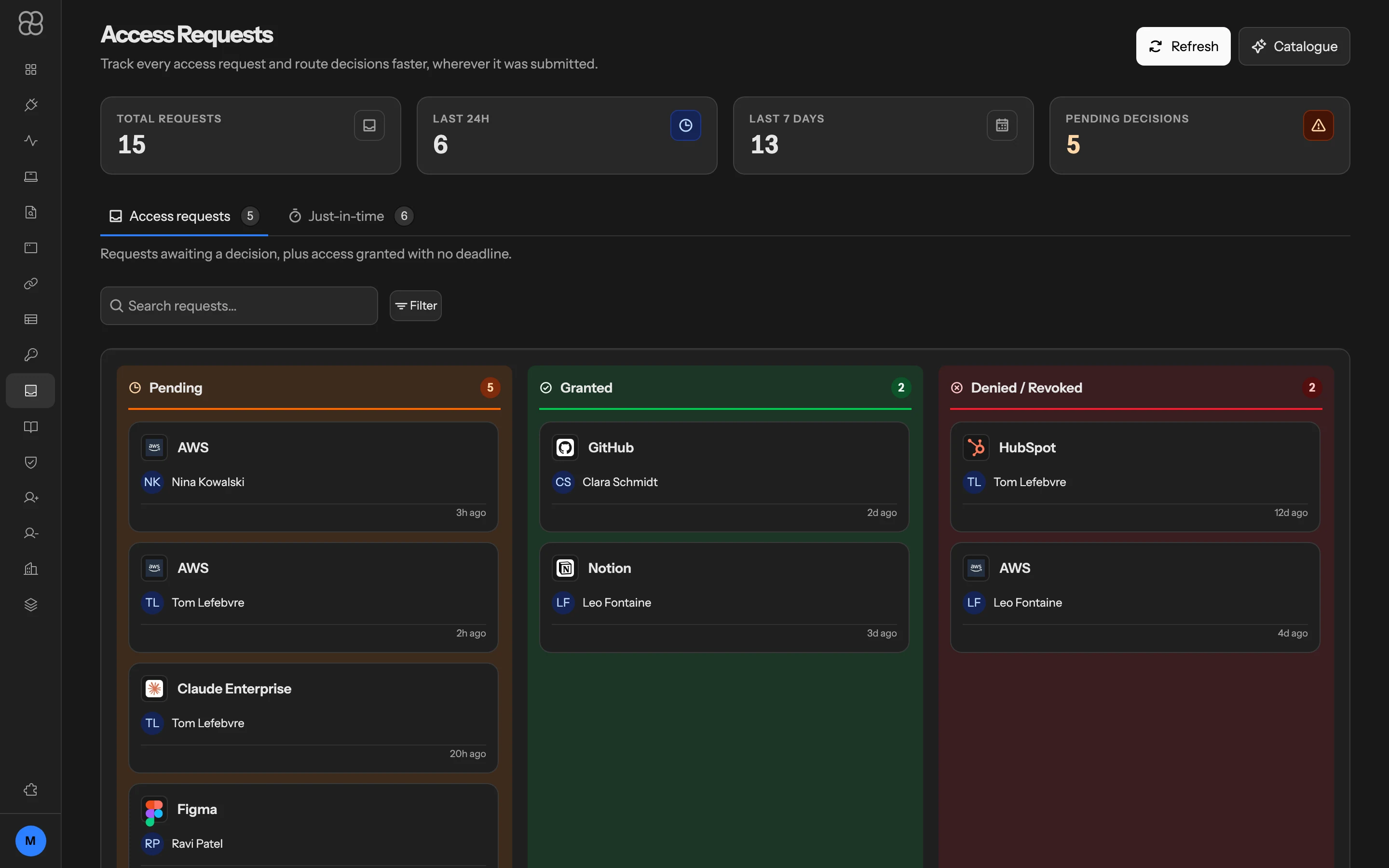
Click a card to open the request. From there an admin can send a Reminder to the current approver, Validate step or Grant on an approver's behalf, Cancel request, Revoke a granted access, or Delete the record.
Results and export
Follow a campaign's progress, read the decisions recorded for each application, rename the campaign and export it as an Excel workbook for your auditors.
Set up the catalogue
Decide which applications employees can request, who owns each one, which access levels they can ask for, and what Lutril sends when a request is granted.