Connect an app
Connect an application to Lutril with an API key (Datadog) or with OAuth (GitHub), test it, and decide what Lutril may do in it.
This page walks through two connections: Datadog, which uses API keys, and GitHub, which uses OAuth. Every other integration follows one of these two patterns; the vendor-specific details are in its setup guide.
Before you start
- You are an owner or admin in Lutril.
- You have admin rights in the application you are connecting, or someone who does is next to you.
- Your identity provider (Google Workspace or Microsoft Entra ID) is connected, so Lutril can match accounts to people.
With an API key: Datadog
Choose API mode
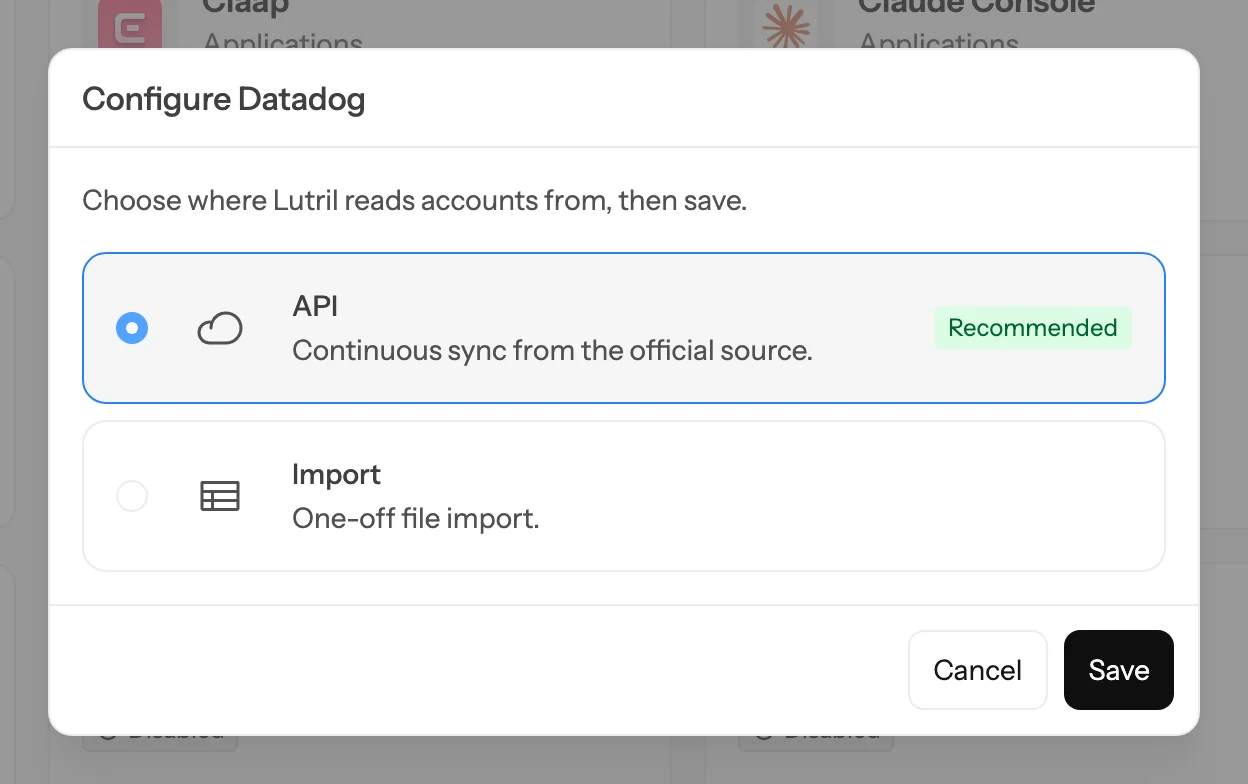
In Settings > Integrations, click the Datadog card. In Configure Datadog, pick API and click Save. Lutril creates the connection and opens its page.
Read what is left to do
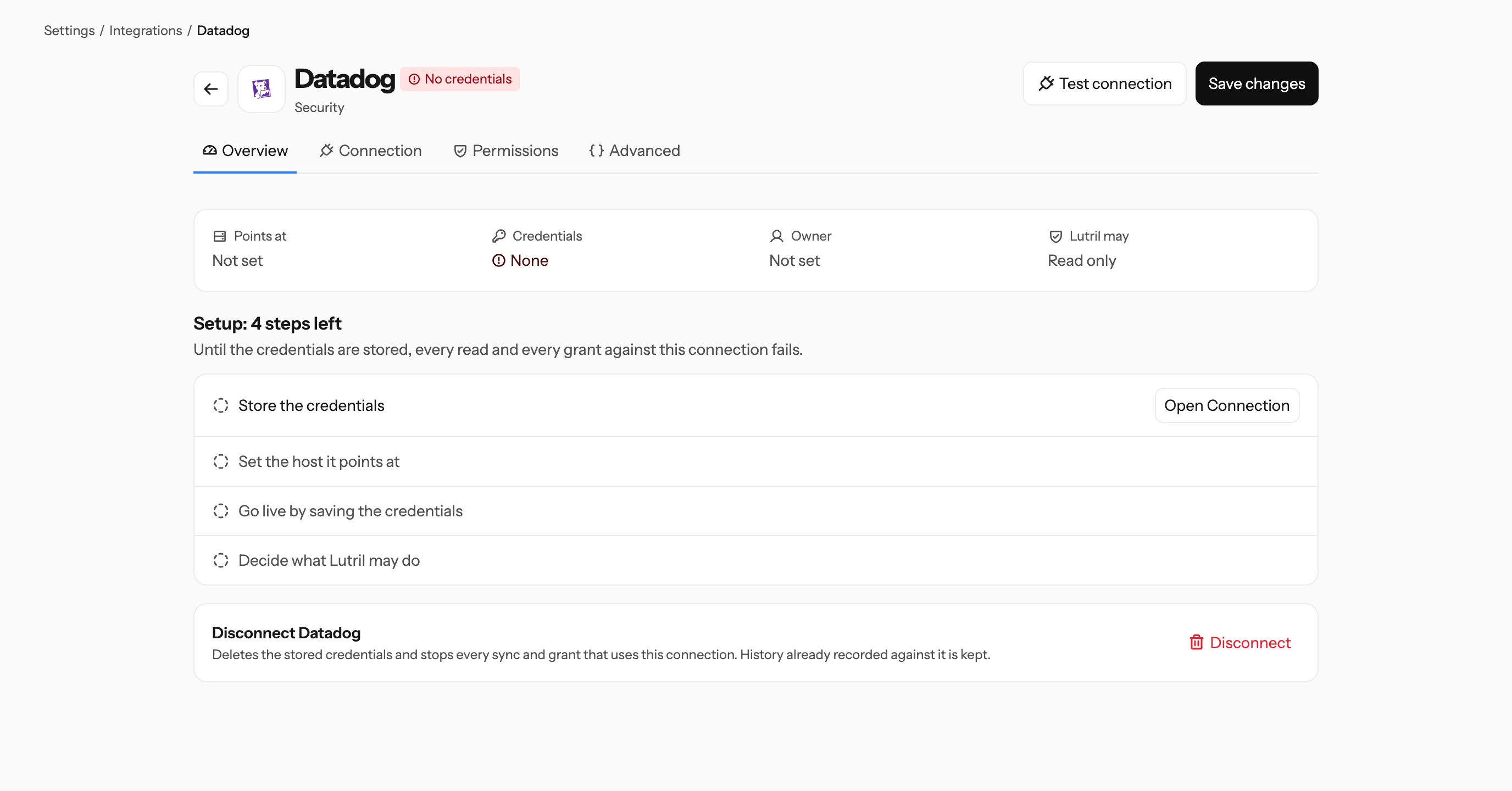
The Overview tab shows the connection as No credentials and lists the remaining setup steps. Open Connection takes you to the first one.
Paste the keys
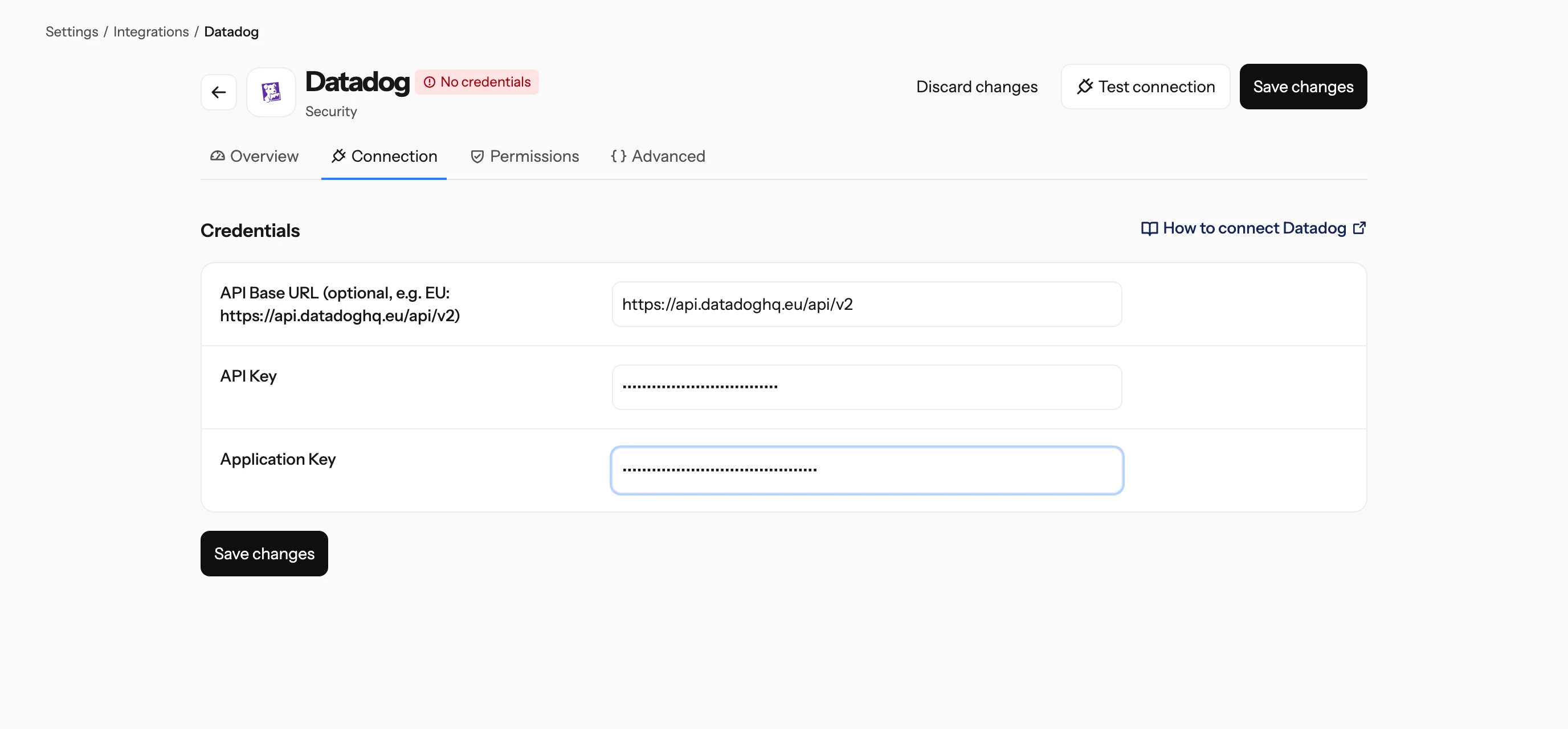
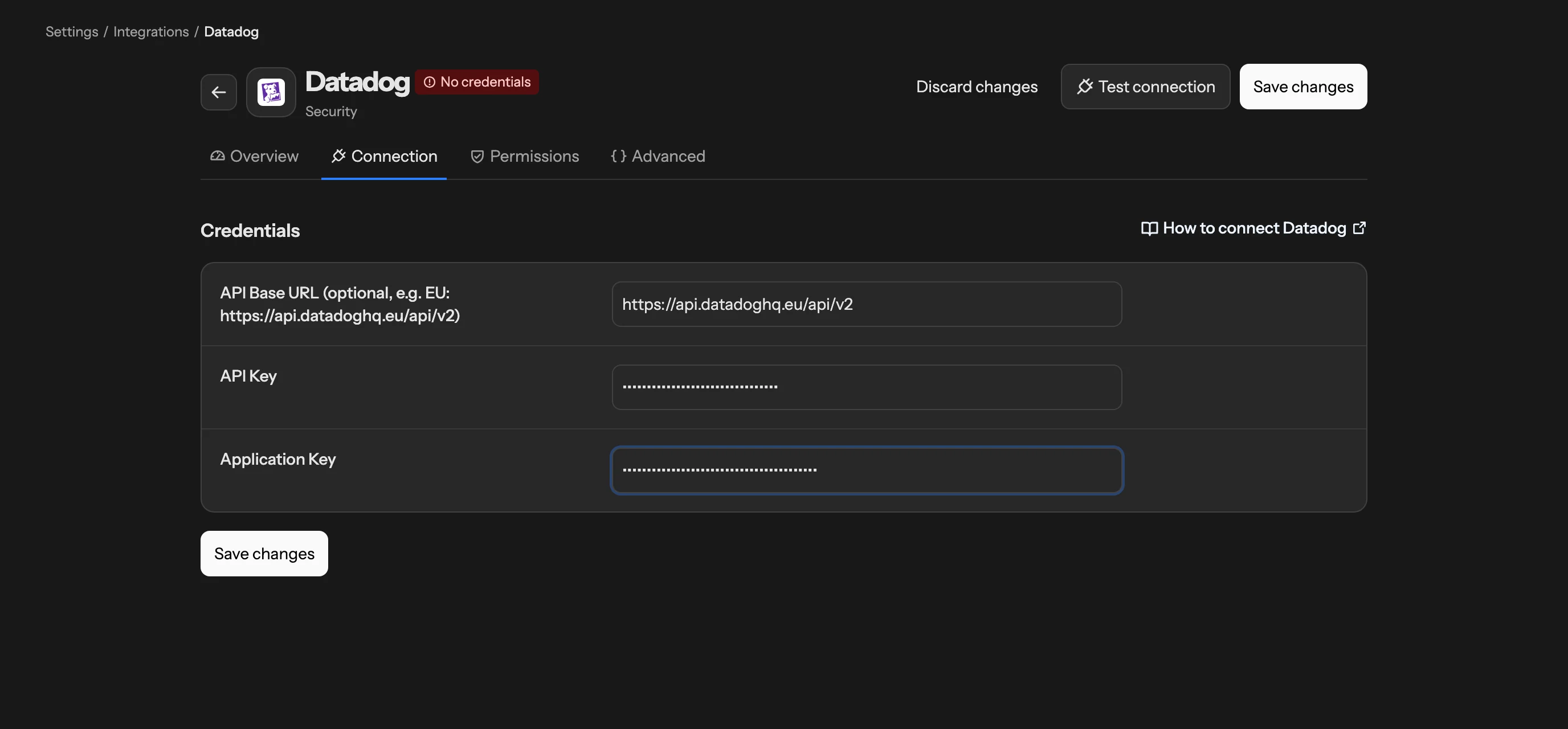
In Datadog, create an API key and an application key (the Datadog guide shows where). On the Connection tab, fill in:
- API Key and Application Key.
- API Base URL, only if your Datadog organization is outside the US1 site, for example
https://api.datadoghq.eu/api/v2for EU.
Test the connection
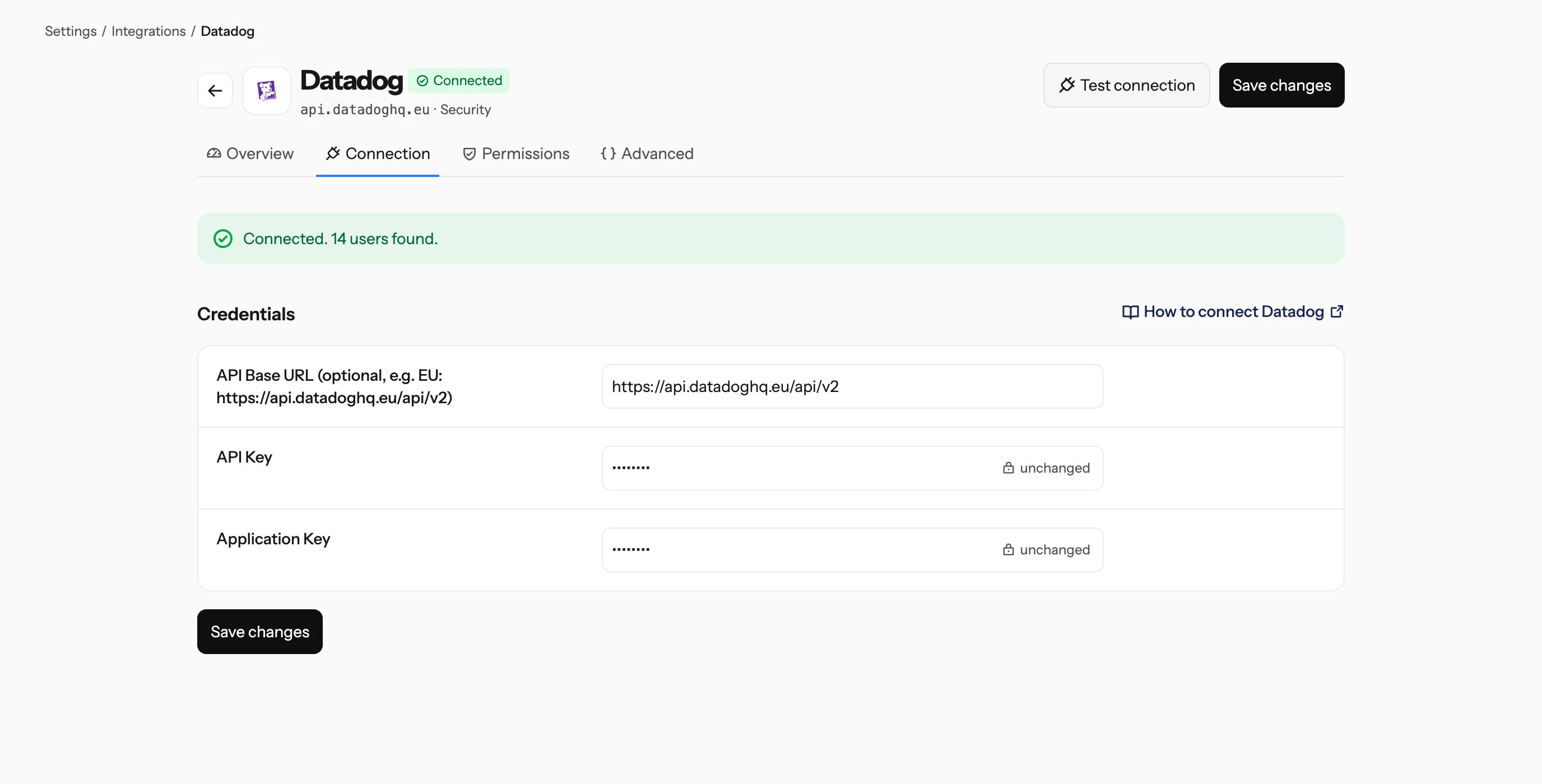
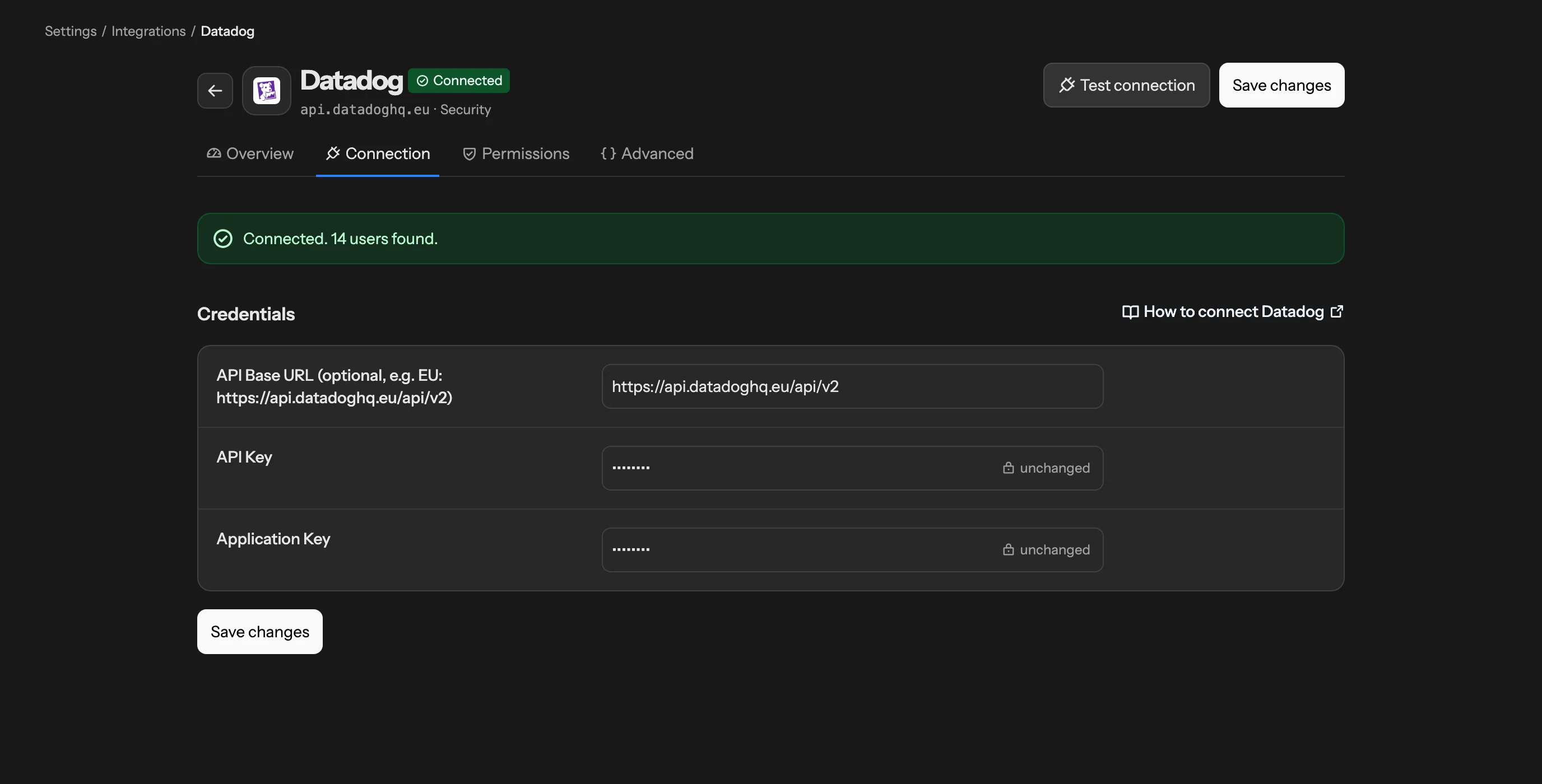
Click Test connection. Lutril saves the keys, calls Datadog, and reports how many users it found. The tag next to the name turns to Connected.
Decide what Lutril may do
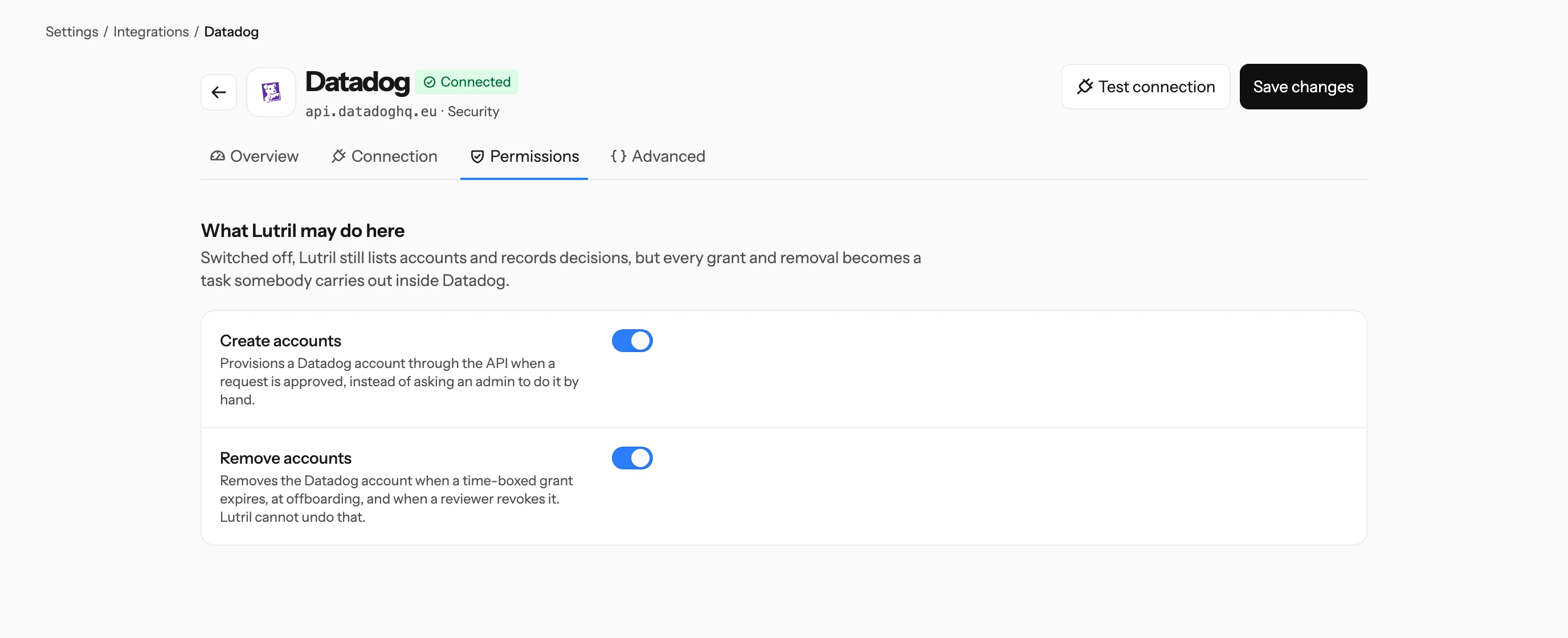
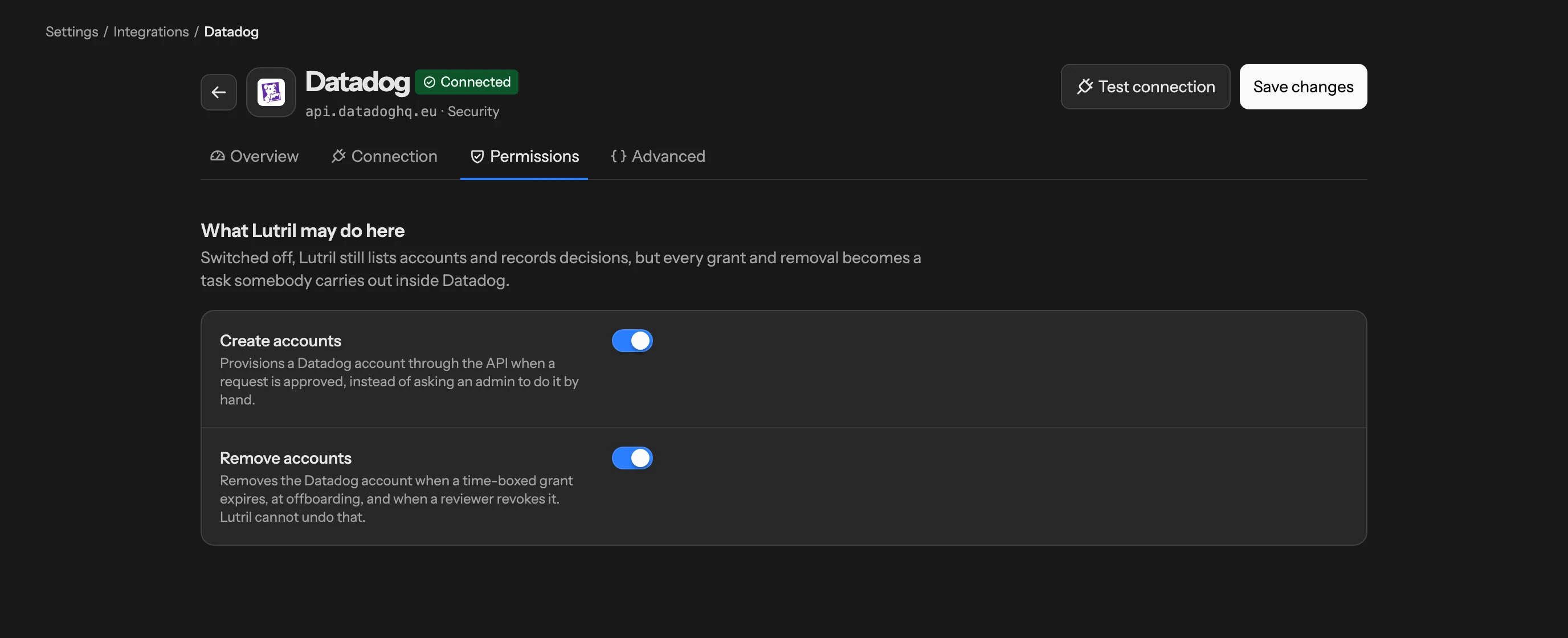
On the Permissions tab, switch on Create accounts to let Lutril provision a Datadog account when a request is approved, and Remove accounts to let it remove one when a time-boxed grant expires, at offboarding, or when a reviewer revokes it. Click Save changes.
With both off, Lutril still lists accounts and records decisions, and every grant or removal becomes a task for a Datadog admin.
With OAuth: GitHub
Choose API mode
Click the GitHub card, pick API, and click Save.
Enter your organization
On the Connection tab, type your GitHub Organization (the name in github.com/<organization>). The OAuth button stays on Enter organization first until you do. Leave API Base URL (optional) empty for github.com.
Authorize Lutril
Click Connect GitHub and approve the request in GitHub. You come back to the same page, and the GitHub OAuth panel shows the date it was connected.
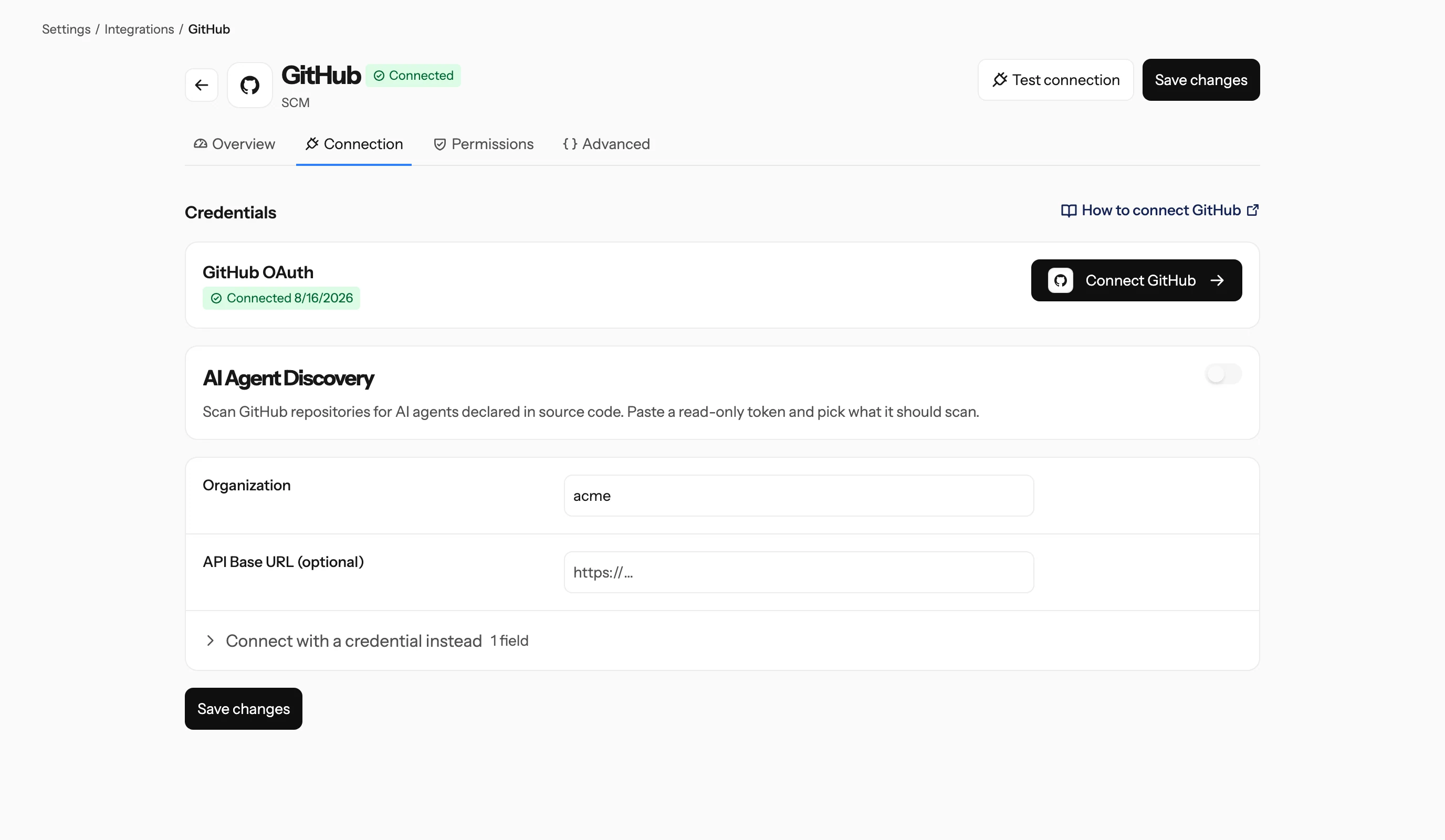
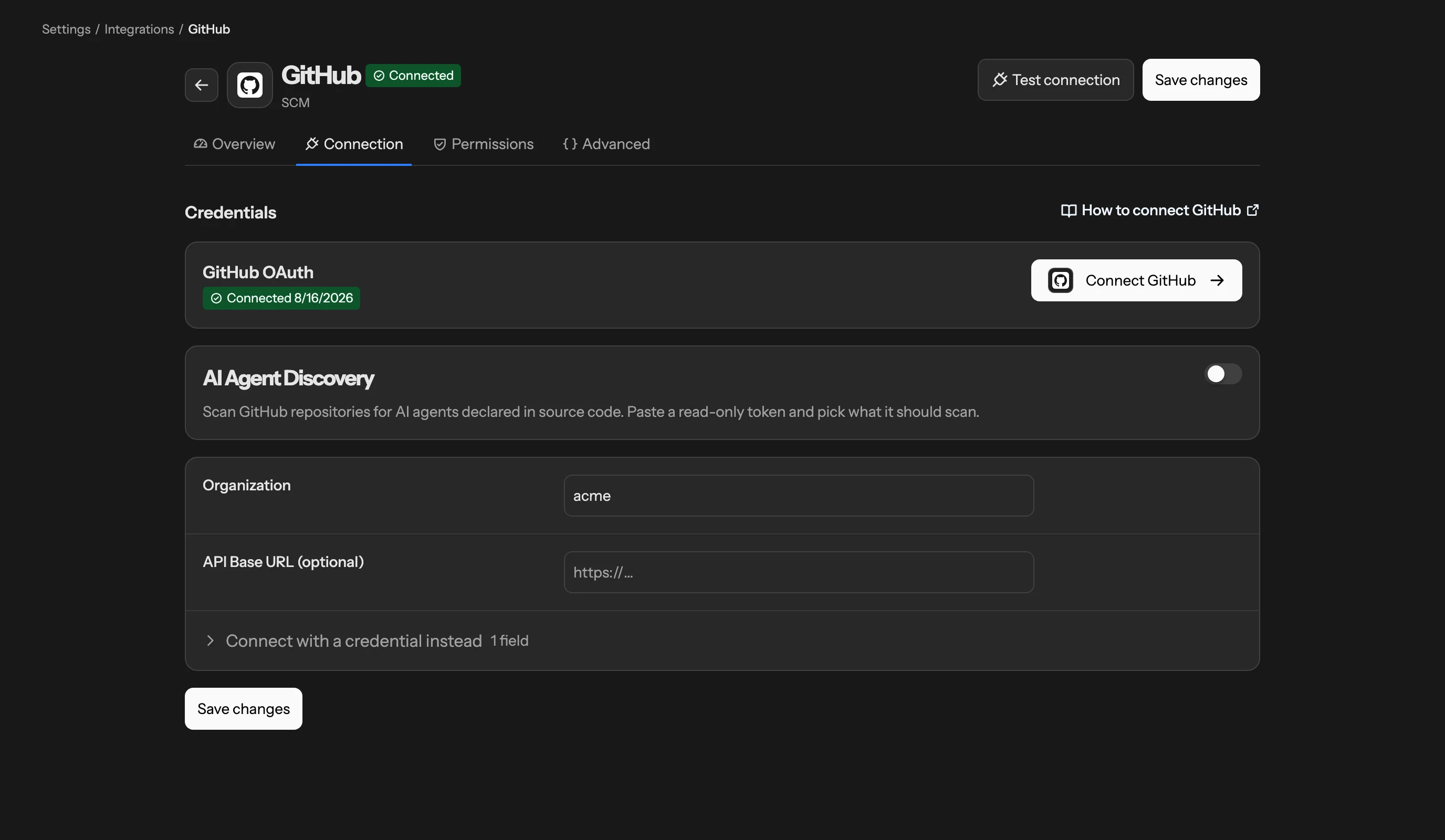
If you cannot use OAuth, open Connect with a credential instead and paste a personal access token.
Test and set permissions
Click Test connection, then set Permissions as for Datadog.
The GitHub and GitLab connection pages also carry AI Agent Discovery, which scans repositories for AI agents declared in code. It uses its own read-only token and is described with the other AI governance features.
Apps that need a service account
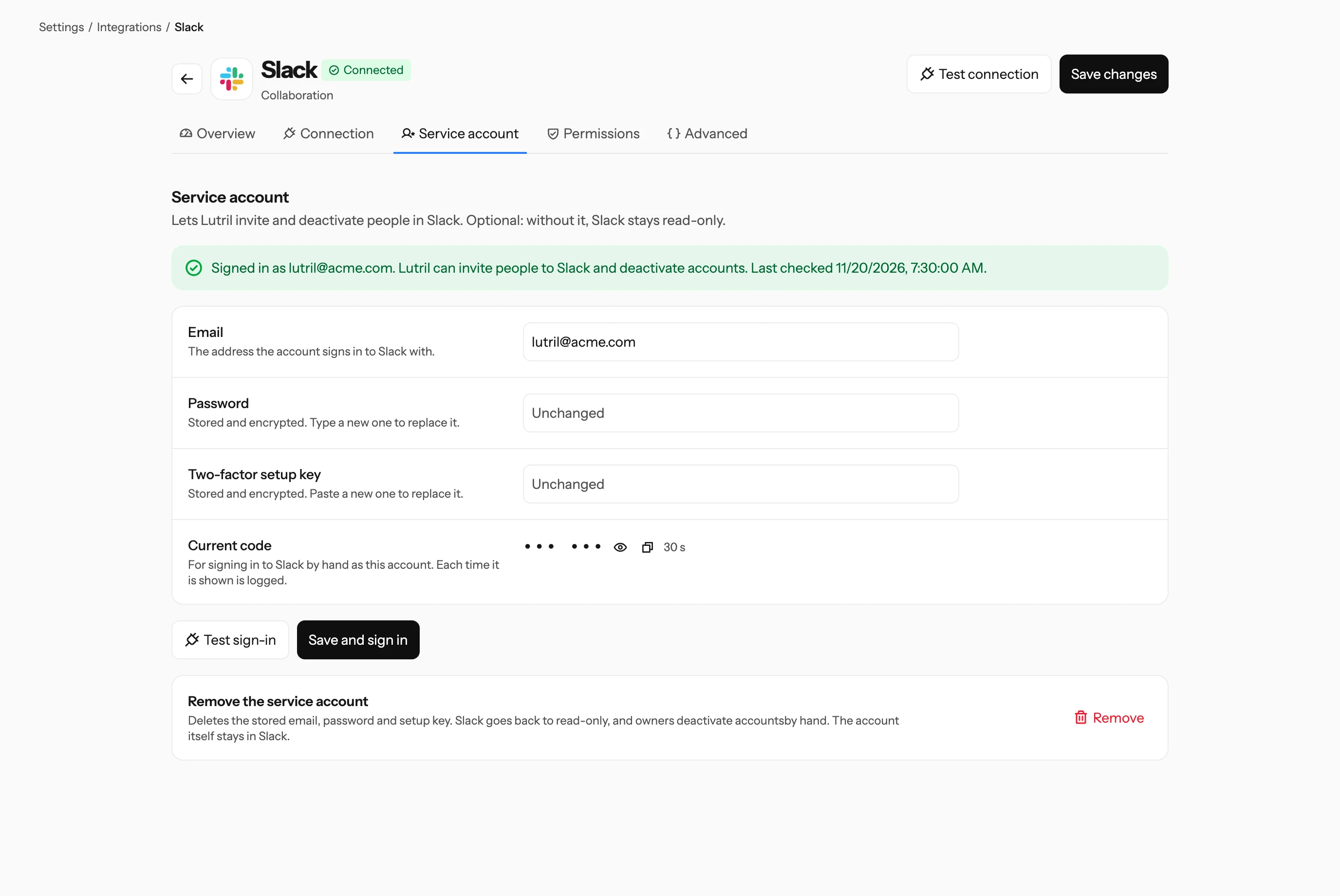
Slack, Notion and Figma have no API for inviting or removing members below their enterprise plans. Lutril does it the way a person would, by signing in as an account you create for it. Once the app is connected, a Service account tab appears:
- In the app, create an account for Lutril with a password, for example
lutril@yourcompany.com, and give it the admin role the tab names. - Turn on two-factor authentication with an authenticator app and copy the setup key (the text version of the QR code).
- On the Service account tab, enter the Email, Password and Two-factor setup key, then click Save and sign in.
A green banner confirms the sign-in. Create accounts and Remove accounts on the Permissions tab stay locked until this test passes. Test sign-in checks it again at any time.
Troubleshooting
The credentials work but cannot see the user directory. Check that the key or the authorizing account has the read permissions listed in the vendor's setup guide.
The test reads the stored credentials. Fill in every required field and click Test connection again; it saves before testing.
Someone revoked the key or uninstalled the OAuth app in the vendor. Create a new key, or click Connect again, and test.