Create a campaign
Launch an access review campaign, choose the identity provider and applications in scope, and assign a reviewer to each application.
A campaign groups the applications you review in one cycle. Most teams run one per quarter, named after the period it covers, so the audit trail reads naturally later.
Before you start
- You need the Owner or Admin role.
- Connect your identity provider (Google Workspace, Microsoft Entra ID, Lucca, Payfit or Eurecia) and the applications you want to review. See Integrations.
- Make sure each application has synced recently: the review compares the latest account list with your directory.
Launch the campaign
Open the campaign form
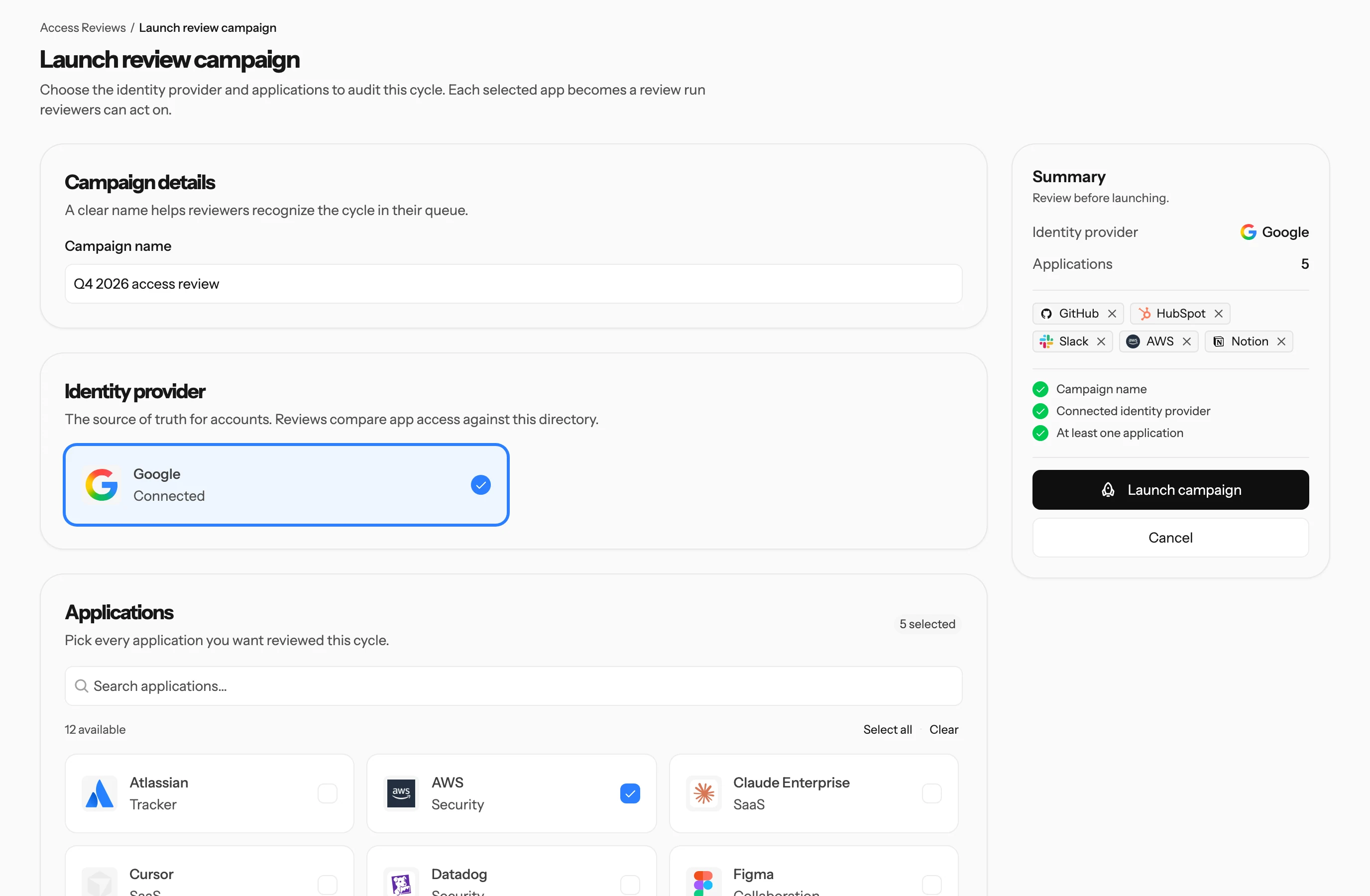
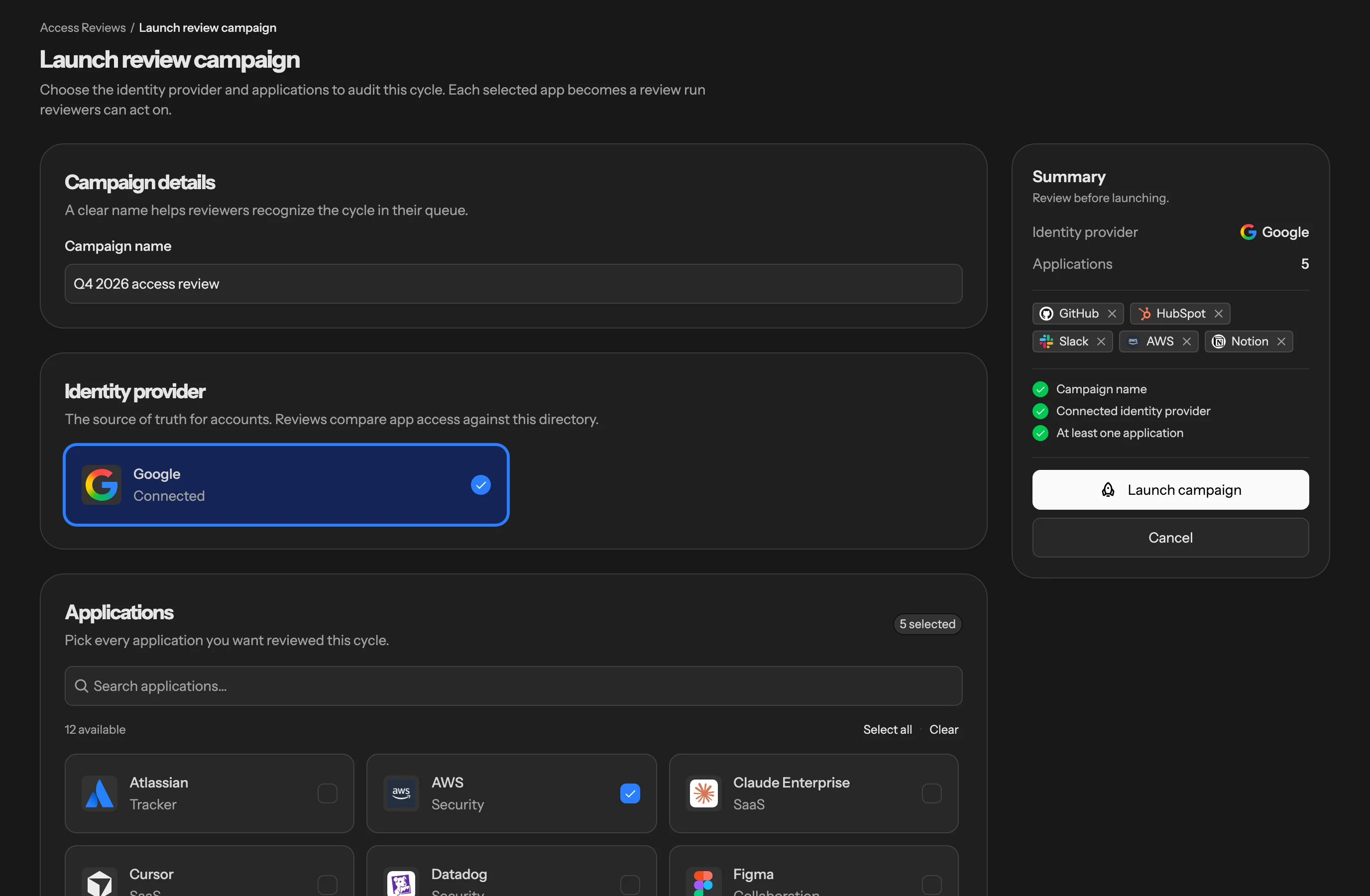
Go to Access Reviews and click New Campaign. The Launch review campaign page opens.
Name the campaign
Under Campaign details, type a Campaign name. Lutril suggests one based on today's date; a name such as "Q4 2026 access review" is easier for reviewers and auditors to recognize.
Choose the identity provider
Under Identity provider, pick the directory that is the source of truth for your accounts. Only connected providers are listed. Every account in the reviewed applications is matched against this directory: an account with no active user behind it is an orphan.
Select the applications
Under Applications, click each application to review this cycle. Use Search applications… to filter the list, Select all to add every application shown, and Clear to start over. Each connected application can be added, including each environment of an application you connected more than once.
Launch
Check the Summary panel: the three items (Campaign name, Connected identity provider, At least one application) must be ticked. Click Launch campaign.
Lutril creates one review run per application and opens the campaign page. If an application was disconnected while you were filling in the form, Lutril still creates the campaign, but tells you which applications could not be included so you can reconnect them and start another campaign.
Assign reviewers
Each application in the campaign has a reviewer and an owner. Set them on the campaign page, in the Applications table.
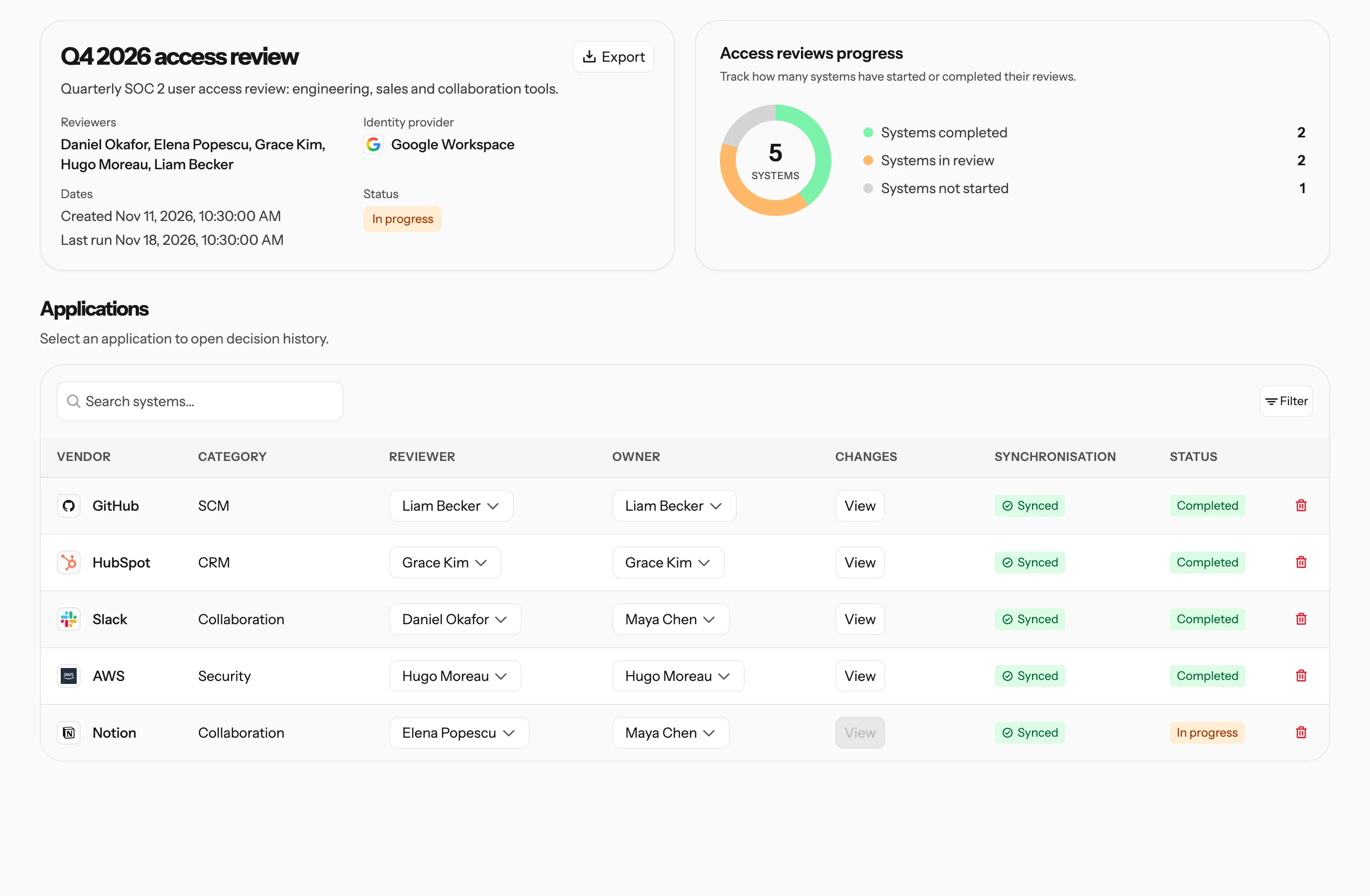
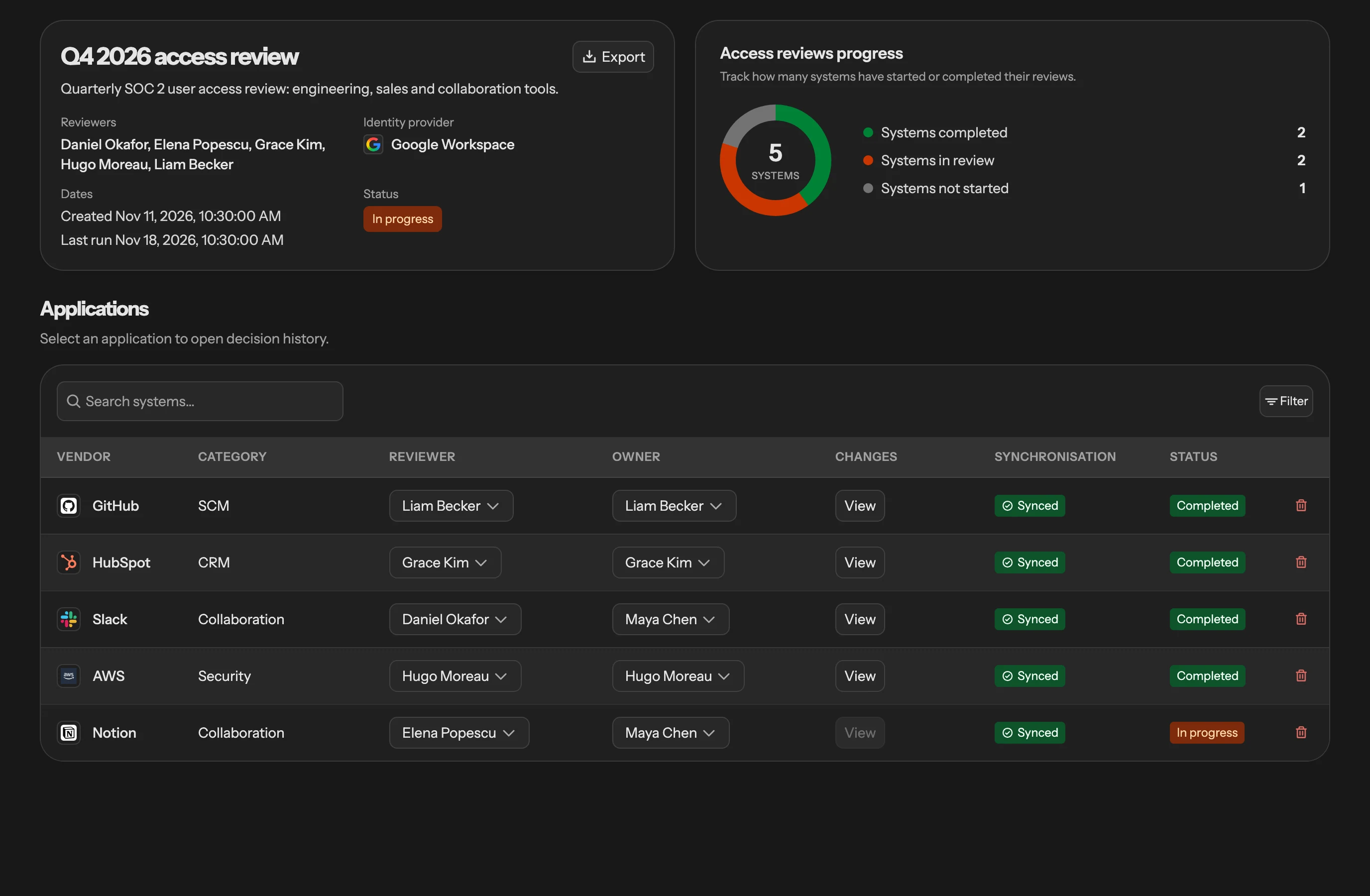
- In the Reviewer column, open the picker on an application's row and choose a person. Choose Unassigned to clear it.
- In the Owner column, do the same for the person accountable for the application.
The picker lists the people who have a Lutril account. The reviewer is stored on the application itself, so it carries over to your next campaigns.
Tell your reviewers
Lutril does not notify reviewers in Slack or Teams when a campaign starts. Send each reviewer the link to the campaign page, and make sure they have the Owner or Admin role so they can record decisions.
Change the scope
- Remove an application: click the trash icon at the end of its row, then Remove application. Any decisions already recorded for it are deleted; the other applications are not affected. A campaign keeps at least one application.
- Add an application: applications cannot be added to a running campaign. Create a second campaign for them.
- Delete the campaign: on Access Reviews, click the trash icon on the campaign's row, then Delete. This removes its runs and decisions permanently.
What happens next
Reviewers open each application from the campaign page and decide, account by account. Continue with Review an application.