Sign in
Sign in to your Lutril workspace with Google, Microsoft or an email and password.
Lutril has one sign-in screen for everyone: admins, approvers and employees requesting access. Most people use the same Google or Microsoft account they use for the rest of their work.
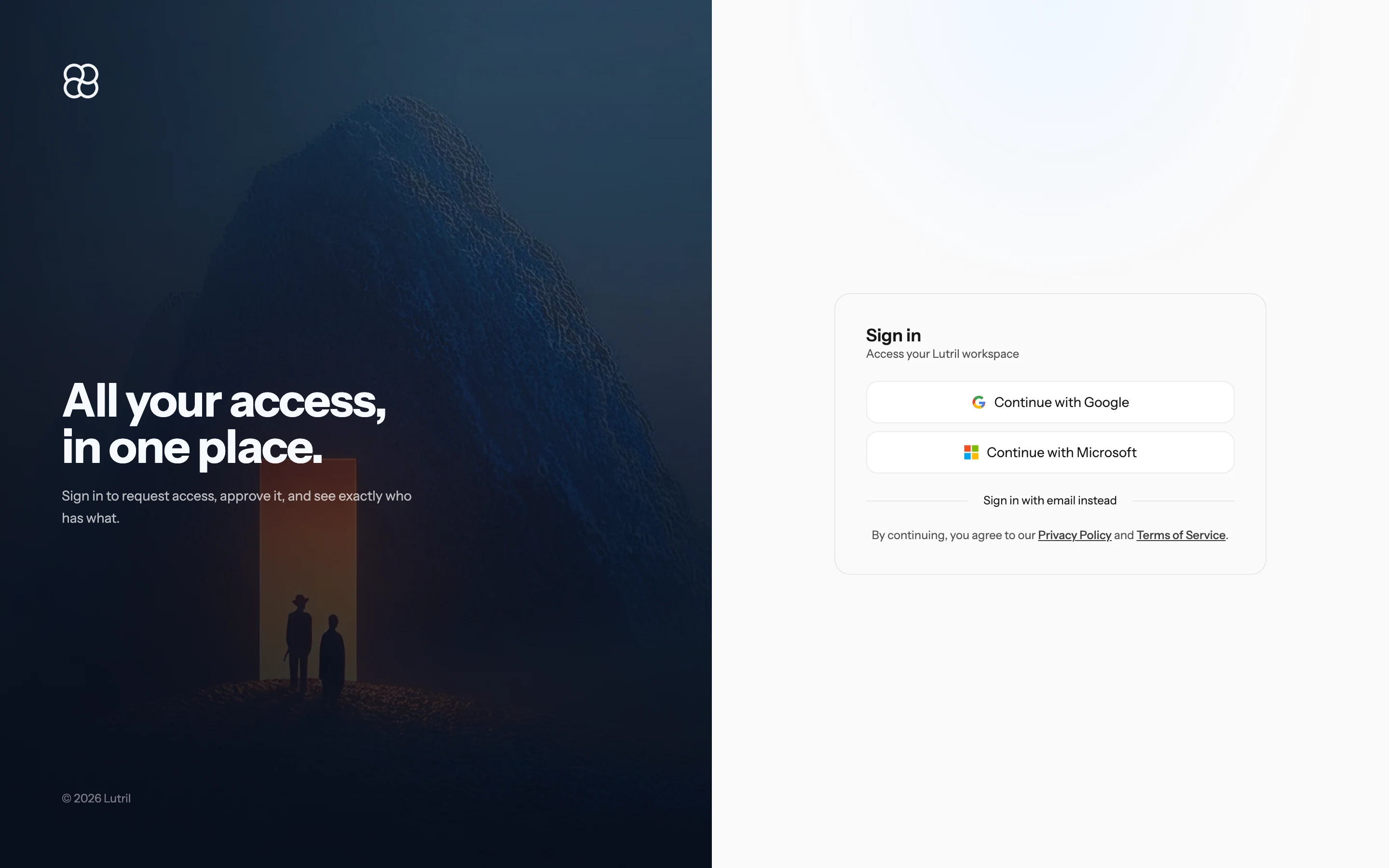
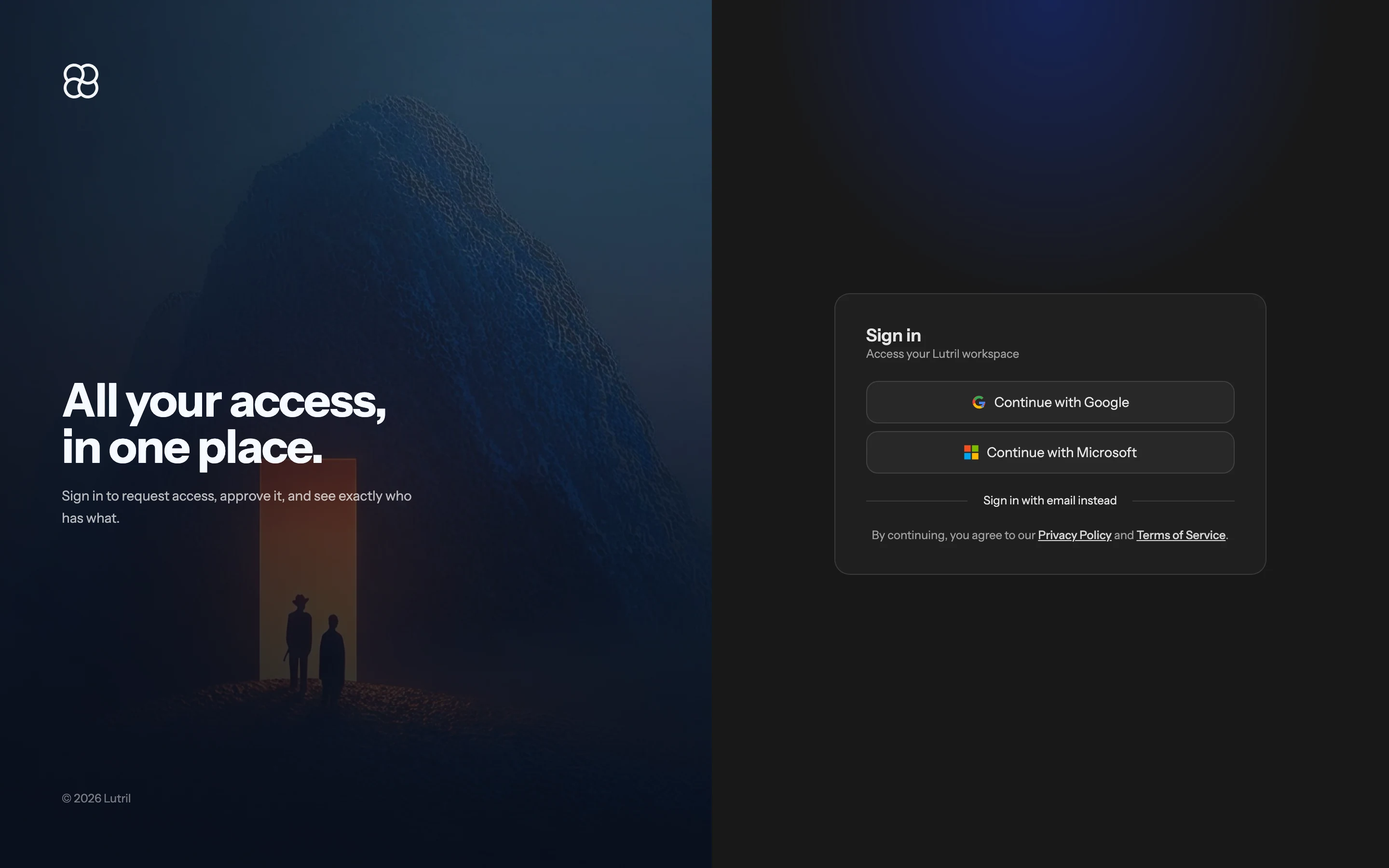
Sign in with Google or Microsoft
Open your Lutril workspace URL.
Select Continue with Google or Continue with Microsoft.
Pick your work account and approve the consent screen the first time. Lutril finds your workspace from your email domain and brings you back to the page you were trying to open.
Microsoft sign-in checks that your account belongs to the directory your workspace has connected. Until an admin has connected Microsoft Entra ID as an identity provider, a first Microsoft sign-in is refused with "We could not verify that this Microsoft account belongs to your organization." See Connect your identity provider.
Sign in with email
Accounts that have a password can sign in without single sign-on.
Select Sign in with email instead.
Enter your Email and Password, then select Sign in.
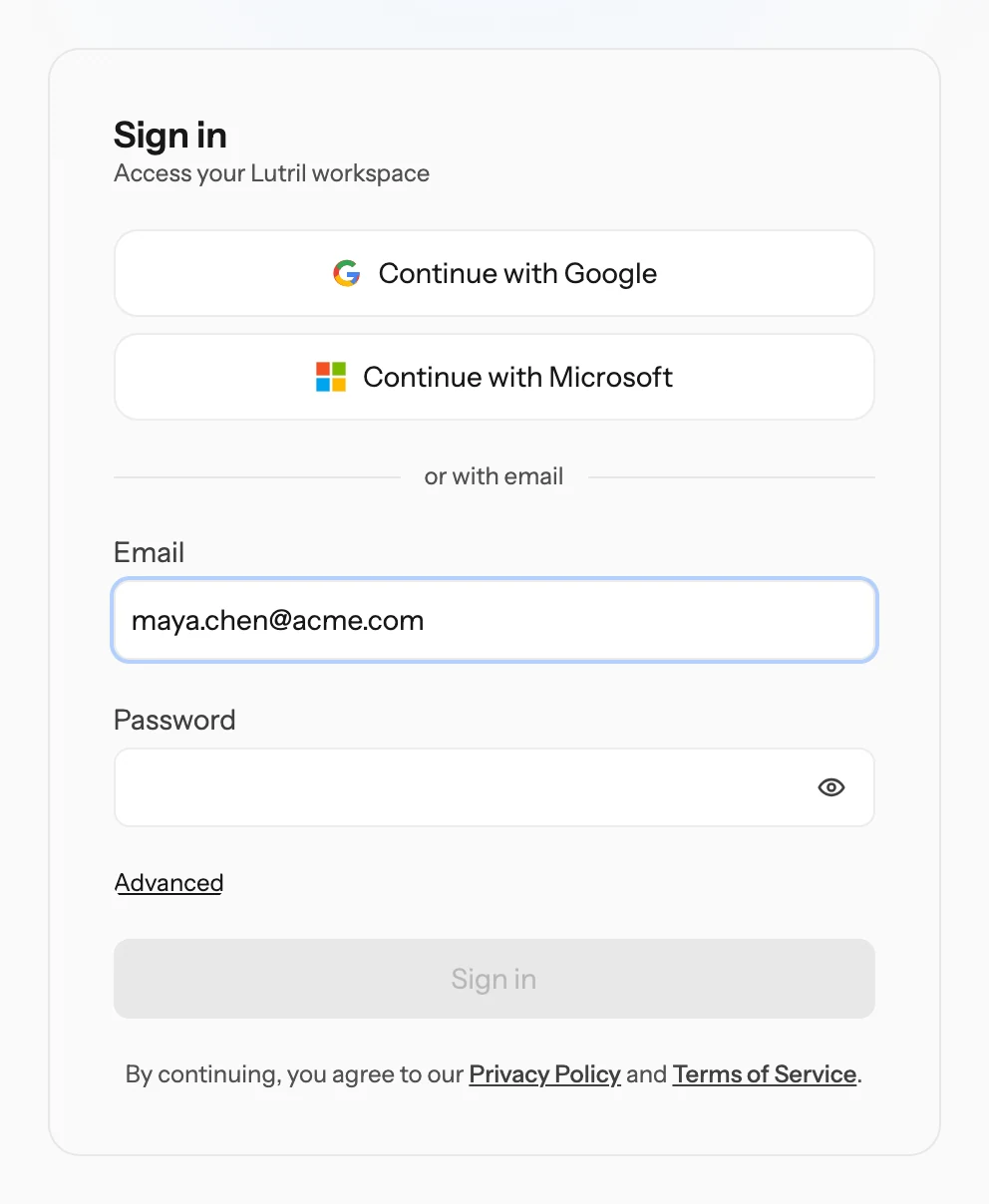
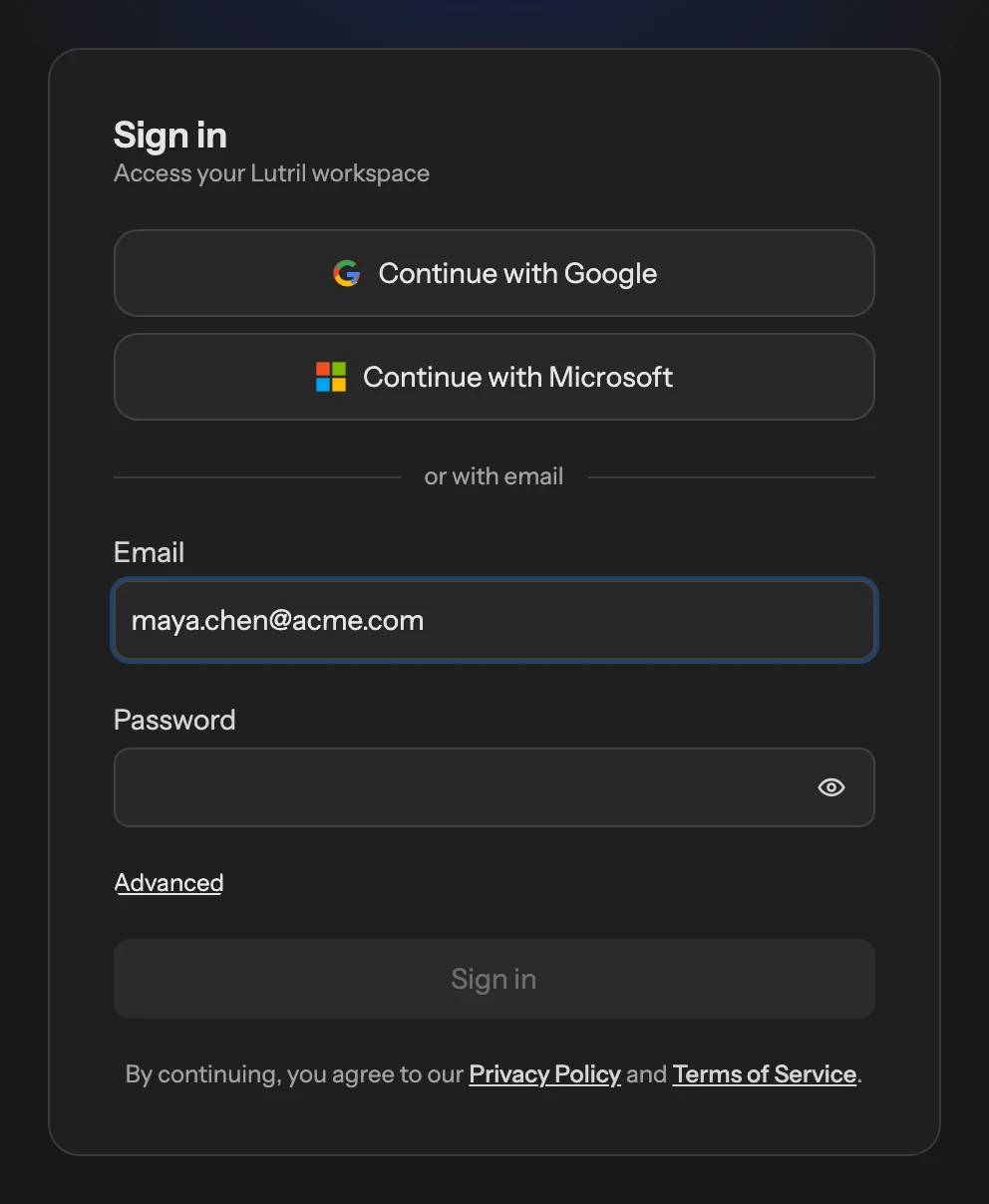
If your company is not detected from your email domain, select Advanced and type your workspace name (for example acme) in Company.
Who can sign in
Signing in requires a Lutril account. An admin creates accounts on Members, or lets Lutril create them on first sign-in:
- With Auto-provision end users on login turned on (on Integrations, under Settings), anyone who is an active, internal member of your directory gets a requester account the first time they sign in with Google or Microsoft. Suspended accounts and external or guest accounts are excluded.
- With it off, only people already listed on Members can sign in. Everyone else sees "Your account isn't provisioned yet. Ask an administrator to invite you first."
Employees who only request access from Slack or Teams never need to sign in to the app.
Troubleshooting
You have no Lutril account. Ask an admin to add you on Members, or to turn on Auto-provision end users on login. Auto-provisioning only works if your directory is connected and synced, because Lutril checks that you are an active member of it.
Your Lutril account exists but is not active. Contact an admin of your workspace.
Google reported your email address as unverified. Verify it in your Google account, then try again.
You signed in from a different Microsoft directory than the one your Lutril account is linked to. Sign in with the directory you used before, or ask an admin to relink your account.
The sign-in took too long or was started in another tab. Start again from the sign-in screen.