Set up the catalogue
Decide which applications employees can request, who owns each one, which access levels they can ask for, and what Lutril sends when a request is granted.
The catalogue is the list of applications employees can request. Every application you connect in Integrations is added to it automatically, and you can add any other application by hand. Each entry carries the owners who approve requests, the access levels a requester can pick, and the values Lutril sends to the application when it grants access.
Before you start
You need the Owner or Admin role. See Members and roles.
The Catalogue page
Open Access Management > Catalogue. The counters show how many applications are listed, how many have an owner, how many are Missing owner and how many are Documented. The tabs split All apps into Lutril integrations (added when you connected the integration) and Custom (added by hand).
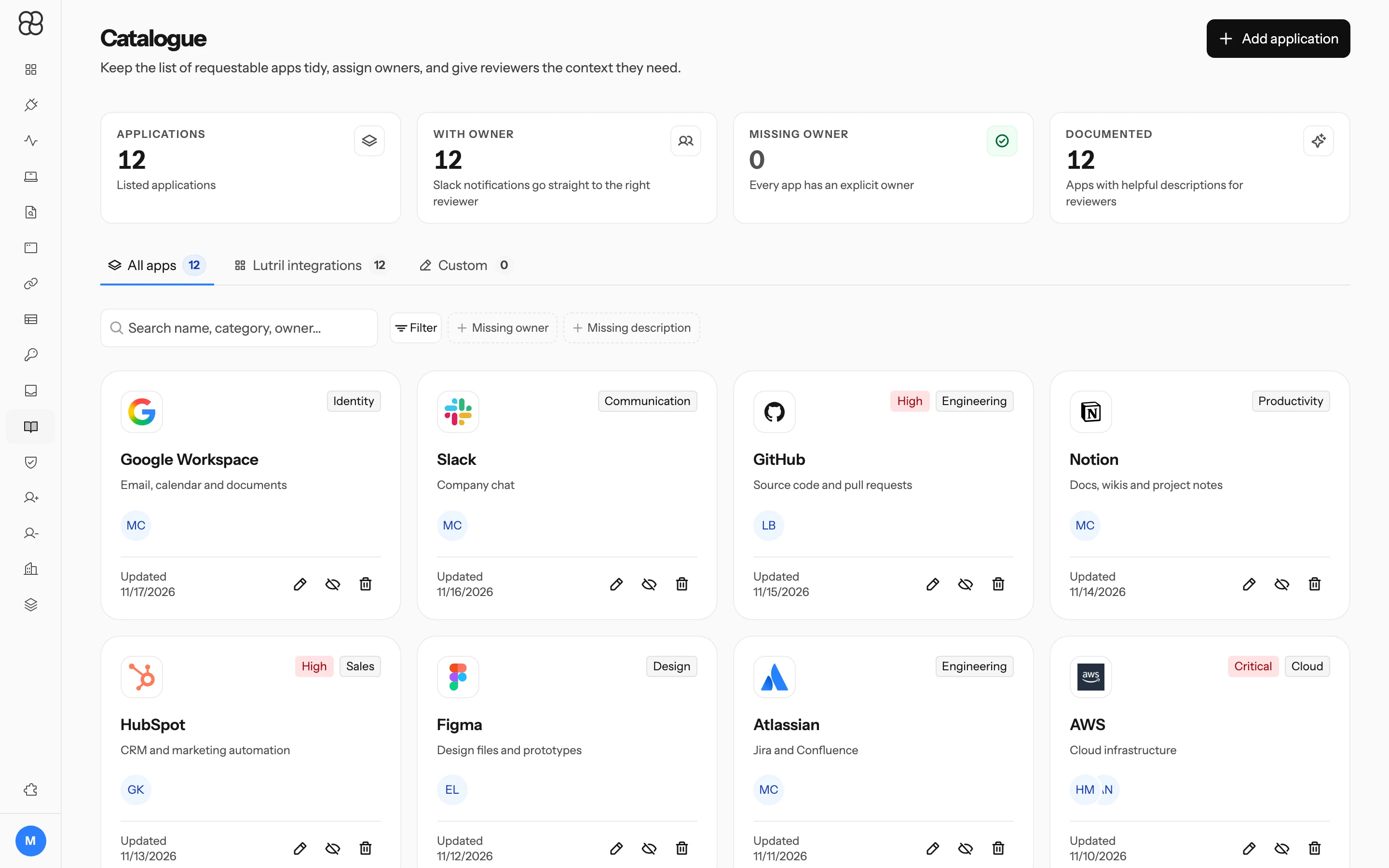
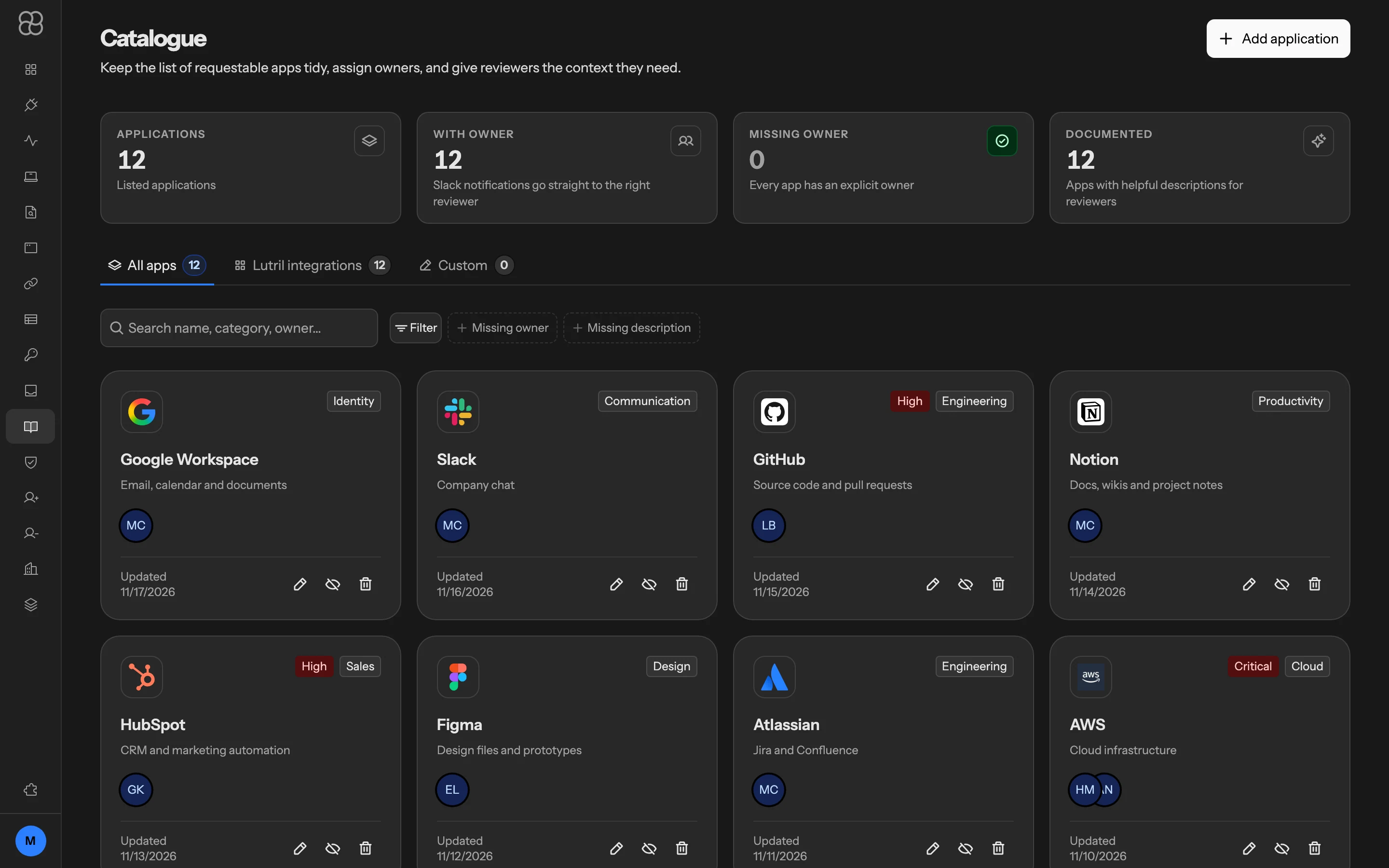
Use Missing owner and Missing description under the search bar to find what still needs attention: a request for an application with no owner has nobody to go to. On each card, the pencil opens the application, the eye icon (Disable application) hides it from requesters without deleting it, and the bin deletes it.
To add an application that is not connected, click Add application.
Configure an application
Click the pencil on a card. The editor has up to three tabs.
Details
Fill in Display name, Category, Sensitivity, Launch URL (where Open sends the employee once access is granted), Documentation and Description. Requesters and approvers both read the description, so say what the application is for and who usually needs it.
Under Owners, add up to three people. They receive the access requests in Slack, in Teams and under To approve in the app, unless a policy routes the request elsewhere.
Access & workflows
List the Access levels a requester can pick: AWS accounts, Datadog roles, Figma seats. Turn on Require access level selection when a request without a level makes no sense. App default is the fallback used for any level without its own setup.
For each level, you can attach a workflow that adds the person to Google or Entra groups when the request is granted. Group membership is also what Lutril removes when a just-in-time grant expires.
Provisioning fields
When the integration can create accounts, this tab lists the attributes Lutril sends to the application: a seat type, a role, a team. The Default pre-fills the approver's form, and it is the value automated onboarding and unattended just-in-time grants send. Switch Requested off to stop asking for an attribute.
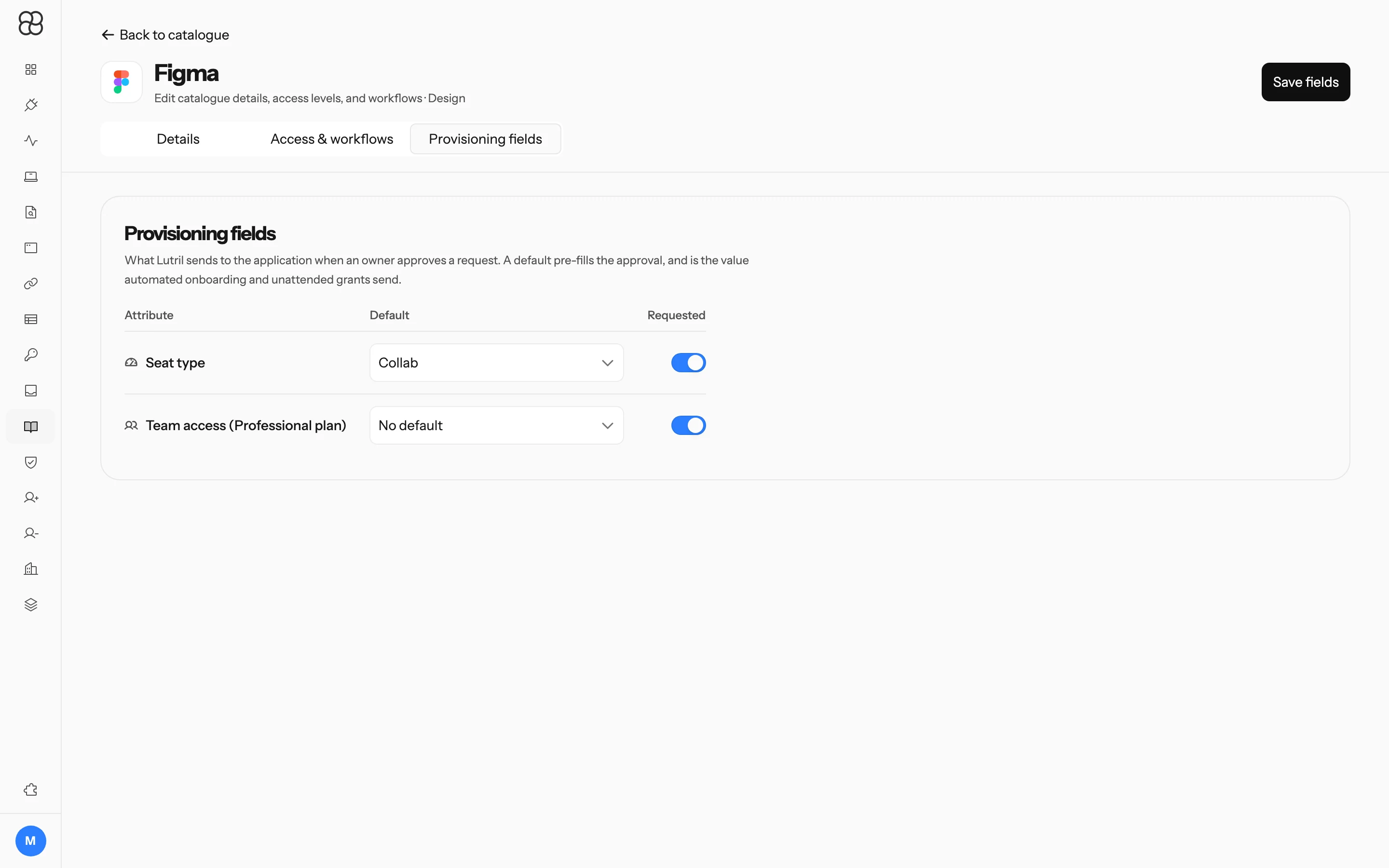
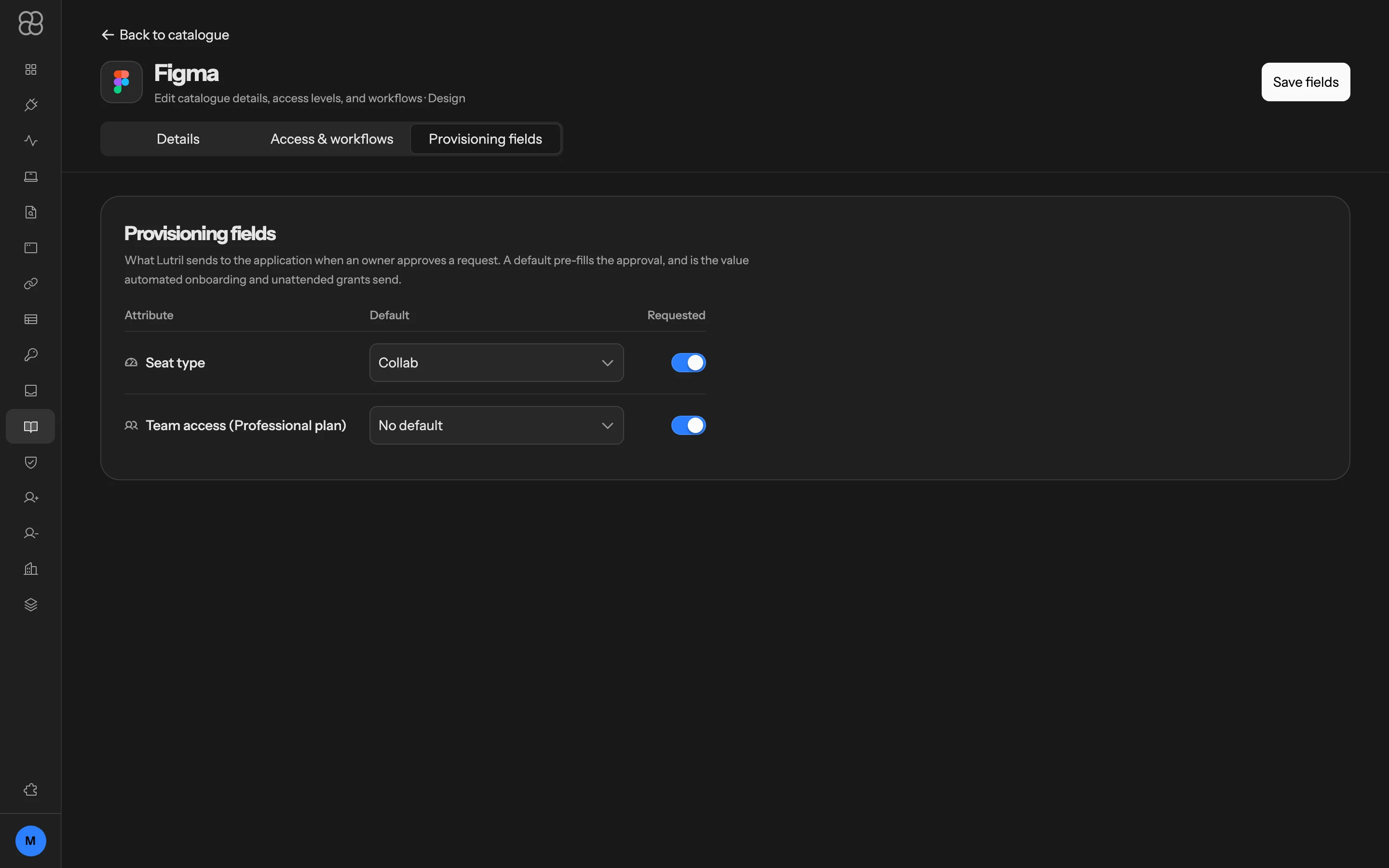
Unattended grants use your defaults, not the requester's choice
When a just-in-time policy grants a request without a human, Lutril applies the access level only if it is one you declared on the Access & workflows tab, and takes the role or seat from your Default here. For applications where the role carries the privilege, a missing default stops the automatic grant: the request goes to an approver instead of creating an account with no role.
Click Save details or Save fields to keep your changes.
What employees see
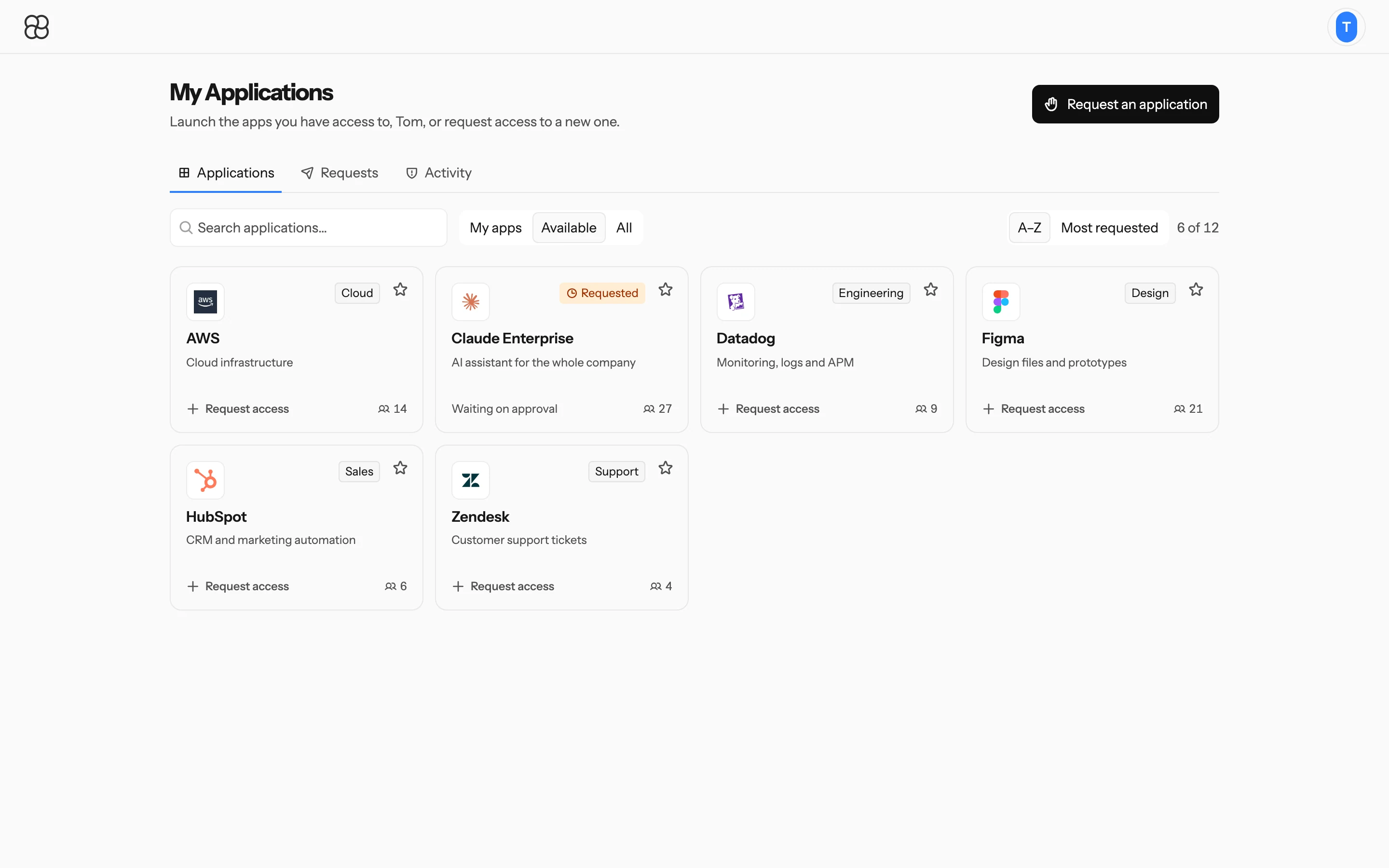
Employees find the same list under My Applications > Applications, filtered to Available. Each card shows the application's category, its description and how many colleagues already asked for it. An application with a request in flight shows Requested and Waiting on approval.
How access requests work
Follow a request from the employee who asks, through the approval chain, to the grant and, for just-in-time access, to its deadline.
Policies and just-in-time access
Route requests through an approval chain, or time-box them with a just-in-time policy that can grant instantly to the people its conditions allow.