Members and roles
Add people to your Lutril workspace and choose what each of them can see and do.
Members lists everyone who can sign in to Lutril, with their role. Use it to bring in your IT and security team, give read-only access to auditors or the People team, and remove people who no longer need access.
Prerequisites
You are an owner or admin. Viewers can open Members but cannot change anything.
Open Members
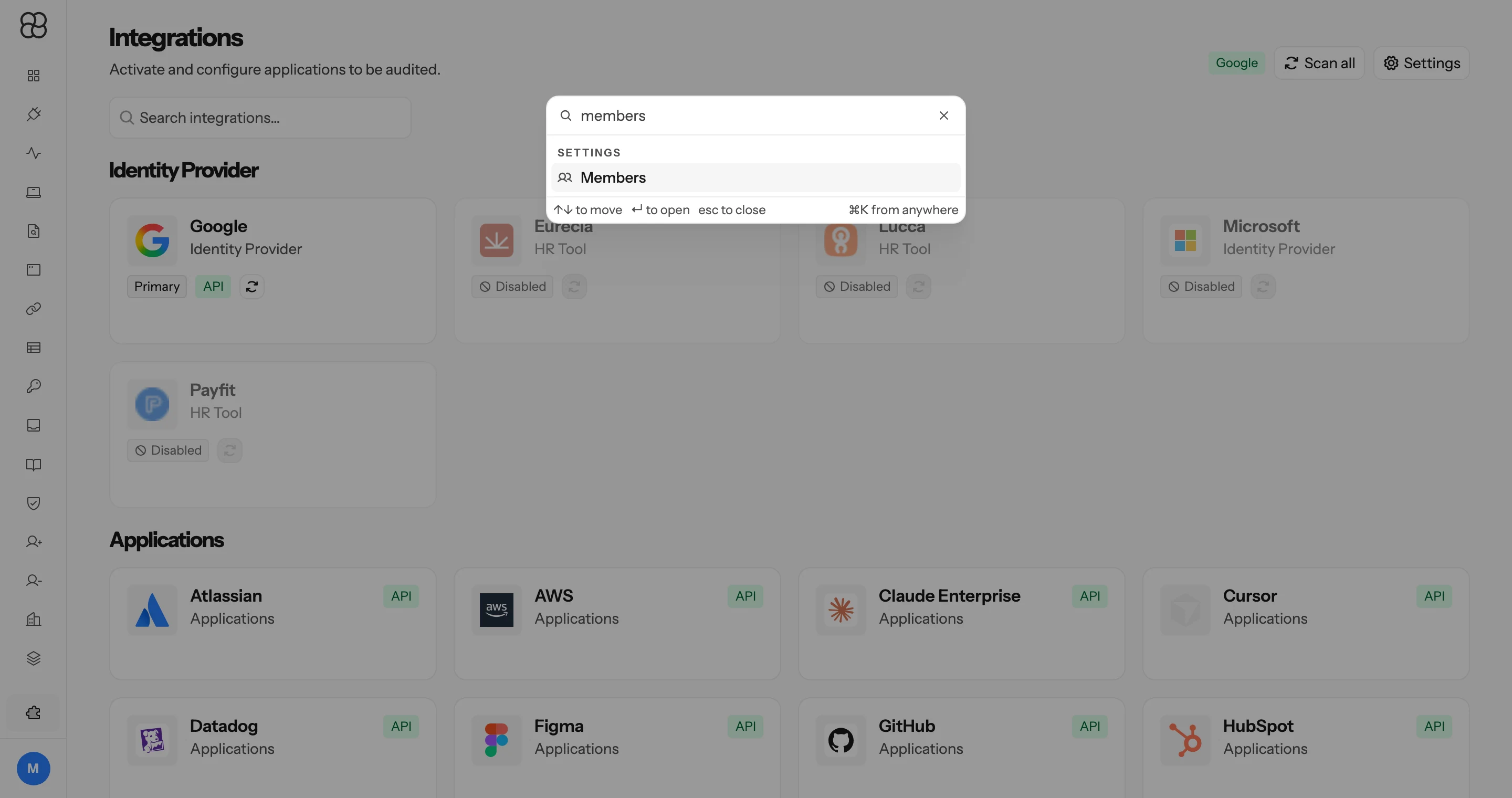
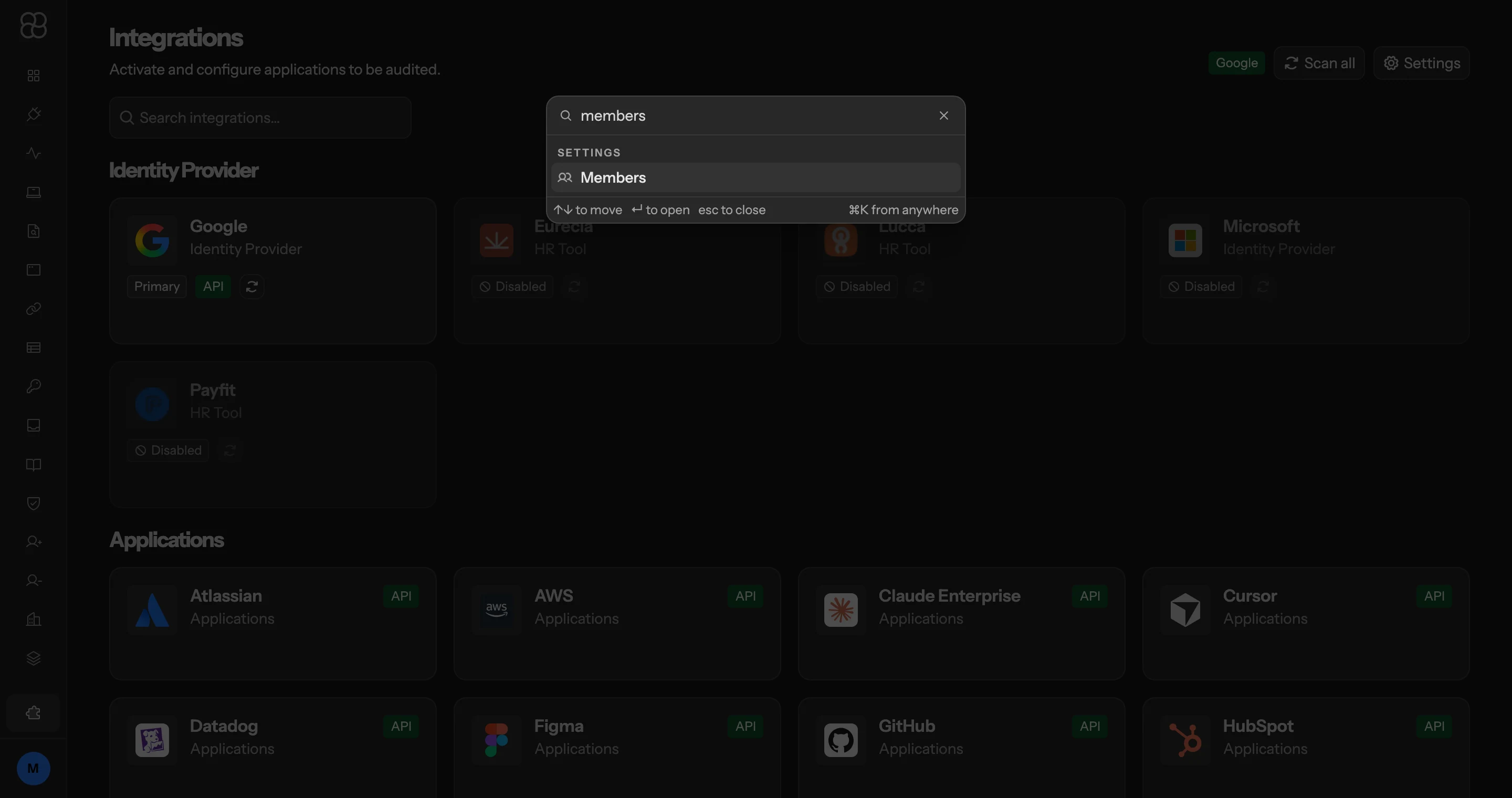
Members is not in the sidebar. Open it either way:
- Press ⌘K (or Ctrl+K), type
membersand press Enter. - Select your name at the bottom of the sidebar, then Organization.
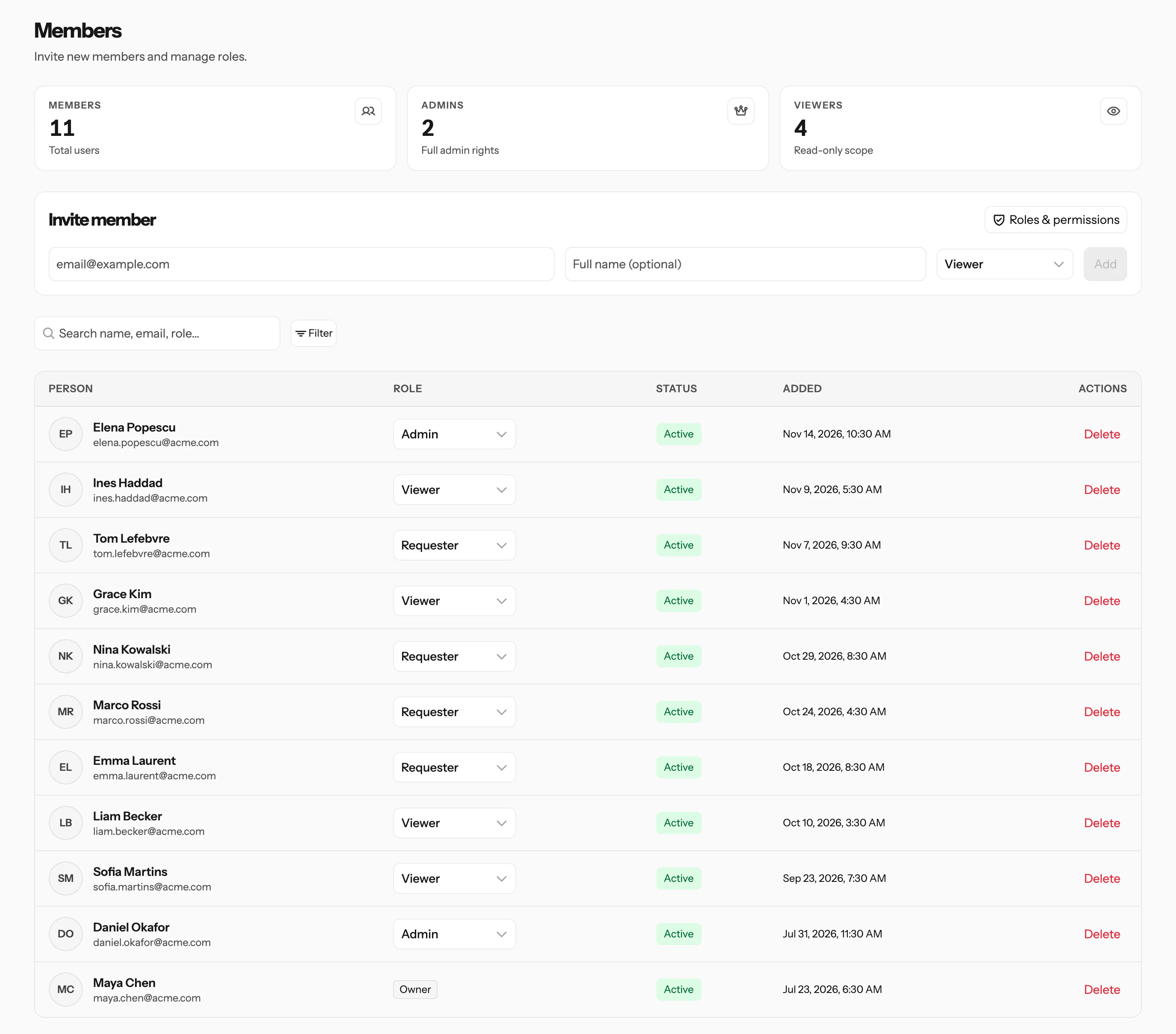
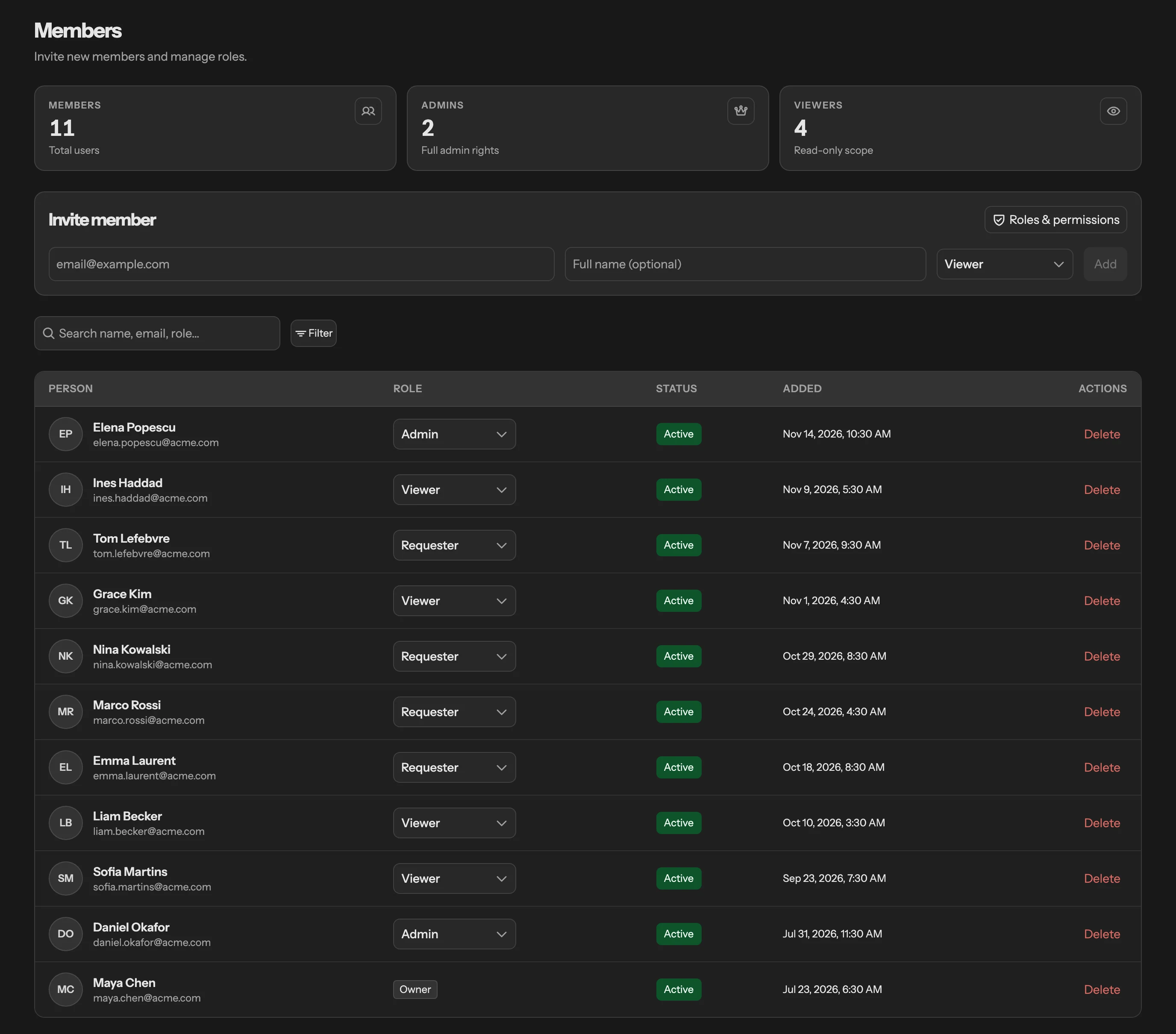
The three counters at the top show the total number of members, the admins and the viewers.
Roles
| Role | In short |
|---|---|
| Owner | Everything. Cannot be demoted, and only another owner can remove an owner. |
| Admin | Runs the workspace: integrations, catalogue, policies, requests, reviews, onboarding, members, activity logs. |
| Viewer | Read-only on requests, the catalogue, the access grid, reviews and members. No integrations or logs. |
| Requester | Only My Applications: request access and follow their own requests. |
Select Roles & permissions to see the full matrix in the app.
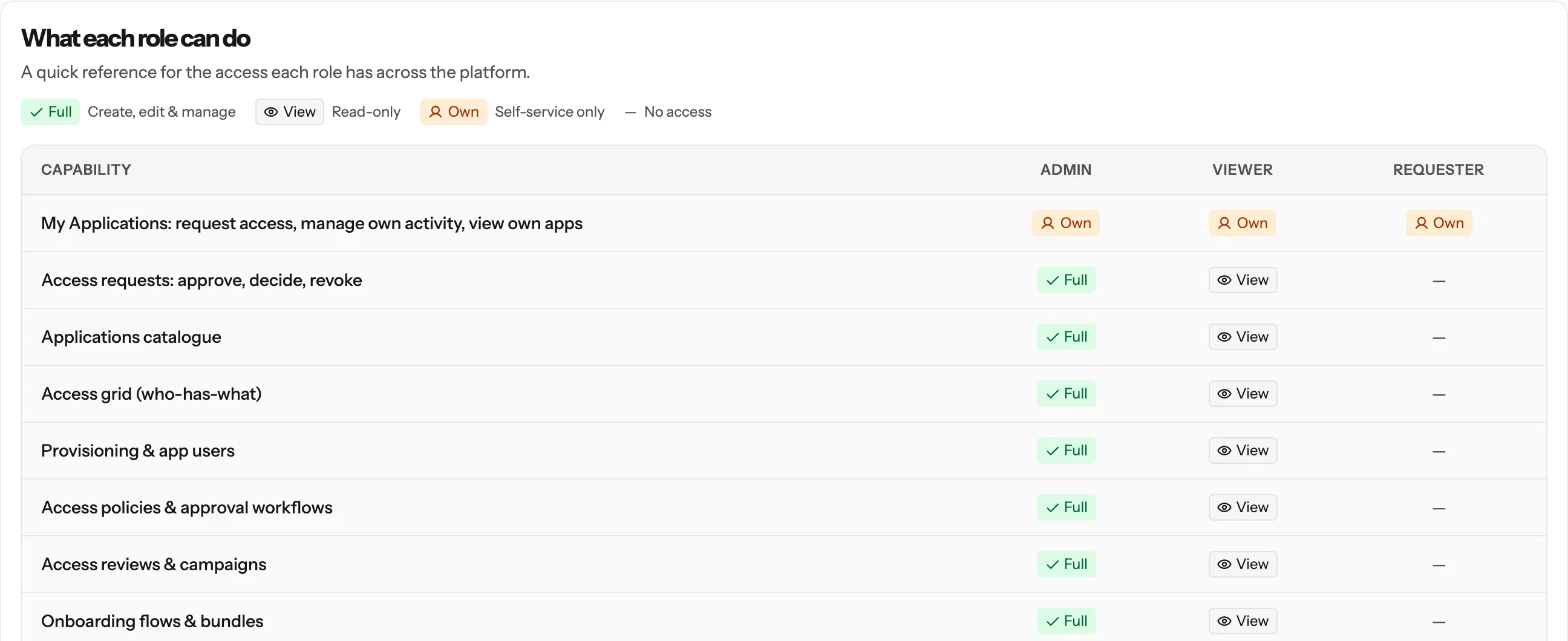
Lutril creates the owner account when your workspace is opened. The owner's role shows as a plain Owner label and cannot be changed from this page.
Add a member
Under Invite member, type the person's work email. A full name is optional.
Pick a role: Requester, Viewer or Admin. New members default to Viewer.
Select Add. The person can now sign in with Continue with Google or Continue with Microsoft on the sign-in screen.
You only need to add the people who run or audit Lutril. Employees who just request access can be created automatically the first time they sign in: turn on Auto-provision end users on login on Integrations, under Settings. See Connect your identity provider.
Change a role
Open the role menu on a member's row and pick the new role. The change applies at once.
You cannot change your own role, and an admin cannot grant a role above their own. Ask another admin or the owner if you need either.
Remove a member
Select Delete on the member's row and confirm. If the member owns AI agents, the dialog lists them first: removing the member revokes those agents and their MCP access, and records the revocation in each agent's audit trail.
You cannot remove yourself, and an admin cannot remove an owner. The last owner of a workspace can never be removed: promote another owner first.
Removing someone from Lutril does not touch their accounts in your other applications. To take away their SaaS access, run an offboarding.