Onboard a new hire
Create a new hire's accounts, groups, tasks and emails in one plan, run it now or on their start date, and follow every task to completion.
An onboarding plan lists everything a new hire needs on day one: applications, directory groups, tasks for other teams and the emails that carry their credentials. Lutril creates the accounts it can create through the application's API, and sends a task to the application owner on Slack or Teams for the rest. You follow both from the same page.
Before you start
- You need the Owner or Admin role. The Viewer role can see plans but not change them.
- Your identity provider is connected (see Connect your identity provider), so Lutril knows your departments and can create the directory account.
- For Lutril to create accounts in an application, its integration has the Create accounts permission switched on, on its Permissions tab in Integrations. Without it, the application owner gets a task instead.
- Bundles save time but are optional. See Bundles and workflows.
The Onboarding page
Open People > Onboarding. The four cards at the top count your plans by state: Upcoming (scheduled), Drafted, Ongoing and Completed. Click a card to filter the list on it.
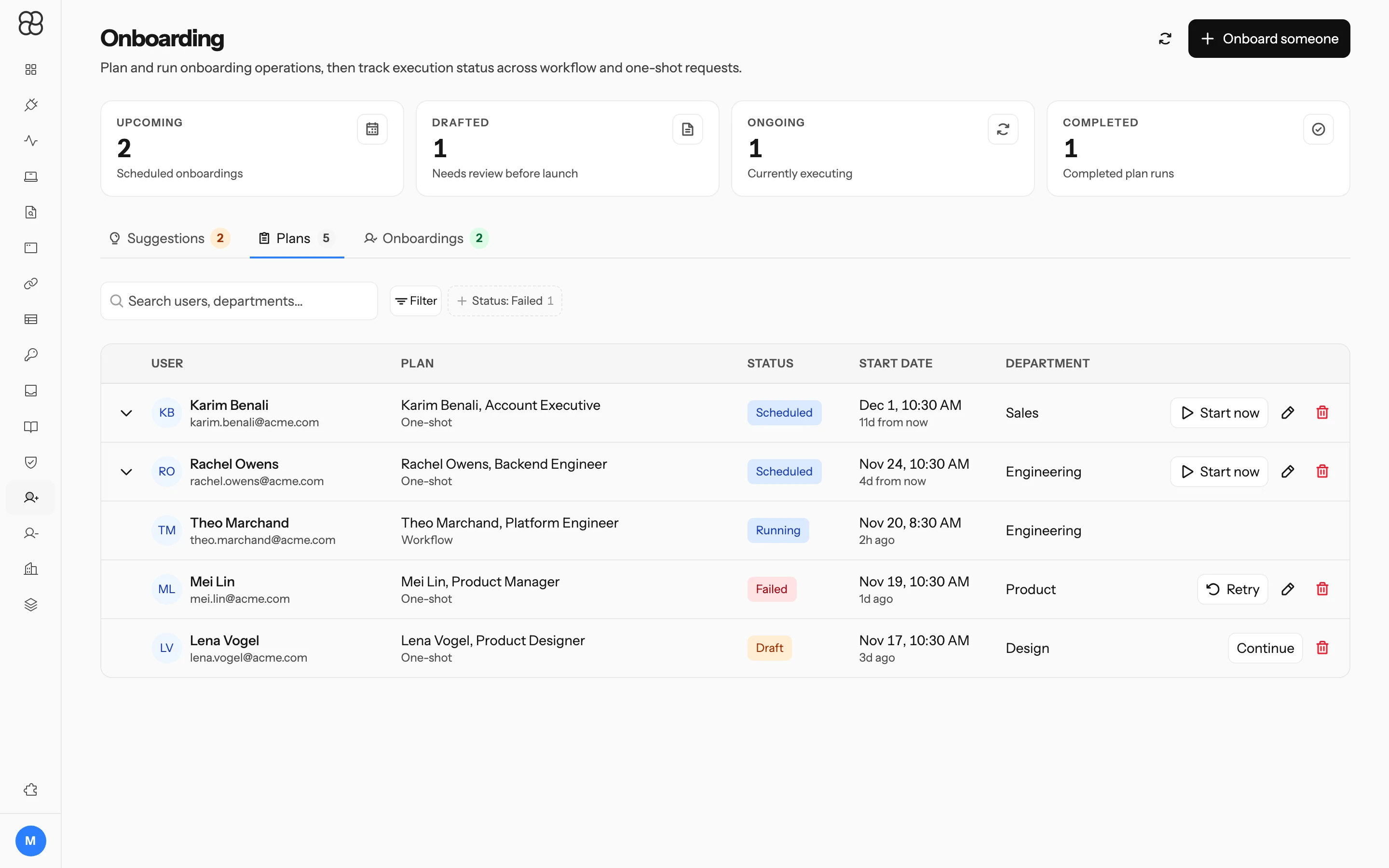
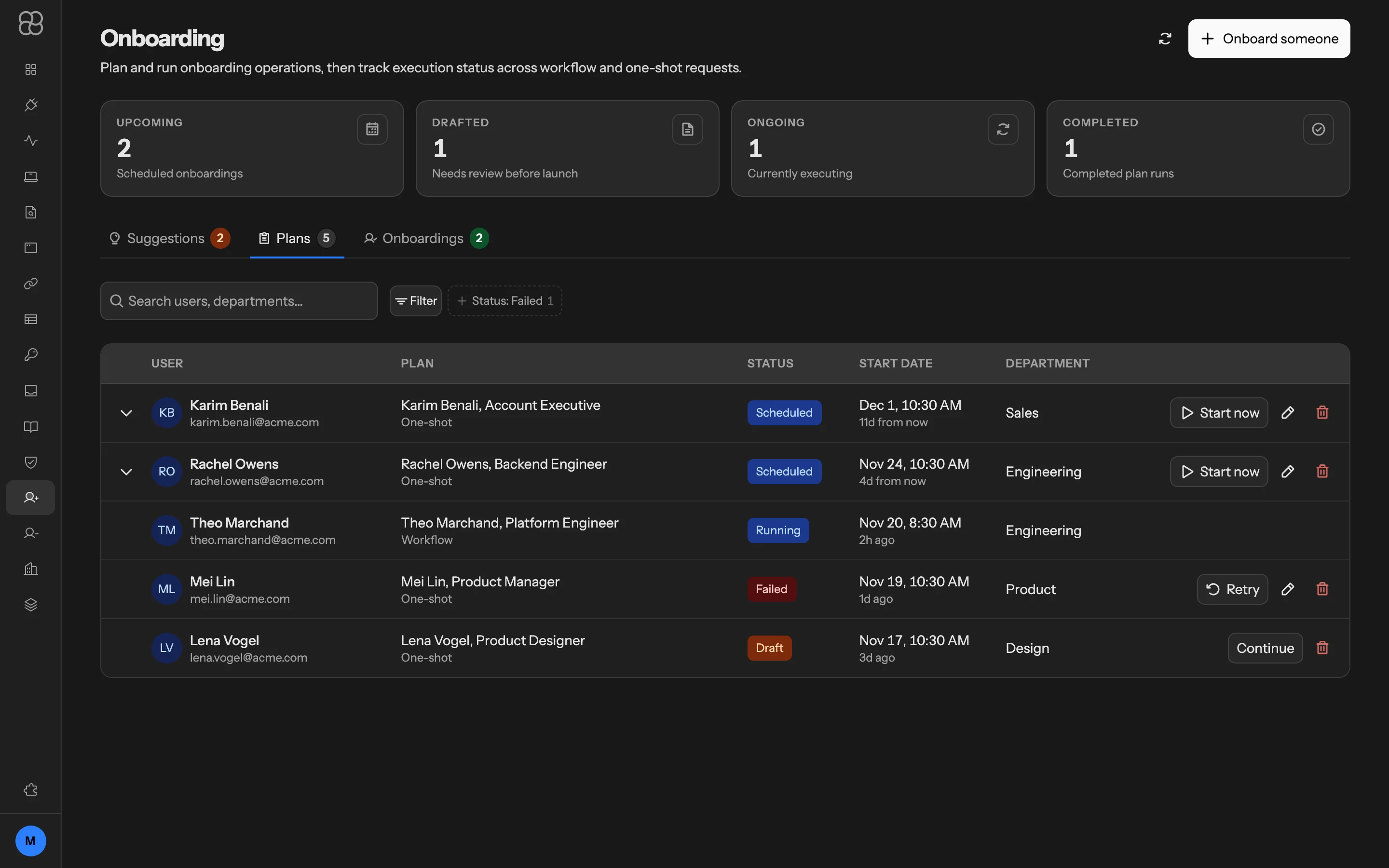
The page has three tabs:
- Suggestions: people your HR tool or identity provider reports as joining, from the last 60 days. Upcoming marks a start date still ahead, Not in IDP someone your HR tool knows but your directory does not have yet. Click Onboard to open a plan prefilled with their name, email and department.
- Plans: every plan that still needs you. Start now runs a scheduled plan early, Retry runs a failed one again, and Continue reopens a draft.
- Onboardings: the people already onboarded, one card each with their task progress. Click a card to open the person's page.
Create an onboarding plan
Say who is joining
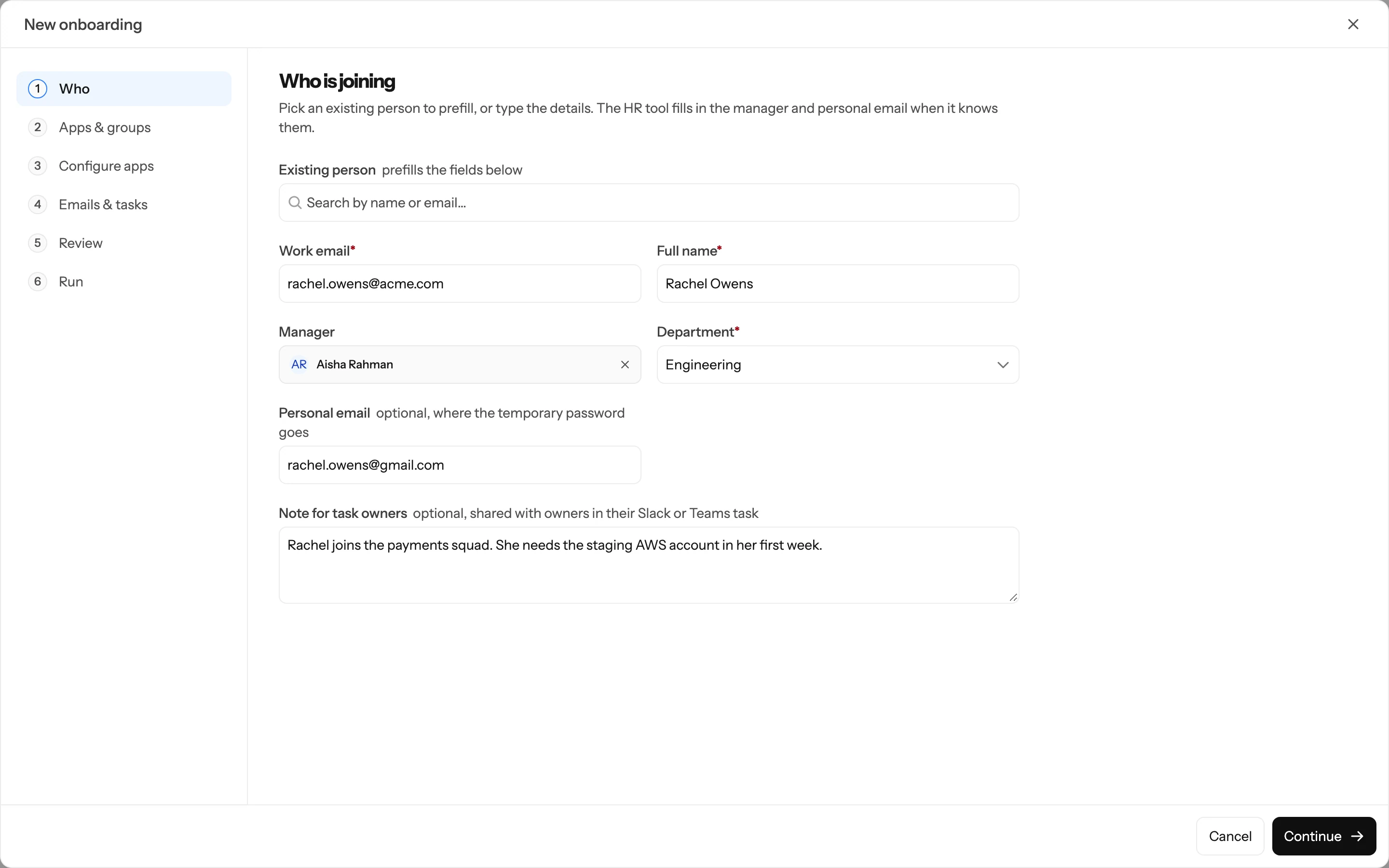
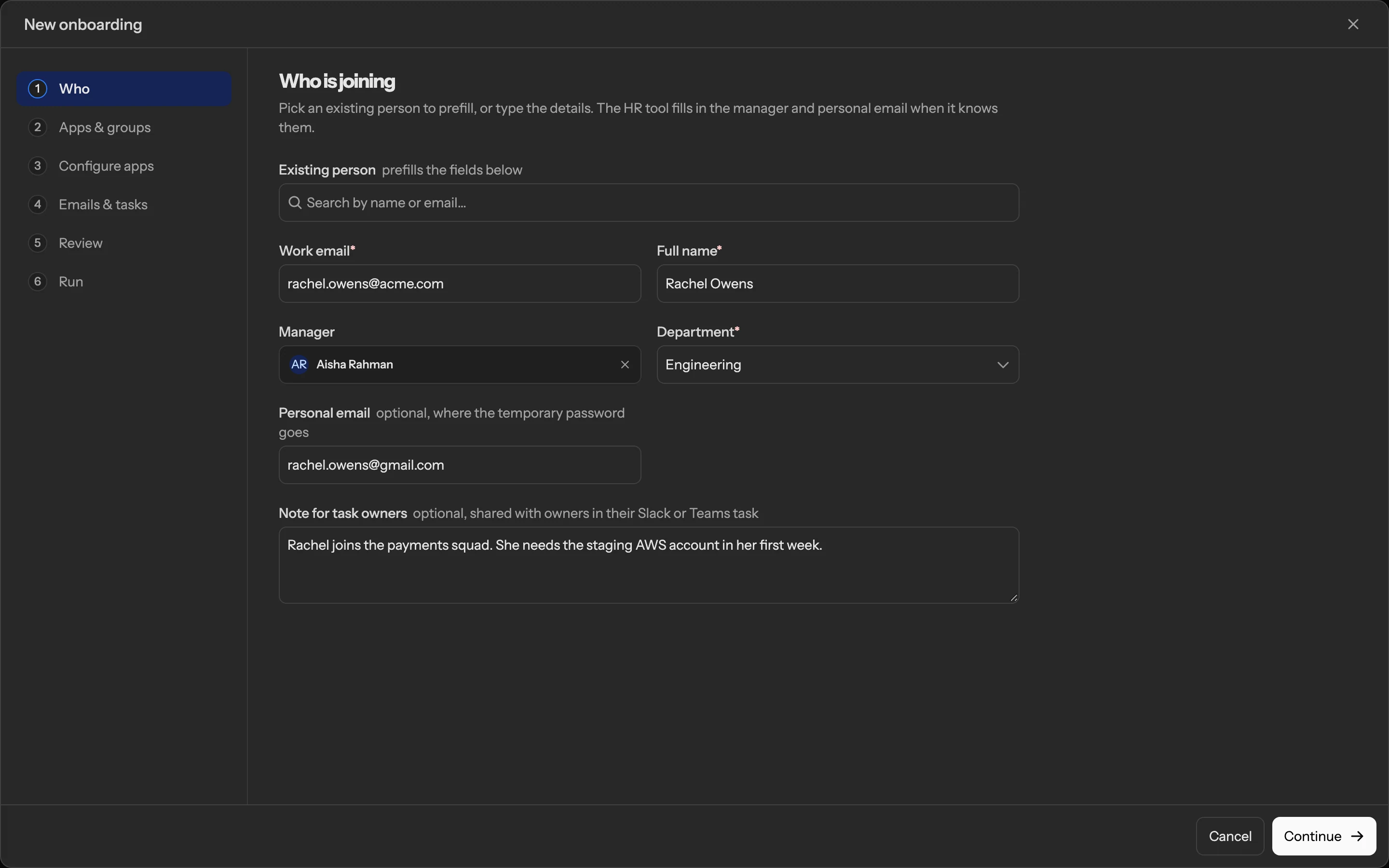
Click Onboard someone. In Who is joining, search Existing person if the new hire is already in your directory, or type the Work email and Full name. Pick their Department.
When your HR tool knows the person, Lutril fills in the Manager and the Personal email. The personal email is where the temporary password goes. Note for task owners is shown to every owner who receives a task for this hire, in Slack or Teams.
Choose apps and groups
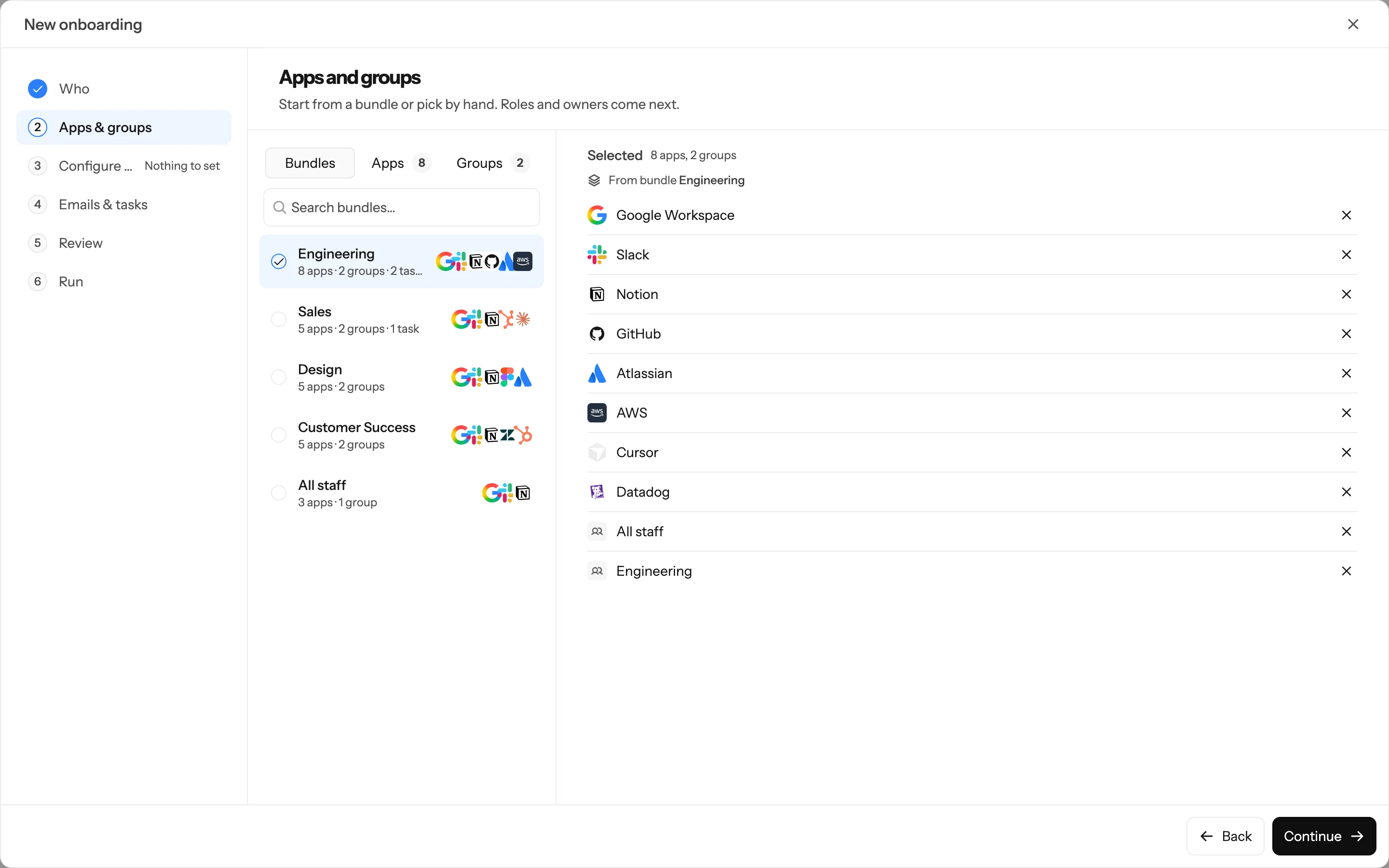
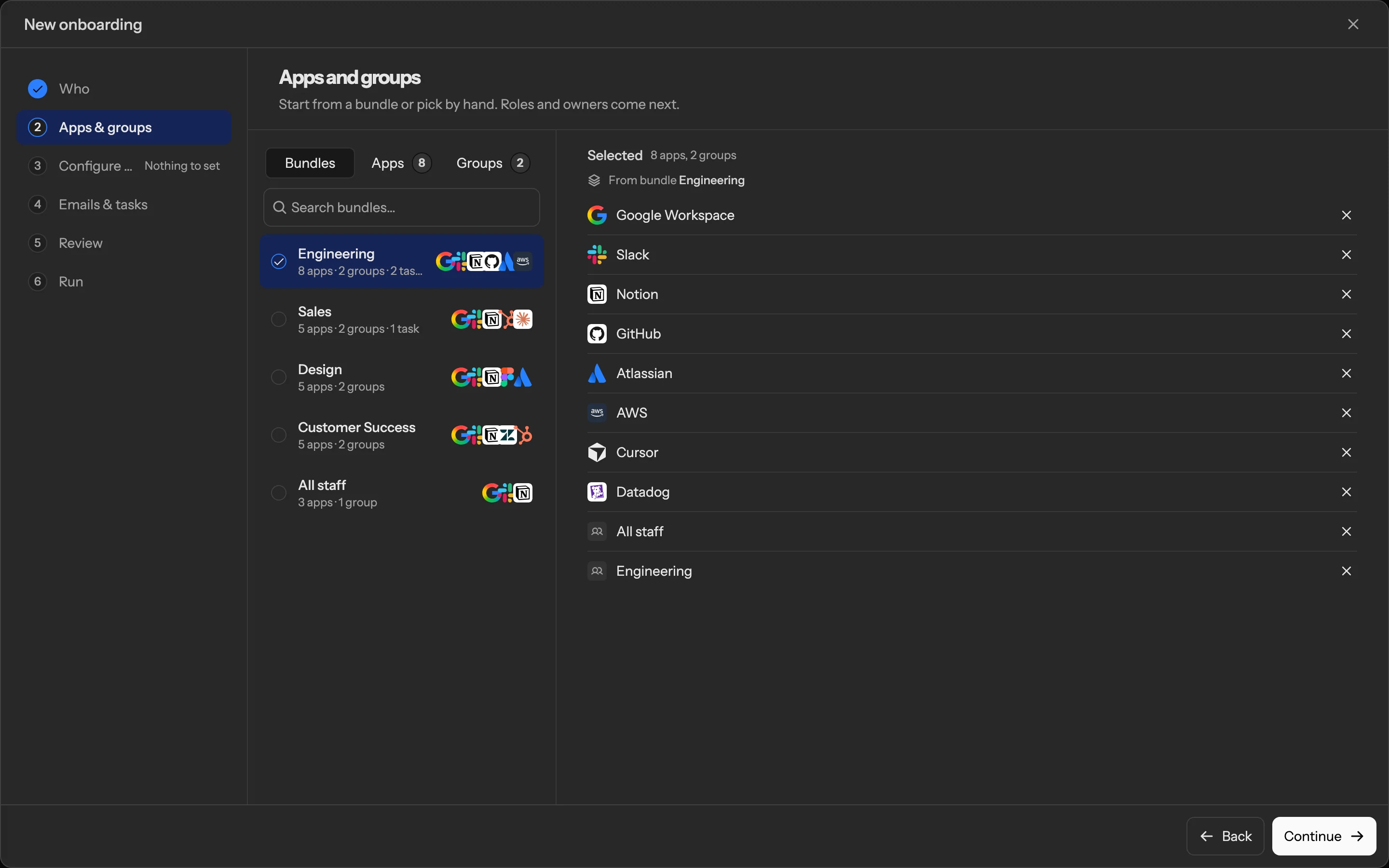
In Apps and groups, start from a bundle under Bundles, or pick by hand under Apps and Groups. Selecting a bundle copies its apps, groups and tasks into the selection: you can still add or remove anything, and the Selected column says which bundle it started from.
Configure apps
Configure apps appears only when an application needs a decision: a role or license to pick, an access level, or an owner. For each application, Lutril says whether it creates the account itself or sends a task to the owner:
- Auto-provisioning is off for this app. The integration can create accounts but Create accounts is off. Open integration settings to turn it on for next time.
- This integration cannot create accounts. An owner always sets it up by hand.
- When an application has no owner, choose one under Owner for this onboarding.
The step shows Nothing to set in the left rail when there is nothing to decide.
Add emails and tasks
In Emails and other tasks, add the emails to send (one of them can carry the temporary password) and any Other tasks for people outside IT, such as shipping a laptop. Email bundles and the tasks from your access bundle are added here.
Review and run
Review summarizes the plan. In When does it happen, pick one:
- Run now: accounts, groups and emails go out as soon as you confirm.
- Schedule: provision at a date and time you pick, and choose when each email goes out.
- Save as draft: keep everything to review or run later. Nothing happens yet.
The footer says exactly what the button will do, for example "This creates 6 accounts, sends 2 tasks to owners, adds to 2 groups." If an application with a manual task still has no owner, the button reads Run anyway.
If you close the wizard before running it, Lutril keeps what you typed as a draft.
What happens when the plan runs
For each application in the plan:
- Lutril can create the account (the integration supports it and Create accounts is on): the account is created through the API with the roles you picked, and the task is completed automatically. If the application has group workflows for the chosen access level, the person is added to those groups too.
- Lutril cannot create the account: the application owner receives a task in Slack or Teams. The card names the new hire, the groups they will join when access is granted, and your note. The owner creates the account, then answers from the card.
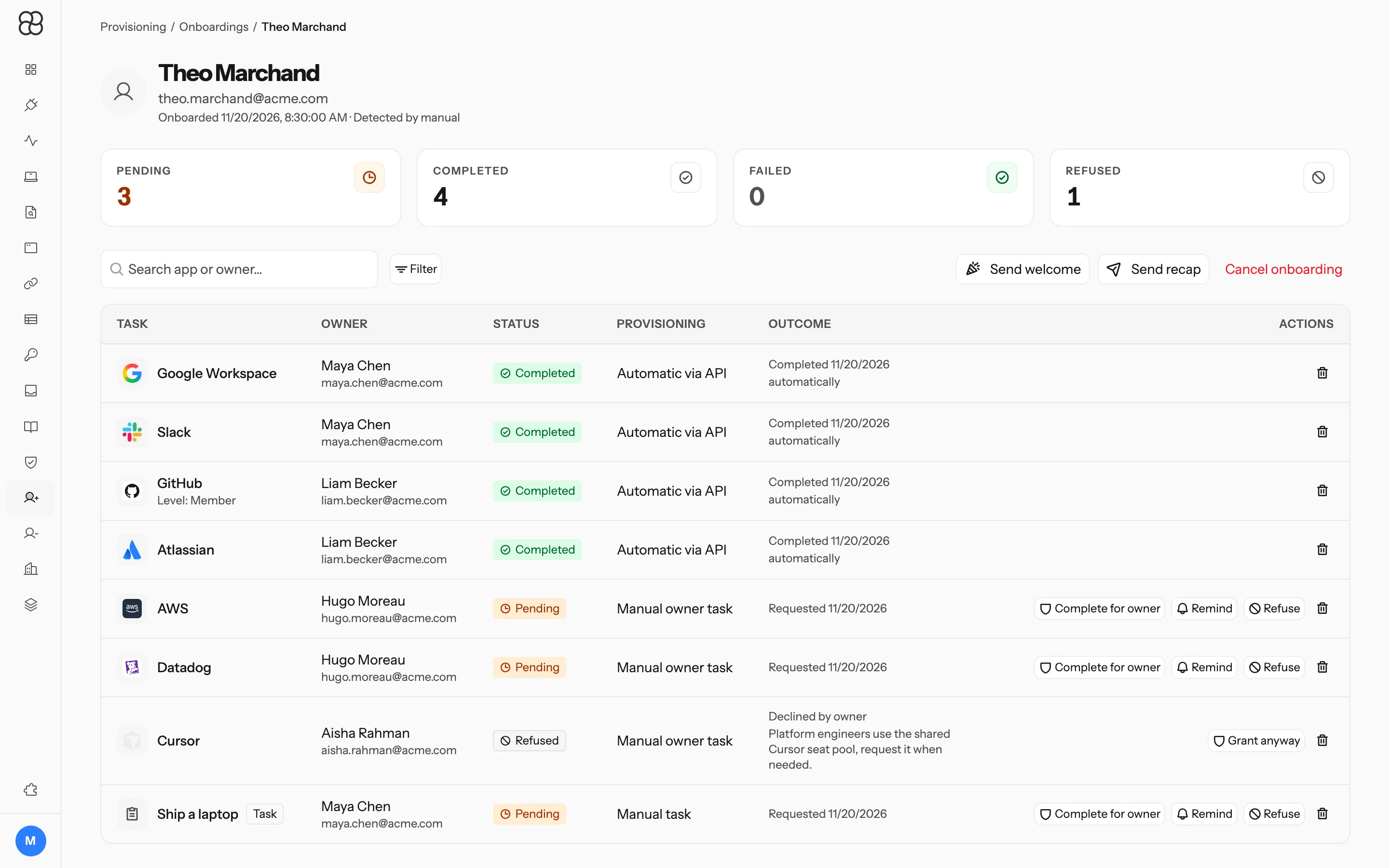
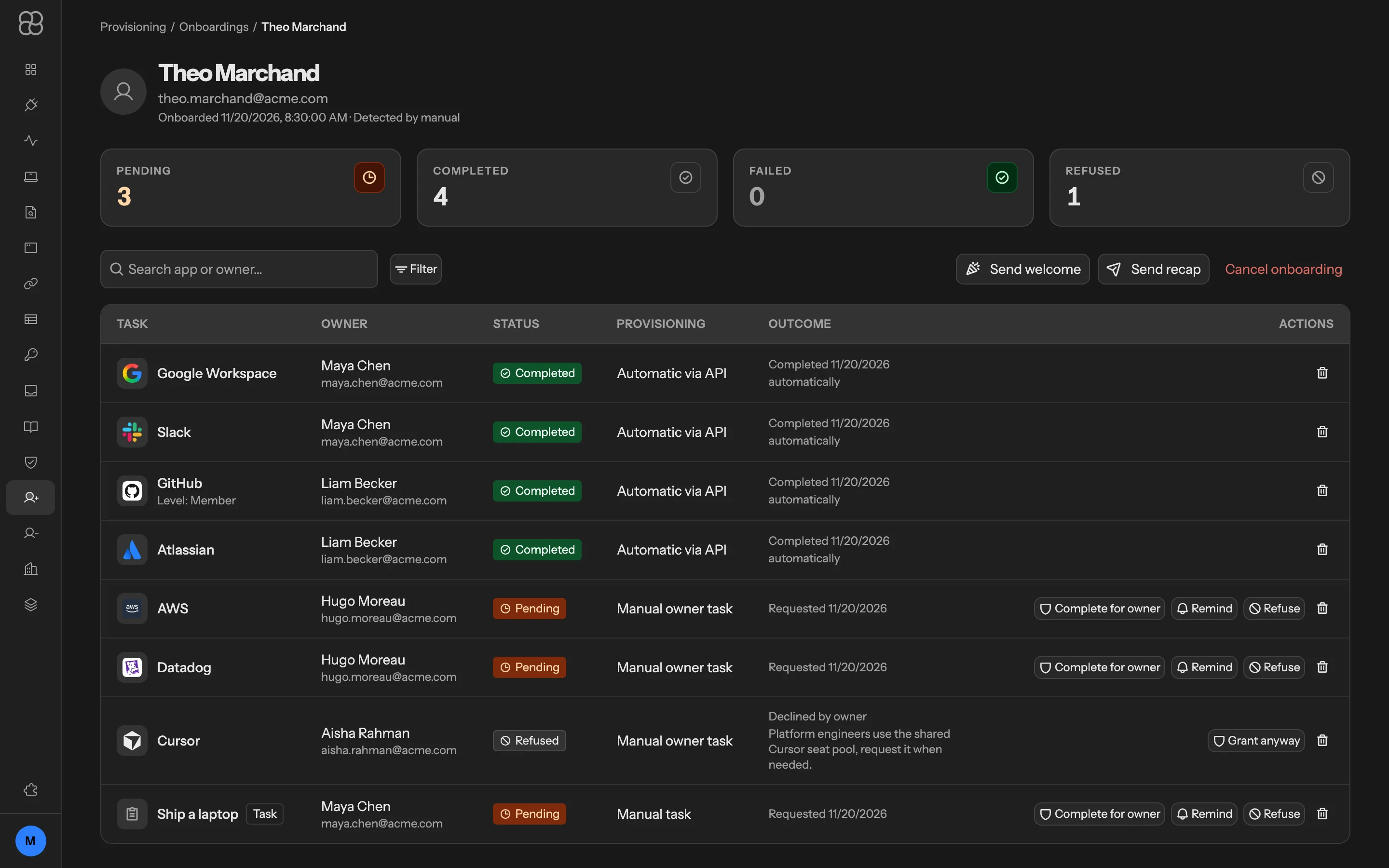
Open the person from the Onboardings tab. Each task shows its Owner, Status, Provisioning method (Automatic via API or Manual owner task) and Outcome. For a pending task you can Remind the owner, Complete for owner, or Refuse it. A refused task keeps the owner's reason and offers Grant anyway.
From the person's page you can also:
- Send welcome: send the new hire their welcome message as a direct message on Slack or Teams. Pick a Template from your welcome bundles and edit the Message before sending.
- Send recap: send their manager (or someone you pick) a summary of the onboarding on Slack.
- Cancel onboarding: type
CONFIRMATIONto remove every task. The owners are told there is nothing left to do.
Troubleshooting
- A plan shows Failed: open the person from the Onboardings tab to see which task failed and why, for example a license limit reached in the application. Fix the cause, then click Retry on the plan.
- An application you expected to be automatic became an owner task: check that its integration has Create accounts switched on, and that its service account passed its test where the integration needs one.
- An owner says they never got the card: they need to be reachable on your chat platform with the same email as in Lutril. Use Remind from the person's page, or Complete for owner once the account exists.
Expiry and extensions
How a just-in-time grant is warned before its deadline, extended by the requester within the policy's limits, and removed or flagged when it runs out.
Offboard a leaver
Schedule a departure, let Lutril close the directory account and revoke OAuth connections, and track every application owner until the last access is removed.